Best Laptops for Lightroom Editing in 2026 — Film Photography
Best Laptops for Lightroom Editing in 2026 — Film Photography
The most common laptop-buying mistake for photographers is optimising for the wrong things. Storage capacity and CPU speed matter less than most buyers assume. Display quality and RAM matter more. For Lightroom editing specifically, the single most important spec is one that rarely appears in laptop marketing materials: display colour accuracy.
This guide covers what actually matters for Lightroom film look editing in 2026, and which laptops deliver it at each price point.

What actually matters for Lightroom film editing
Display colour accuracy — the most important spec. Film look editing relies on the subtle qualities of colour: the specific warmth of Orange Luminance, the organic quality of Shadow Color Grading, the muted but present character of Vibrance reduction. On a display with poor colour accuracy, these adjustments look different from how they will appear on a calibrated monitor or when exported to Instagram or print.
The spec to look for: sRGB coverage of 95% or higher, or P3 coverage of 90% or higher. This is the range that covers the colour space used by social platforms, print labs, and most display devices.
RAM: 16GB minimum, 32GB preferred. Lightroom keeps the active catalogue and recent previews in RAM. On 8GB systems, Lightroom generates previews slowly and can stutter when switching between photos. 16GB is the practical minimum for smooth editing. 32GB makes a noticeable difference when working with large RAW files (40MP+) or running Lightroom alongside other applications.
Processor: Apple Silicon or modern Intel/AMD with integrated GPU. Apple's M-series chips are the most efficient processors for Lightroom. Adobe has optimised Lightroom specifically for Apple Silicon — AI Denoise, lens corrections, and export are significantly faster on M-series than comparable Intel hardware.
For Windows: AMD Ryzen 7 or Intel Core Ultra 7 are the practical minimum for smooth Lightroom performance.
Storage: SSD mandatory, 512GB minimum. A slow hard drive is the most common cause of Lightroom performance problems. Any SSD is significantly better than a spinning hard drive. The specific speed of the SSD matters less than the type — any modern NVMe SSD is adequate for Lightroom.
What does not matter much: Dedicated GPU. Lightroom uses the GPU for some operations but the difference between a basic integrated GPU and a dedicated GPU is minimal for still photography editing. Video editing is a different story.
Best laptops for Lightroom editing in 2026
Best overall: Apple MacBook Pro 14-inch (M5 Pro, 2026)
The M5 Pro MacBook Pro 14 is the best laptop for Lightroom editing available in 2026. The Liquid Retina XDR display covers 100% P3 colour space with factory calibration. The M5 Pro chip processes AI Denoise, lens corrections, and RAW imports faster than any Windows laptop at a comparable price point. 16GB unified memory handles Lightroom comfortably; 24GB or 36GB is the recommended configuration for working with 40MP+ RAW files regularly.
Battery life of 18 hours means a full day of editing without a power source.
Limitation: price. The M5 Pro MacBook Pro 14 starts at a premium price point that is not justified for casual editing.
Best for: professional photographers, photographers who edit large volumes, anyone who wants a long-term investment.
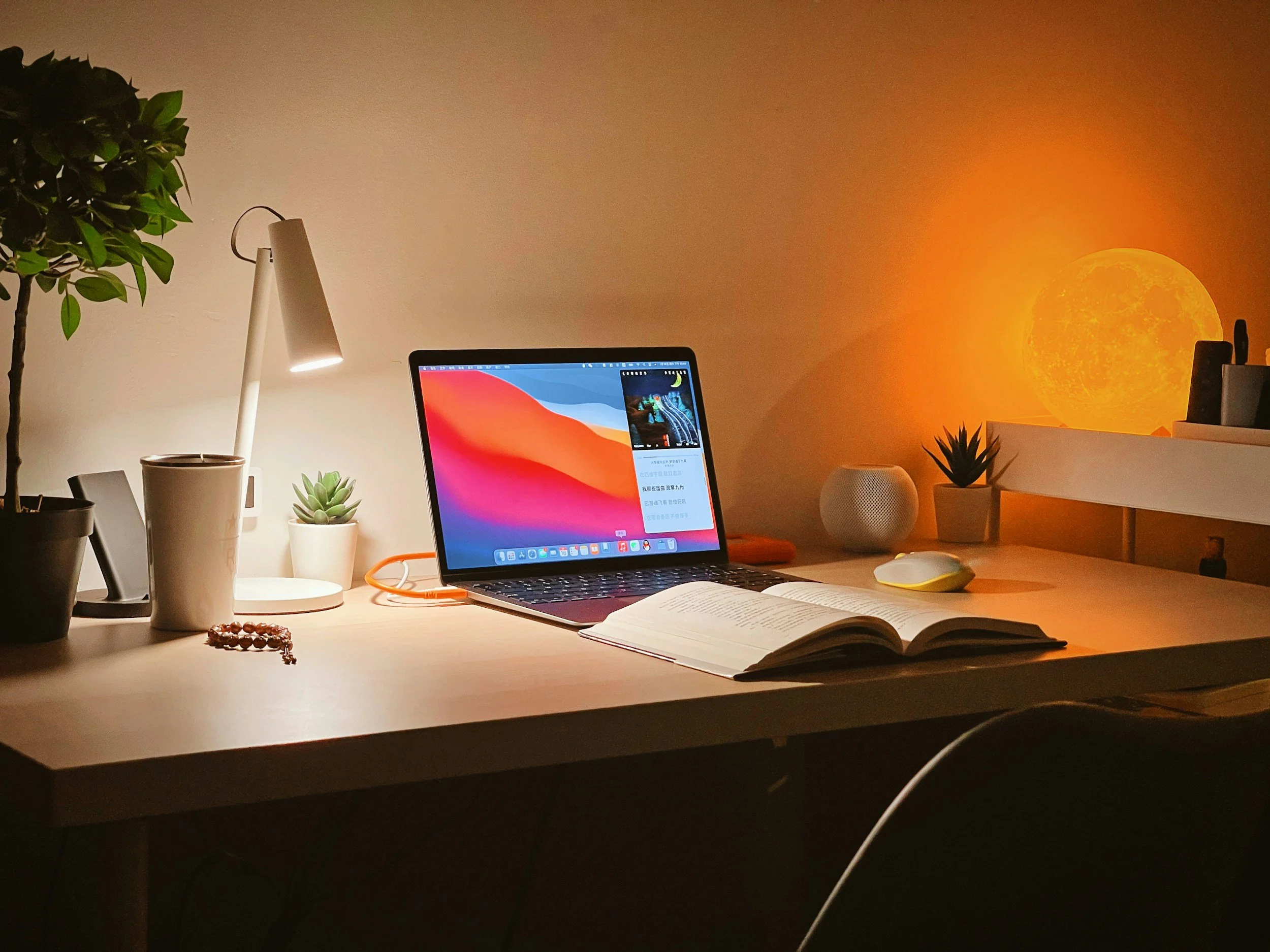
Best value: Apple MacBook Air 15-inch (M5, 2026)
The M5 MacBook Air 15 offers 90% of the MacBook Pro's Lightroom performance at a significantly lower price. The 15-inch Liquid Retina display covers 99% P3 colour. The M5 chip handles standard Lightroom editing tasks including AI Denoise without the fan noise that earlier MacBook Air models produced under sustained load — the M5 has passive cooling that manages sustained workloads well.
16GB RAM is adequate for most photographers. 24GB if you regularly work with 40MP+ files.
Limitation: no ProMotion display (no 120Hz refresh). Not relevant for Lightroom editing.
Best for: photographers who want excellent display quality and strong performance at a more accessible price.
Best Windows laptop: Dell XPS 15 (2026)
The Dell XPS 15 is the best Windows laptop for Lightroom editing. The OLED display option covers 100% DCI-P3 colour space with outstanding contrast. The Intel Core Ultra 7 processor with 32GB RAM handles large RAW files and AI Denoise efficiently.
Limitation: battery life significantly shorter than MacBook options (6-8 hours versus 15-18). The OLED display, while excellent for colour accuracy, contributes to shorter battery life.
Best for: photographers who prefer Windows and want the best available display quality.
Budget option: Apple MacBook Neo (A18 Pro, 2026)
Apple's cheapest laptop ever — starting at $599, or $499 with education pricing — launched in March 2026. The 13-inch Liquid Retina display covers 1 billion colours at 500 nits, which meets the practical colour accuracy requirement for Lightroom editing. Fanless passive cooling means completely silent operation.
The catch for photographers: the MacBook Neo uses the A18 Pro chip from iPhone 16 Pro rather than an M-series chip. For Lightroom specifically, this creates two limitations:
First, the A18 Pro has less Lightroom-specific optimisation than M-series chips. Adobe has optimised Lightroom heavily for M-series. The Neo runs Lightroom well for casual editing but AI Denoise on 40MP+ RAW files is noticeably slower than on an M5 MacBook Air.
Second, the Neo ships with 8GB of unified memory and is not upgradeable. This is workable for small RAW files (24MP and below) and light editing but becomes a constraint with large RAW files, heavy preset libraries, or when running Lightroom alongside browser tabs and other applications.
Best for: photographers starting out, students, and anyone editing phone photos or smaller RAW files as a hobby rather than a profession. If you are editing 40MP+ files regularly or running AI Denoise on volume, the MacBook Air M5 is worth the price difference.
Display calibration
Buying a laptop with good colour coverage is step one. Calibrating it is step two.
Even excellent displays drift over time. A display that shipped covering 100% P3 may cover 94% after two years of use. Hardware calibration tools (Datacolor Spyder, X-Rite ColorMunki) measure the display and create a colour profile that corrects for drift.
For film look editing specifically: calibrate every 3-6 months. The subtle colour qualities that define the film look are exactly the qualities that display drift affects most.
If hardware calibration is not an option: check your edits on a second calibrated screen before delivering or publishing. The export-and-check workflow catches display-specific colour shifts.
External monitor as an alternative
If budget is the constraint, buying a mid-range laptop and adding a calibrated external monitor is a cost-effective approach.
The BenQ SW270C (27-inch, 99% Adobe RGB, hardware calibration) and the Dell UltraSharp U2723DE (99% sRGB, factory calibrated) are both well-regarded monitors for photography editing at mid-range prices.
A mid-range laptop with an external calibrated monitor often produces better editing results than an expensive laptop used with its built-in display alone.
FAQ
Is 8GB RAM enough for Lightroom?
Workable for basic editing but noticeably slow when generating previews, running AI Denoise, or working with files above 24MP. 16GB is the practical minimum for a smooth experience. The MacBook Neo's 8GB works for casual use; for serious editing, the MacBook Air M5 with 16GB is a meaningful upgrade.
Does screen size matter for Lightroom?
Yes for comfort, not for quality. A 13-inch calibrated display produces the same colour accuracy as a 16-inch calibrated display. The difference is working comfort over long editing sessions.
Do I need a dedicated GPU for Lightroom?
No for still photography. Lightroom uses the GPU for GPU-accelerated effects but the difference is minimal compared to CPU and RAM performance. A dedicated GPU matters for video editing in Premiere Pro.
Can I edit professionally on a MacBook Neo?
For mobile phone photos and smaller RAW files: yes. For high-volume professional work with 40MP+ RAW files and regular AI Denoise usage: the MacBook Air M5 is the more appropriate tool. The Neo is excellent as a first Mac or a student laptop; it is not the right tool for sustained high-volume photography workflows.
MacBook or Windows for Lightroom?
MacBook for performance-per-pound and battery life. Windows for specific hardware preferences or software compatibility requirements. Both platforms support Lightroom fully. The display quality of the specific model matters more than the operating system.
