Sale Price:
$27.00
Original Price:
$39.95
Four bold film looks. The widest range in the shop. $6.75 per preset.
Most curated collections stay in one lane. The Heritage Collection does not.
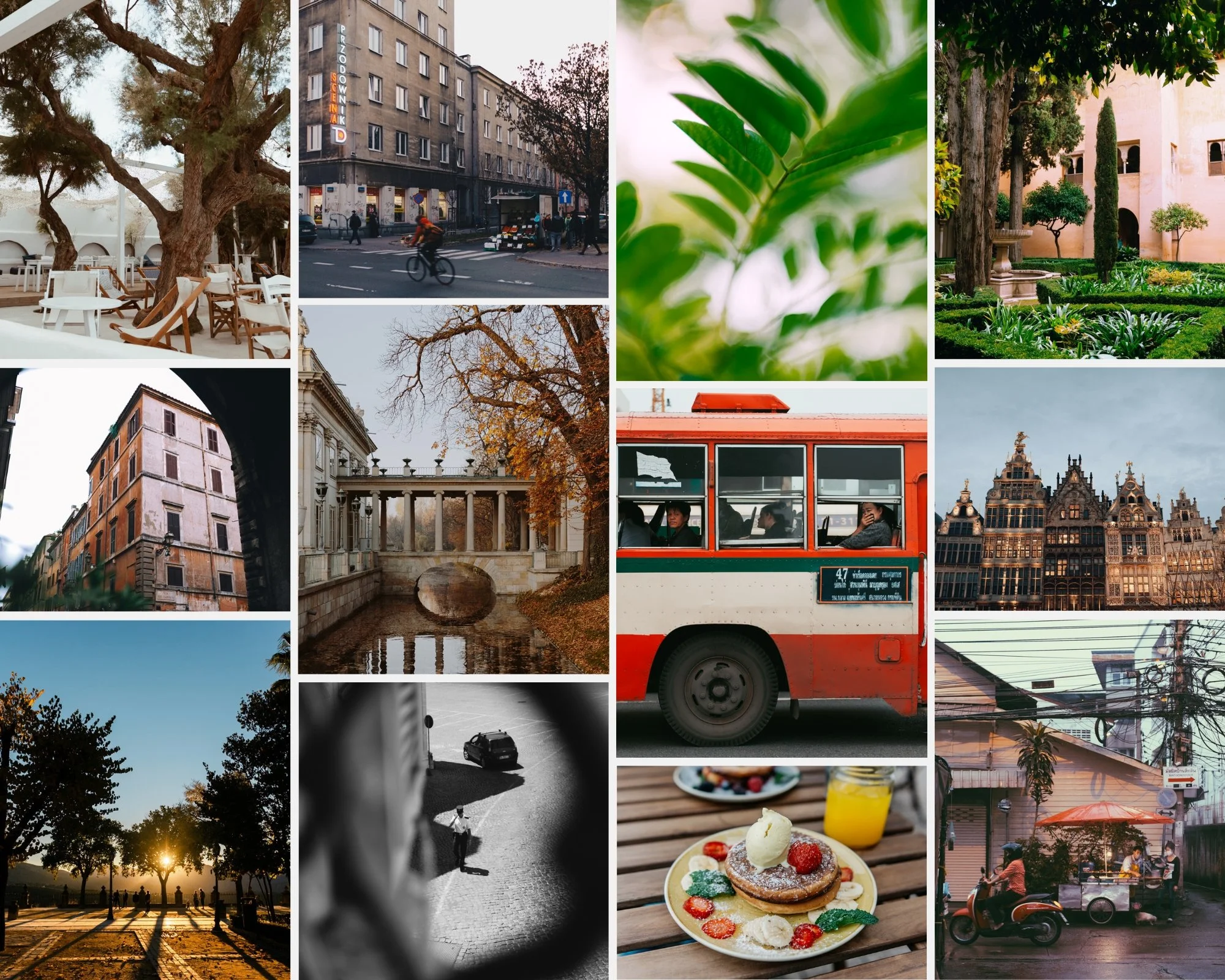
Kodachrome slide film color. Warm cinematic moody. Bright and clean. Expressive dramatic black and white. Four presets that each stand on their own — and together cover more creative territory than any other four-preset collection we make.
✅ Lightroom Mobile & Desktop
✅ Works on RAW and JPEG
✅ Instant download
✅ Lifetime access
THE HERITAGE COLLECTION — 4 PRESETS, MAXIMUM RANGE
The Heritage Collection is for photographers who do not want to be limited to one editing direction.
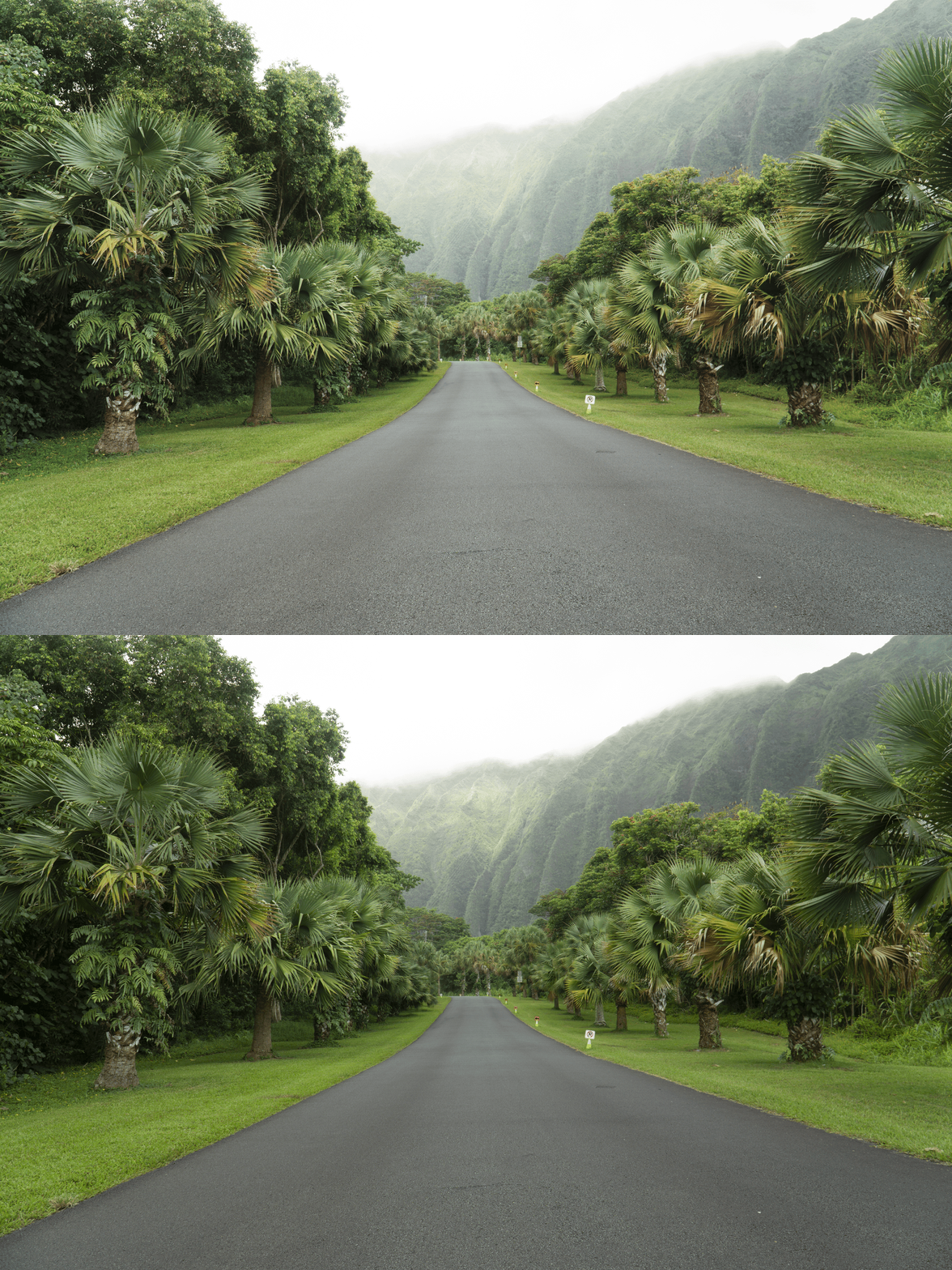
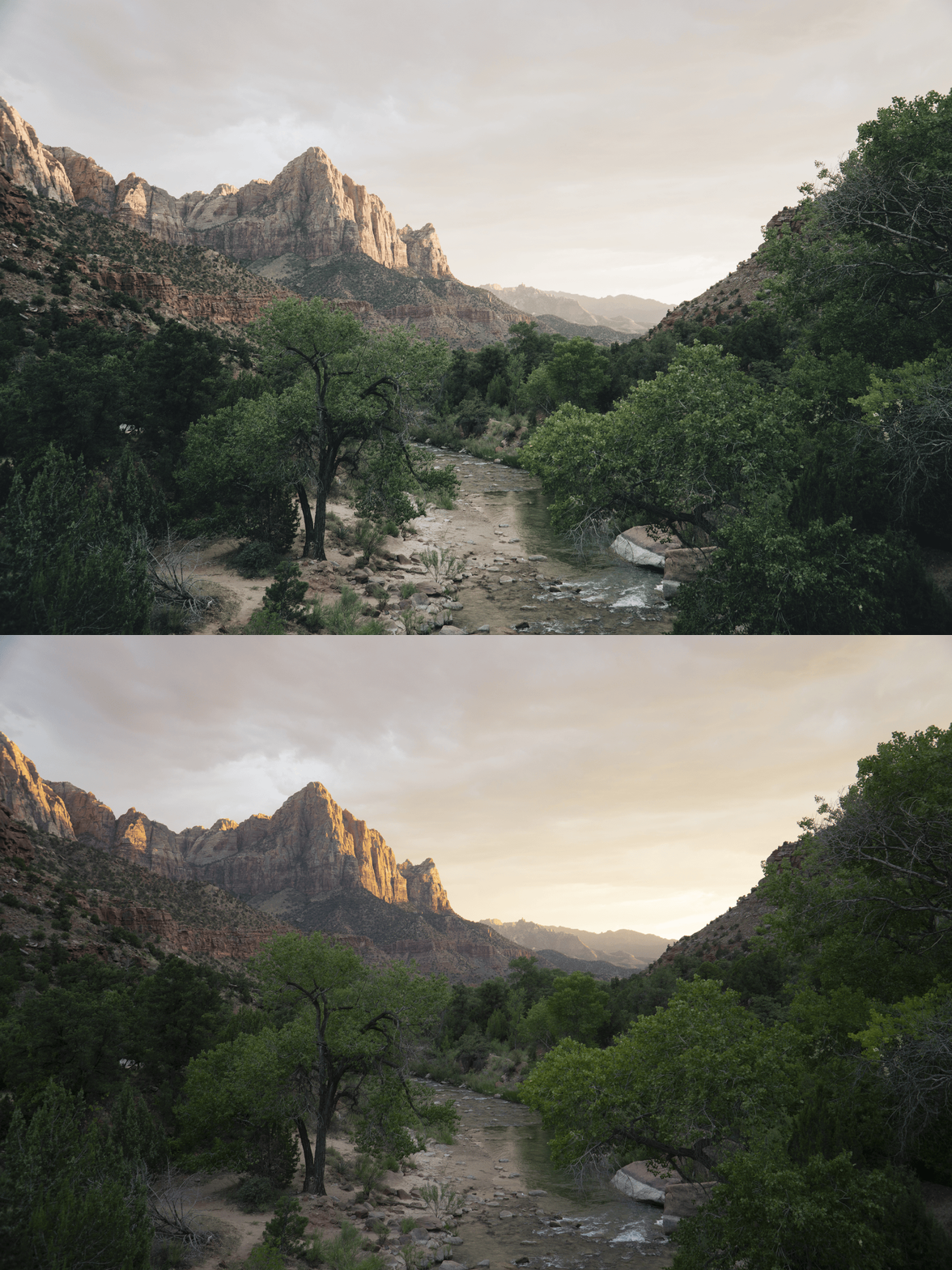
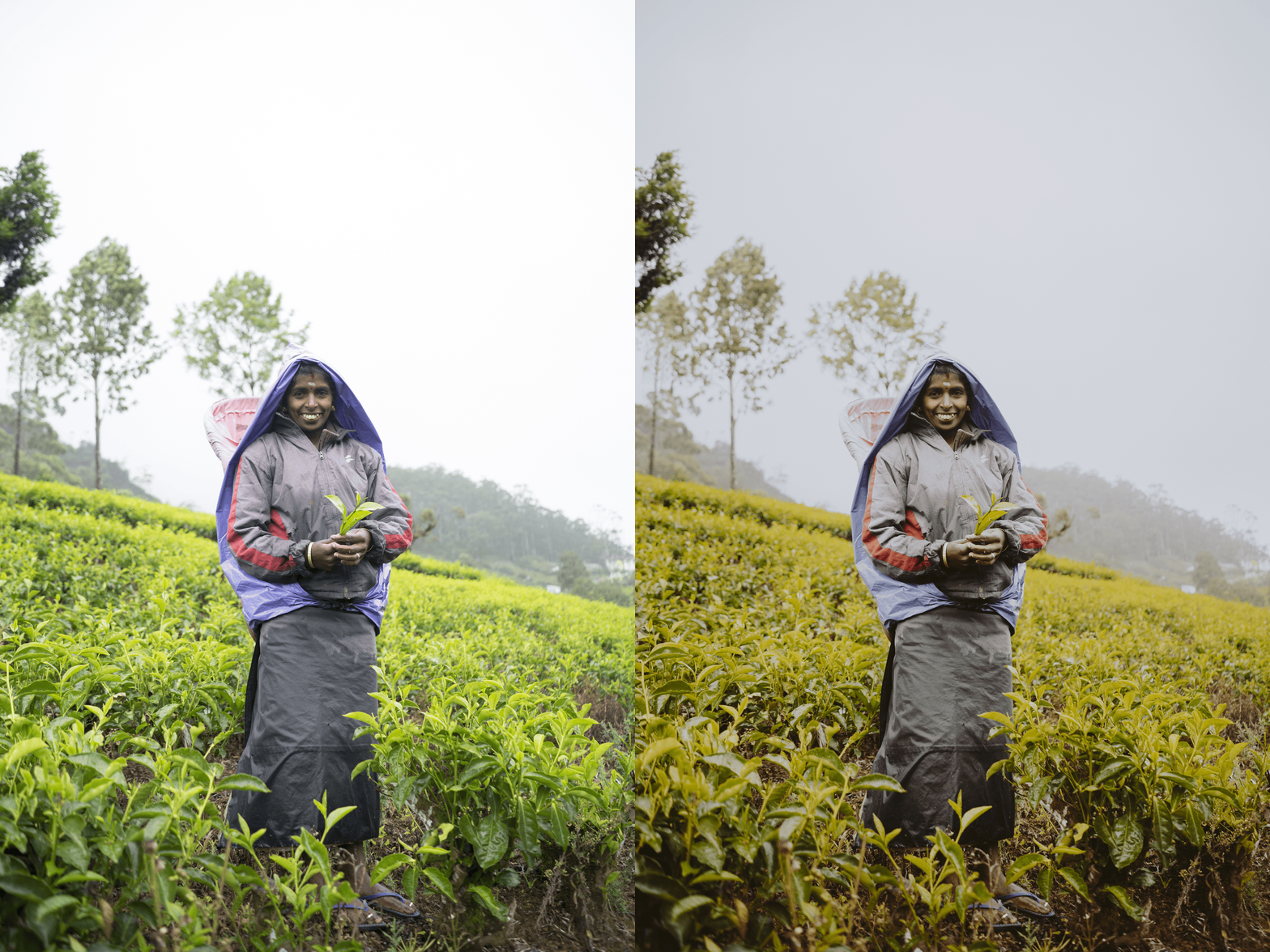
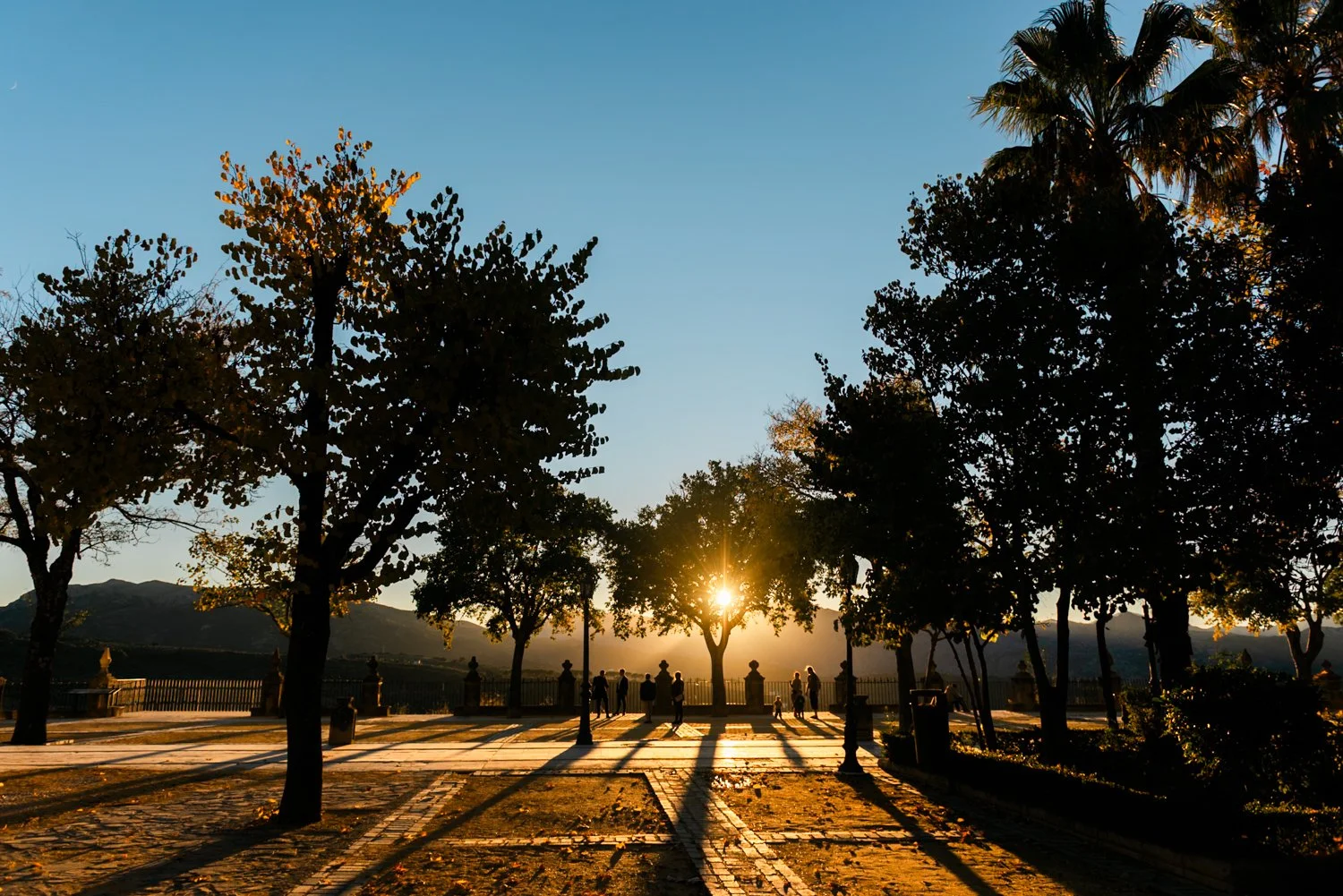
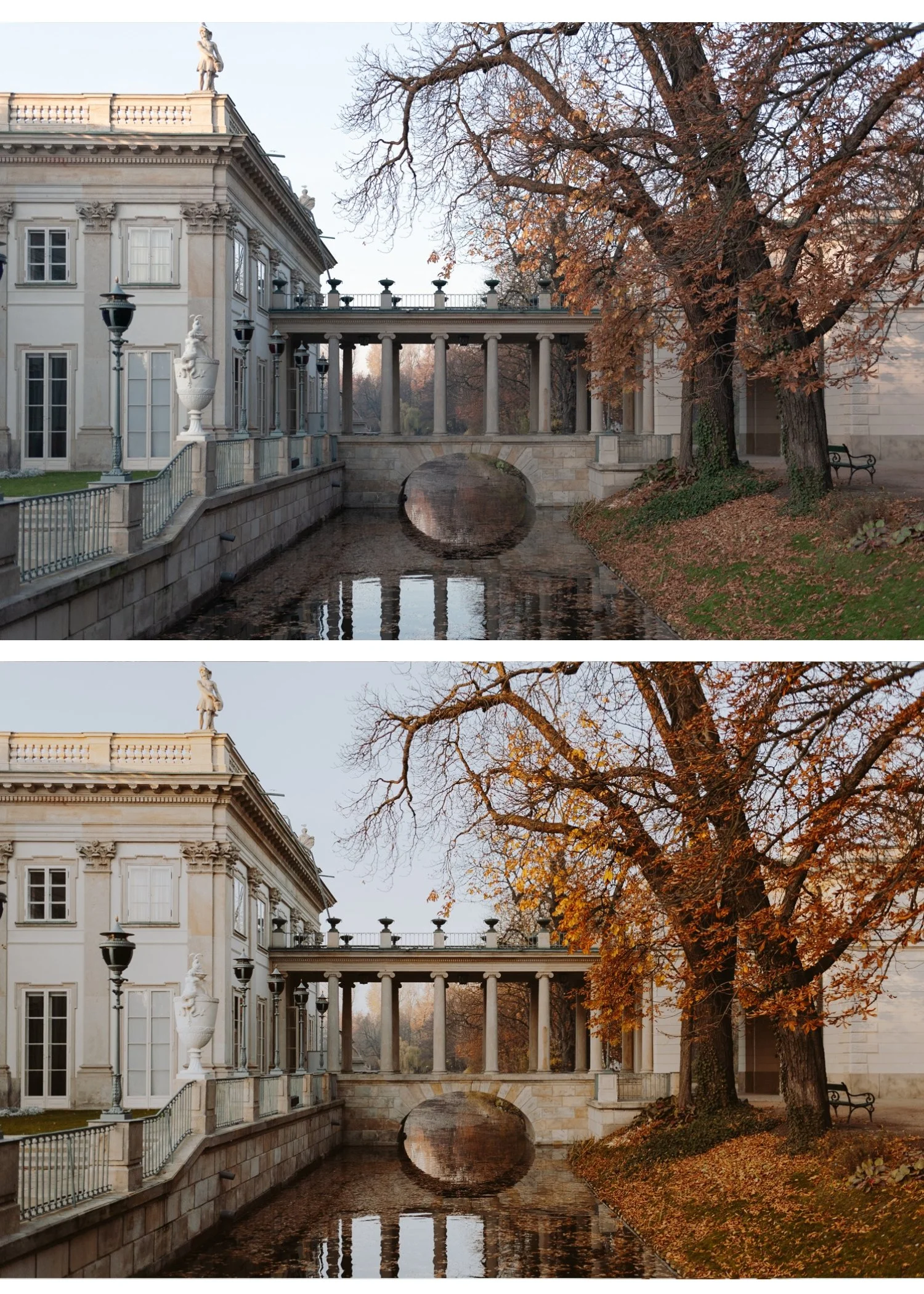
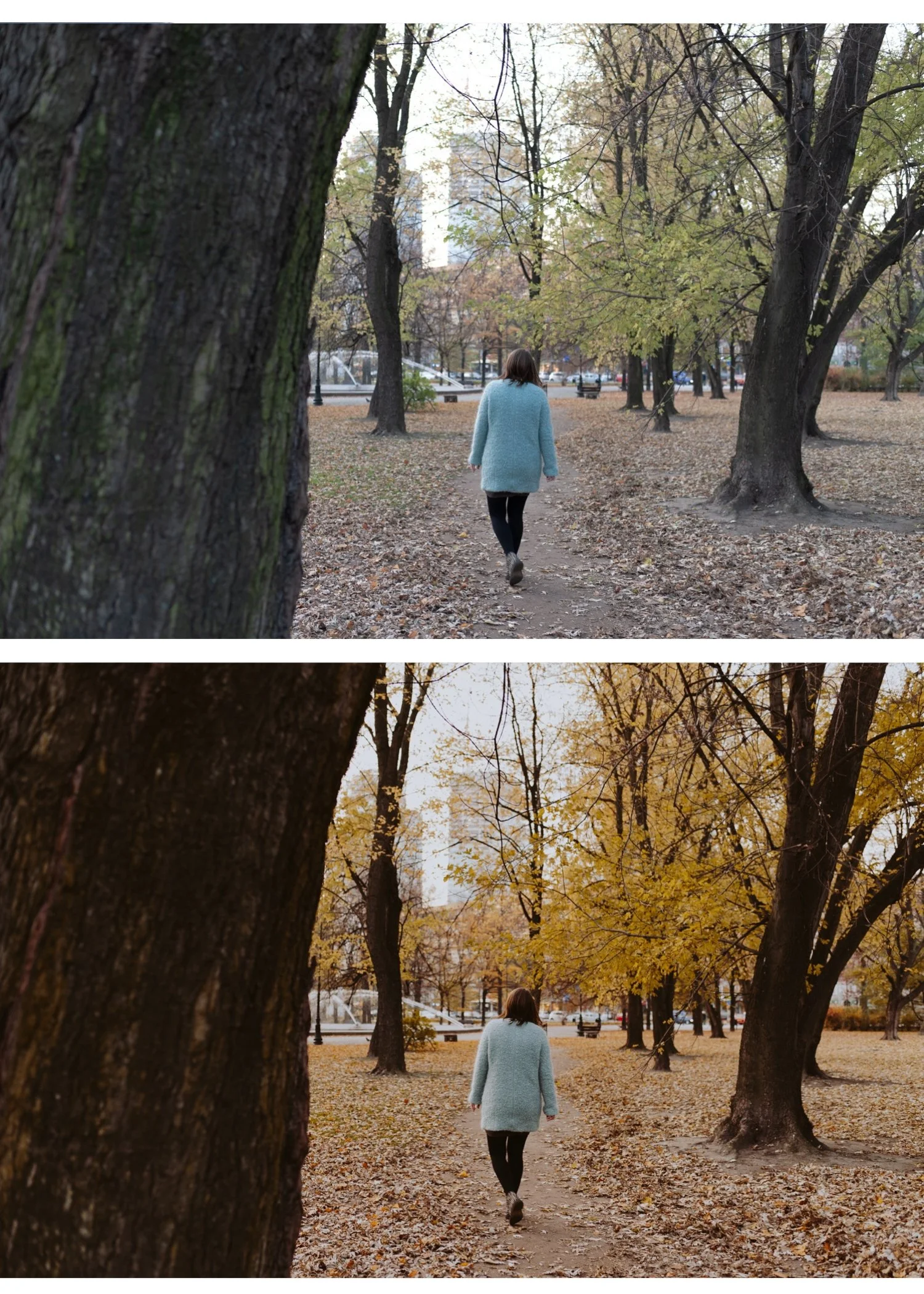
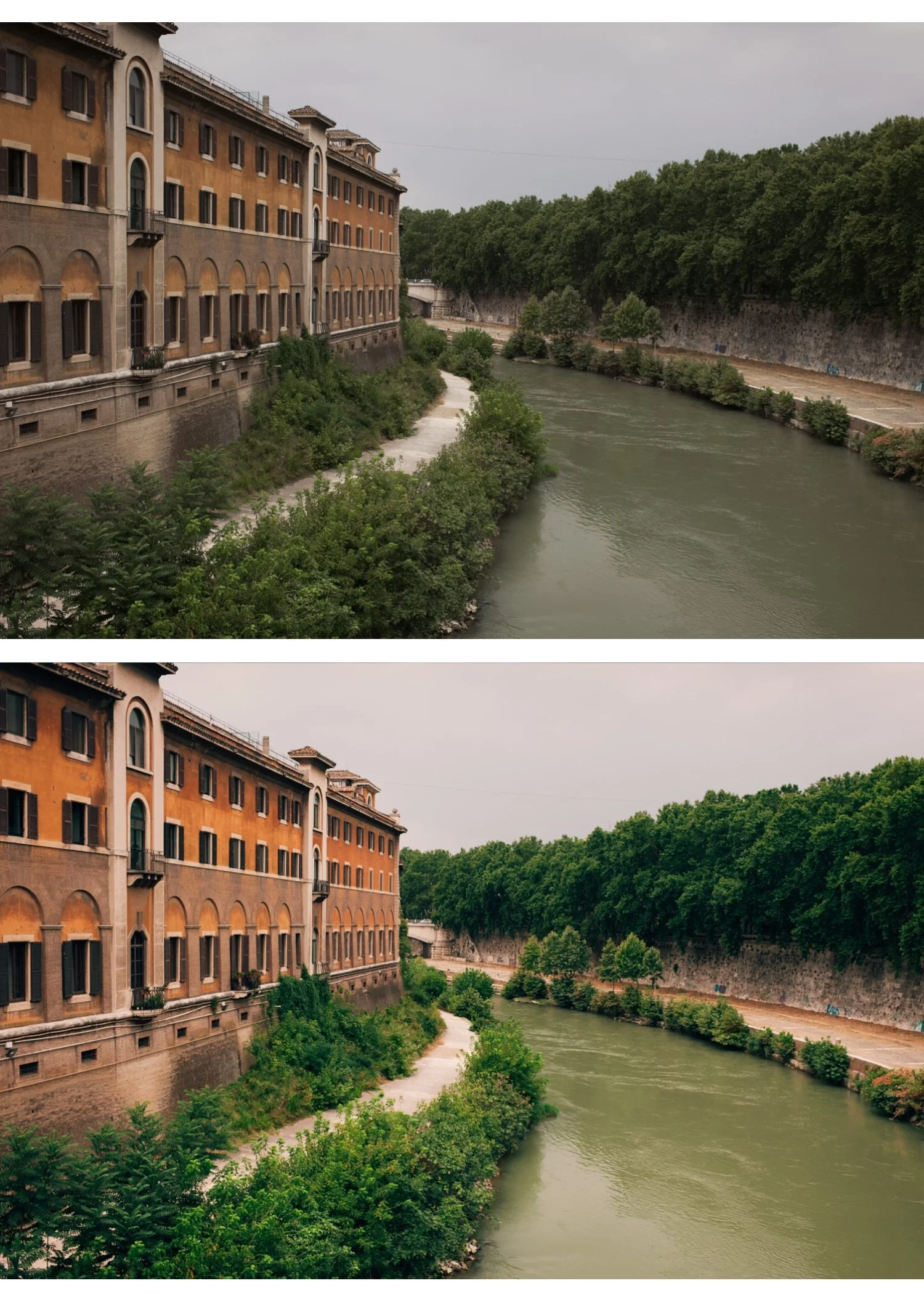
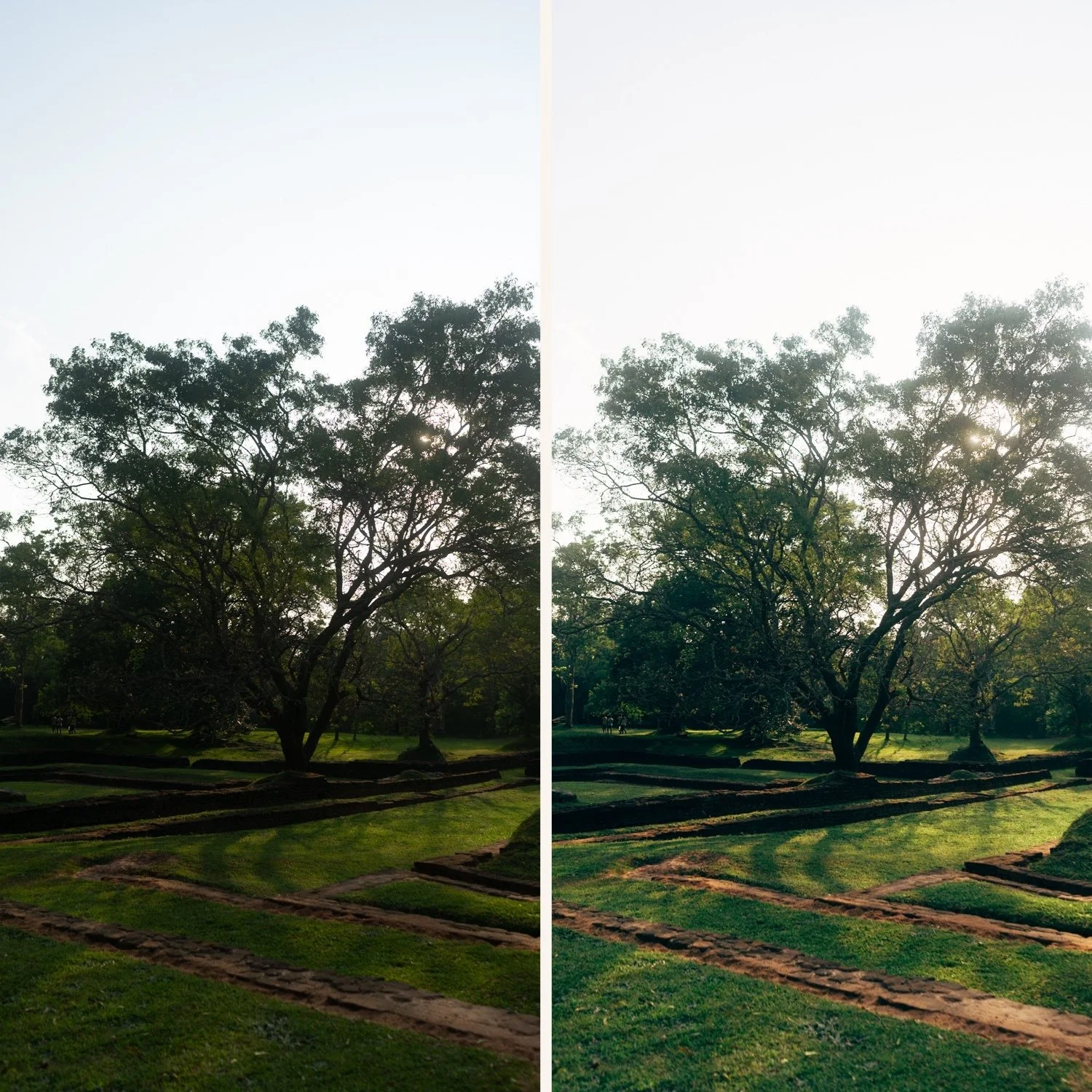
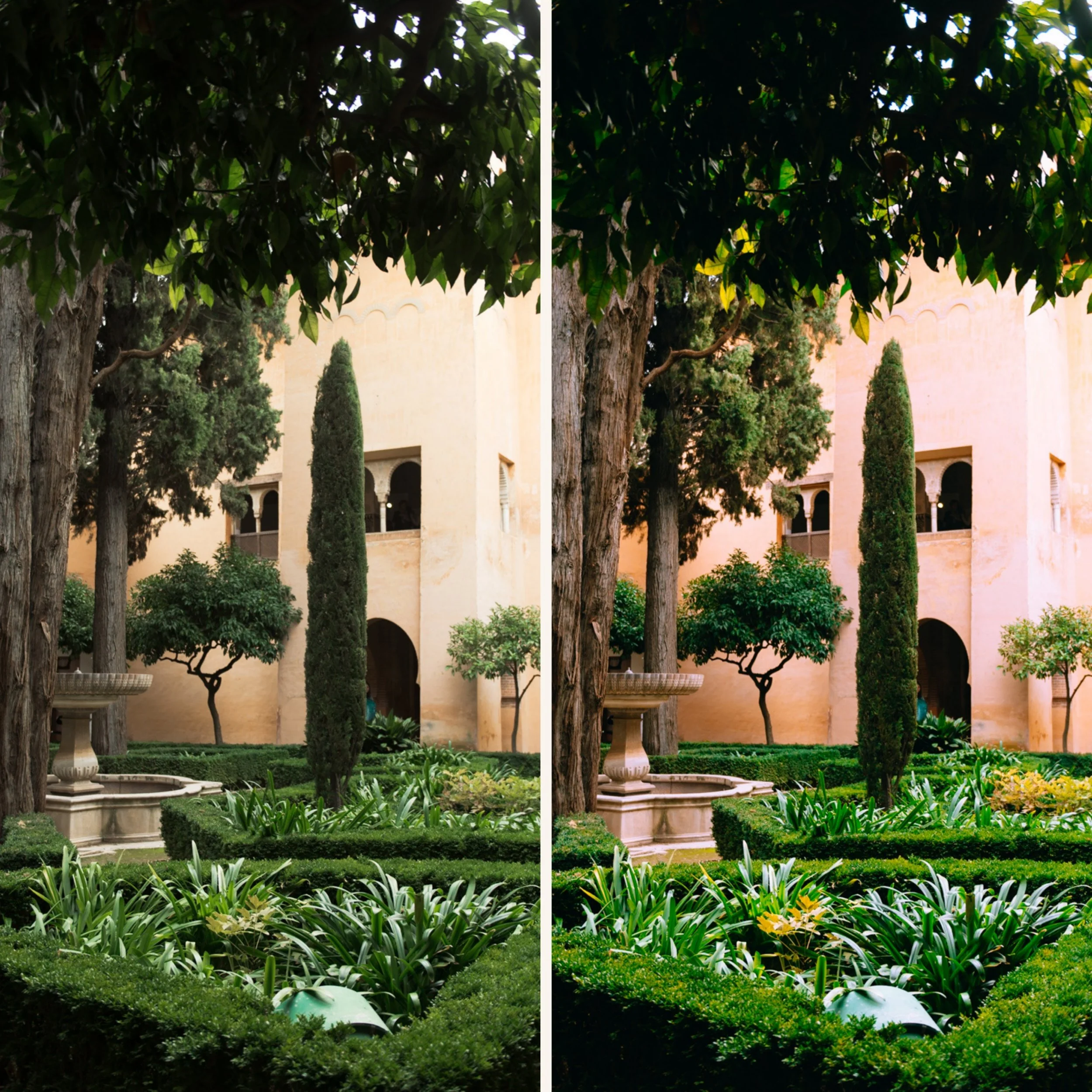
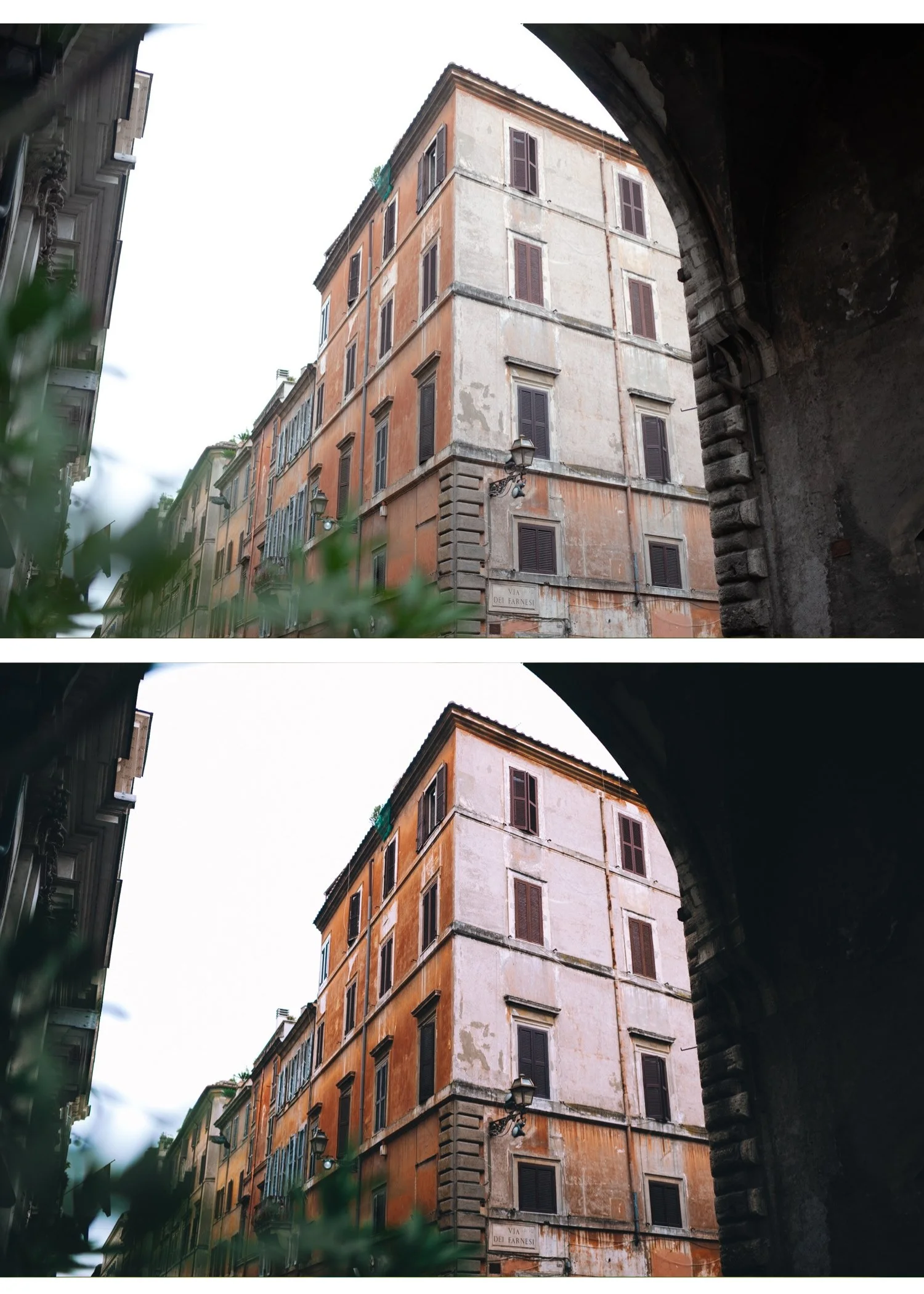
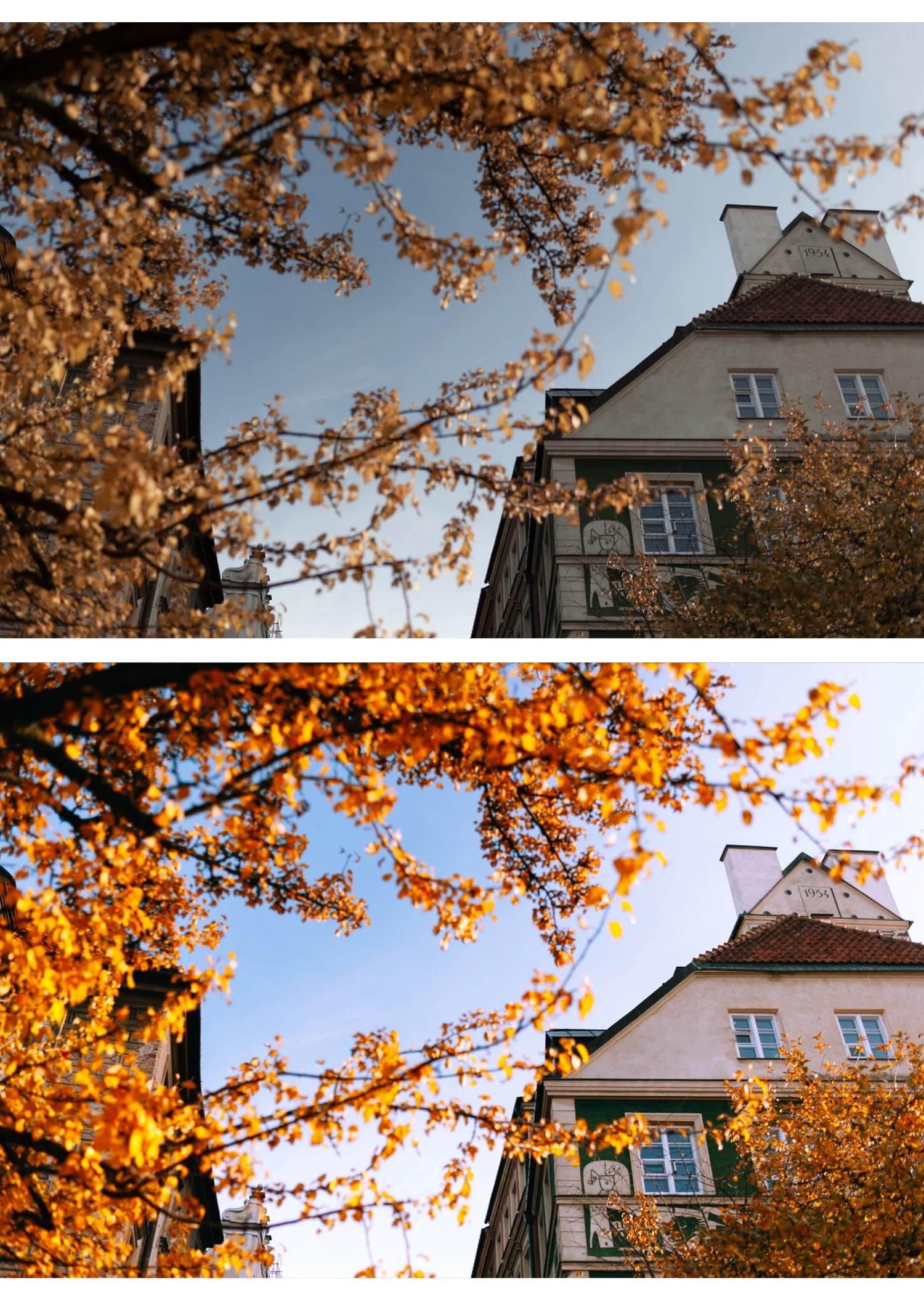
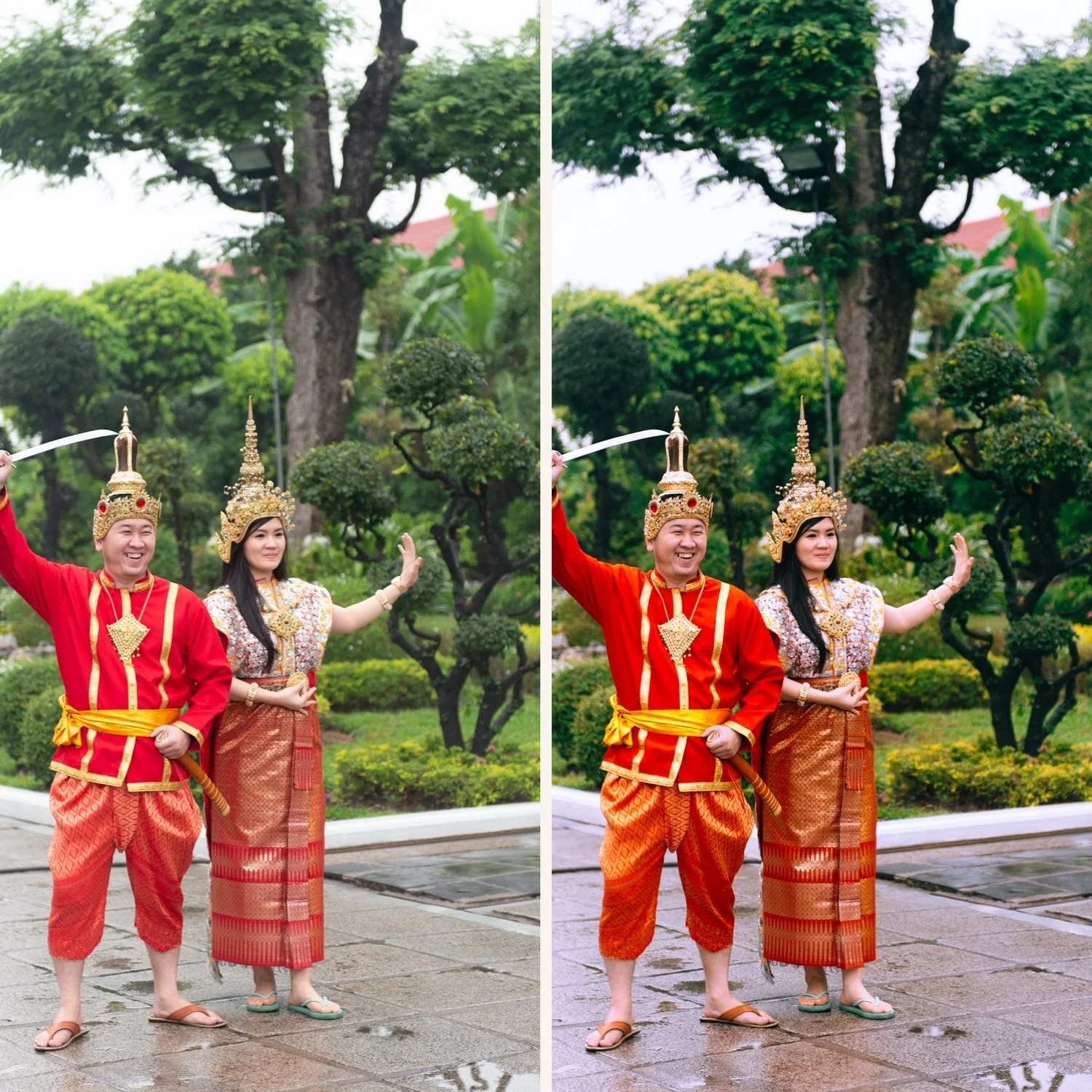
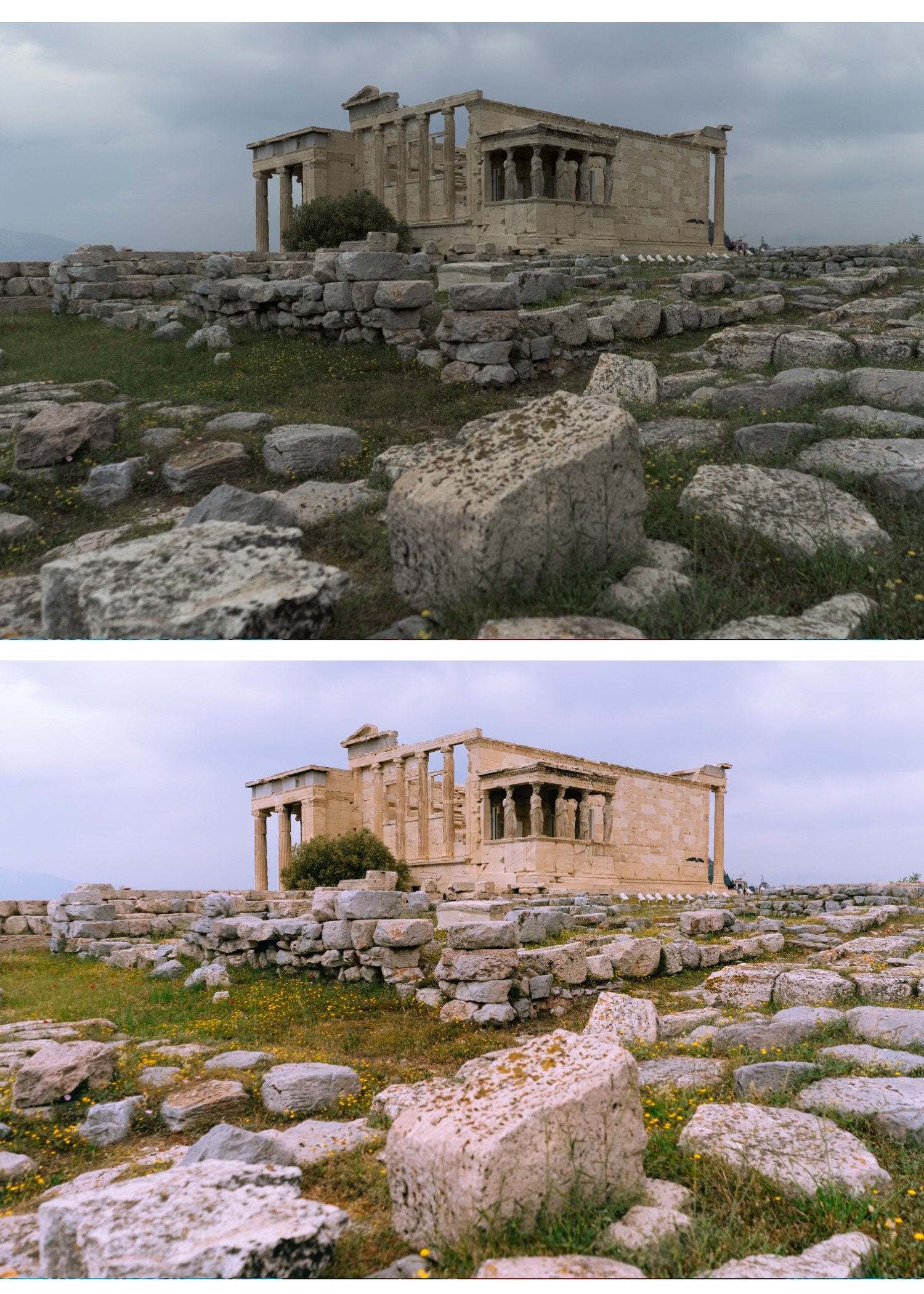
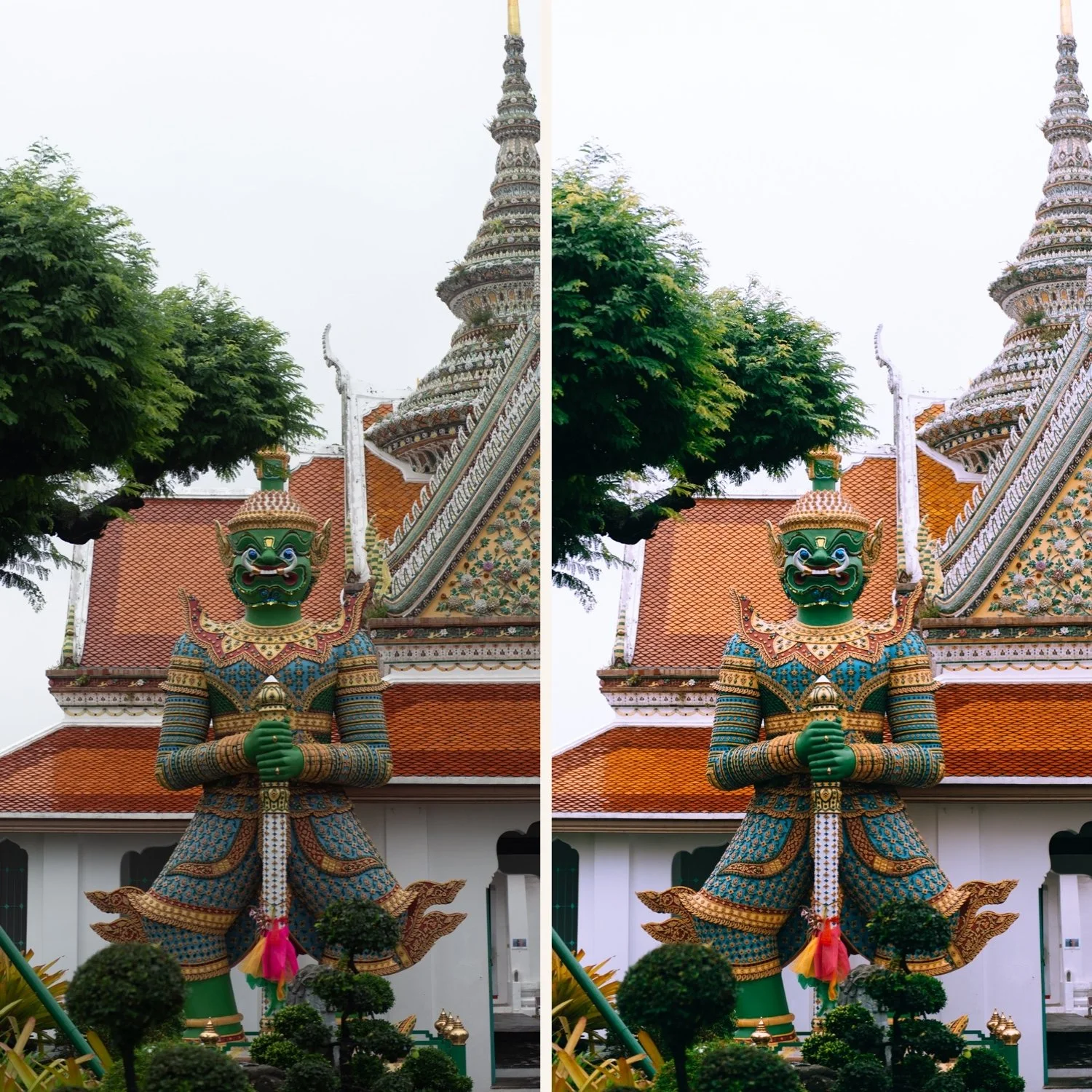
K3 — High Contrast Slide Bold Kodachrome slide film color. Vivid reds and oranges, deep saturated blues, warm natural skin tones with high contrast and a richness that references the golden age of slide photography. The most bold and distinctive color preset in the collection. Best for travel, landscape, and outdoor lifestyle photography where strong color presence is wanted.
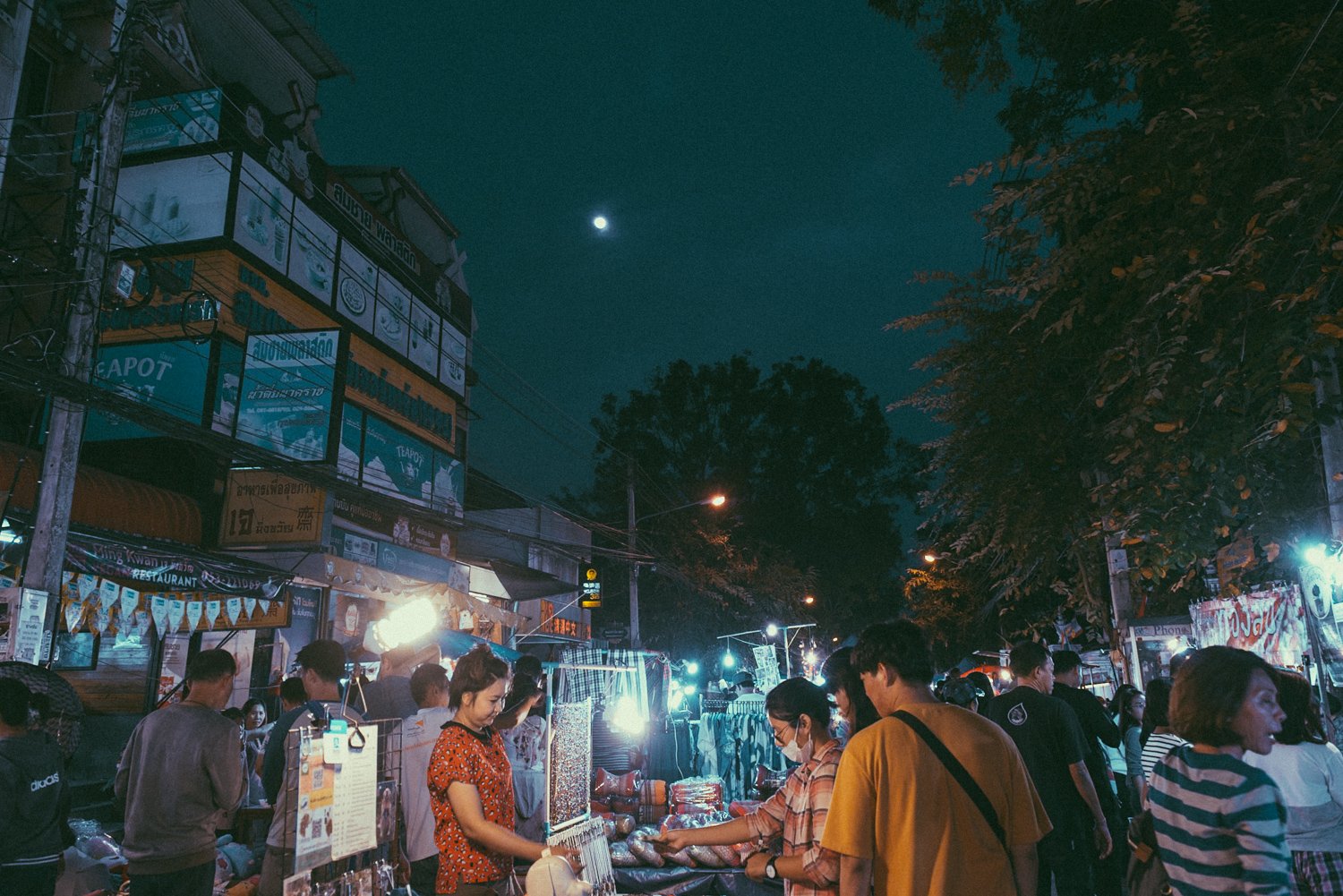
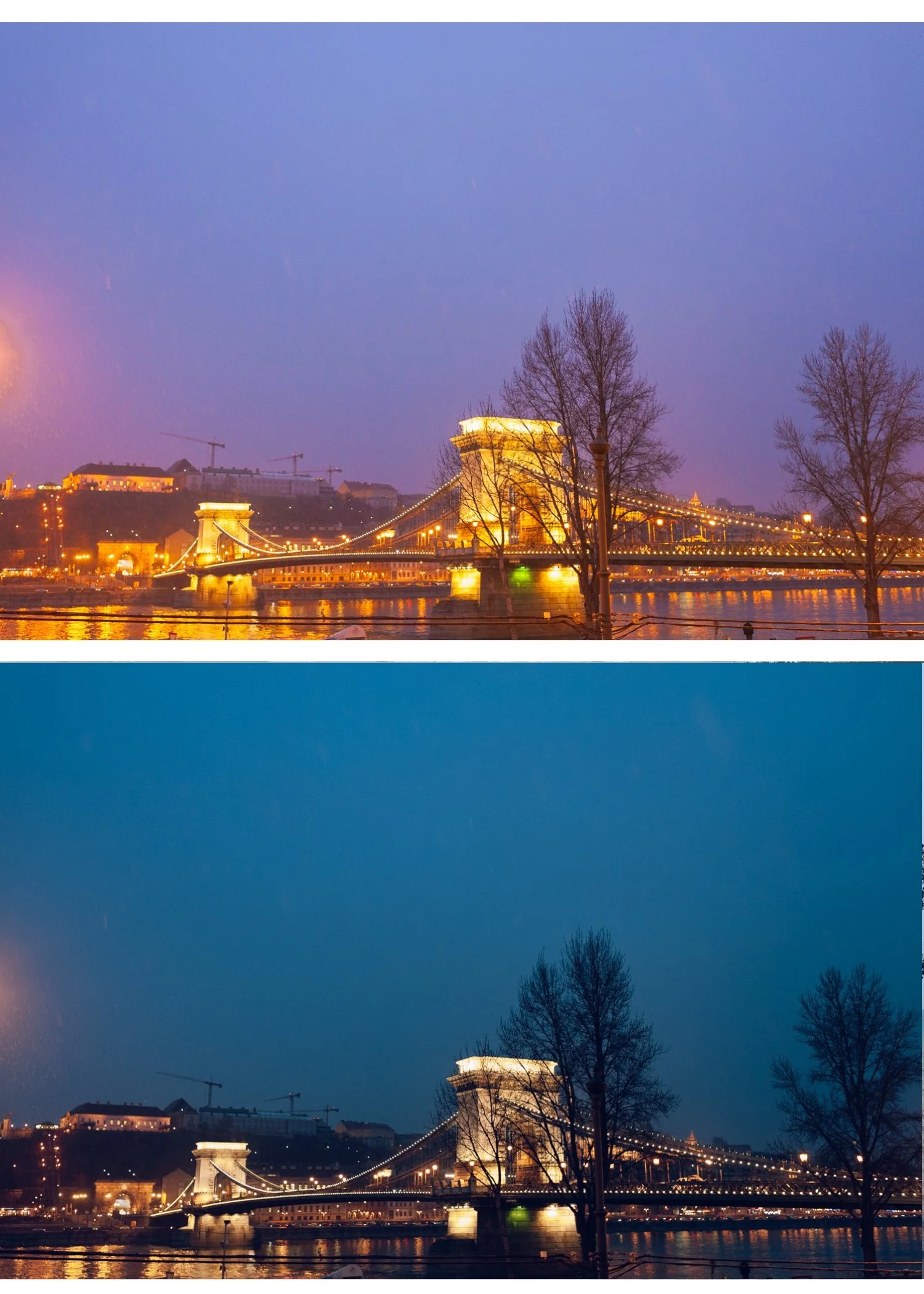
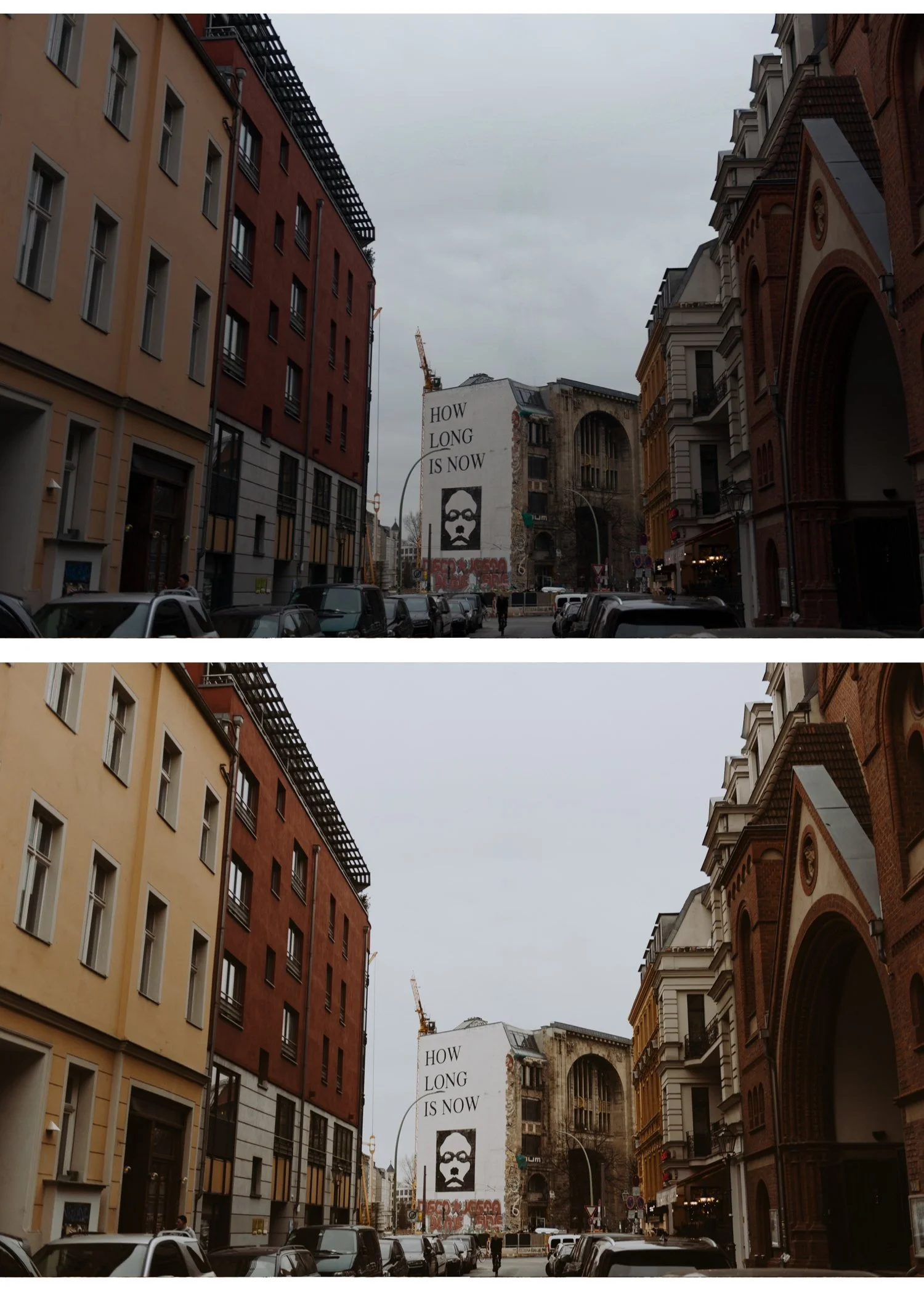
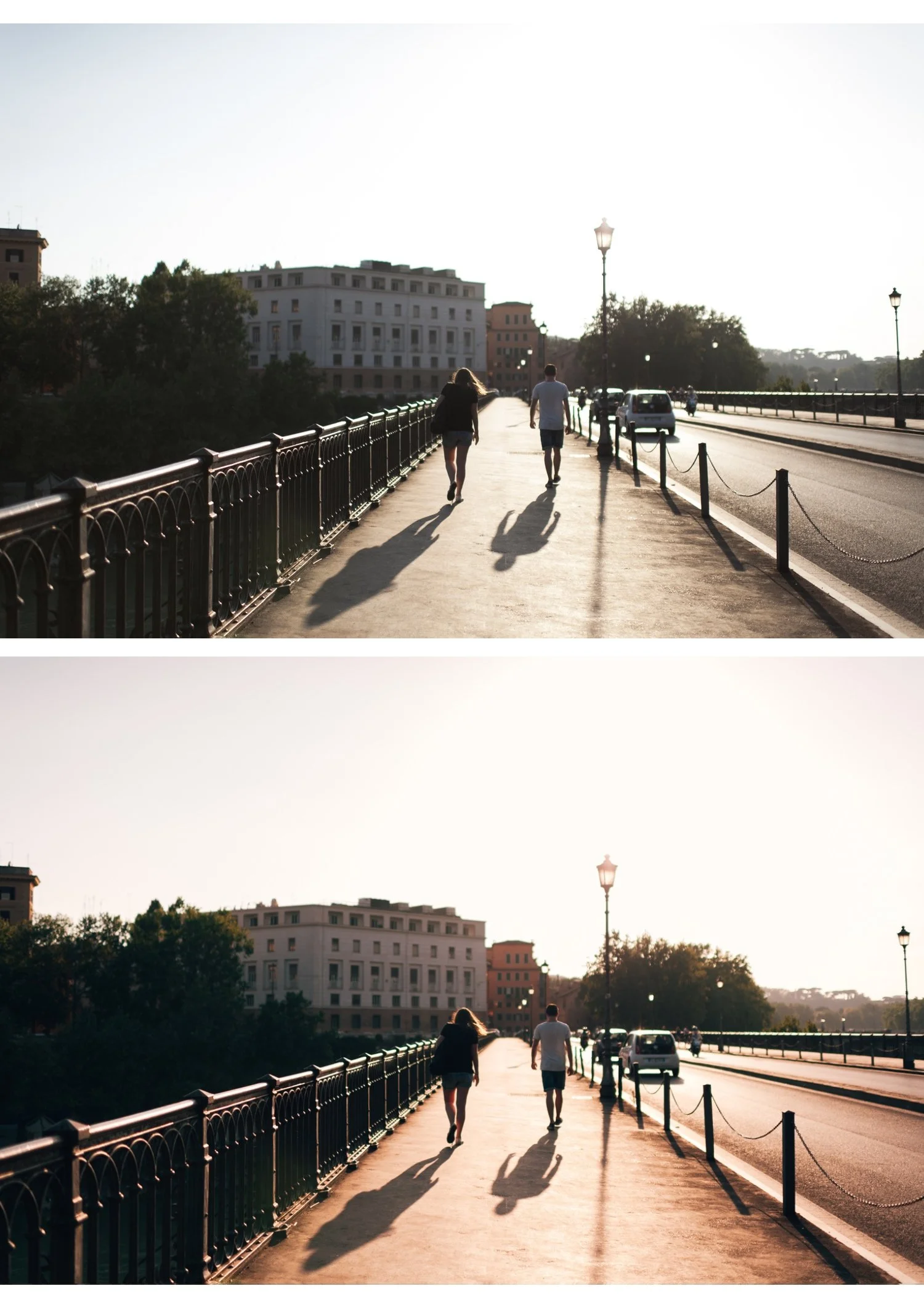
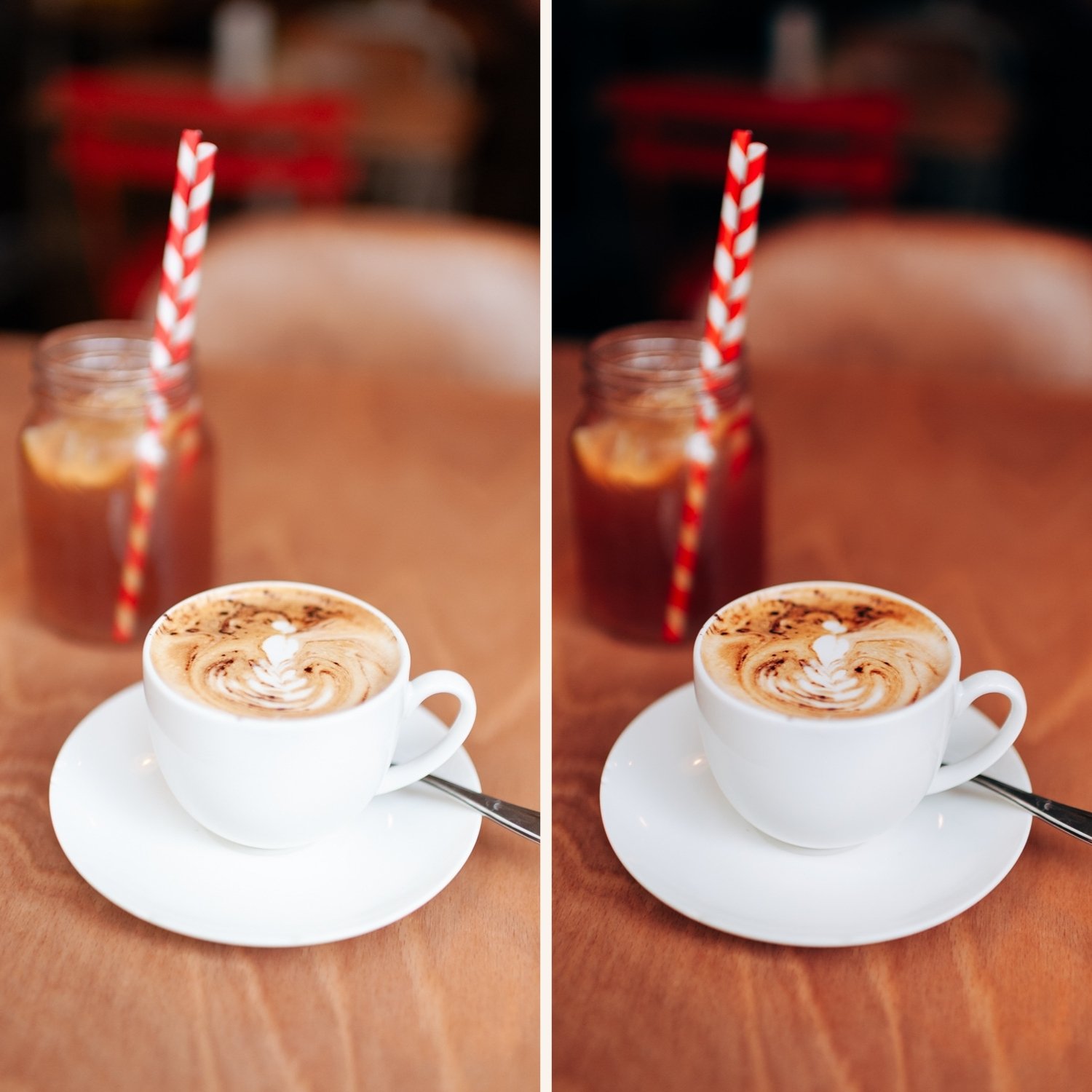
M5 — Warm Dark Warm, cinematic, atmospheric moody quality. Deep shadows with warm color grading, muted overall palette, emotional depth. The signature moody film look — works for street photography, moody portraits, and atmospheric travel where the editing adds weight and intention.
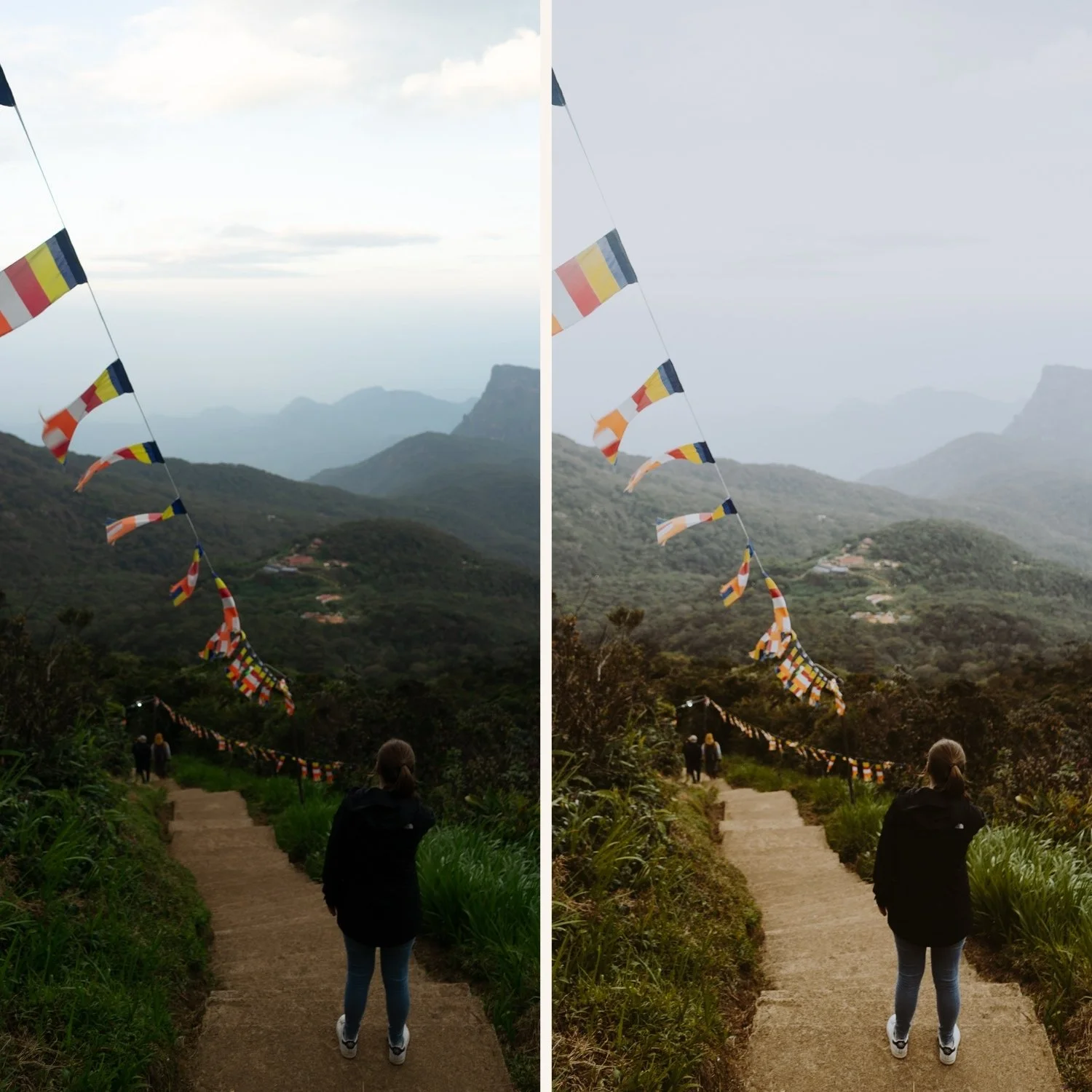
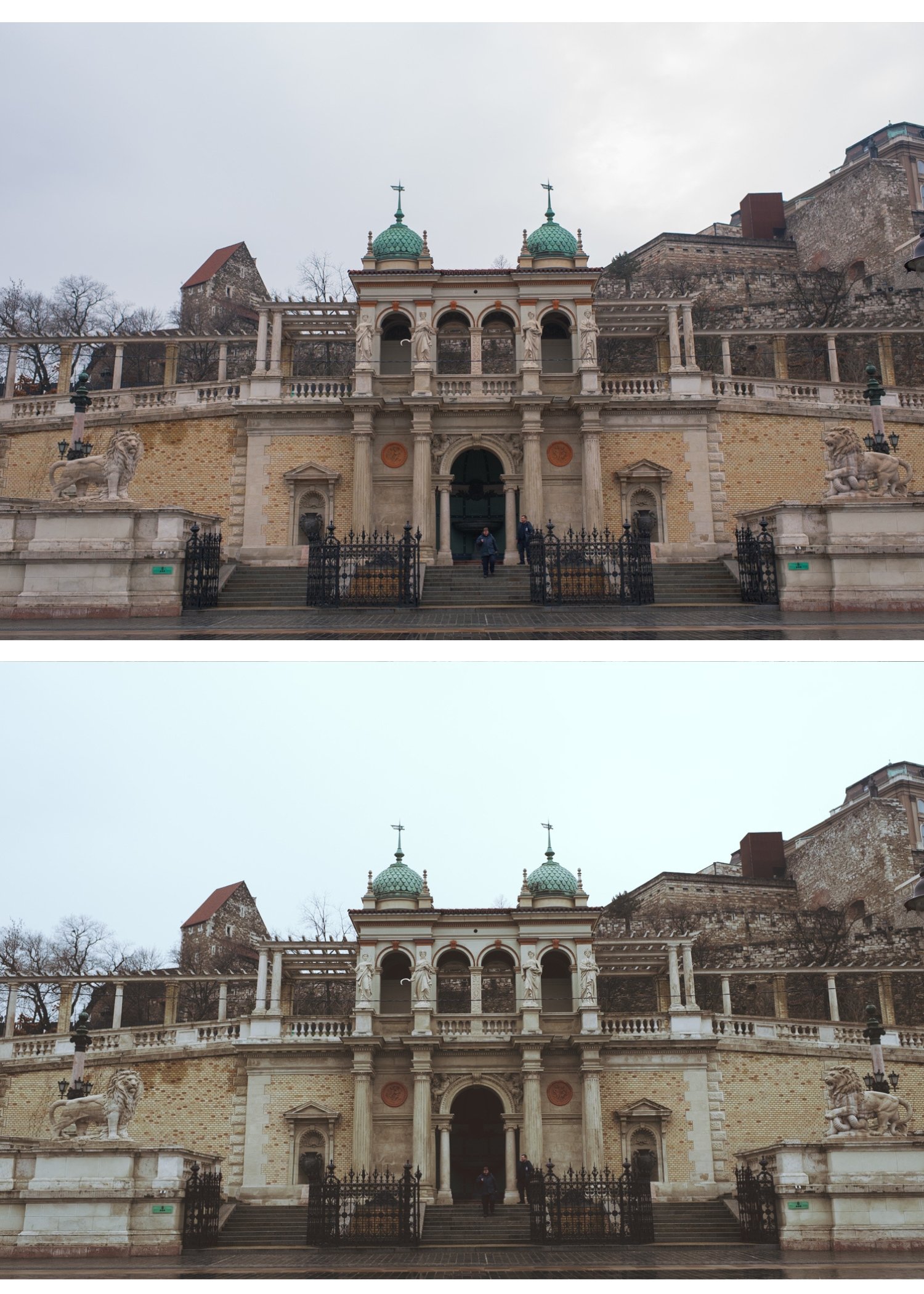
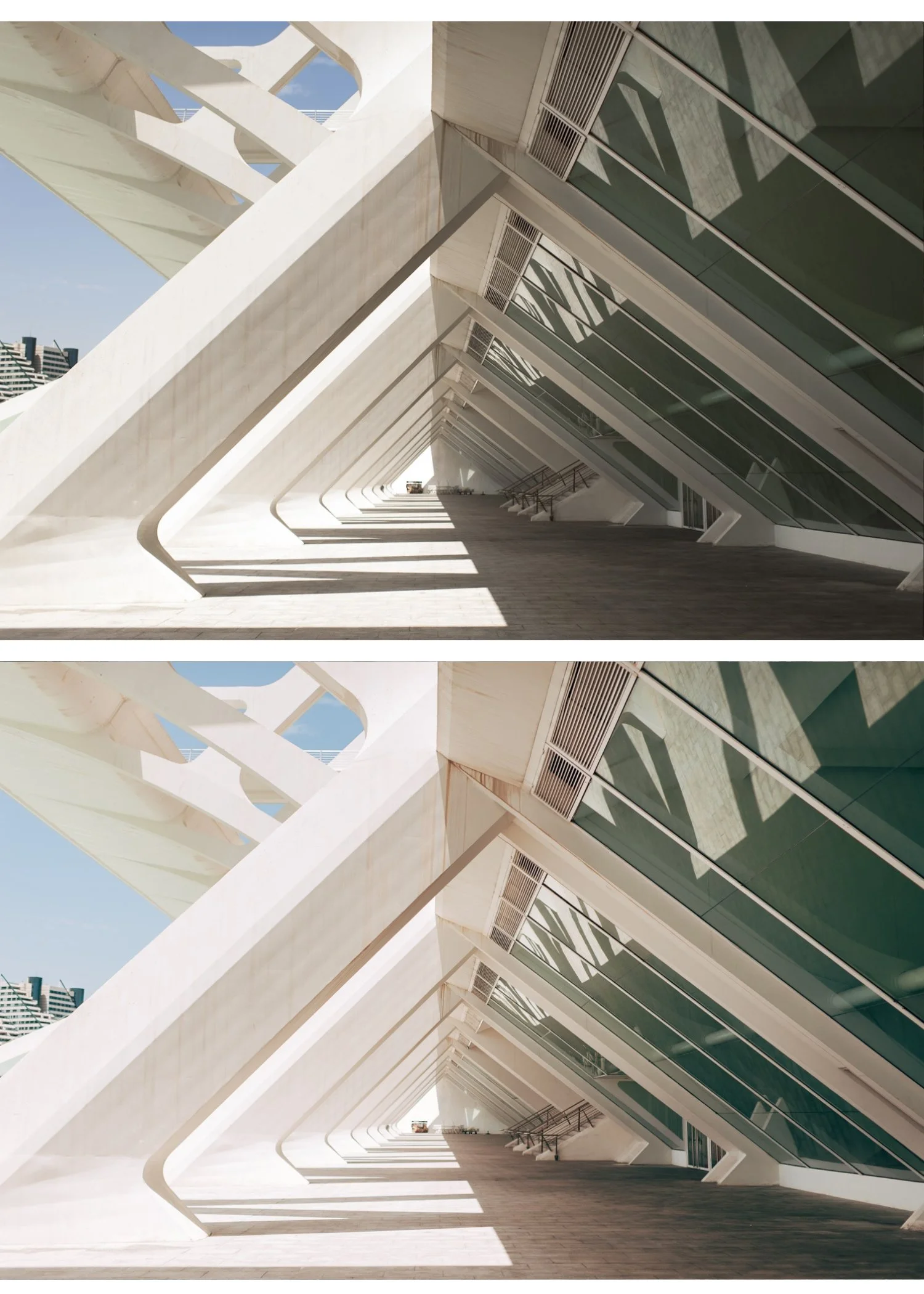
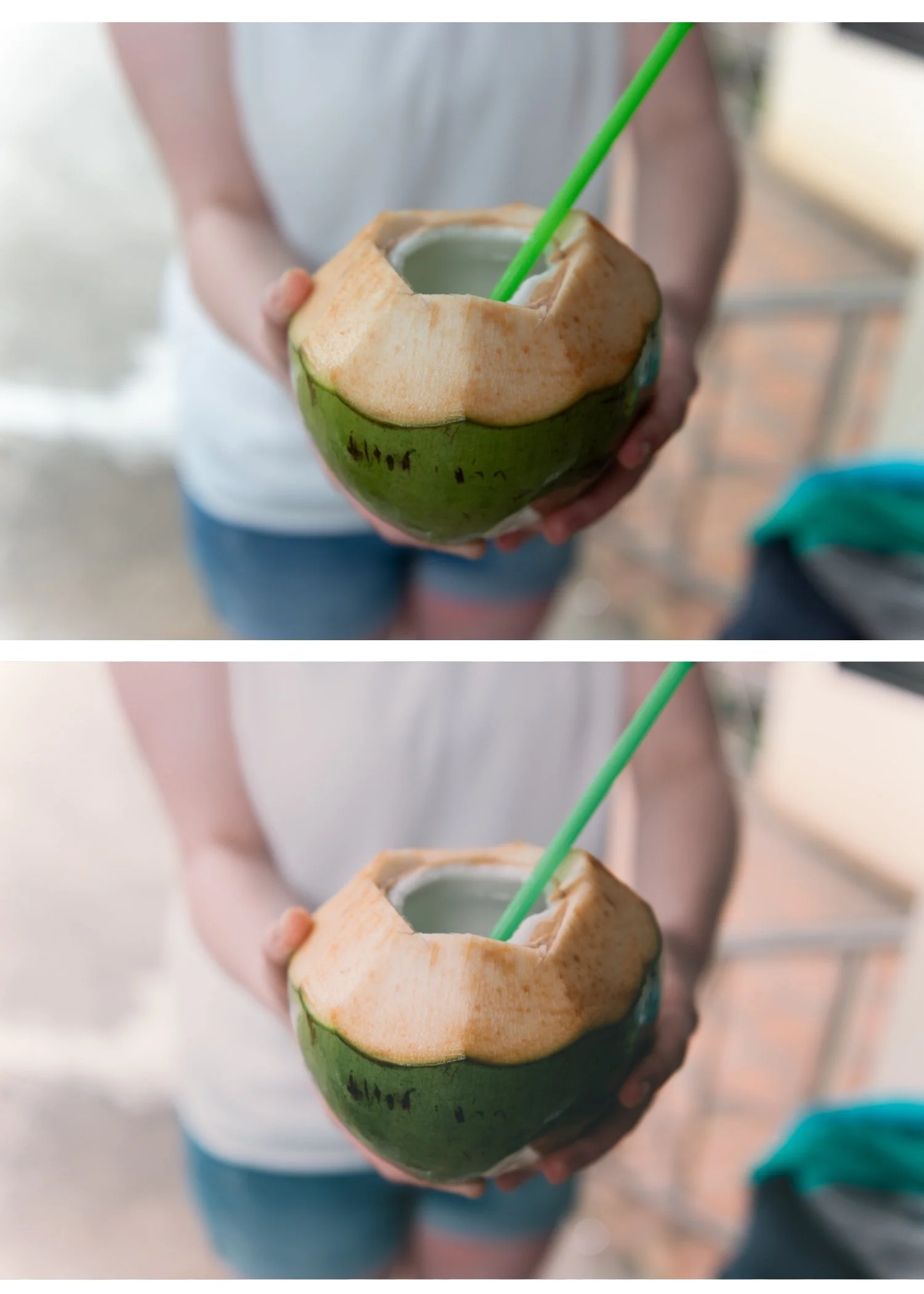
S2 — Dreamy Soft Bright, soft, luminous. Lifted highlights with a dreamy pastel quality. The clean, modern counterpart to the bold and moody presets in this collection. Best for lifestyle content, portrait photography, and any scenario where effortless and bright is the goal.
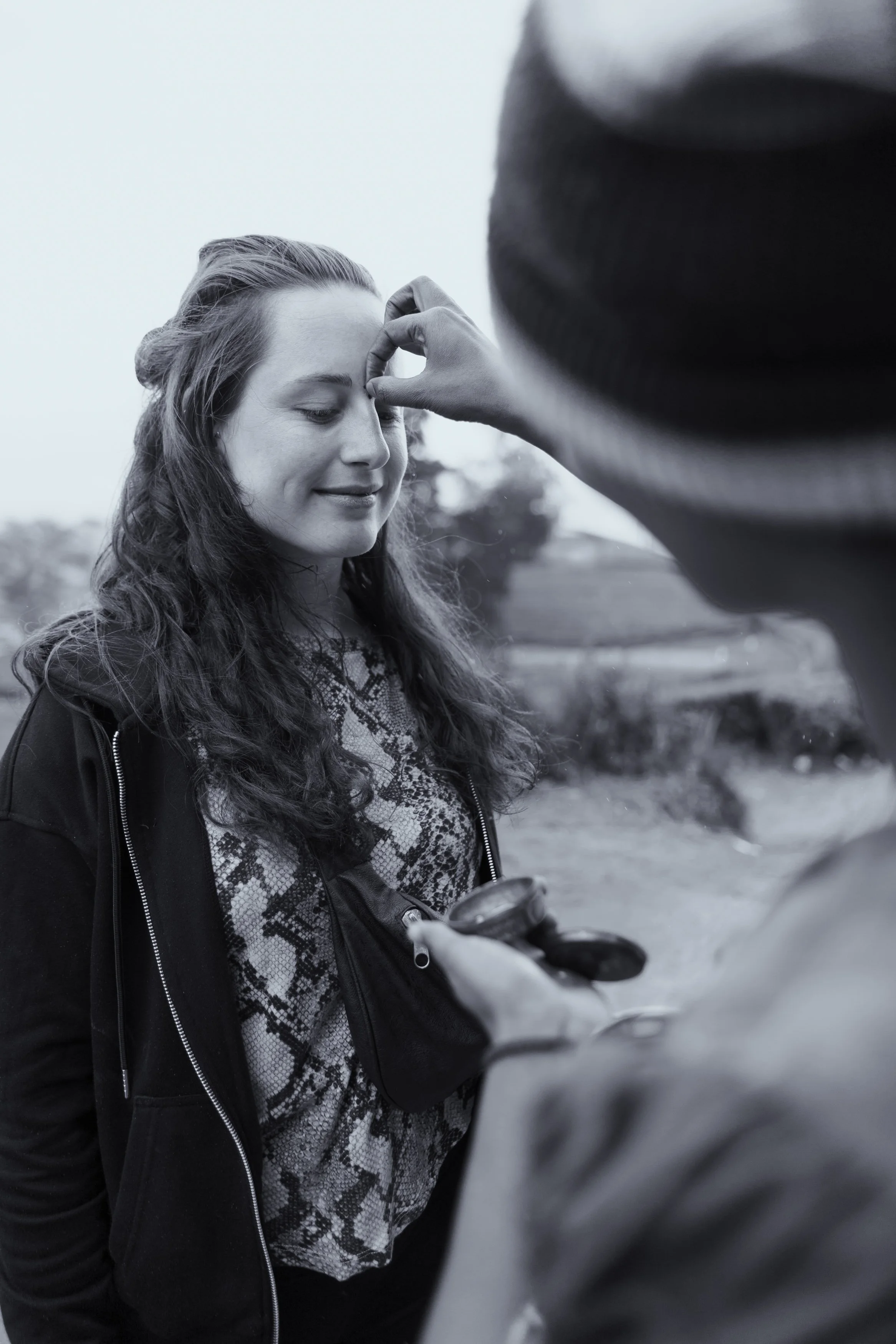
X6 — Grain Forward Maximum grain character dramatic black and white. Raw, textured, and expressive. The boldest B&W preset in the shop — grain is deliberate and visible, adding documentary character to street photography, portraits, and any subject where the grain is part of the visual statement.
Bold color, moody depth, bright clean, expressive B&W — all in one collection
No other four-preset collection in the shop covers this much creative ground.
K3 for when you want bold, vivid film color with maximum presence. M5 for atmospheric moody depth. S2 for clean bright modern quality. X6 for expressive dramatic monochrome.
A collection for photographers who want options, not limitations.
$6.75 per preset.
Four bold film looks. The widest range in the shop. $6.75 per preset.
Most curated collections stay in one lane. The Heritage Collection does not.
Kodachrome slide film color. Warm cinematic moody. Bright and clean. Expressive dramatic black and white. Four presets that each stand on their own — and together cover more creative territory than any other four-preset collection we make.
✅ Lightroom Mobile & Desktop
✅ Works on RAW and JPEG
✅ Instant download
✅ Lifetime access
THE HERITAGE COLLECTION — 4 PRESETS, MAXIMUM RANGE
The Heritage Collection is for photographers who do not want to be limited to one editing direction.
K3 — High Contrast Slide Bold Kodachrome slide film color. Vivid reds and oranges, deep saturated blues, warm natural skin tones with high contrast and a richness that references the golden age of slide photography. The most bold and distinctive color preset in the collection. Best for travel, landscape, and outdoor lifestyle photography where strong color presence is wanted.
M5 — Warm Dark Warm, cinematic, atmospheric moody quality. Deep shadows with warm color grading, muted overall palette, emotional depth. The signature moody film look — works for street photography, moody portraits, and atmospheric travel where the editing adds weight and intention.
S2 — Dreamy Soft Bright, soft, luminous. Lifted highlights with a dreamy pastel quality. The clean, modern counterpart to the bold and moody presets in this collection. Best for lifestyle content, portrait photography, and any scenario where effortless and bright is the goal.
X6 — Grain Forward Maximum grain character dramatic black and white. Raw, textured, and expressive. The boldest B&W preset in the shop — grain is deliberate and visible, adding documentary character to street photography, portraits, and any subject where the grain is part of the visual statement.
Bold color, moody depth, bright clean, expressive B&W — all in one collection
No other four-preset collection in the shop covers this much creative ground.
K3 for when you want bold, vivid film color with maximum presence. M5 for atmospheric moody depth. S2 for clean bright modern quality. X6 for expressive dramatic monochrome.
A collection for photographers who want options, not limitations.
$6.75 per preset.
 Image 1 of 1