iPhone Film Look Editing Guide — Lightroom Mobile
iPhone Film Look Editing Guide — Lightroom Mobile
iPhone photography has specific characteristics that make film-look editing behave differently from camera RAW editing. The iPhone applies significant computational processing before you ever open the image in Lightroom — sharpening, HDR blending, contrast adjustments, and color rendering that would not exist in an unprocessed RAW file. Understanding what the iPhone has already done to your image is what allows you to edit on top of it successfully rather than fighting against it.
This guide covers the specific adjustments, preset strengths, and workflow steps that produce clean film results on iPhone photos in Lightroom Mobile.

What the iPhone Does Before You Edit
When you shoot on iPhone in standard Photo mode, the camera processor applies several adjustments before saving the file. Edge sharpening is added to increase apparent resolution. Smart HDR blends multiple exposures to extend dynamic range. Color rendering applies Apple's in-house color science. Tone mapping compresses the tonal range to fit the JPEG color space. Noise reduction is applied, particularly in lower light.
The result is a starting image that already looks good by Apple's standards. But it also means that when you apply a film preset calibrated for an unprocessed RAW file, you are layering the preset's adjustments on top of adjustments that are already baked in. Applying at full 100% strength consistently over-applies, producing skin tones that read too warm or orange, highlights that clip, and grain that sits on top of the image rather than integrating with it.
The solution is to reduce preset strength and understand which adjustments are most sensitive on iPhone files.
ProRAW vs Standard JPEG on iPhone
ProRAW (available on iPhone 12 Pro and later) captures significantly more tonal information and applies less in-camera processing than standard JPEG. For film editing, ProRAW behaves much more like camera RAW — the preset strength, HSL adjustments, and Tone Curve all work more cleanly. Highlights contain more recoverable detail. Skin tones have smoother transitions. Grain integrates more organically.
For serious film-look editing on iPhone, enabling ProRAW for the photos you intend to edit seriously makes a meaningful difference. For casual photography and everyday social content, standard JPEG at reduced preset strength produces acceptable results without the storage overhead of ProRAW.
Preset Strength on iPhone JPEG
The most important single adjustment for film editing on iPhone JPEG files is reducing preset strength from 100% to 80-85%. This range compensates for the in-camera processing without removing the preset's color and tonal character. At 85%, the warmth, contrast structure, and HSL adjustments of a film preset apply at a level calibrated for unprocessed RAW files. At 100%, the same adjustments combine with the iPhone's own processing and over-apply.
For ProRAW files, you can apply presets at 85-90% strength and adjust from there.
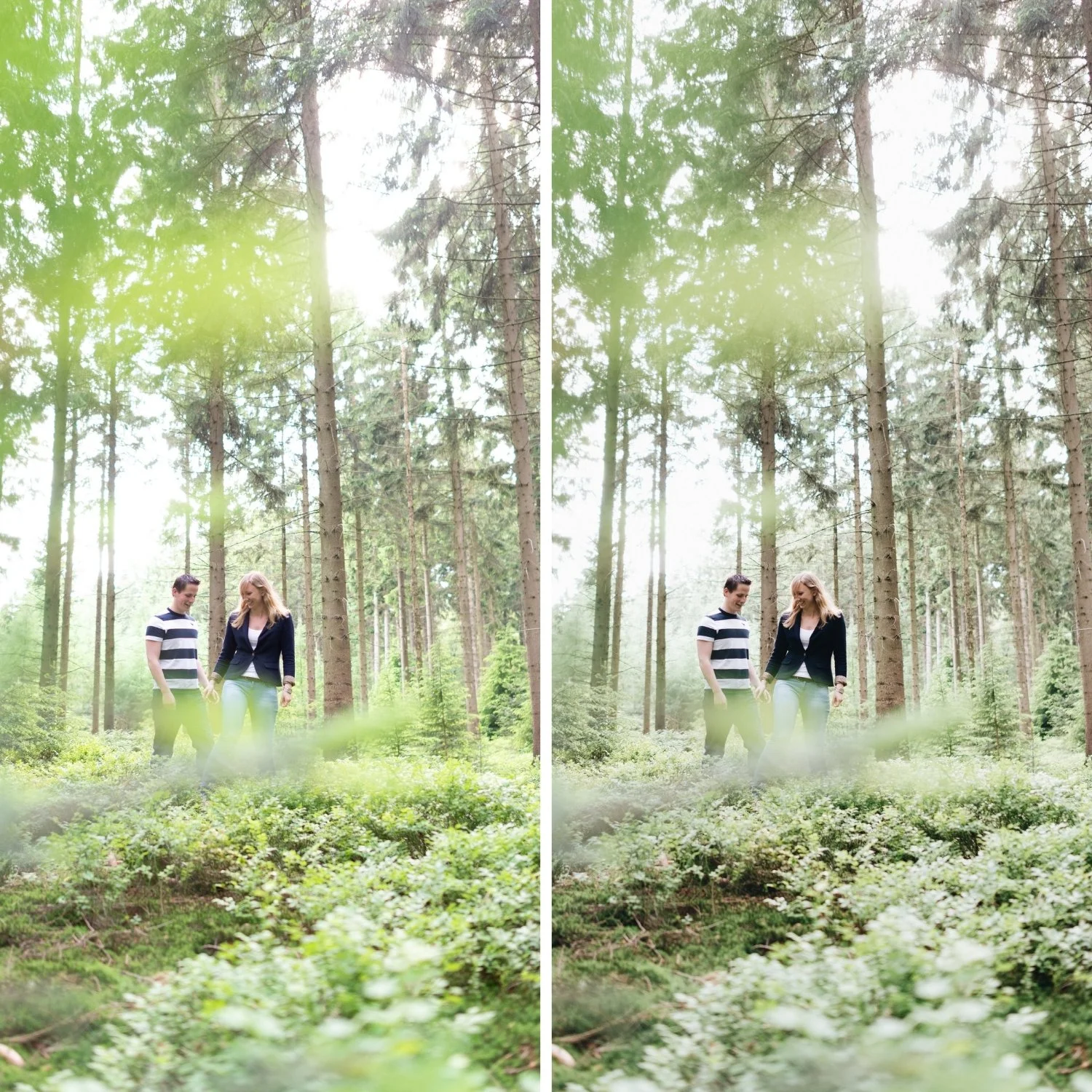
Lightroom Mobile Settings for iPhone Film Look
Exposure. iPhone Smart HDR often produces files with compressed highlights and lifted shadows. Start by pulling Highlights to -10 through -25 and Whites to -5 through -15. On Smart HDR files, Shadows can often be left at 0 or pulled very slightly negative rather than lifted, because the phone has already lifted them.
Contrast and Tone Curve. Reduce global Contrast to -5 to -15, then build the soft S-curve in the Tone Curve. Be less aggressive with the curve than you would on a camera RAW file — the iPhone's own tone mapping has already added contrast structure. A gentle curve is often enough.
HSL — Green channel. iPhone cameras render outdoor greens with their own color science applied, but the vivid green issue still exists on phone photos. Reduce Green Saturation -10 to -20 and shift Green Hue slightly toward yellow. Compared to camera RAW files, phone greens sometimes need slightly less reduction because the phone's color rendering has already done some of this correction.
HSL — Orange channel. Reduce Orange Saturation -10 to -18. Increase Orange Luminance +5 to +10. The iPhone's skin tone rendering is generally warmer than camera RAW, so Orange Saturation reduction is particularly important on iPhone portrait photos.
Clarity. iPhone cameras add sharpening in-camera. Adding Clarity on top of this sharpening creates an overly crisp, digital quality. Keep Clarity at 0 or negative (-5 to -15 for portrait work).
Grain. iPhone photos have computational noise reduction applied, which means the underlying texture is smoother than a RAW file. Film grain at the same settings that work on camera RAW will sit more visibly on iPhone photos. Reduce Grain Amount to 12-20 (versus 15-25 for RAW) and Size to 18-25 to produce grain that integrates more naturally.
Workflow for Consistent iPhone Film Results
The biggest consistency challenge with iPhone film editing is that the phone's processing varies based on lighting conditions. Smart HDR behavior differs in bright outdoor sun, shade, and low light. The phone applies more aggressive tone mapping in high-contrast scenes. This means a preset that works well in one lighting condition may need different adjustments in another.
The practical solution is to correct white balance first, apply the preset at 80-85% strength, then make per-photo Exposure and White Balance adjustments. These two per-photo corrections handle most of the variation between scenes. Reserve Green Saturation and Orange Saturation adjustments for photos where the skin or foliage clearly needs additional work.
FAQ
Should I always use ProRAW for film editing on iPhone?
For photography you intend to edit carefully — portraits, travel, anything important — yes, ProRAW produces cleaner results with more editing flexibility. For casual everyday photography and social content, standard JPEG at 80-85% preset strength is sufficient.
Why does my iPhone film edit look harsh when the same preset looks soft on camera photos?
The iPhone's in-camera sharpening and contrast processing combines with the preset's adjustments and over-applies. Reduce preset strength to 80-85%, lower Clarity to -5 or below, and check that the Tone Curve is gentle rather than steep.
Do film presets made for Lightroom desktop work in Lightroom Mobile?
Yes, DNG presets are compatible with Lightroom Mobile and produce the same adjustments. The XMP format works in Lightroom Classic on desktop. Both formats are included in The Editing Studio presets.
Can I batch edit iPhone photos in Lightroom Mobile?
Yes. In Lightroom Mobile, apply your adjustments to one photo, then use Copy Settings and Paste Settings to apply the same adjustments to multiple photos. You can also sync settings within a shoot.
Try a film preset calibrated for mobile editing:
Download the free Analog Film preset and apply it at 82% strength to your iPhone photos as a starting point.
For a full mobile-compatible collection with presets tested on both ProRAW and JPEG iPhone files, explore the Analog Film Archive.
