Cherry Blossom Film Edit Tutorial
Cherry Blossom Film Edit Tutorial
Cherry blossom photography is one of the most difficult subjects to edit well. The pink and white petals sit in a narrow tonal range where digital sensors struggle. The surrounding foliage is bright spring green at maximum saturation. The sky behind is often overexposed or flat grey. Getting all of these elements to work together in a soft pastel film aesthetic requires specific handling rather than a general warm preset applied and hoped for.
This tutorial covers the complete process from starting file to finished soft spring look.
Why Cherry Blossom Photographs Are Hard to Edit
Three specific problems recur in blossom photography. The first is that pink petals sit very close to skin tones in the colour spectrum. Adjustments that make blossoms look correct often make any people in the frame look wrong, and adjustments calibrated for skin often make blossoms look muddy or orange.
The second problem is the extreme brightness of white and pale pink petals against a sky background. In bright conditions the petals frequently clip before the rest of the frame is correctly exposed, which loses the delicate tonal detail that makes blossom photography beautiful.
The third problem is spring foliage. New growth green in April and May is the most saturated green of the year, and digital sensors amplify it further. Untreated, it competes visually with the blossoms and pulls the whole photograph toward a vivid, artificial quality.
Step One: Exposure for Petal Detail
Start by protecting the petals. Pull Highlights to negative 35 through negative 55, more aggressively than most subjects require. Reduce Whites by negative 20 through negative 35. The goal is petal detail that reads as delicate and luminous rather than as blown white shapes.
Check the histogram after these adjustments. If the right edge is still stacked against the wall, the original exposure clipped the petals and that detail is not recoverable. For future shoots, underexposing blossom photography by half a stop preserves the petal information that makes the edit possible. The technical reason this matters is covered in Highlight Roll-Off Explained.
Keep Shadows between negative 5 and positive 15. Blossom photography generally benefits from a light, airy tonal structure rather than deep shadows. Lift Blacks to positive 8 through positive 15 to create the soft film shadow floor.
Step Two: White Balance for Pastel Pink
Cherry blossom pink is easily pushed in the wrong direction. Too warm and it goes peach or orange. Too cool and it goes lilac or grey.
Set Temperature to 5,000 to 5,400K for outdoor daylight. This is slightly cooler than a standard warm film starting point, because the pastel pink direction needs a neutral to marginally cool foundation to stay pink rather than shifting toward coral.
Set Tint to positive 8 through positive 14. This is higher than most outdoor photography requires and it is the key adjustment for blossom colour. The magenta push keeps the pink in the petals genuinely pink rather than allowing it to drift toward the peachy orange that a warm Temperature alone produces. Color Temperature vs Tint Deep Dive explains why these two axes need setting independently.
Step Three: The Green Channel
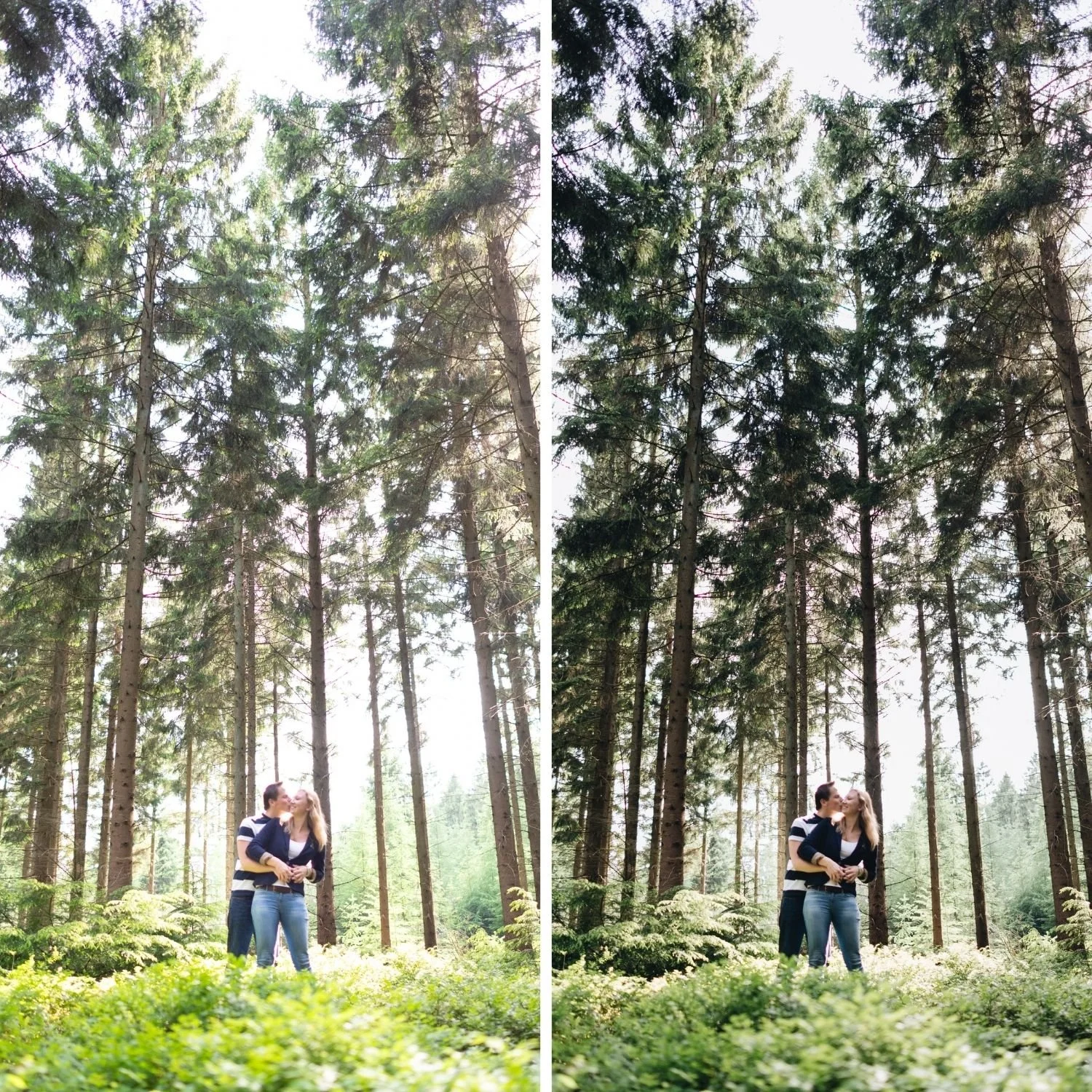
Spring green is the element most likely to ruin an otherwise good blossom edit. Reduce Green Saturation by negative 25 through negative 40, more aggressively than almost any other subject requires. Shift Green Hue toward yellow by positive 8 through positive 14.
The combination moves new spring foliage from vivid electric green toward a softer, more organic sage or olive quality that sits behind the blossoms rather than competing with them. Increase Green Luminance by positive 5 through positive 12 to keep the foliage light and airy rather than heavy, which suits the pastel direction.
Step Four: Pink and Red Channels
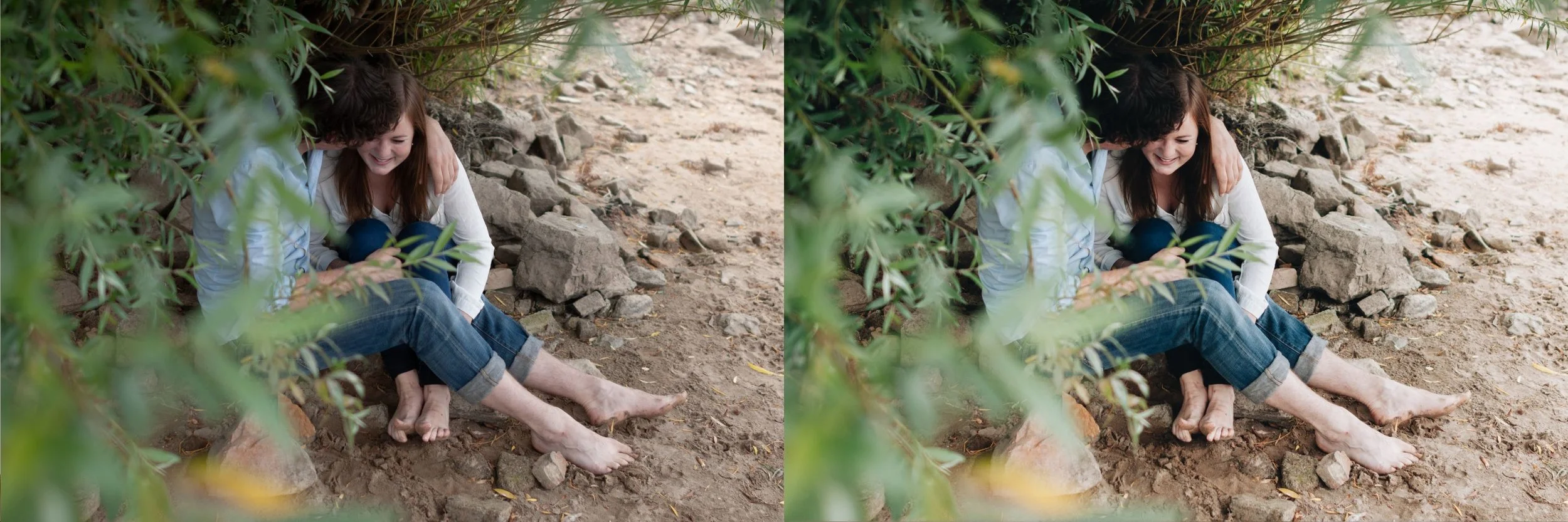
The blossom pink itself lives across the Red, Orange, and Magenta channels depending on the specific variety and the light.
Reduce Red Saturation by negative 8 through negative 18 to prevent the deepest pinks from going crimson. Increase Red Luminance by positive 8 through positive 15 to keep the pink petals bright and delicate rather than dense.
Magenta Saturation should be reduced only slightly, negative 3 through negative 10, since this is where much of the pink actually lives. Magenta Luminance can increase by positive 5 through positive 12 for the pastel effect.
If people appear in the frame, check skin after these adjustments. The Red and Orange changes affect skin tones directly. How to Edit Natural Skin Tones covers how to balance skin rendering when other colour channels are being pushed for a specific subject.
Step Five: Tone Curve for Softness
The pastel spring aesthetic uses a gentler curve than most film editing. Lift the shadow point to output 20 through output 28, higher than standard, which produces the light open shadow quality the look depends on.
Keep the midtone curve very gentle. Heavy midtone separation produces contrast that works against the soft pastel direction. Pull the highlight point down to output 225 through output 235 to compress petal highlights softly.
Reduce global Contrast to negative 10 through negative 20. The dimensional quality comes from the curve rather than from the slider.
Step Six: Colour Grading and Finishing
Highlight Colour Grading with Hue 30 to 45 at Saturation 5 to 9 adds a soft warm quality to the brightest petal areas without pushing the overall image warm. Shadow Colour Grading should stay very close to neutral with Saturation at 2 to 5, since cool shadows fight the soft pastel direction.
Reduce Clarity to negative 8 through negative 18. Blossom photography benefits from the soft midtone rendering that negative Clarity produces, and the delicate petal texture reads better slightly soft than crisply sharp.
Grain at Amount 10 to 16 with Size 18 to 26. The pastel aesthetic uses restrained grain. Heavy grain works against the delicate quality. The Role of Grain in Film Emulation covers the calibration ranges for different aesthetic directions.
Presets That Suit the Spring Pastel Direction
The Juniper Archive J1 Vintage Light is the closest starting point in the collections. The light, airy, open quality suits blossom photography before you apply the specific colour channel adjustments described above.
The Bright and Clean Archive S-II Airy Lift provides the lifted highlight and softened shadow structure that the pastel spring aesthetic needs, with a cleaner starting point than the warm film collections.
FAQ
Why do my cherry blossoms look orange instead of pink?
Temperature pushed too warm combined with insufficient Tint. Reduce Temperature toward 5,100K and increase Tint toward positive 12.
How do I stop the green foliage overwhelming the blossoms?
Green Saturation reduction of negative 30 or more, combined with a Hue shift toward yellow and a Luminance increase. Spring green needs more aggressive treatment than summer or autumn foliage.
Should I shoot blossom photography in bright sun or overcast?
Overcast and bright shade produce the softest, most editable results. Direct sun creates petal highlights that clip easily and harsh shadows that fight the pastel aesthetic.
Try the soft spring approach on your own photographs:
Download the free Analog Film preset as a base, then apply the Green and Tint adjustments described above.
For light and airy collections that suit spring photography, the Juniper Archive and Bright and Clean Archive are both appropriate starting points. The Studio Archive at $89 includes both.
