Film Presets for iPhone Lightroom
Film Presets for iPhone in Lightroom
iPhone photography and film presets work well together, but not identically to how presets behave on camera RAW files. The iPhone applies significant computational processing before you ever open the file in Lightroom. Smart HDR blends multiple exposures into a single image. Sharpening is applied to edge detail. Tone mapping compresses the dynamic range to fit the output format. Deep Fusion processes texture at the pixel level. Understanding what the iPhone has already done to your photograph determines how you should apply presets on top of it.
This guide covers installation, per model calibration, and the specific adjustments that produce clean film results on iPhone files across both ProRAW and HEIC formats.
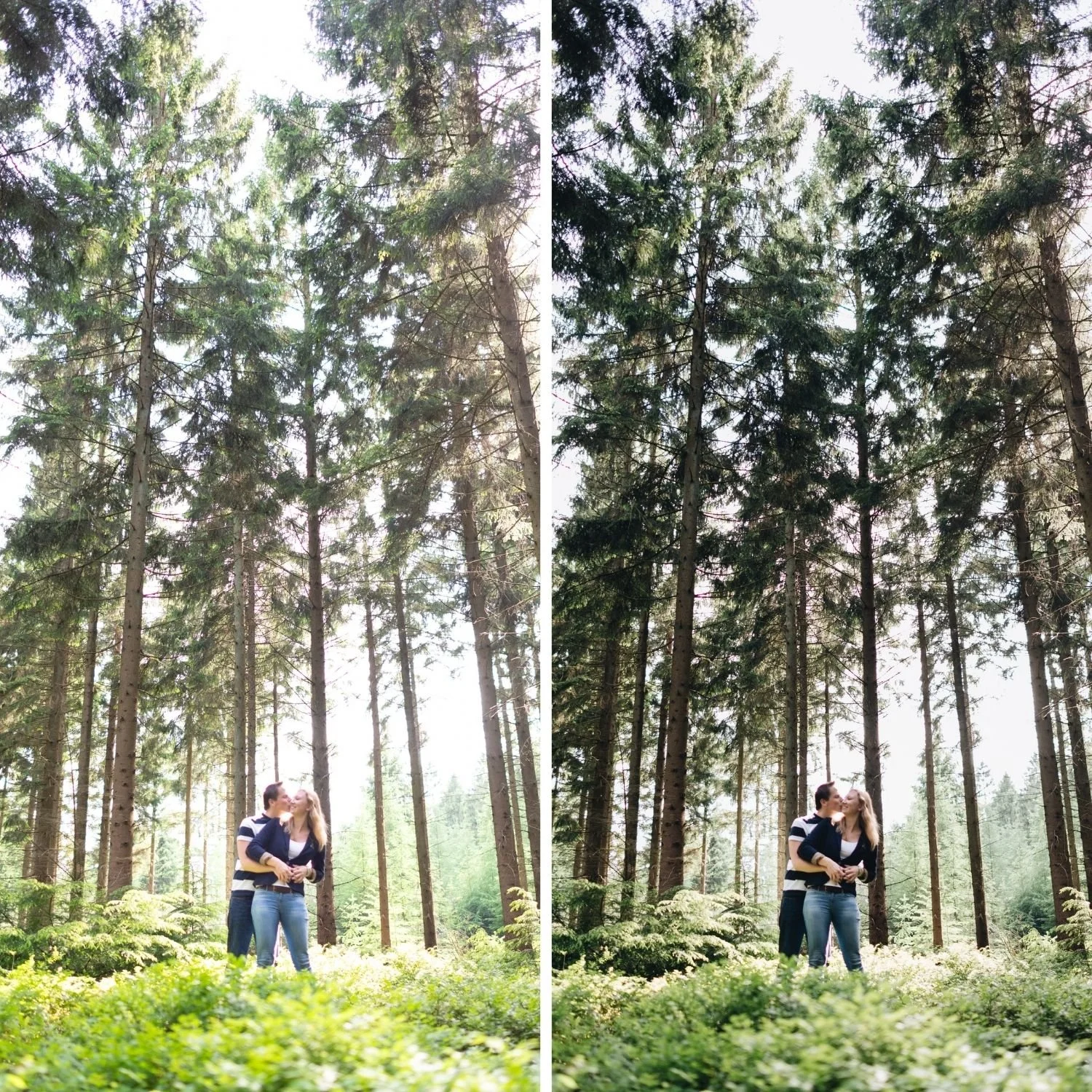
Installing Film Presets on iPhone
Lightroom Mobile for iOS uses DNG files as the preset installation format. Download the DNG file to your iPhone. Open Lightroom Mobile and tap the plus icon to add photos, then select the DNG from your Files or Photos app. The DNG appears in your library as a photograph. Open it, tap the three dot menu in the top right corner, and select Create Preset. Name it and save. The preset is now available in the Presets panel for any photograph you edit.
For collections containing multiple presets, repeat this process for each DNG file. Lightroom Mobile allows organizing presets into named groups during creation, which keeps larger collections manageable when you have twenty or more presets installed.
Why Preset Strength Matters More on iPhone
The single most important adjustment for iPhone film editing is reducing preset strength. Film presets are calibrated for RAW files with minimal in camera processing. The iPhone has already applied contrast, sharpening, and tone mapping before the file reaches Lightroom. Applying a preset at full 100 percent strength layers the preset's adjustments on top of adjustments that are already present in the file, which over applies consistently across almost every photograph.
For iPhone HEIC and JPEG files, apply presets at 80 to 85 percent strength. For ProRAW files, apply at 85 to 92 percent. This single change resolves the most common complaints about film presets on iPhone: skin that reads too orange, contrast that feels harsh rather than dimensional, and grain that sits on top of the image rather than integrating with the underlying texture.
ProRAW versus HEIC for Film Editing
ProRAW captures substantially more tonal information than HEIC or JPEG and applies significantly less in camera processing. For film presets specifically, this matters in the highlight range where the preset's Tone Curve creates soft roll off, and in the skin tone range where Orange channel adjustments need smooth tonal transitions to work precisely.
The practical difference is most visible in bright outdoor conditions and close up portrait work. In softer light with moderate contrast, HEIC at reduced preset strength produces good results that most viewers cannot distinguish from ProRAW output. In harsh sun where highlights approach clipping, or in portrait work where skin rendering is the primary deliverable, ProRAW produces a noticeably better result. HEIC vs JPEG vs ProRAW covers the complete format comparison including storage considerations and when each format is the right choice.
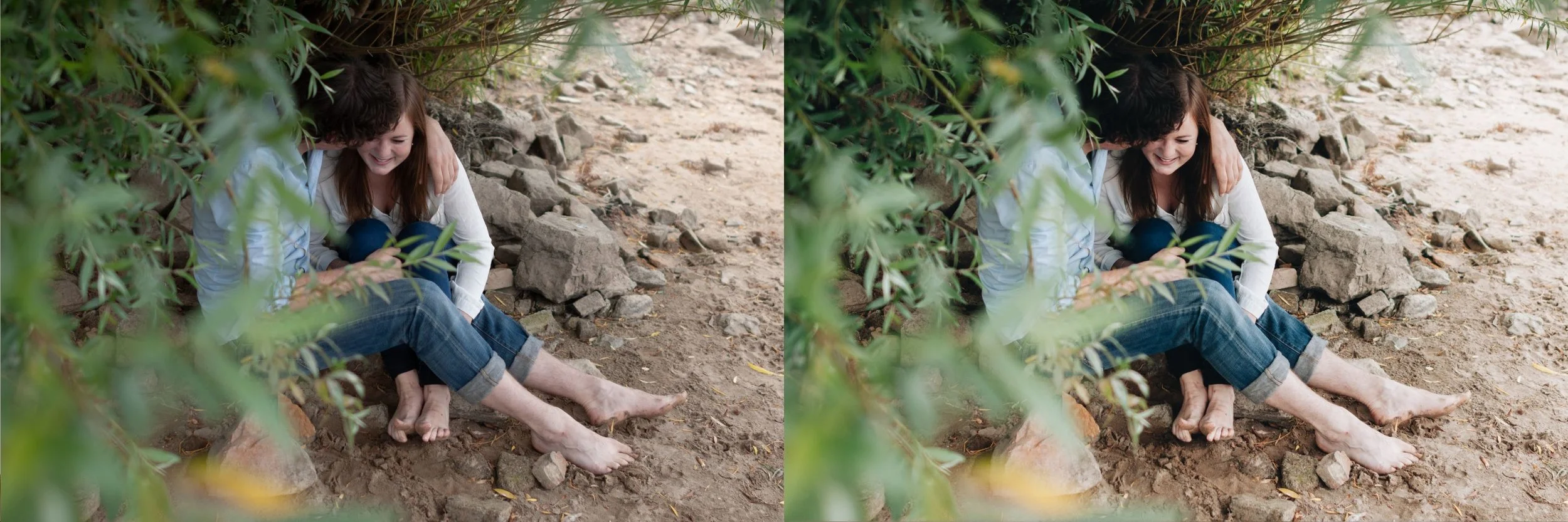
The iPhone Film Editing Workflow
Correct white balance before applying the preset. iPhone auto white balance varies between shots based on what the camera determines is dominant in each frame, which means the same preset produces different results across photographs from the same scene. Set Temperature to 5,200 to 5,500K for outdoor daylight, 5,600 to 6,200K for overcast, and 3,800 to 4,500K for warm indoor ambient. Consistent white balance before the preset is the foundation of consistent results across a gallery.
Apply the preset at the reduced strength appropriate for your file format. Adjust Exposure per photograph. Check Highlights on outdoor photographs, since iPhone Smart HDR often leaves bright areas closer to clipping than they appear in the camera preview.
For portrait photographs, check the Orange channel after applying. iPhone skin rendering is warmer than most camera RAW files, which means the preset's Orange Saturation reduction sometimes needs an additional negative 3 to negative 6 on iPhone files specifically. How to Edit Natural Skin Tones covers the full approach to Orange channel calibration including the Luminance compensation that keeps skin present.
Reduce Clarity to negative 5 or below. The iPhone applies sharpening in camera as part of its processing pipeline. Adding Clarity on top produces the crisp digital quality that works directly against the film aesthetic.
Grain Calibration for iPhone Files
Grain behaves differently on iPhone files than on camera RAW because the iPhone applies noise reduction that produces a smoother underlying surface texture. Film grain at the standard calibration can appear to sit on top of an iPhone photograph rather than integrating with it organically.
Reduce Grain Amount to 12 to 20 on iPhone files, compared to 18 to 26 on camera RAW files. Keep Size at 20 to 28. This produces grain that reads as organic film texture rather than as an applied layer. For a deeper treatment of grain calibration across different starting conditions and film aesthetics, The Role of Grain in Film Emulation covers the specific ranges for each direction.
Which Presets Work Best on iPhone
The Analog Film Archive is the most versatile starting point for iPhone photography. A1 Analog Original handles the full range of everyday iPhone subjects from outdoor lifestyle to indoor portraits without requiring per photograph recalibration.
For iPhone travel photography, the California Archive covers warm outdoor conditions specifically. For iPhone portrait work, the Essence Archive provides the skin first calibration that iPhone portraits benefit from most given the warm rendering of iPhone skin tones.
For a broader treatment of the complete iPhone editing workflow including capture settings and export considerations, iPhone Film Look Editing Guide covers the full process from camera settings through final export.
FAQ
Do I need a Lightroom subscription to use presets on iPhone?
No. The free version of Lightroom Mobile supports preset installation and application. Advanced features including the full Tone Curve panel require Creative Cloud, but the core film editing workflow including presets works without a subscription.
Why do presets look different on my iPhone than in the sample images?
Sample images are typically shot on camera RAW files with minimal in camera processing. The iPhone's computational photography produces a different starting point. Reducing preset strength to 80 to 85 percent brings iPhone results much closer to the intended calibration.
Can I sync presets between my iPhone and desktop Lightroom?
Yes with a Creative Cloud subscription. Presets created in Lightroom Mobile sync to Lightroom Classic and Lightroom desktop automatically when signed into the same Adobe account.
Try a film preset calibrated for mobile editing:
Download the free Analog Film presetand apply it at 82 percent strength to your iPhone photographs as a starting point.
For a complete collection tested across iPhone ProRAW and HEIC files, the Analog Film Archiveprovides ten calibrated looks. The Studio Archive at $89 includes every collection.
