Highlight Roll-Off Explained
Highlight Roll-Off Explained
Highlight roll-off is one of the most discussed properties of film photography and one of the least clearly explained. Photographers describe it as "creamy highlights," "soft highs," or "the way film handles bright areas," but what is actually happening at a technical level, and how do you reproduce it in Lightroom?
This guide explains highlight roll-off clearly and gives the exact Lightroom settings that recreate it.

What Highlight Roll-Off Is
Roll-off is the term for how a medium transitions from normal exposure into overexposure. Digital sensors have an abrupt roll-off — they capture linear exposure information up to the sensor's maximum capacity, and then clip. At the clipping point, all detail is lost and the pixel records pure white. This abrupt transition is what produces the "blown out," harsh quality of overexposed digital photography.
Film emulsion has a gradual roll-off. As exposure increases toward the film's maximum density, the increase in density slows and then plateaus rather than stopping abruptly. The highlights in a film photograph compress gradually — they become increasingly bright and less detailed, but the transition from detail to maximum brightness is a smooth curve rather than a cliff. The last stops of highlight information are compressed into a small tonal range rather than abruptly cut off.
The visual result is that bright areas in film photography retain a luminous, textured quality even near the maximum exposure point — they feel bright but not absent. Digital highlights that have been pushed to clipping simply disappear.
Why This Matters for Photography
In practical terms, highlight roll-off affects how photographs look in high-contrast situations — outdoor portrait photography in direct sun, landscape photography in mixed cloud and sun, interior photography near windows, beach and coastal photography with reflective water and bright sky.
In these conditions, digital photography has a visible discontinuity between areas with detail and areas that have clipped. Film photography in the same conditions has a gradual transition that preserves the sense of brightness without the white void of clipping. This is why film portraits in direct sun often look beautiful while digital portraits in the same light look harsh — the highlights on skin retain texture in the film version rather than clipping to pure white.
Recreating Roll-Off in Lightroom: The Basic Approach
The simplest recreation of highlight roll-off uses three Lightroom controls together.
Highlights slider. Pull Highlights to -20 through -45 depending on how bright the scene is. This recovers detail in the upper highlights range and creates more compressed tonal material for the next step.
Whites slider. Reduce Whites by -10 to -25. This pulls back the very brightest values from the maximum and prevents pure white clipping in the output.
Tone Curve — highlight point. In the Point Curve, drag the top-right control point down slightly. Moving it from output 255 to output 220-235 creates a gradual compression in the brightest values. The highlights become slightly less bright overall but with a gradual rather than abrupt transition into the maximum.
These three adjustments together produce a basic version of highlight roll-off. The Highlights slider recovers compressed highlight material. The Whites slider prevents clipping. The Tone Curve highlight point creates the gradual compression that characterizes film's roll-off behavior.
The Advanced Approach: Tone Curve Shape
A more sophisticated approach uses only the Tone Curve to create roll-off that is more natural than the Basic panel sliders alone can produce. This gives more control over the specific shape of the compression.
In the Tone Curve Point Curve, add a control point in the upper quarter of the curve (around input value 200-220). Drag this point slightly downward — by 10-20 output units. This compresses the upper tonal range into a smaller output range, which is the specific shape of film roll-off. Add a second control point slightly higher (input 230-245) and drag it down by 5-10 units to continue the gradual compression toward the highlight point.
The result is a curve that starts to bend and compress in the upper highlights before reaching the maximum, rather than remaining linear until the point of clipping. This is the shape of film's sensitometric curve in the highlight range.
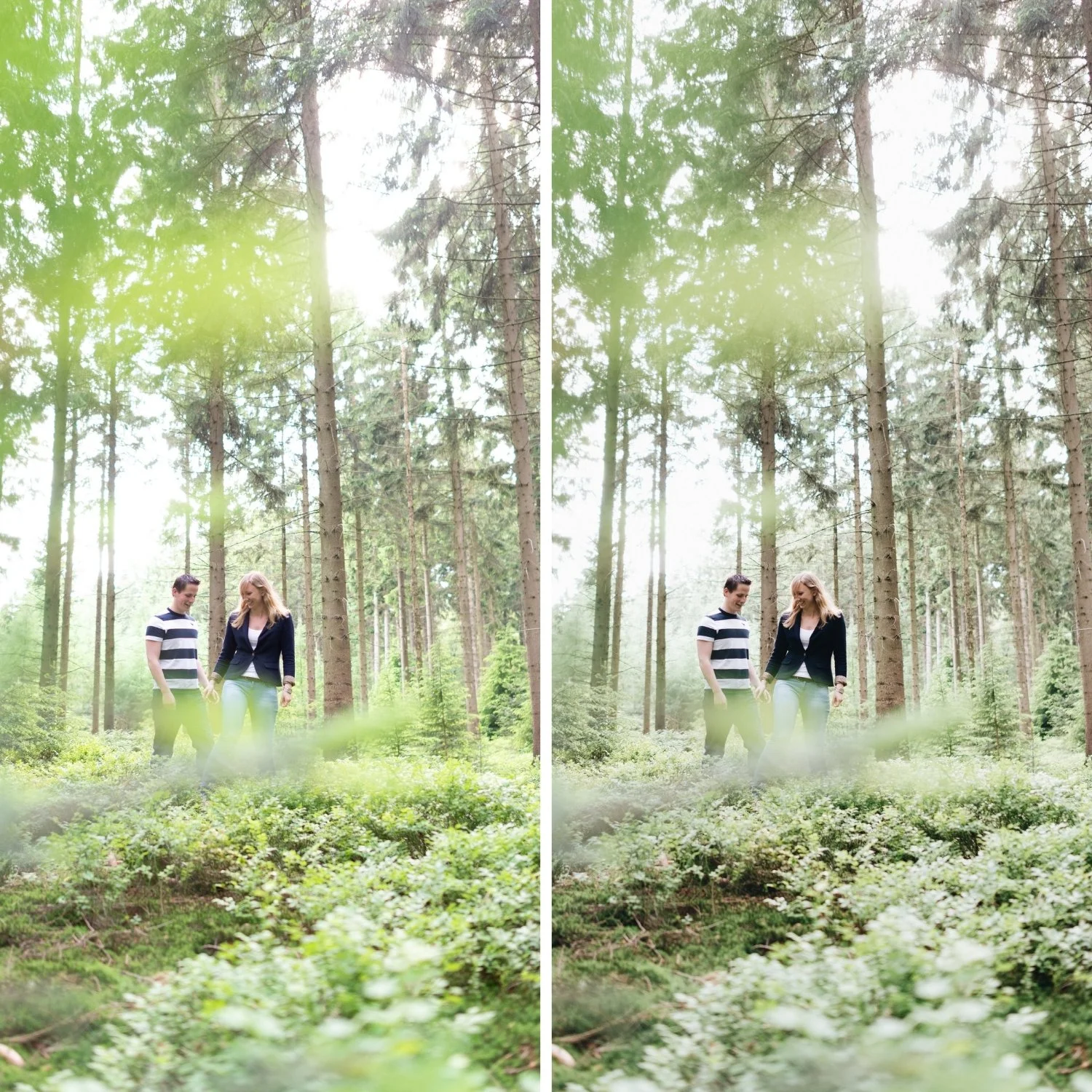
Checking Roll-Off Against Clipping
After applying highlight roll-off adjustments, the clipping overlay in Lightroom (activated with the J key in the Develop module, or the triangle icons in the histogram) should show no or minimal red clipping overlay in the photograph's highlights. If areas that previously clipped are now showing recovered detail, the roll-off adjustment is working correctly.
A practical test: find a photograph with a mix of bright sky, white surfaces, and skin. After applying roll-off adjustments, all three should retain texture and detail at their brightest points rather than going pure white. Skin in direct sunlight should look luminous rather than burnt.
Roll-Off and Preset Calibration
Well-calibrated film presets include roll-off behavior in their Tone Curve structure. Examining the Tone Curve of a preset that produces the film look correctly shows a specific shape: shadow floor lift at the bottom, gentle S-curve in the midtones, and highlight point protection at the top. This is not a straight line with just contrast added — it is a considered curve shape calibrated to approximate film's tonal behavior.
When a preset does not produce satisfying highlight behavior, the cause is usually insufficient Highlights reduction in the starting exposure or a Tone Curve that is not protecting the highlight point. Pulling Highlights -30 to -40 before applying any preset dramatically improves roll-off results.
FAQ
Why do my highlights still clip even after reducing the Highlights slider?
If the original file has severely clipped highlights — pure white areas in the RAW file — no amount of post-processing recovers them. Information that was not captured during exposure cannot be recovered. For regularly clipping highlights in shooting, reduce exposure slightly in-camera to preserve the highlight range before editing.
Does ProRAW on iPhone improve highlight roll-off?
Yes significantly. iPhone ProRAW captures more highlight information than JPEG, giving the Highlights and Whites sliders more actual data to work with. The roll-off behavior is more natural and the recovery range is wider.
Is soft light better for highlight roll-off results?
Soft, diffuse light has inherently less highlight contrast than direct harsh light, which means less recovery work is needed. In soft light, a gentle Highlights reduction and Tone Curve adjustment produces excellent roll-off results easily. In harsh direct sun, more aggressive adjustments are needed.
Why do some film stocks have more pronounced roll-off than others?
Different film emulsions have different sensitometric curves — the mathematical relationship between exposure and density. Film stocks designed for portrait and wedding work (like Portra) were specifically engineered with a gentler, more forgiving roll-off to produce beautiful skin in varied lighting. Film stocks designed for high contrast (like slide film) have a more abrupt roll-off.
Apply highlight roll-off on your own photos:
Download the free Analog Film preset and examine the Tone Curve — the highlight point position shows how roll-off is applied in a calibrated film context.
For a complete collection built on proper highlight roll-off across multiple film aesthetics, the Vesper Archive and the Essence Archive both use this technique as part of their core calibration.
