How to Edit a Full Shoot Consistently in Lightroom
How to Edit a Full Shoot Consistently in Lightroom
Editing a single photograph to a standard you are proud of is a creative act. Editing 300 photographs to that same standard consistently is a workflow problem. The difference between photographers who deliver cohesive professional galleries and those who deliver technically varying collections of good individual photographs is almost entirely workflow structure.
Consistency across a full shoot requires understanding which elements of the edit should be fixed and which should vary. Mixing these categories is the source of almost all gallery inconsistency.
What Consistency Actually Means
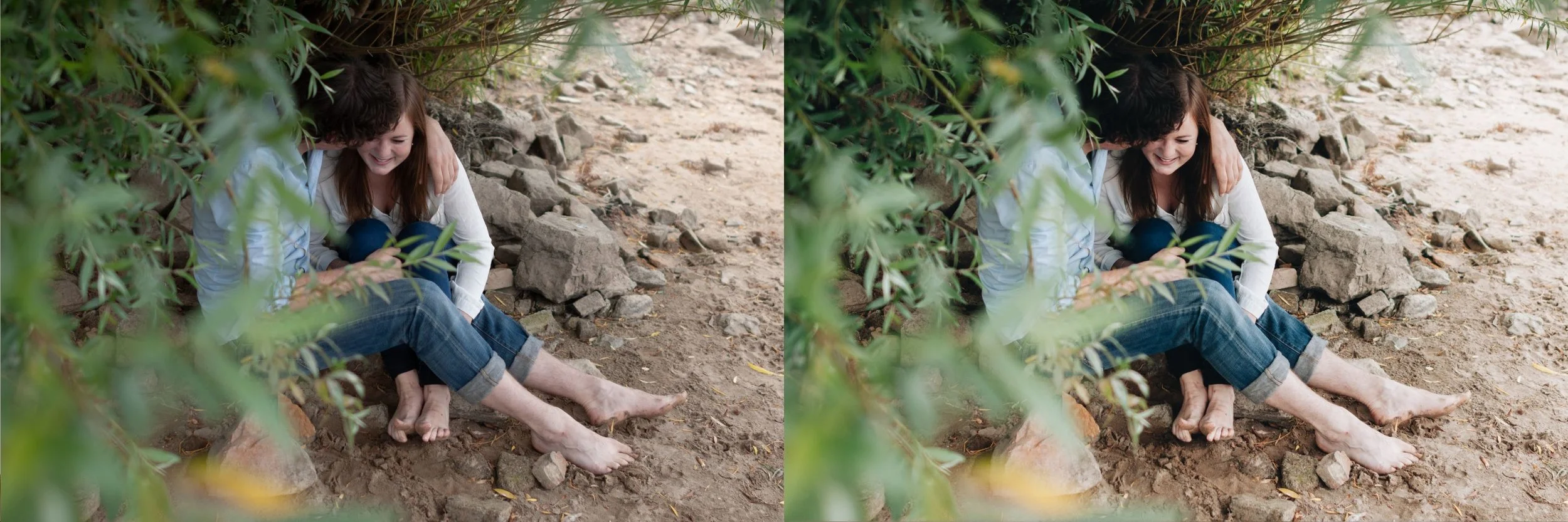
Gallery consistency does not mean every photograph looks identical. A morning photograph and an afternoon photograph from the same shoot are genuinely different because the light was different. A portrait in direct sun and a portrait in shade are genuinely different because the lighting quality was different. Consistency allows for these real differences while ensuring the variation comes from the photographs rather than from inconsistent editing decisions.
A consistent gallery has the same warmth direction across all photographs regardless of ambient temperature, the same contrast structure and tonal depth across different exposure levels, the same skin rendering quality across different subjects and light sources, and the same grain character in every photograph.
These consistent properties come from applying the same calibrated preset to all photographs in the shoot. Understanding what a good preset is actually doing under the hood makes this easier to control, and How to Create a Natural Film Look in Lightroom breaks down each of the five adjustments that define a calibrated film base.
The Pre-Edit Setup
Setting up consistently before starting to edit produces better results than attempting to achieve consistency after the fact.
Start by identifying the lighting conditions present in the shoot. Most shoots span two or three primary conditions: warm outdoor daylight, overcast or shade, and indoor warm ambient are the most common combination. Each condition needs a target white balance range before editing begins.
Warm outdoor daylight: Temperature 5,200 to 5,500K, Tint positive 5 to positive 8. Overcast and shade: Temperature 5,500 to 6,200K, Tint positive 8 to positive 12. Indoor warm ambient: Temperature 3,800 to 4,500K, Tint positive 6 to positive 10.
Having these target ranges defined before the session means white balance correction becomes a calibration to a known target rather than a per-photograph judgment call.
The Batch Workflow
Organize photographs by lighting condition after import. In Lightroom Classic, use color labels or collection sets to group photographs from each major lighting scenario. Select all photographs in the warm outdoor daylight group, apply a white balance matching the target range to one photograph, and sync the white balance to all others in the group. Repeat for each condition group.
After white balance is synced for all groups, apply the preset to all photographs simultaneously using Sync Settings, excluding Exposure and White Balance from the sync. Every photograph now has the same aesthetic foundation applied from the same calibrated white balance starting point.
Work through photographs individually, making only Exposure adjustments. The target for each photograph is correct brightness within the context of its lighting and the preset's direction. Most adjustments are small. Photographs needing more than plus or minus 0.5 have a starting exposure problem that deserves individual attention, and for underexposed files specifically, Underexposed RAW to Film Edit covers the recovery-first sequence that keeps grain and noise from conflicting.
What Breaks Consistency
The most common sources of consistency breakdown in long editing sessions are white balance drift, targeted adjustment overuse, and attention fatigue.
White balance drift occurs when photographers correct white balance individually on each photograph rather than syncing to a target range for each condition group. Individual corrections produce individually reasonable results but lack systematic consistency across the gallery.
Targeted adjustment overuse occurs when photographers make per-photograph changes to Tone Curve, Clarity, Color Grading, and Grain trying to optimize each image. These should be reserved for key images where individual refinement genuinely adds value. Applying them broadly introduces variation that is not driven by real differences between photographs.
Attention fatigue is the natural result of editing large numbers of photographs over many hours. Preset-based batch workflows reduce the decisions required per photograph to the minimum, which keeps the cognitive load manageable and reduces drift. This is one of the strongest practical arguments for preset use in professional contexts, covered further in Using Presets in a Professional Editing Workflow.
Checking Consistency Before Export
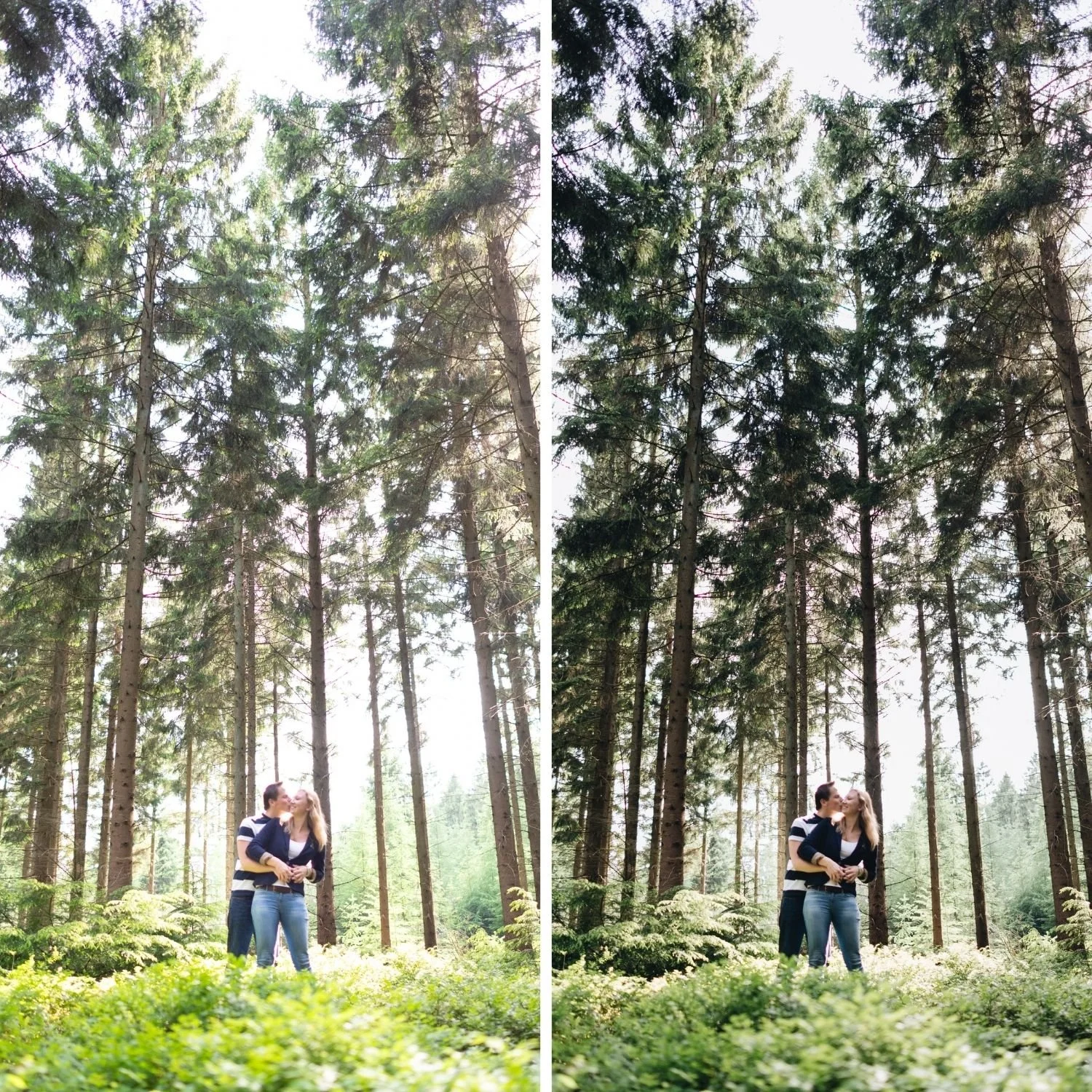
Before exporting, do a final consistency check using Lightroom's compare and survey views. Select five to ten photographs spanning different lighting conditions and view them simultaneously. Check that the warmth direction is consistent, that the shadow depth is consistent, and that the overall tonal quality is similar despite different starting conditions.
If specific photographs look significantly different from the group, identify the cause. Common causes are a missed white balance sync or a photograph where the preset was not applied. For a broader framework on building repeatable editing systems across every shoot rather than one at a time,How to Build a Consistent Editing Workflow covers the structural approach.
FAQ
How long should editing a full shoot take with this workflow?
For a 300-photograph shoot, the complete batch workflow from organized import to export takes approximately 90 minutes to two hours. The efficiency comes from the batch stages: white balance sync and preset application each take a few minutes for the entire shoot.
Is it better to edit all photographs or cull before editing?
Do a rough cull to remove obviously unusable photographs before editing. Make the final cull after editing. The film editing workflow frequently improves photographs that look ordinary as unprocessed raw files.
How do I handle a photograph that looks wrong after the batch process?
Make individual adjustments on that specific photograph. The batch workflow handles 80 to 90 percent of photographs with only Exposure adjustment. The remaining photographs need targeted individual work, which is expected rather than a failure of the system.
Apply the consistent editing workflow to your next shoot:
Download the free Analog Film preset and use the batch workflow described above on a complete set of photographs.
For a preset system designed for batch workflows across varied lighting conditions, the Studio Archive at $89 provides 130 presets covering every condition and genre.
