Lightroom Editing Workflow for Travel Photography
Lightroom Editing Workflow for Travel Photography
Travel photography editing is a different challenge from portrait studio work or event photography. The light changes constantly across a travel day. Locations have different dominant color palettes. The photographs span architectural subjects, landscape, portrait, food, and street scenes within a single session. And the end goal is almost always a gallery that reads as a cohesive body of work from a specific place and time, not a collection of individually optimized images.
Getting this right requires a workflow designed specifically for the conditions of travel photography rather than one adapted from controlled studio work. If you want to understand the aesthetic goal before working through the technical process, How to Create a Timeless Travel Aesthetic covers the color philosophy that this workflow implements.
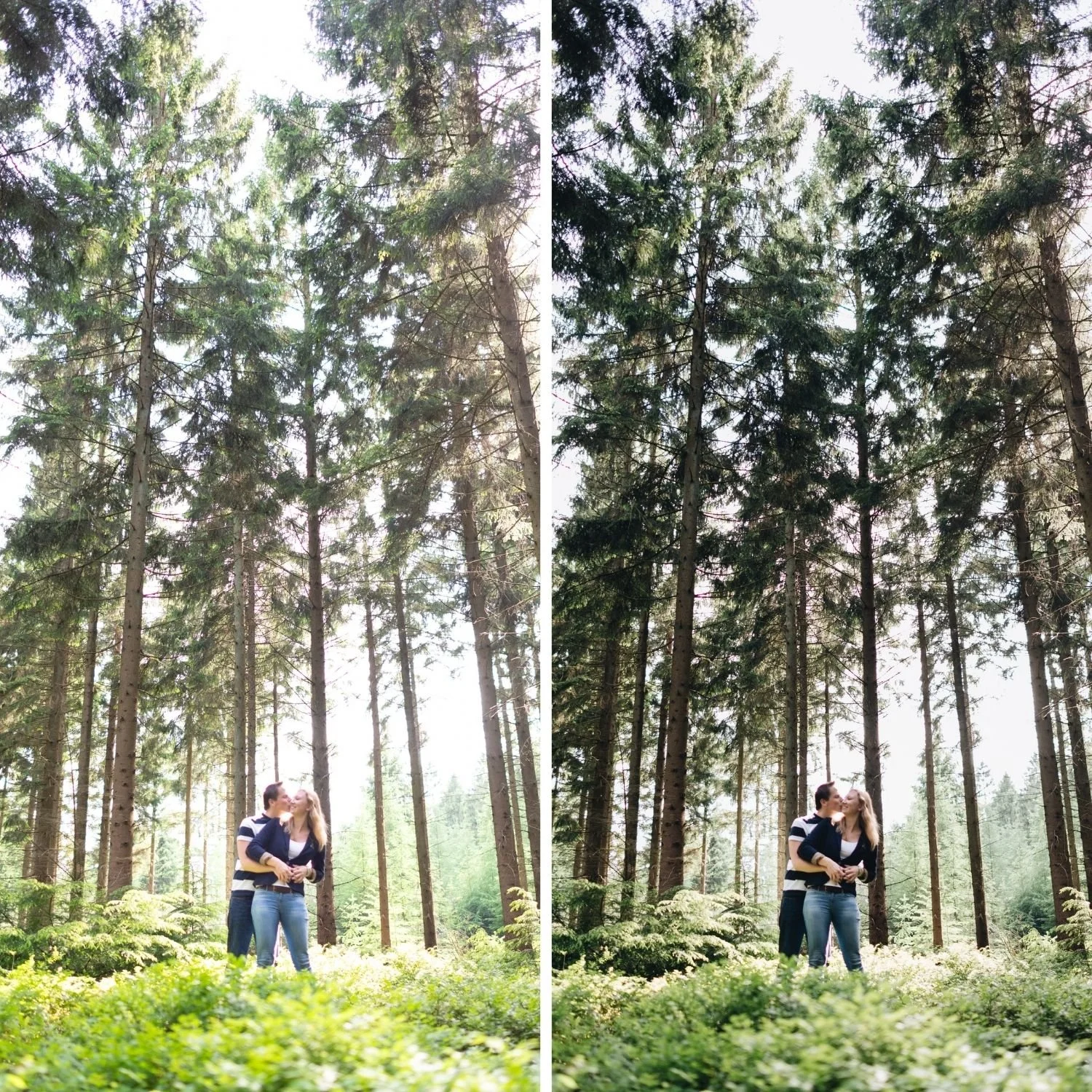
Stage One: Import and Condition Sorting
The travel editing workflow begins at import with organization by lighting condition rather than chronological order. Most editing software including Lightroom Classic shows photographs in chronological sequence by default. For travel editing, reorganizing into groups based on ambient lighting produces a significantly more efficient session.
Create labeled groups for warm outdoor daylight, overcast and diffuse light, golden hour and late afternoon, indoor and shade conditions, and low light or evening. The labeling method can be color labels, star ratings, or named collections depending on which Lightroom Classic workflow you prefer.
This grouping makes the white balance and preset application stages much faster because photographs with similar starting conditions can be batch-processed together rather than calibrated individually.
Stage Two: White Balance by Condition Group
White balance should be set before applying any preset to any photograph. This is the most important sequencing rule for travel editing. A preset calibrated for warm-neutral outdoor daylight produces different results on a photograph from overcast shade than on one from direct afternoon sun, even when the same preset is applied to both.
For each condition group, set a target white balance. Warm outdoor daylight: Temperature 5,200 to 5,500K, Tint positive 5 to positive 8. Overcast: Temperature 5,500 to 6,200K, Tint positive 8 to positive 14. Golden hour: preserve the ambient warmth rather than neutralizing it, Temperature 5,600 to 6,000K, Tint positive 5 to positive 10. Indoor and shade: Temperature 4,500 to 5,200K depending on the specific indoor ambient.
The interaction between Temperature and Tint matters more than most photographers realize, particularly for the skin tones of travel portrait subjects. Color Temperature vs Tint Deep Dive explains why both axes need setting rather than Temperature alone.
Select all photographs in each condition group and sync the white balance across the group. Individual photographs may need small adjustments from the group target, but syncing establishes a consistent starting point that significantly reduces per-photograph work.
Stage Three: Preset Application
With white balance set consistently for each condition group, apply the appropriate preset for each group. A warm outdoor travel preset for the daylight group, a cooler or more neutral preset for the overcast group, a golden-warm preset for golden hour.
Using presets from the same collection for different condition groups produces the most cohesive gallery. The California Archive provides nine presets covering warm outdoor travel conditions from clean versatile to deep warm. The Vesper Archive provides eight presets spanning clean versatile to moody atmospheric within one warm film philosophy.
Apply presets to condition groups in batch. Sync all photographs within each group, excluding Exposure and White Balance from the sync so these remain per-photograph variables.
Stage Four: Exposure Correction
After preset application, work through the photographs individually making Exposure adjustments. The target is each photograph reading as correctly bright within its lighting context and the aesthetic direction of the applied preset. For most photographs, the required adjustment is small: positive 0.1 to positive 0.3 or negative 0.1 to negative 0.2.
Photographs requiring adjustments larger than plus or minus 0.5 after preset application usually have a starting exposure problem rather than a workflow issue. For photographs shot in harsh midday conditions where the contrast is fighting the film aesthetic, From Harsh Light to Soft Film Look covers the specific recovery approach.
For photographs with near-clipping highlights after the preset is applied, adjust Highlights per photograph. Outdoor scenes in direct sun, reflective surfaces, and white architecture may all need additional reduction beyond what the preset provides.
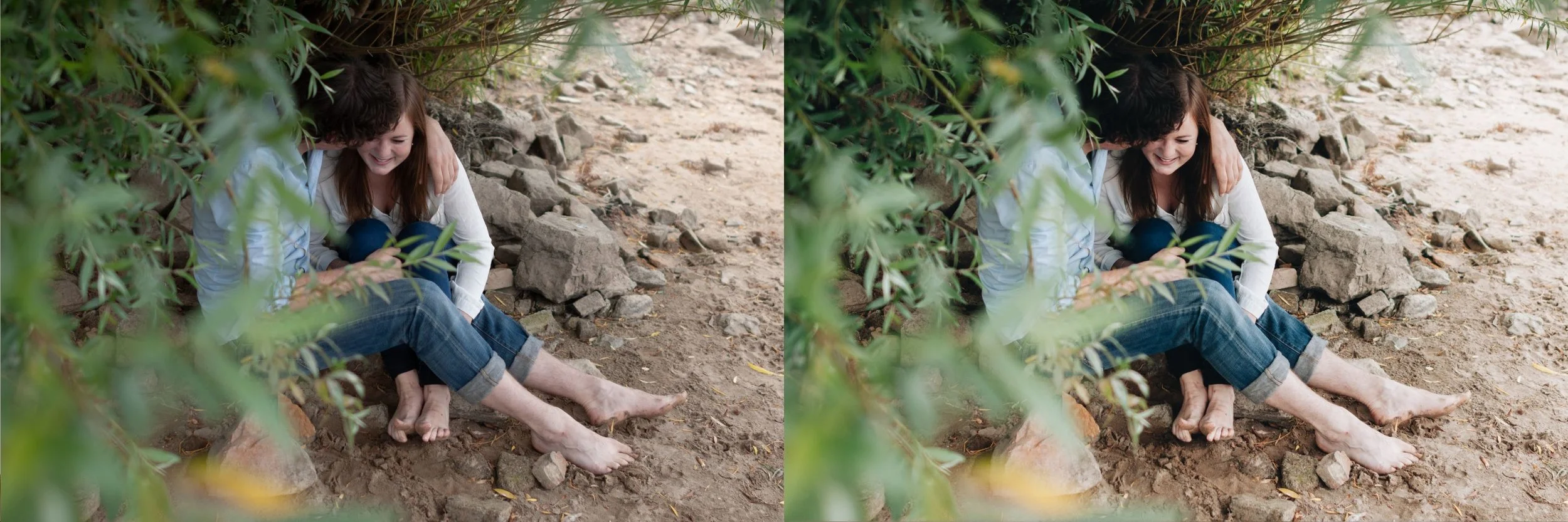
Stage Five: Color Check for Green-Heavy Photographs
Travel photography often includes significant outdoor vegetation, which is the most vivid and least organic-looking color in unprocessed digital photography. After preset application and Exposure correction, check photographs with prominent green content to confirm the Green channel management is sufficient.
Most well-calibrated travel presets include Green Saturation reduction. Some photographs in very bright conditions or with unusually vivid foliage need an additional negative 5 to negative 10 beyond the preset's calibration. This check takes seconds per photograph and significantly improves the organic quality of outdoor travel work.
A related risk in bright travel conditions is color channel clipping, where a single channel maxes out and cannot be corrected downstream. How to Avoid Digital Color Clipping covers how to spot and prevent this before it damages an edit.
Stage Six: Key Image Refinement
After the batch stages, identify the ten to twenty most important images from the shoot. These are the hero shots that will be used most prominently and that best represent the place or experience. These warrant additional individual attention beyond the batch workflow.
For each key image, assess whether targeted local adjustments would improve the result. A Radial Gradient that adds slight warmth and reduces Exposure on the background while keeping the subject brighter. A Linear Gradient that darkens a distracting bright area of sky. A targeted adjustment on a face that needs additional Orange Luminance. For a complete worked example of this refinement process applied to a single travel photograph, Travel Photo Film Edit Breakdown walks through every adjustment with specific values.
FAQ
How long should editing a travel gallery take?
For a 300-photograph travel shoot using this batch workflow, the complete process from import to export takes approximately two to three hours including organization, white balance sync, preset application, Exposure correction, and key image refinement.
How do I maintain consistency across photographs from different destinations on the same trip?
Apply the same preset system and white balance targets consistently regardless of location. The visual identity comes from the editing approach rather than from the location. The broader principles are covered in How to Build a Consistent Editing Workflow.
Should I edit all travel photographs or cull first?
Do a rough cull to remove obviously unusable photographs before editing, but make final cull decisions after editing. The film editing workflow often improves borderline photographs significantly.
Start the travel editing workflow on your own photographs:
Download the free Analog Film preset and apply the condition-sorted batch workflow above to a set of travel photographs.
For a complete warm outdoor travel preset system, theCalifornia Archive covers warm daylight and theVesper Archivecovers the atmospheric range. The Studio Archive includes both at $89.
