Using Presets in a Professional Editing Workflow
Using Presets in a Professional Editing Workflow
There is a persistent view in photography that presets are the opposite of professional practice. Professionals edit manually. Presets are shortcuts for beginners. This view is both wrong and self-limiting. Working photographers who edit large volumes of client work regularly use preset-based workflows because the efficiency and consistency that well-calibrated presets provide are genuine advantages that manual per-photograph editing cannot replicate at professional scale.
The difference between amateur and professional preset use is not whether presets are used at all. It is how they are integrated into a workflow that produces consistent, high-quality, client-appropriate results efficiently and repeatably.
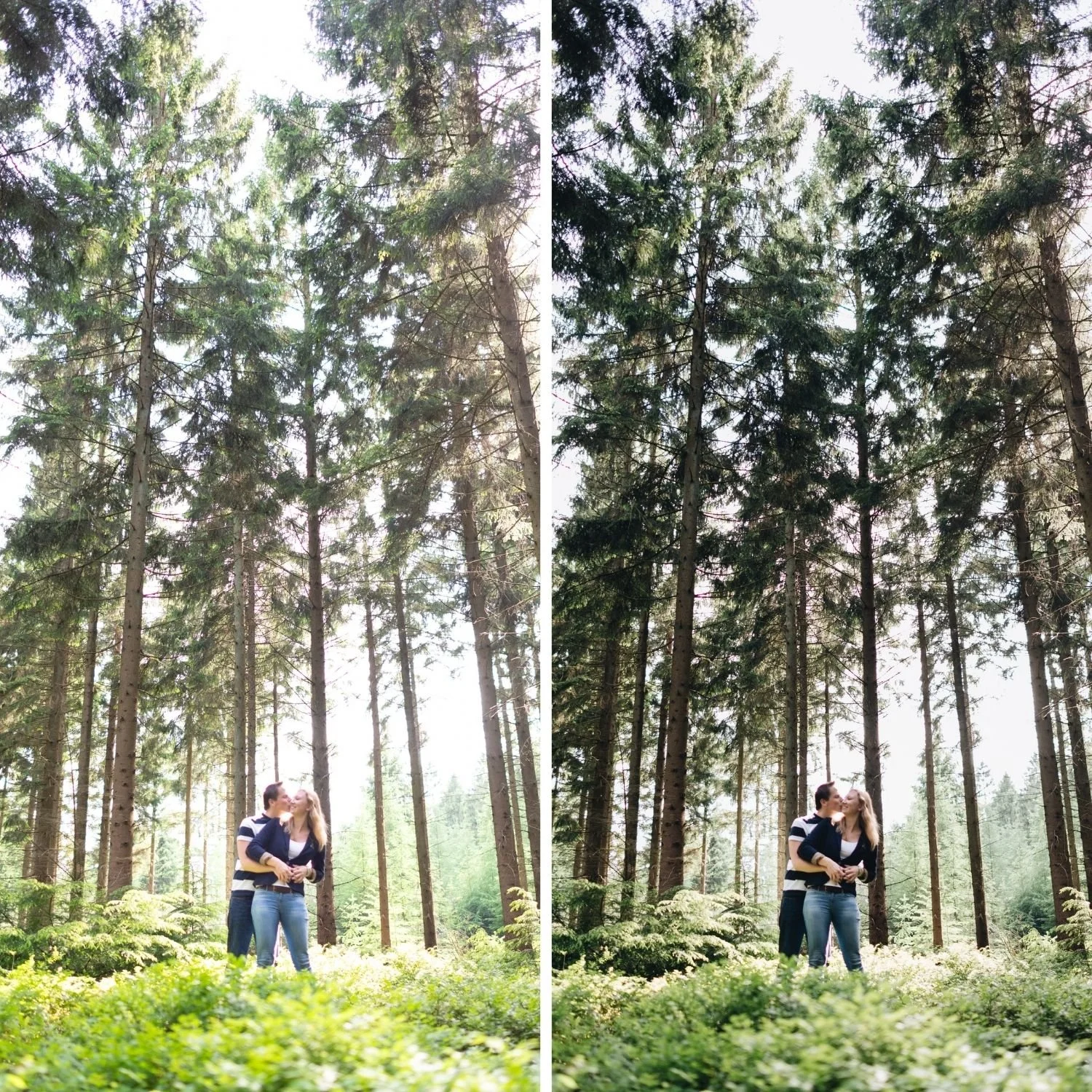
What Professional Preset Use Actually Looks Like
A professional preset workflow is built around calibrated foundations rather than creative filters. The preset establishes the tonal structure, color direction, and aesthetic identity of the edit. The photographer applies per-photograph adjustments for Exposure and White Balance variation, and targeted local adjustments where individual photographs have specific requirements that the preset does not address.
This is different from applying a preset and delivering the result unchanged. Professional preset use is the starting point for editing rather than the complete process. The preset eliminates the calibration decisions that would otherwise need to be made on every photograph individually. The photographer's editorial judgment is applied to variation within a consistent aesthetic framework rather than rebuilding the entire aesthetic on every photograph from scratch.
For a wedding photographer editing 600 photographs, a professional preset workflow means that every photograph receives the same highlight protection, the same skin tone calibration, the same outdoor color management, and the same contrast structure. The variation between photographs comes from Exposure differences, White Balance variations across the lighting conditions of the day, and targeted local adjustments for challenging photographs. The core aesthetic quality is consistent throughout because the preset applies it identically to every file.
Building a Professional Preset System
A professional preset system is a small collection of presets calibrated for different lighting conditions that share a consistent visual philosophy. For most professional photographers, this means three to five presets: a warm outdoor daylight preset, an overcast or diffuse light preset, an indoor warm ambient preset, and optionally a more dramatic or editorial preset for specific contexts.
These presets should look related when applied to photographs from the same session. They represent the same aesthetic identity expressed in different lighting contexts. Clients viewing a delivered gallery should see a cohesive body of work rather than photographs that look like they were edited with different aesthetics because the lighting changed.
The Essence Archive is a collection designed for this system-based professional approach. Eight presets spanning clean warm through deep heritage, all sharing the same warm film philosophy. Using E1 for outdoor daylight portraits and E4 or E6 for indoor warm ambient produces photographs that clearly belong to the same collection while being calibrated for their specific lighting conditions.
Consistency as a Professional Deliverable
For photographers delivering client work, consistency across a gallery is not simply aesthetically desirable. It is a fundamental deliverable that clients expect and that distinguishes professional work from casual photography. Clients viewing wedding photographs, brand photography, or editorial portraits expect that the color, tonal quality, and aesthetic character are consistent throughout the complete gallery.
This consistency is structurally guaranteed by well-executed preset workflows. Manual editing across 600 photographs over an eight-hour session produces natural inconsistency as human attention and judgment shift across the work. The editing decisions made in the first hour are observably different from those made in the sixth hour. Presets eliminate this structural inconsistency because the same calibrated adjustments apply identically to every photograph regardless of its position in the editing session.
When Manual Adjustment Adds Value
Professional preset use does not eliminate manual adjustment. It focuses manual adjustment on photographs where it adds the most value relative to the effort invested.
Key images that will be used prominently in client deliverables, marketing materials, or portfolio work warrant individual attention beyond the preset. Close-up portrait work where skin tone precision is critical and individual subjects have specific requirements benefits from targeted Orange channel calibration on a per-subject basis. Photographs with unusual lighting conditions or exposure challenges that the preset does not handle cleanly deserve individual attention. The remaining 70 to 80 percent of photographs in a typical professional gallery are well-served by the preset-based foundation with only Exposure and White Balance adjustment.
This allocation of manual effort to where it produces the greatest quality improvement is more effective than distributing the same total effort uniformly across every photograph.
Addressing Concerns About Quality and Authenticity
Some photographers resist preset-based workflows because of a concern that it compromises their work's authenticity or the quality of their editing. The concern about authenticity conflates the editing process with the photographic outcome. Clients evaluate the photographs, not the workflow. If a preset-based workflow produces more consistent, higher-quality results than manual editing of the same photographs would, it is a better outcome by every relevant measure.
The concern about quality is addressed by understanding what quality means in professional photography. Quality is consistency, accurate skin rendering, appropriate tonal structure, and visual cohesion across a gallery. Well-calibrated professional presets deliver all of these properties more reliably than manual editing of the same volume of work.

FAQ
Do professional photographers actually use presets in practice?
Yes, widely and consistently. Presets are used by photographers at every level of the industry including commercial studios, editorial photographers, and independent professionals. The specific presets and workflow details vary, but preset-based foundations are standard professional practice rather than a beginner shortcut.
Should I tell clients I use presets?
Describe your aesthetic direction and the consistency of your delivered work rather than discussing your technical process. Clients evaluate photographs and deliverables rather than workflow tools. The quality and consistency of the result is the relevant information.
What if a specific preset does not look right on a particular photograph?
Apply targeted manual adjustments for that photograph. The preset provides the calibrated foundation. Manual adjustment addresses specific requirements for individual photographs. This is the normal workflow structure, not an exception to it.
Start building a professional preset foundation:
Download the free Analog Film preset as a reference for professional-level calibration before investing in a complete collection.
For professional preset systems covering the full range of photography scenarios, the Studio Archive at $89 provides 130 presets suitable for any professional editing workflow.
