Why Lightroom Mobile Looks Different Than Desktop (2026)
You edit a photo in Lightroom Mobile, open the same photo in Lightroom Classic on desktop, and it looks different. Different exposure, different color, sometimes significantly different overall quality. The edit data is the same — so why does it look different?
This is a common and frustrating issue with a clear technical explanation. Here is why it happens and what to do about it.
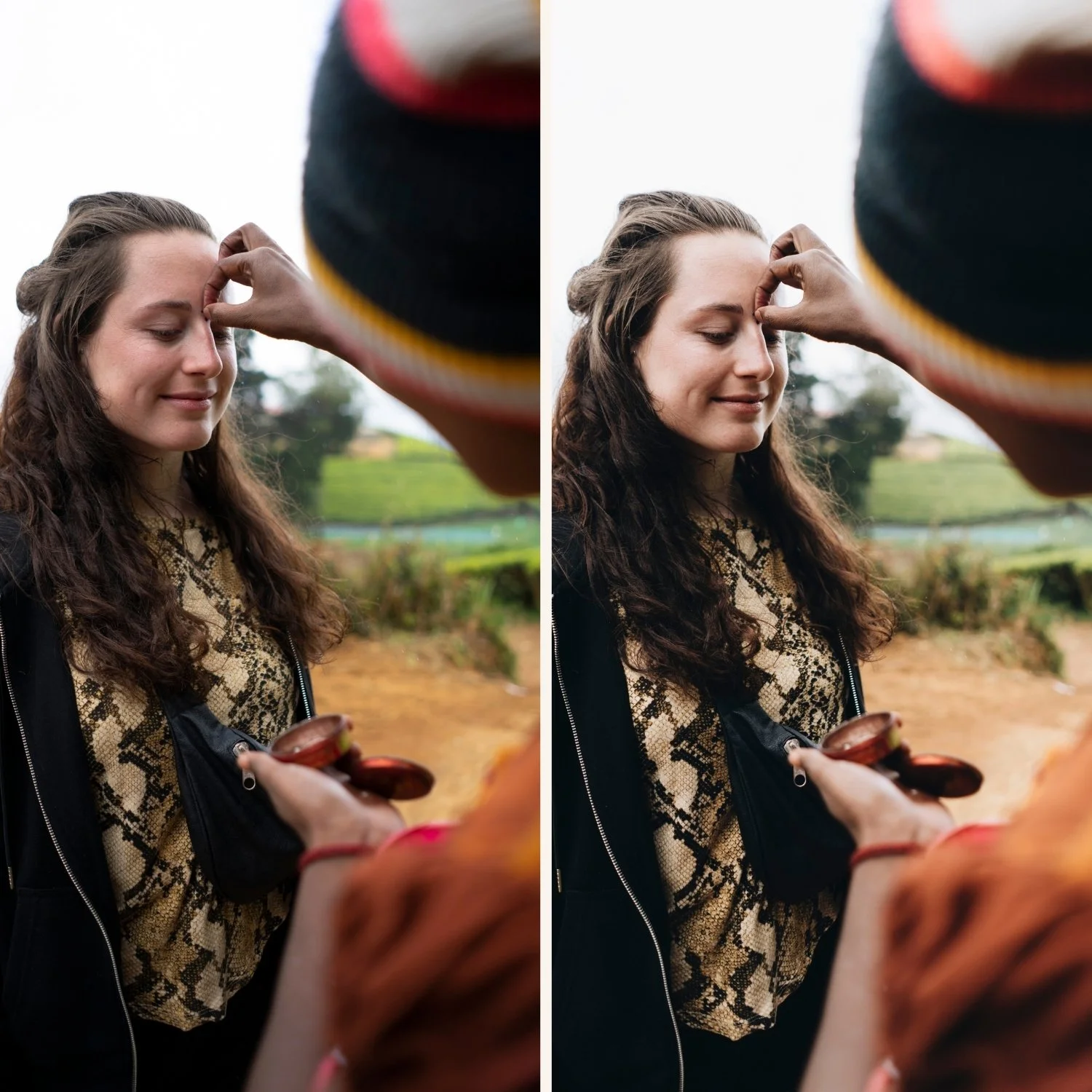
Cause 1 — Different camera profiles
The single most common cause. Lightroom Mobile and Lightroom Classic sometimes apply different default camera profiles to the same RAW file. The camera profile is the baseline color rendering before any edits are applied — if the profiles differ, everything built on top of them looks different.
The fix: Check the Camera Calibration panel in both versions. Ensure the Profile setting is the same in Lightroom Mobile and Lightroom Classic. Set both to Adobe Color or Camera Standard — whichever you prefer — and the starting point will be identical.
Cause 2 — Mobile is editing a JPEG, desktop is editing the RAW
When you shoot with your iPhone or Android camera, your phone saves both a processed JPEG and a RAW file (if RAW is enabled). Lightroom Mobile sometimes picks up the JPEG while Lightroom Classic on desktop uses the RAW. JPEG and RAW files render completely differently under the same edit settings.
The fix: In Lightroom Mobile settings, ensure RAW files are being used rather than JPEG. Go to the app settings and check the import preferences. If you are editing iPhone photos, enable Apple ProRAW in iPhone Camera settings to give Lightroom access to the RAW data.
Cause 3 — Display calibration differences
Your phone screen and your computer monitor have different color calibration, brightness, and color profiles. A photo that looks correctly exposed on a bright phone screen may look darker on a calibrated monitor. This is not an edit difference — it is a display difference.
The fix: This is partly unavoidable — screens are different. But you can minimize the issue by calibrating your monitor to a standard profile (sRGB) and reducing your phone brightness when editing to a level closer to how the photo will look on most screens.
When in doubt, trust the histogram rather than the visual. If the histogram looks the same on mobile and desktop, the edit data is identical regardless of how the screen renders it.
Cause 4 — Render pipeline differences
Lightroom Classic and Lightroom Mobile use slightly different rendering pipelines for some adjustments. Certain sliders — particularly in the Tone Curve and Color Grading panels — may render slightly differently between the two versions. Adobe has been working to align these but small differences persist.
The fix: For professional delivery, always do the final check and export from Lightroom Classic on desktop where the rendering is most controlled. Use Lightroom Mobile for editing convenience and sync to desktop for final review.
FAQ
Why does the same preset look different on mobile and desktop?
Usually because of different camera profiles. Check the Camera Calibration panel in both versions and set the same profile. Also check that both are editing the same file type (RAW vs JPEG).
Will Adobe ever make mobile and desktop look identical?
Adobe is continuously working to align the two versions. In 2026 they are significantly closer than they were in previous years. Small differences in screen calibration and some rendering details will likely always exist.
Which version should I trust for final delivery?
Lightroom Classic on desktop. It has more consistent rendering and better export controls. Use mobile for editing on the go and desktop for final review and delivery.