Lightroom Mobile Film Editing — Complete Guide (2026)
Lightroom Mobile Film Editing — Complete Guide (2026)
Lightroom Mobile is a full professional editing tool. The same tone curve, color mix, color grading, masking, and preset system that photographers use on desktop — available on your phone, free, without a subscription.
The gap between mobile and desktop editing has effectively closed. What hasn't closed is the knowledge gap — most mobile photographers edit without a system, applying presets inconsistently and getting different results on every photo.
This guide gives you the complete system: the right workflow order, the exact settings for the film look, how to handle skin tones, how to install and use presets correctly, and how to export for Instagram and other platforms without losing quality.
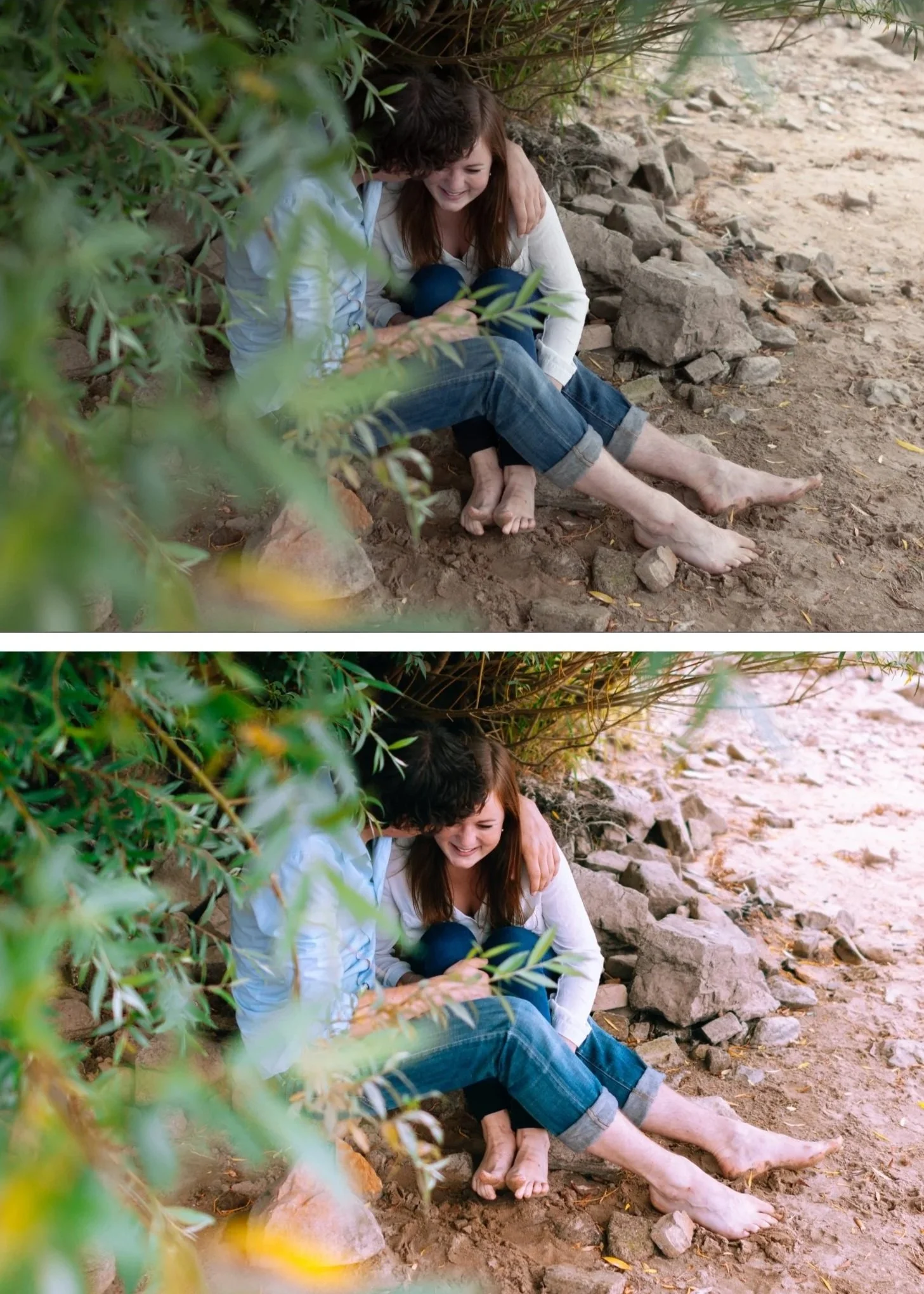
What Lightroom Mobile can do in 2026
Before getting into the workflow, it's worth understanding what you're working with. Lightroom Mobile is not a simplified version of the desktop app — it's the same editing engine with the same tools.
What Lightroom Mobile includes:
Basic adjustments (Exposure, Contrast, Highlights, Shadows, Whites, Blacks)
Tone Curve — full RGB and individual channel curves
Color Mix (HSL) — Hue, Saturation, and Luminance per color channel
Color Grading — three-way shadow/midtone/highlight color grading
Effects — Grain, Clarity, Texture, Dehaze, Vignette
Detail — Sharpening and Noise Reduction
Masking — AI subject and sky selection, gradient and radial filters, brush
Presets — install and apply your own preset packs
Cloud sync — edits sync automatically between mobile and desktop
RAW file support — edit ProRAW (iPhone), RAW (Android and camera imports)
What costs nothing: All of the above. Lightroom Mobile is free. Presets work without a subscription. The only things behind the subscription are certain AI features and cloud storage above 1TB.
For a full comparison of what differs between mobile and desktop: Lightroom Mobile vs Desktop — Full Comparison
The professional mobile editing workflow
Order matters more than most people realize. Applying a preset before fixing exposure means the preset is building on a wrong foundation — every preset is calibrated for a specific exposure range, and if your starting point is off, the result looks wrong.
Follow this order every time:
Step 1 — Fix exposure first
Before anything else, get the brightness right. The goal is a well-exposed base — not too bright, not too dark, highlights not clipped.
In Lightroom Mobile, tap Light and adjust:
Exposure: get the overall brightness correct
Highlights: pull back if bright areas are clipping (check the histogram)
Shadows: lift slightly if dark areas have no detail
Do not over-correct — you want a natural starting point, not a perfect final edit.
Step 2 — Set white balance
White balance is the most important setting to get right before applying a preset. A warm indoor photo plus a warm preset equals orange skin. A cool overcast photo plus a film preset looks wrong.
Tap Color → White Balance:
Use the Temperature slider to correct colour cast
Use Tint to correct green/magenta cast
Aim for skin to look neutral before any preset is applied
For most indoor photos, this means cooling the temperature slightly from Auto. For overcast outdoor, it may mean warming slightly.
Step 3 — Apply your preset
With exposure and white balance correct, apply your preset. It should immediately look close to the intended result.
If it looks very different from what you expected — too warm, too dark, wrong colour — the issue is almost always in steps 1 or 2. Fix the foundation before adjusting the preset.
Step 4 — Fine-tune
After applying the preset, make small adjustments for the specific photo:
Exposure: ±0.2 to ±0.3 if needed
Highlights: adjust based on the specific lighting
White Balance: fine-tune if the preset shifted the warmth
These adjustments should be small. If you're making large adjustments, the wrong preset was chosen or the foundation wasn't correct.
Step 5 — Check and adjust color
If skin tones look orange or skin looks flat, adjust the Orange channel in Color Mix:
Orange Saturation: -5 to -15 removes the orange cast
Orange Luminance: +5 to +15 brightens skin naturally
If greens look too vivid or digital, reduce Green Saturation (-5 to -15).
Step 6 — Copy and paste to similar photos
Once you're happy with one photo from a series, copy the settings and paste to all similar photos from the same shoot. This is how consistency is built — not by editing each photo from scratch.
Tap the three dots (⋮) → Copy Settings → Select All → Copy. Then open the next photo, tap three dots → Paste Settings.
Step 7 — Export correctly
Exporting correctly is as important as editing correctly. The wrong export settings can make a perfect edit look compressed and flat after uploading.
See the export section below for platform-specific settings.
How to create the film look in Lightroom Mobile
Mobile cameras apply HDR processing, aggressive sharpening, and high saturation that makes photos look vivid and sharp — the opposite of film. Creating the film look means undoing those digital characteristics and adding the analog ones.
Neutralize the digital look first
Before any color work, reduce the digital harshness:
Clarity: -5 to -15 (reduces micro-contrast that makes skin and edges look digital)
Texture: -5 to -10 (softens the digital sharpness)
Sharpening: reduce from 40 to 20-25 (the default is too aggressive for film looks)
Add lifted shadows and protected highlights
This is the foundation of the film look:
Shadows: +15 to +25 (film never crushes shadows to pure black)
Blacks: +15 to +25 (lifted blacks are the most characteristic film quality)
Highlights: -20 to -35 (soft highlight roll-off rather than harsh clipping)
Control colour with the Color Mix panel
The Color Mix panel is where the film colour science lives:
Green Hue: shift toward yellow (+10 to +15) — organic, natural green
Green Saturation: -15 to -20 — muted greens are key to the film look
Blue Saturation: -15 to -25 — muted blues
Orange Saturation: 0 to +5 — keep warm but not vivid
Orange Luminance: +10 to +15 — brighter, more natural skin
Use the Tone Curve for film depth
The Tone Curve creates tonal depth that sliders alone can't achieve:
Lift the bottom-left anchor point (lifts shadows — creates the faded film quality)
Add a gentle S-curve in the midtones
Soften the top-right anchor point (protects highlights)
For the exact film look Tone Curve technique: How to Get the Film Look on iPhone
Add grain last
Film grain is added in the Effects panel after all other adjustments:
Amount: 15-25 for subtle film character
Size: 25-30
Roughness: 40-50
Add grain after other adjustments — it interacts with sharpening and noise reduction, so order matters.
Skin tones on Lightroom Mobile
Skin tone handling is where most mobile edits go wrong. Phone cameras over-warm skin, over-saturate orange tones, and the combined effect with film presets can push skin toward orange or flat.
The five-step skin tone system
1. White balance before anything else — correct white balance is the foundation. Warm indoor light needs to be cooled before applying any preset.
2. Orange Saturation: -5 to -15 — reduces the over-saturated orange quality of mobile camera skin rendering without removing warmth entirely.
3. Orange Luminance: +10 to +15 — brightens skin independently of the rest of the image. This is the single most effective adjustment for natural-looking skin.
4. Red Saturation: -5 to 0 — if cheeks look too red or flushed, slight reduction here fixes it.
5. Clarity: -5 to -10 — negative clarity softens the micro-contrast that makes skin texture look harsh. Subtle — not so much that the image looks soft overall.
For the complete skin tone guide: Best Lightroom Mobile Settings for Natural Skin Tones
Installing and using presets on Lightroom Mobile
Presets are the fastest way to apply a consistent film look across all your photos. One tap applies all the film look adjustments above then you fine-tune from there.
How to install presets (DNG method — no desktop needed)
Download the DNG preset files to your phone
Open Lightroom Mobile and import the DNG files as photos
Open a DNG file → tap three dots → Copy Settings → Select All → Copy
Tap three dots again → Create Preset → name it → save
Repeat for each preset
How to install presets (sync from desktop)
Install XMP presets in Lightroom Desktop
Enable "Sync presets with Lightroom mobile" in Desktop preferences
Open Lightroom Mobile — presets sync automatically
Full installation guides:
Why presets look different on every photo
Presets are calibrated for a specific exposure and white balance range. If your photo has a different starting point, the preset looks different. The fix is always in the foundation — correct exposure and white balance before applying.
For a full explanation: Why Do Presets Look Different on Mobile?
RAW vs JPEG on Lightroom Mobile
Shoot RAW when possible
RAW files give the preset more tonal information to work with:
Better highlight recovery — pull back blown highlights that JPEG can't recover
More shadow detail — lift shadows without introducing noise
More accurate colour rendering — the film colour science works better on RAW
iPhone: enable ProRAW in Settings → Camera → Formats → Pro RAW Android: most camera apps have a RAW option in settings
JPEG editing tips
If you're editing JPEG:
Be more conservative with shadow lifting — JPEGs introduce noise faster
Pull highlights back less aggressively — JPEG highlight recovery is more limited
Keep grain lower (Amount 10-15) — JPEG already has compression artefacts
Editing for specific mobile photography scenarios
Portrait photography on mobile
The phone's portrait mode creates artificial bokeh that can look unnatural with film presets. For film portrait editing on mobile:
Reduce Clarity further (-10 to -15) for skin softness
Keep grain lower (Amount 10-15) so it doesn't compete with skin texture
Use the A6 Clean Portrait preset or similar skin-optimized preset as your starting point
Check skin tones after applying — phone portrait processing can create colour casts
For dedicated portrait presets: Portrait Film Lightroom Preset Guide
Travel photography on mobile
Travel photos often have wide tonal ranges — bright sky, dark shadow, varied colour. Key adjustments:
Pull Highlights to -35 to -45 to recover sky detail
Lift Shadows to +20 to +30 for shadow detail
Reduce Green Saturation more aggressively (-20 to -25) for organic foliage
The Analog Film Archive presets are the most versatile for travel across varied lighting
For travel preset recommendations: California Film Lightroom Preset Guide
Street photography on mobile
Street photography benefits from slightly more contrast than portrait or travel:
Keep Contrast at 0 to +10 rather than negative
Blacks: +5 to +15 rather than the higher lift of portrait editing
More grain (Amount 25-35) adds character appropriate to the genre
Urban Neutral (A9) or Cinematic presets work well
Indoor and low light mobile editing
Low light is the hardest scenario for film editing on mobile:
Reduce Noise Reduction from default to 20-30 before adding grain
Add grain after noise reduction — adding grain on top of noise looks terrible
Reduce Clarity more aggressively (-15 to -20)
Lift Shadows carefully — mobile low light photos have more noise in shadows
Export settings for mobile
For Instagram
Format: JPEG
Colour Space: sRGB
Dimensions: 1080px on the long edge
Quality: 80-85
Sharpening: Off
Full guide:Best Lightroom Export Settings for Instagram 2026
For TikTok
Format: JPEG
Dimensions: 1080 x 1920px (9:16 vertical) or 1080 x 1080px (square)
Quality: 85
Colour Space: sRGB
Full guide: Best Lightroom Export Settings for TikTok 2026
For printing
Format: JPEG or TIFF
Colour Space: sRGB for standard printing, Adobe RGB for professional print labs
Dimensions: full resolution — do not resize
Quality: 100
The best presets for Lightroom Mobile film editing
Every preset in The Editing Studio shop includes DNG files (for mobile) and XMP files (for desktop). The same preset looks identical on both platforms.
For a versatile all-round film look: Analog Film Archive — 10 presets, $27
For moody and cinematic: Moody Film Archive — 6 presets, $27
For bright and clean: Bright & Clean Archive — 6 presets, $27
For everything in one place: The Studio Archive — 130 presets, $89
FAQ
Is Lightroom Mobile free?
Yes. Lightroom Mobile is completely free. All editing tools — including tone curve, color mix, masking, and presets — are available in the free version. No subscription required.
Do I need a subscription to use presets on Lightroom Mobile?
No. Installing and using presets is fully available in the free version of Lightroom Mobile.
Why does my preset look different on my phone than on desktop?
Usually caused by different exposure or white balance starting points, or the phone's automatic HDR processing affecting the base image. Fix exposure and white balance before applying the preset. For more detail: Why Do Presets Look Different on Mobile?
Can Lightroom Mobile replace desktop editing?
For most content creators, yes. The tools are equivalent for colour editing and preset application. Desktop is better for large batch editing, advanced retouching, and printing workflows. For Instagram and social media content, mobile is fully sufficient.
What's the best Lightroom Mobile preset for iPhone photos?
The A6 Clean Portrait preset (available free) is the most popular starting point. For a complete system covering different lighting conditions, the Analog Film Archive covers the full range of everyday film editing scenarios.
How do I get consistent results across all my photos?
Follow the workflow order above — fix exposure and white balance first, then apply the preset, then copy settings to similar photos. The preset handles colour consistency. Exposure and white balance corrections handle lighting variation.
How do I edit videos in Lightroom Mobile?
Lightroom Mobile supports basic video colour editing — the same Light and Colour adjustments apply to video clips. Presets can be applied to video but grain effects don't apply. Export at 1080p or 4K depending on platform.
Complete guide index
Installation guides:
Film look guides:
Preset style guides:
Export guides:
Best presets guides:
