Film Presets for Samsung Users — Lightroom Mobile Guide (2026)
Film Presets for Samsung Users — Lightroom Mobile Guide (2026)
Samsung phones produce vivid, high-contrast photos with strong HDR processing. For casual sharing this looks good. For film-style editing in Lightroom Mobile, Samsung's processing creates a starting point that is more vivid and higher contrast than what film presets are calibrated for.
Two adjustments fix this before you apply a single preset. This guide covers both adjustments and the best film presets for Samsung photography.
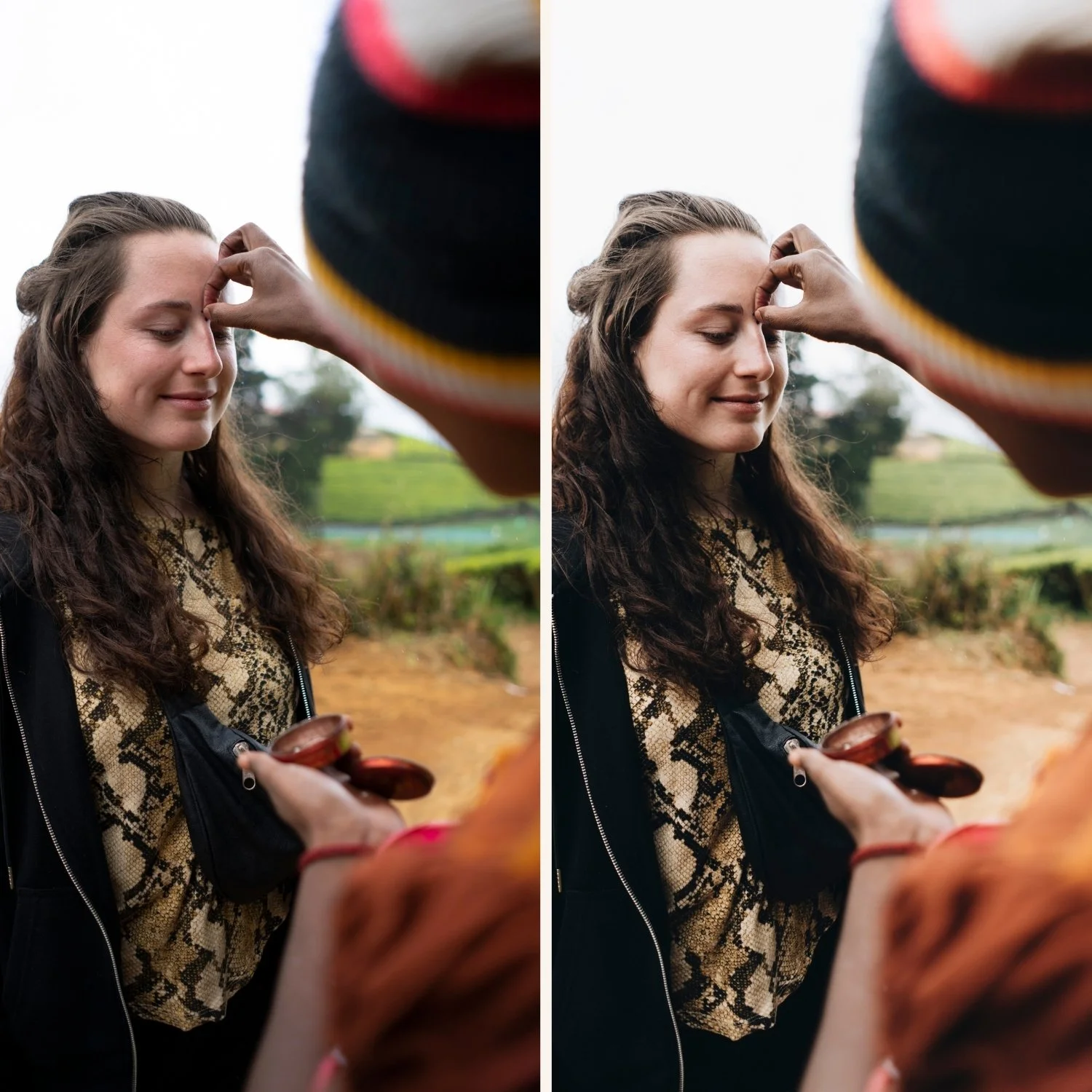
Understanding Samsung color science
Samsung Galaxy phones use a color processing pipeline that:
Boosts saturation — particularly greens, blues, and skin warmth. Colors look vivid and punchy on Samsung screens. In Lightroom editing, this means starting from an already-saturated base.
Applies HDR compression — shadows are lifted, highlights are pulled back, overall contrast is reduced. This creates an evenly exposed, slightly flat starting point for editing.
Adds sharpening — Samsung applies edge sharpening similar to iPhone. Film presets add texture and subtle contrast on top of this, creating digital harshness.
Understanding these three characteristics tells you exactly how to prepare Samsung photos for film editing.
The Samsung preparation workflow
Step 1 — Camera Calibration: Camera Standard
This is the most important Samsung-specific adjustment. In Lightroom Mobile, scroll to Camera Calibration at the bottom of the editing panel. Change from Adobe Color to Camera Standard.
This switches from Adobe's generic color rendering to Samsung's native color science as the starting point. On Samsung phones, Camera Standard is significantly closer to natural color than Adobe Color.
Step 2 — Reduce Sharpening to 20
Samsung sharpening plus preset Texture or Clarity creates digital harshness. Reduce Sharpening Amount in the Detail panel from 40 to 20.
Step 3 — Reduce Vibrance -10 before applying
Samsung's saturation boost means the preset is working on top of an already vivid foundation. Adding Vibrance -10 before applying brings the starting point closer to what the preset assumes.
Best film presets for Samsung phones
Clean and natural: A6 Clean Portrait or A1 Analog Original. These clean, neutral presets complement Samsung's color science without amplifying the vivid processing.
Warm film: V1 Classic Film or E4 Balanced Classic. Warm but controlled — calibrated in a range that works with Samsung's processing rather than against it.
Moody: M4 Moody Classic. The deep shadow quality of moody presets suits Samsung's HDR-lifted starting point. The moody preset adds back the tonal depth that Samsung's HDR removed.
Portrait: G1 Clean Glow. Skin tone calibration that handles Samsung's warm-orange skin processing without additional manual adjustment.
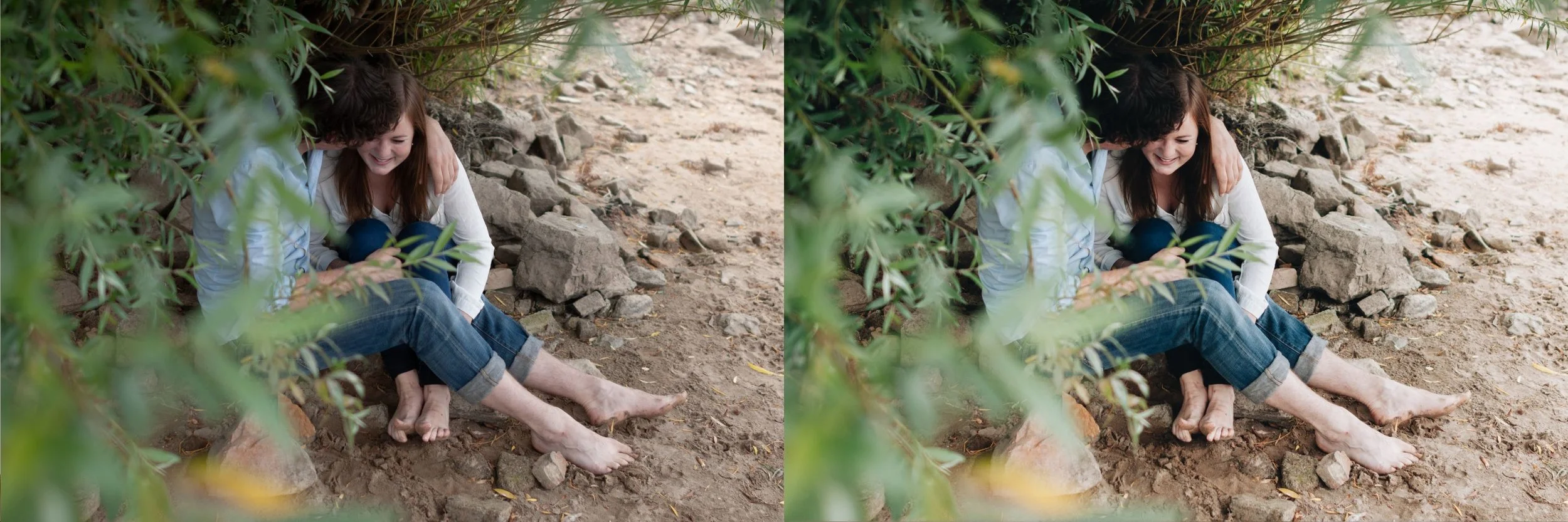
Samsung RAW shooting
Samsung Galaxy S21 and later support RAW and Expert RAW shooting. Shooting RAW on Samsung bypasses the color processing and HDR entirely — the same advantages ProRAW gives iPhone users.
Enable: Camera app, More, Pro or Expert RAW mode, change format to RAW or RAW+JPEG.
Samsung RAW files in Lightroom respond to film presets much more naturally than Samsung JPEG. Camera Standard in Camera Calibration is still recommended.
Preset amount on Samsung
Samsung JPEG photos: reduce preset amount to 65-75%. Samsung's processing is more aggressive than iPhone's — the combined effect means full-strength presets often look overdone.
Samsung RAW photos: 85-95%. The wider tonal latitude of RAW means presets work closer to their intended strength.
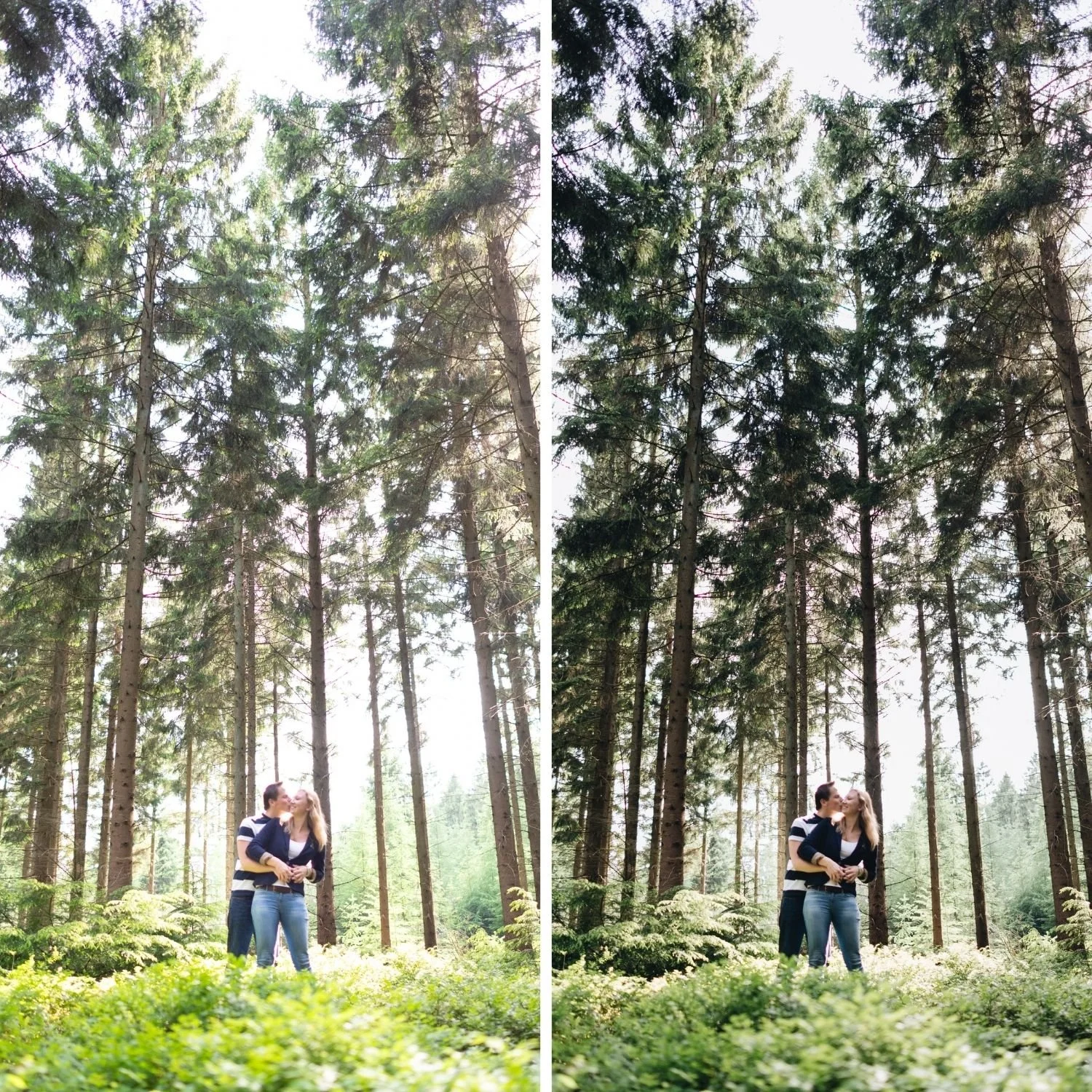
FAQ
Why do film presets look too saturated on Samsung?
Samsung boosts saturation before Lightroom sees the file. Add Vibrance -10 before applying and reduce preset amount to 65-75%.
What is the best Lightroom preset for Samsung Galaxy?
A6 Clean Portrait on Camera Standard profile. Clean, natural, calibrated for neutral film tones that work with Samsung's processing rather than amplifying it.
