Samsung HDR vs Lightroom Editing — Which Gives Better Film Results? (2026)
Samsung HDR vs Lightroom Editing — Which Gives Better Film Results? (2026)
Samsung's HDR processing looks great for casual sharing. For film-style editing in Lightroom Mobile, it creates problems — compressed tonal range, lifted shadows, reduced contrast — that fight against what film presets are trying to achieve. This guide compares both approaches and tells you exactly when to use each.
What Samsung HDR does
Samsung's HDR system combines multiple exposures automatically for every photo. The result:
Shadows lifted 1-2 stops automatically
Highlights pulled back 1-2 stops automatically
Overall contrast reduced
Sharpening and noise reduction applied
Vivid color enhancement
For direct sharing, this produces photos that look bright, detailed, and sharp. For Lightroom film editing, the compressed tonal range and vivid processing create a difficult starting point.
What Lightroom manual editing does
Editing in Lightroom on a non-HDR Samsung photo gives you the full tonal range of the sensor. You control every adjustment — shadows, highlights, contrast, color — without fighting against HDR compression.
Film presets applied to a non-HDR Samsung photo land closer to their intended result because the preset's own tonal adjustments have the full dynamic range to work within.
Side-by-side comparison
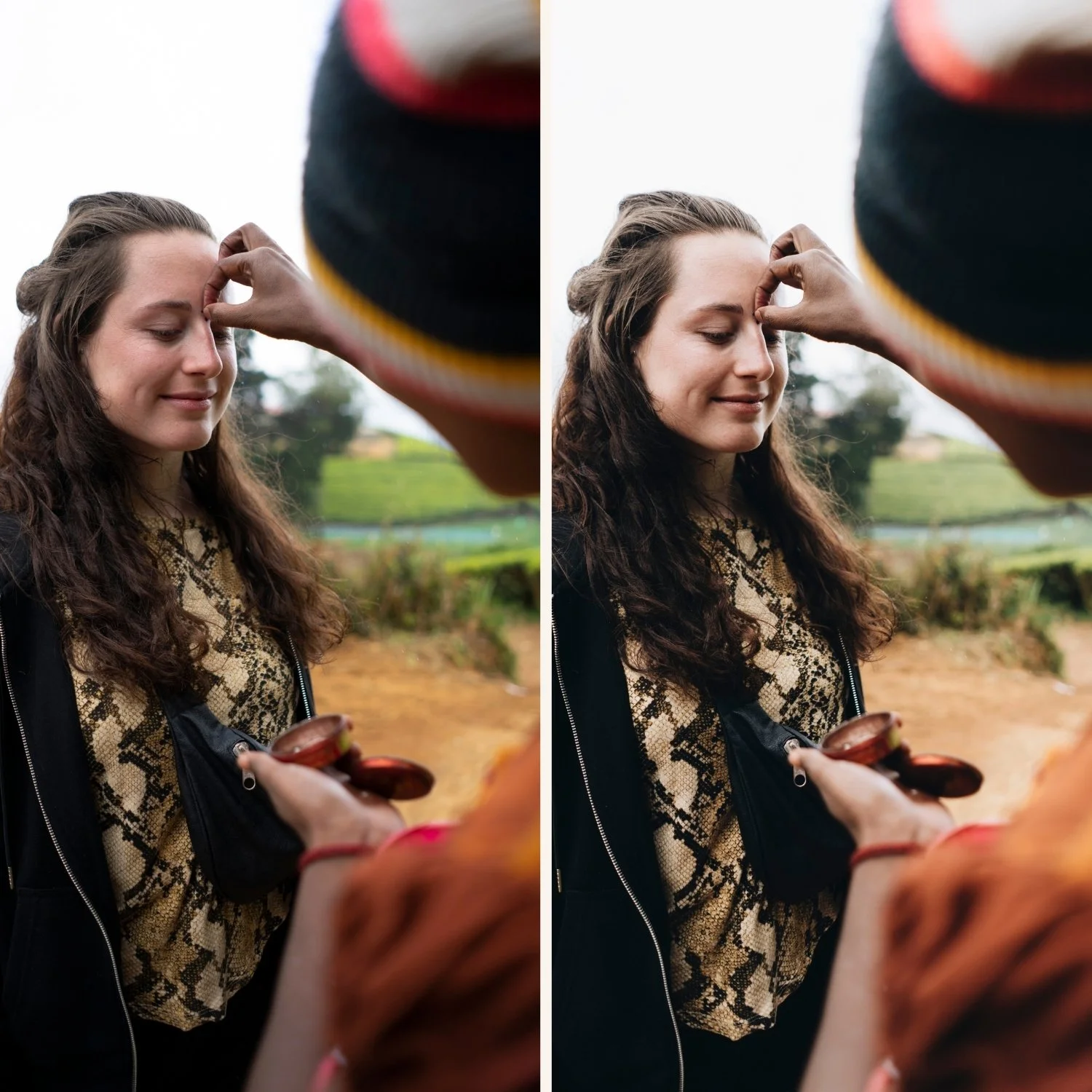
Samsung HDR JPEG + film preset: The preset works on top of already compressed tones. Shadow lifts from the preset stack on top of HDR-lifted shadows — result is flat and grey. Highlight pulls from the preset have less to work with because HDR already pulled them. Preset often needs to be reduced to 60-70% to avoid looking overdone.
Samsung RAW + film preset: Full tonal range. Preset shadow adjustments have natural depth to work with. Highlight protection creates the soft roll-off quality of film. Preset at 85-90% strength looks natural and organic.
Winner for film quality: Samsung RAW + Lightroom.
When Samsung HDR still makes sense
For quick casual photos you will share directly — HDR processing is faster and produces immediately good results. For photography you plan to edit with film presets in Lightroom, turn HDR off or shoot RAW.
How to disable Samsung HDR / shoot RAW
Samsung Galaxy S21 and later: Camera app, More, Expert RAW — available as a separate app on newer Galaxy models.
Standard Camera app: Tap the Settings gear in the top left. Look for Shooting Methods or Scene Optimiser. Disable Scene Optimiser to reduce HDR processing.
For RAW: In the Camera app gear icon, look for Picture Formats, RAW copies or RAW+JPEG.
FAQ
Does turning off Samsung HDR make photos worse?
For casual direct sharing, sometimes. Without HDR, highlights clip more easily in bright conditions. For photography you plan to edit in Lightroom, turning HDR off or shooting RAW gives you more control and better film preset results.
Can I reverse Samsung HDR processing in Lightroom?
Partially — reduce Shadows and push Contrast back up to restore some tonal depth. But you cannot fully recover what HDR compression removed from a JPEG. Shooting RAW or Expert RAW is the complete solution.