How to Edit Android Photos in Lightroom Mobile (2026)
How to Edit Android Photos in Lightroom Mobile (2026)
Editing Android photos in Lightroom Mobile follows the same basic workflow as iPhone but with one critical difference: Camera Calibration. Android phones — particularly Samsung — apply color processing that creates a fundamentally different starting point from iPhone. One setting change corrects this before you touch anything else.
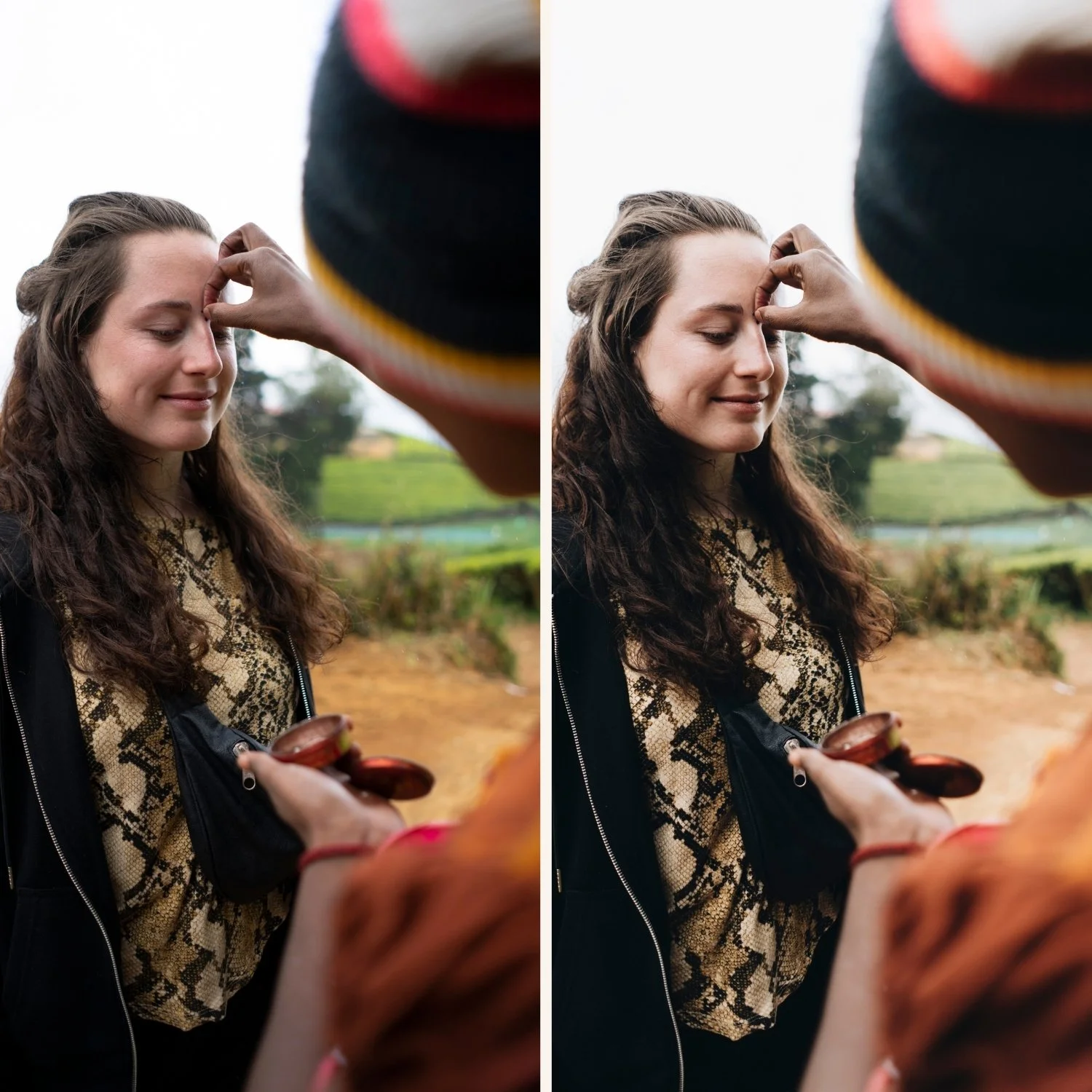
Step 1 — Camera Calibration: Camera Standard
This is the most important step for Android photos in Lightroom. Scroll to the Camera Calibration panel at the bottom of the editing panel. Change Profile from Adobe Color to Camera Standard.
On Samsung phones this makes a dramatic difference — colors shift from over-vivid to natural. On Pixel phones the difference is subtler but still an improvement. On all Android phones, Camera Standard gives a more film-friendly starting point.
Step 2 — Reduce sharpening and Clarity
Sharpening: reduce to 20-25 in the Detail panel. Android phones — particularly Samsung — apply edge sharpening that fights against the organic film quality of presets.
Clarity: -8 to -10. Removes the digital micro-contrast from Android processing.
Step 3 — Fix exposure
Check the histogram before applying any preset. The right edge should be away from the wall — if highlights are clipped, pull Highlights -35 to -45 and Whites -15 to -20.
Android phones — particularly Samsung with HDR on — sometimes overexpose highlights. Fix before applying the preset.
Step 4 — Fix white balance
White balance is the most common cause of unnatural preset results on Android.
Samsung indoors: Auto white balance on Samsung in warm indoor light often reads too warm. Pull Temperature to 3,200-3,500K until white surfaces look white.
Outdoors: Usually correct. If the photo looks too cool (overcast), add Temperature +100 to +200.
Pixel: More accurate white balance than Samsung in most conditions. Usually only minor correction needed.
Step 5 — Reduce Vibrance for Samsung
For Samsung JPEG photos only: add Vibrance -8 to -12 before applying the preset. Samsung's color boost means the preset is working on an already-vivid foundation. This reduction brings the starting point closer to what the preset assumes.
Not needed for Pixel or other Android phones with more neutral processing.
Step 6 — Apply preset
Apply your film preset. For Samsung JPEG: reduce to 65-75% strength. For Pixel: 85-95%. For Samsung RAW: 85-90%.
Step 7 — Fine-tune greens
Android cameras — particularly Samsung — oversaturate outdoor greens similarly to iPhone.
Color Mix, Green Hue: +8 to +12 toward yellow. Shifts digital neon green toward organic film green.
Color Mix, Green Saturation: -12 to -18. Reduces vivid green quality.
Step 8 — Check skin tones
Orange Luminance: +10 to +15. Natural skin brightness.
Orange Saturation: 0 to +5. Keep controlled — Android warm processing plus preset warmth can create orange skin.
Step 9 — Export
JPEG, quality 85%, sRGB, 1080px for Instagram. Full export guide: Export Settings for Android Instagram
The complete Android editing checklist
Camera Calibration → Camera Standard
Sharpening → 20-25
Clarity → -10
Fix exposure and highlights
Fix white balance
Vibrance → -10 (Samsung only)
Apply preset at 65-75% (Samsung) or 85-95% (Pixel)
Green Hue → +10, Green Saturation → -15
Orange Luminance → +12, Saturation → 0 to +5
Export sRGB, 85%, 1080px
FAQ
Does this workflow work for all Android brands?
Yes. Samsung needs the most correction (Vibrance reduction, lower preset amount). Pixel needs the least. OnePlus, Xiaomi, and others fall somewhere between — start with Camera Standard and adjust from there.
Should I shoot RAW on Android?
Yes for photography you plan to edit seriously. Samsung Expert RAW and Pixel Pro mode both produce RAW files that give significantly more latitude than JPEG. The same workflow applies but with less preparation needed.
