How to Batch Edit in Lightroom Mobile — Complete Guide (2026)
How to Batch Edit in Lightroom Mobile — Complete Guide (2026)
Editing photos one by one on your phone takes hours. Batch editing in Lightroom Mobile lets you edit one photo perfectly and apply those exact settings to dozens or hundreds of photos in seconds.
This guide covers every method for batch editing in Lightroom Mobile — copy and paste, auto-sync, and preset application across multiple photos.
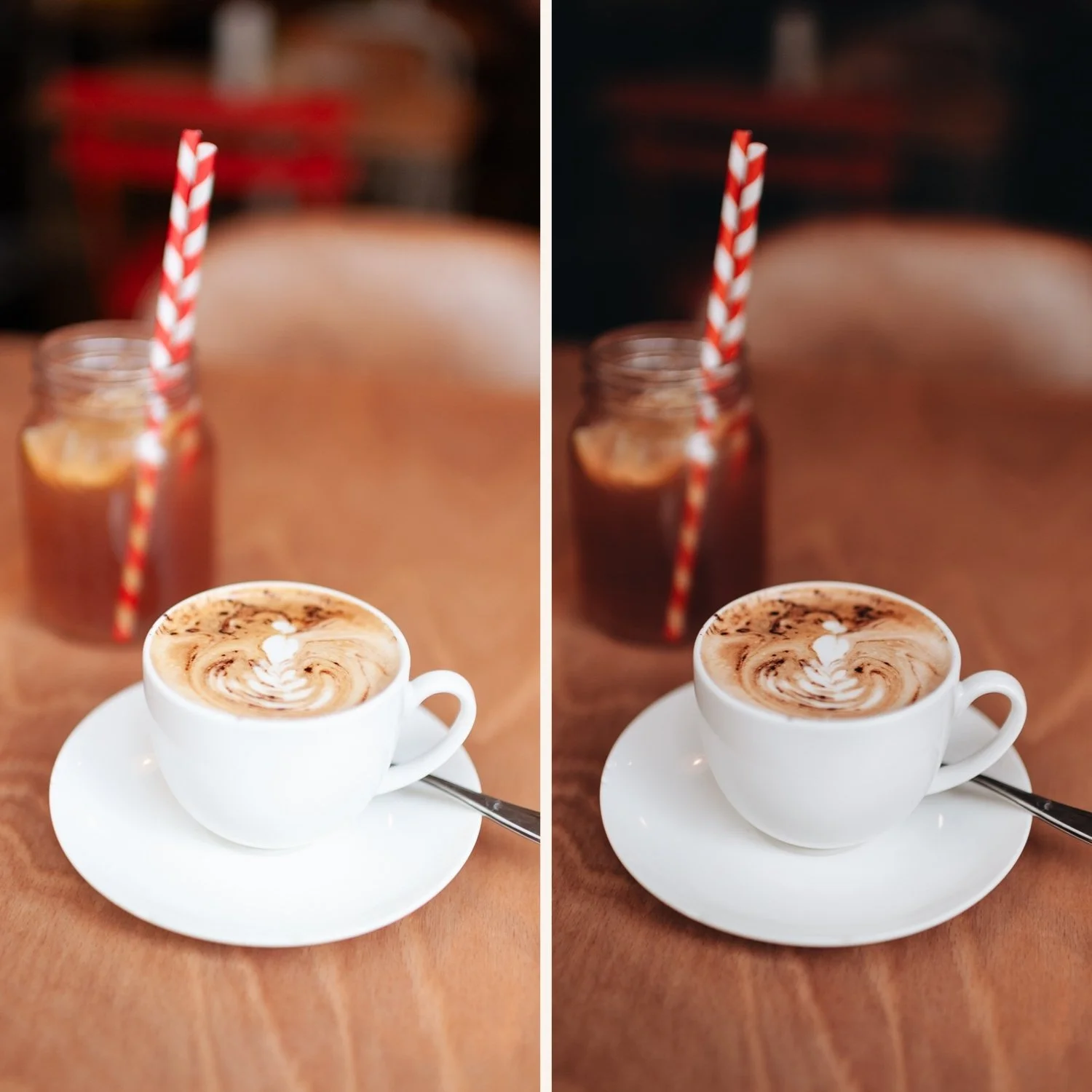
Method 1 — Copy and Paste Settings (fastest for small batches)
The most straightforward batch editing method in Lightroom Mobile.
Step 1 — Edit your best photo. Choose the photo with the most representative exposure and color. Edit it to your desired look — apply your preset, adjust exposure and white balance.
Step 2 — Copy the settings. Tap the three dots in the top right corner of the editing screen. Tap "Copy Settings." Select which settings to copy — for most batch editing, select all. Tap "Copy."
Step 3 — Select the photos to paste to. Go back to your photo grid. Long press on a photo to enter selection mode. Tap all the photos you want to paste to.
Step 4 — Paste. Tap the three dots in the top right corner of the grid view. Tap "Paste Settings."
Done. Your edited look is applied to every selected photo. Fine-tune individual photos that need specific adjustments.
Method 2 — Auto-Sync (best for live batch editing)
Auto-Sync applies every adjustment you make to all selected photos simultaneously — as you move a slider, every selected photo updates in real time.
Step 1 — Select multiple photos. In the photo grid, long press one photo to enter selection mode. Tap all photos you want to sync.
Step 2 — Enable Auto-Sync. Tap "Edit" to open the editing panel. At the top of the panel you will see "Auto Sync" — tap to enable it. It turns blue when active.
Step 3 — Edit. Every adjustment you make now applies to all selected photos simultaneously. Apply your preset, adjust exposure, adjust white balance — all changes go to every photo.
When to use Auto-Sync: When you are editing a set of photos shot in identical lighting conditions and want live simultaneous control.
When not to use Auto-Sync: When photos have different exposures. A +0.3 exposure adjustment on a correctly exposed photo becomes +0.3 on every photo regardless of their individual exposures.
Method 3 — Apply a Preset to Multiple Photos
The fastest method when you want to apply a film preset to an entire shoot without manual editing.
Step 1 — Select photos in grid view. Long press a photo to enter selection mode. Tap all photos you want to preset.
Step 2 — Open the preset panel. Tap the Edit button. Tap Presets at the bottom of the editing panel.
Step 3 — Apply. Tap your preset. It applies to every selected photo simultaneously.
Step 4 — Individual adjustments. Open each photo individually and adjust exposure and white balance. The preset handles the color and tone. You only need to correct the technical starting point per photo.
The correct batch editing workflow
Most photographers make one mistake with batch editing — they apply the same preset and the same exposure adjustment to every photo. The result is inconsistent because the photos had different exposures.
The correct workflow:
Sort photos by lighting condition — group similar light together
Choose the best-exposed photo in each group as your edit reference
Apply preset to the reference photo
Adjust exposure and white balance on the reference photo
Copy settings and paste to the rest of the group
Fine-tune individual photos as needed
This approach gives consistent results across an entire shoot because the preset handles the color and you handle the technical starting point per group.
Batch editing with film presets
Film presets make batch editing significantly easier because they handle the color science consistently. Apply the A6 preset to 50 photos and every photo gets the same analog film tonal quality — then you only need to adjust exposure and white balance per photo, not rebuild the film look from scratch on each one.
The Studio Archive gives you 130+ presets for every lighting condition — batch edit a morning session with one preset and an afternoon session with another, and the gallery looks visually consistent because both presets are built on the same color philosophy.
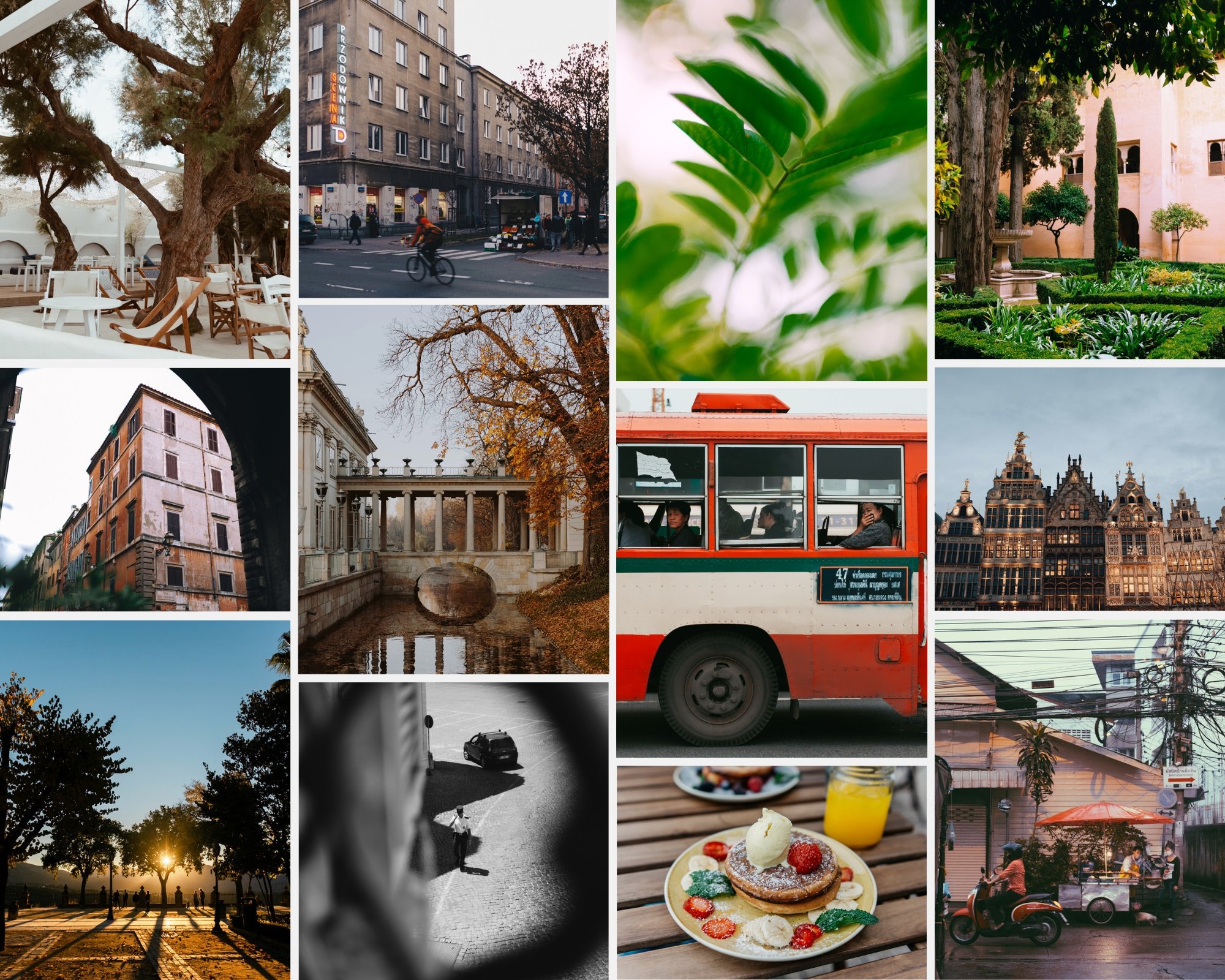
Free preset for batch editing
Download the free A6 preset and apply it to your next shoot using the methods above. It works in Lightroom Mobile on both iPhone and Android.
FAQ
Can you batch edit in Lightroom Mobile for free?
Yes — Copy and Paste Settings and Auto-Sync are both free features in the Lightroom Mobile app. You do not need a paid subscription for basic batch editing.
How do I select all photos in Lightroom Mobile?
Long press a photo to enter selection mode. Tap the checkbox at the top left to select all photos in the current folder.
Why do my batch edited photos look inconsistent?
Almost always because different photos had different exposures before the preset was applied. Apply the preset first, then adjust exposure individually per photo or per lighting group.
Can I undo a batch paste in Lightroom Mobile?
Yes — tap the three dots and select "Reset" to remove all edits from a selected photo. For multiple photos, select them all and reset.