How to Install Lightroom Presets on iPhone (2026 — DNG & XMP)
How to Install Lightroom Presets on iPhone (2026 — DNG & XMP)
Installing Lightroom presets on your iPhone takes less than five minutes — but the steps differ depending on whether your presets come as DNG files or XMP files. This guide covers both methods completely, so you can start editing with your presets right away.

What you need before starting
Lightroom Mobile installed on your iPhone (free from the App Store)
Your preset files — either .DNG or .XMP format
The files saved somewhere accessible on your phone (Camera Roll, Files app, or iCloud)
If you're not sure which format your presets are in, check the file extension. Most modern preset packs include both formats.
Method 1 — Installing DNG presets on iPhone (recommended)
DNG is the easiest method for iPhone users because it doesn't require a desktop connection. A DNG preset file is a blank photo with the preset settings baked into it — you import it into Lightroom and copy the settings from there.
Step 1 — Save the DNG files to your iPhone
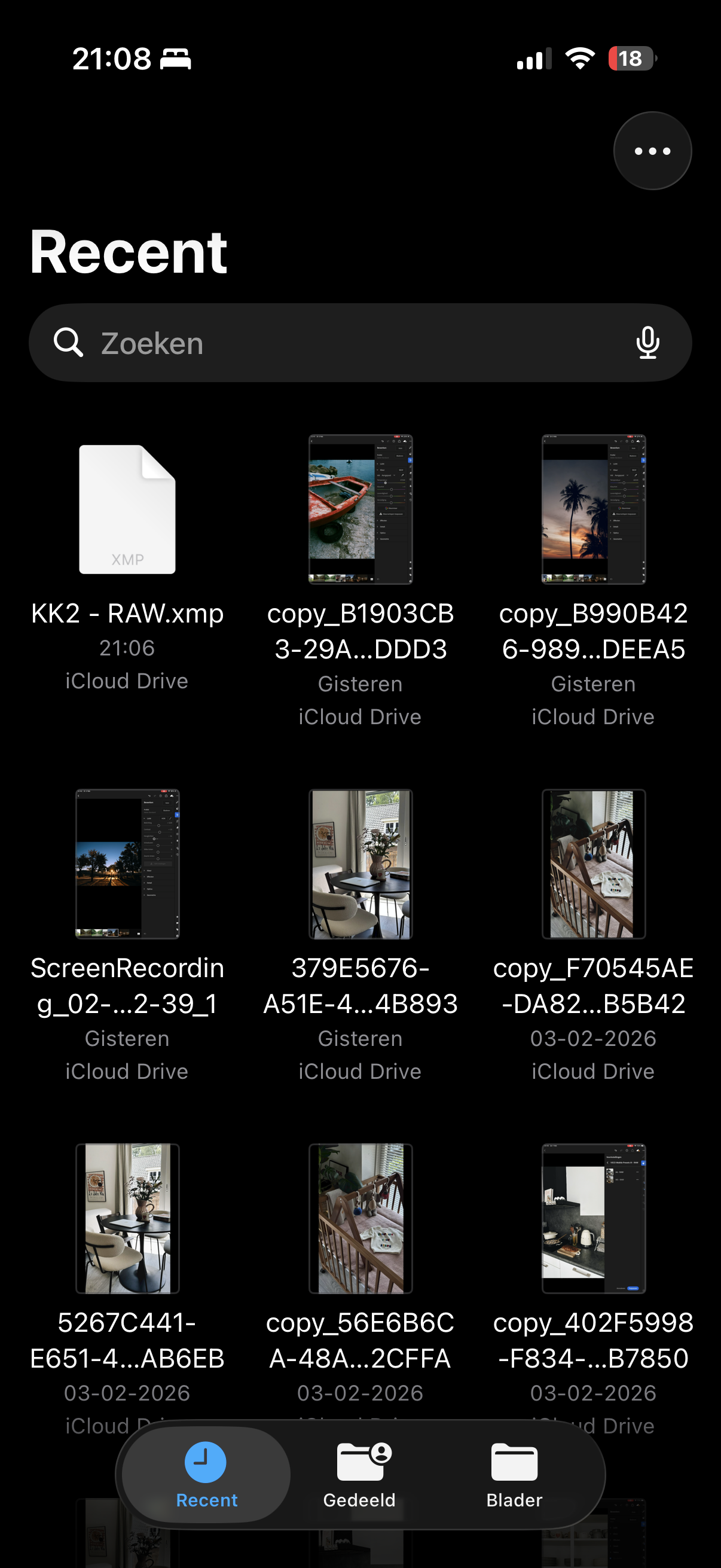
Download your preset pack and save the DNG files to your Camera Roll or Files app. If you received them via email or a download link, tap the file and choose Save to Files or Save Image.
Step 2 — Open Lightroom Mobile
Open the Lightroom app on your iPhone. You'll land on the main photo library screen.
Step 3 — Import the DNG files
Tap the + icon or the grid icon to add photos. Select From Camera Roll (or Files) and navigate to where you saved the DNG preset files. Select all of them and tap Add.
The DNG files now appear in your Lightroom library as grey or blank-looking images — that's correct.
Step 4 — Open a DNG preset file
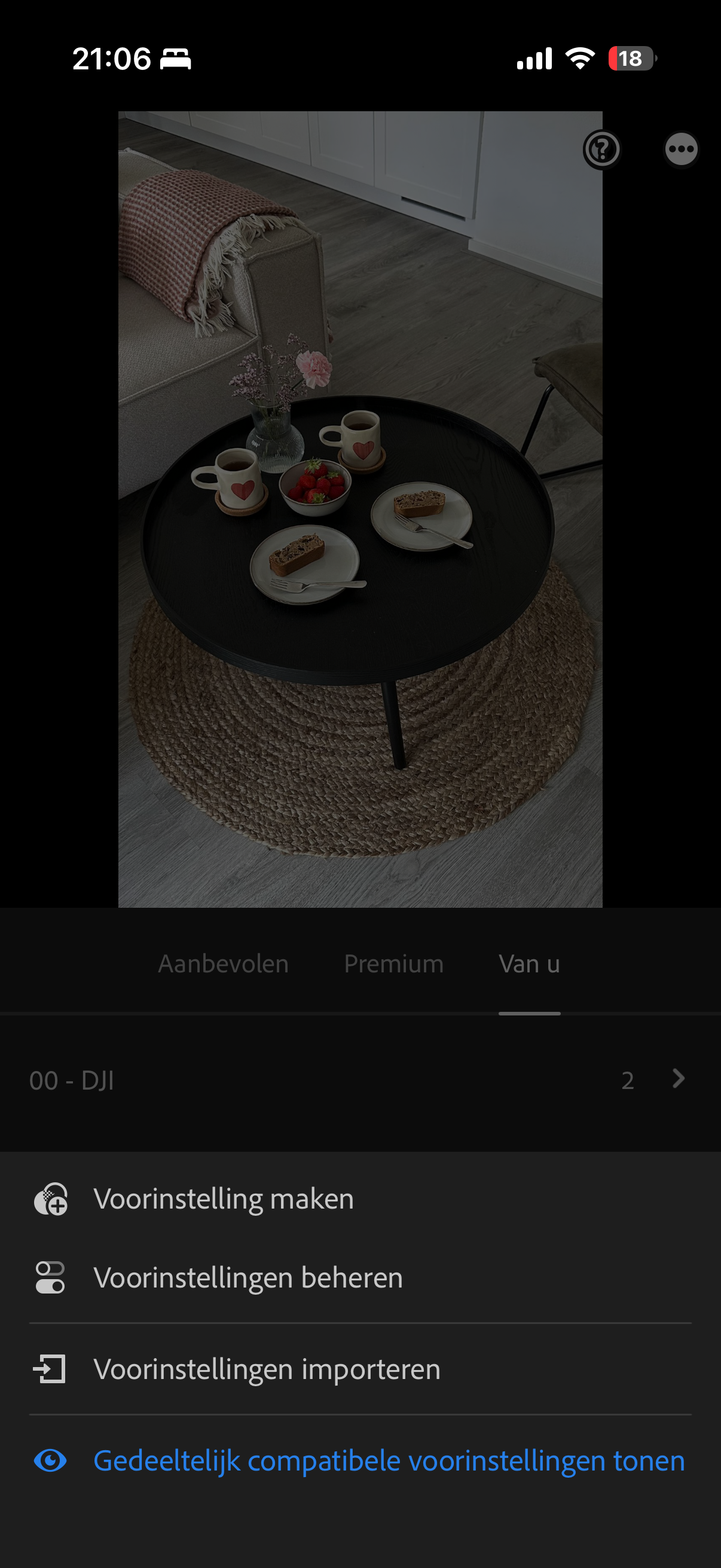
Tap on one of the DNG preset files to open it in the edit view.
Step 5 — Copy the settings
Tap the three dots (...) in the top right corner. Select Copy Settings. In the menu that appears, tap Select All to make sure every setting is copied, then tap Copy.
Step 6 — Save as a preset
Now tap the three dots (...) again and select Create Preset.
Give the preset a name (e.g. "A6 — Clean Film")
Choose a group or create a new one (e.g. "The Editing Studio")
Tap the checkmark to save
Repeat steps 4–6 for each DNG file in your pack. Your presets now appear in the Presets panel when editing any photo.
Step 7 — Apply to your photos
Open any photo in Lightroom Mobile, tap Presets at the bottom of the screen, find your preset group, and tap the preset to apply it.
Method 2 — Installing XMP presets on iPhone
XMP presets are the standard format for Lightroom Desktop. On iPhone, the process is slightly different — you need to sync them from the desktop version of Lightroom, or use the Files app workaround below.
Option A — Sync from Lightroom Desktop (easiest if you have a Mac or PC)
Install the XMP presets in Lightroom Desktop (see our Mac installation guide or Windows guide)
Open Lightroom Desktop and go to Edit → Preferences → Presets (Mac: Lightroom → Preferences → Presets)
Make sure Sync presets with Lightroom mobile is checked
Open Lightroom Mobile on your iPhone — the presets will sync automatically within a few minutes
Option B — Import XMP directly via Files app (no desktop needed)
Save the XMP files to your iPhone via the Files app
Open Lightroom Mobile and tap the + icon to add a photo
Navigate to Files and locate your XMP file
Tap the XMP file — Lightroom will ask if you want to import the preset
Choose your preset group and tap Import
Note: This direct XMP import method works on Lightroom Mobile version 7.0 and above. If you don't see the import option, update Lightroom via the App Store first.
How to apply presets in Lightroom Mobile
Once your presets are installed:
Open any photo in Lightroom Mobile
Tap Presets in the bottom toolbar
Browse your preset groups by swiping left and right
Tap any preset to preview it on your photo
Tap the checkmark to apply, or tap another preset to compare
Adjust exposure, white balance, or any other settings after applying
Troubleshooting — common problems
My presets don't show up after installing Make sure you completed the "Create Preset" step (Step 6 above). Simply importing a DNG doesn't automatically create a preset — you need to copy the settings and save them manually.
The DNG files look grey or blank That's correct. DNG preset files are intentionally blank — they're just carriers for the settings. The grey appearance is normal.
My presets look different than expected Check your white balance and exposure first. Presets are calibrated for specific lighting conditions. A preset that looks perfect in daylight may need a white balance adjustment in artificial light.
Lightroom Mobile says "Unable to import" Make sure your Lightroom Mobile app is up to date. Older versions have limited XMP support. Update via the App Store and try again.
I can't find the preset after saving Tap Presets in the edit view and scroll through your groups. If you didn't assign it to a group, check User Presets — that's the default location.
FAQ
Do I need a paid Lightroom subscription to use presets?
No. Lightroom Mobile is free and presets work without a subscription. The free version of Lightroom Mobile supports all preset functionality including installing and applying presets.
Can I use the same presets on iPhone and desktop?
Yes — if you use the same Adobe account on both devices and have sync enabled, your presets appear on both. Alternatively, XMP presets can be installed separately on each device.
What's the difference between DNG and XMP presets?
DNG is a photo format that carries preset settings embedded in the file. XMP is a sidecar file that contains just the settings. Both end up as identical presets once installed — the format only affects the installation method.
How many presets can I install?
There's no official limit. Lightroom Mobile handles hundreds of presets without performance issues.
Can I use presets on iPhone photos shot in JPEG?
Yes. Presets work on both JPEG and RAW files. They tend to look their best on RAW files because there's more tonal information to work with, but they work fine on JPEGs.
How do I install presets without a computer?
Use the DNG method (Method 1 above). It's entirely phone-based — no Mac or PC needed.
