Beach Film Preset Settings
How to Edit Beach Photos in Lightroom (2026) — Complete Guide
Beach photography is technically one of the most demanding editing scenarios. Bright sand and water reflect light aggressively — highlights clip fast, skin goes orange, and blues oversaturate without careful handling. This guide covers the exact Lightroom settings for every beach lighting condition.
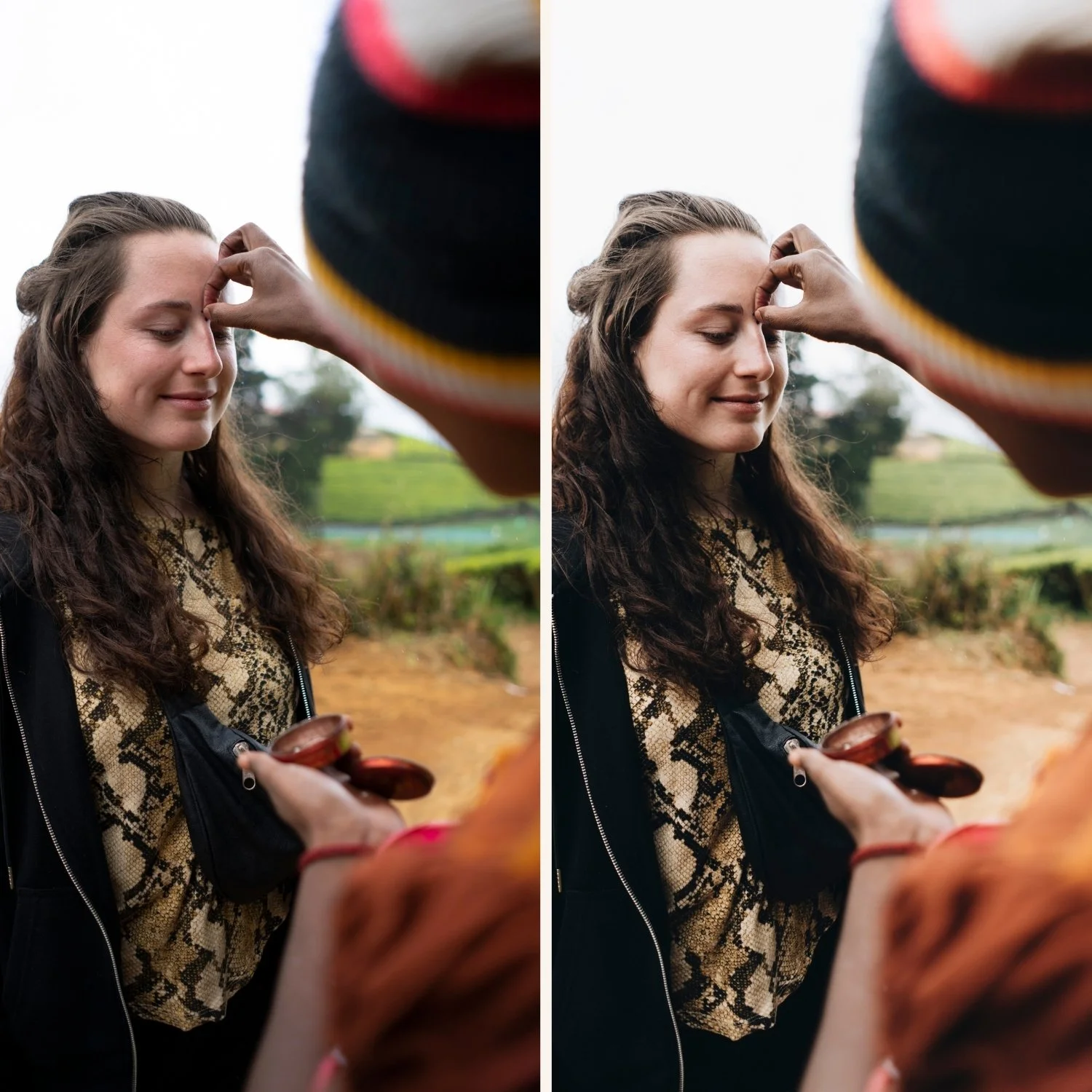
The three beach editing challenges
Highlight clipping. Bright sand, white foam, and reflective water blow out to pure white extremely quickly. This is the single biggest problem in beach photo editing. Pull Highlights to -40 to -55 and Whites to -20 to -30 before applying any preset.
Orange skin in direct sun. Direct overhead beach sun combined with a warm preset creates orange skin. Fix white balance before applying and keep Orange Saturation at 0 to +5 after applying.
Oversaturated blues. Phone cameras and most digital cameras render beach water and sky as vivid, oversaturated blue. Reduce Blue Saturation -15 to -20 in Color Mix for natural, film-quality coastal blue.
Beach editing by lighting condition
Bright midday sun
The hardest beach light to edit. Harsh overhead shadows, blown highlights, vivid flat color.
Settings:
Exposure: 0 to -0.3 (beach scenes are already bright)
Highlights: -50 to -60
Whites: -25 to -35
Shadows: +15 to +20
Contrast: -15
Color Mix:
Blue Saturation: -15 to -20
Blue Hue: toward cyan (+5 to +8) for natural sea blue
Orange Saturation: 0 to +5 for skin
Preset: A6 Clean Portrait or C1 Warm Outdoor. Apply at 75-80% on mobile photos.
Golden hour beach
The best beach light. Warm, low-angle, directional. The easiest beach condition to edit well.
Settings:
Highlights: -35 to -45 (golden hour light is warm and bright)
Shadows: +15
Temperature: keep warm — do not cool it
Color Mix:
Orange Hue: toward yellow (+5) for warm skin without vivid orange
Blue Saturation: -10 to -15
Preset: C7 Rich Warm or V5 Golden Velvet. These are specifically calibrated for warm coastal late-day light.
Overcast beach
Flat, diffused, grey. The easiest for highlight control but the most challenging for color.
Settings:
Exposure: +0.3 to +0.5 to lift the grey flat light
Temperature: +150 to +250 to add life to the flat ambient light
Contrast: -10
Color Mix:
Blue Saturation: -10 (blues are already flat in overcast)
Preset: A6 with slight Temperature addition. Or E4 Balanced Classic for a warmer heritage quality in grey coastal light.
Sunset beach
The most dramatic beach light. Strong warm color, deep shadow, high contrast between sky and foreground.
Settings:
Highlights: -45 to -55 for sky detail
Shadows: +20 to +25 for foreground
Blacks: +10
Color Grading:
Highlights: very slight warm (hue 40, saturation 8)
Shadows: slightly cool blue (hue 210, saturation 8) for the classic warm-cool sunset split
Preset: C8 Sun-Drenched or M5 Warm Dark for the more dramatic direction.
Skin tones on the beach
Beach portraits need specific skin tone handling. The bright reflective environment lifts exposure on skin — combined with a warm preset, this often creates orange results.
The beach portrait skin fix:
Set white balance to 5,500-5,800K before applying (beach daylight is slightly cooler than standard daylight)
After applying preset: Orange Saturation 0 to +5 maximum
Orange Luminance: +10 to +15 for natural brightness
Pull Highlights -40 to -50 to protect forehead and shoulder highlights in direct sun
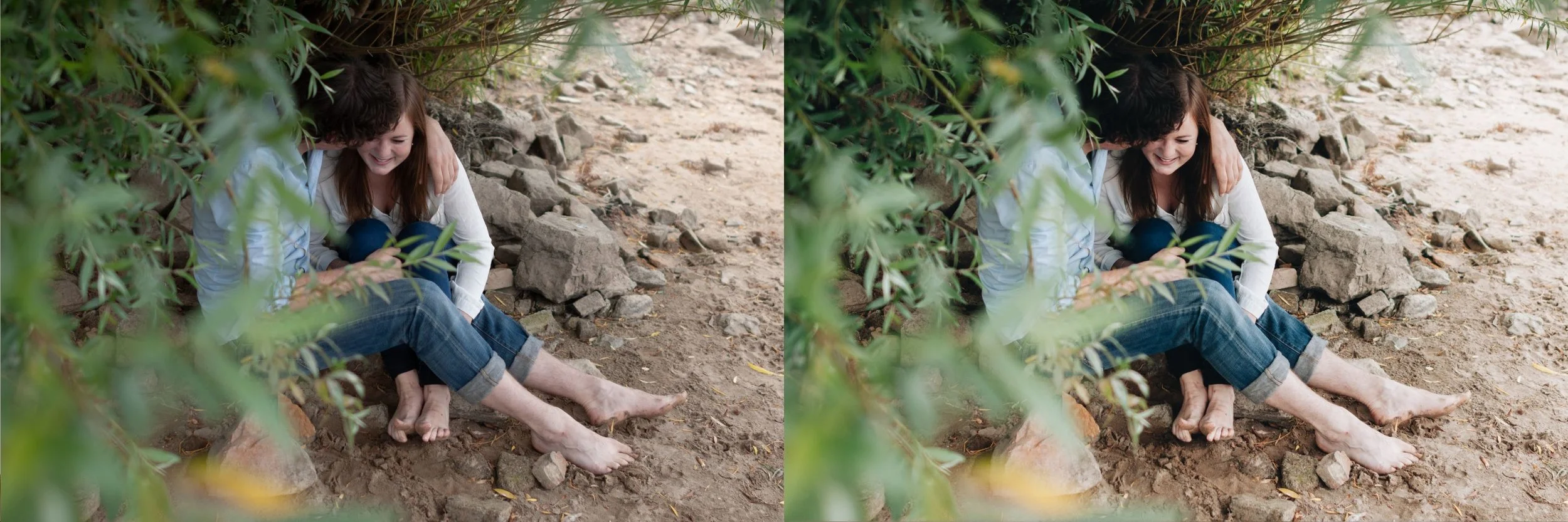
Water and sky handling
Blue sky: Blue Saturation -15 to -20. Blue Hue toward cyan (+5 to +8) for the specific quality of coastal blue versus vivid digital blue.
Sea and ocean: Aqua Saturation -10 to -15 in addition to Blue Saturation. Coastal water has more aqua-teal quality than pure blue.
White foam and waves: Pull Whites -25 to -30. Foam clips to pure white easily and loses all texture. The detail is usually recoverable from RAW — on JPEG, protect it in camera by slightly underexposing.
Sand: Yellow Luminance +8 to +12 gives sand a warm, golden quality. Yellow Saturation -5 to keep it natural rather than vivid.
Mobile-specific beach editing
Beach photography on iPhone and Android has specific challenges beyond the general beach settings.
Reduce Sharpening to 20 before applying. Phone cameras add digital crispness that is particularly visible on water texture and sand detail.
Set Clarity to -8. Removes the digital micro-contrast that fights against the natural softness of beach photography.
ProRAW on iPhone gives significantly more highlight recovery in bright beach conditions. The difference between ProRAW and JPEG on a bright beach scene can be 2-3 stops of highlight latitude — enough to recover a blown sky that would be permanently lost in JPEG.
The California Archive for beach photography
C1 for clean daylight beach, C7 for golden hour coastal, C8 for maximum sun-drenched summer impact. The California Archive covers the full range of coastal and beach photography in nine presets.
EXPLORE THE CALIFORNIA ARCHIVE — $27
Free beach preset
FAQ
Why do my beach photos look washed out after editing?
Usually caused by Highlights and Whites being pulled too far in the wrong direction — either not enough (still blown) or too much (grey and flat). Pull Highlights to -45 and Whites to -25 as a starting point. Then check the histogram — the right edge should be away from the wall but not crushed to the left.
How do I fix orange skin in beach photos?
Cool white balance before applying (5,500-5,800K for beach daylight). After applying: Orange Saturation maximum +5. The combination of beach reflective light plus a warm preset pushes skin orange — white balance is the primary fix.
What is the best preset for beach photos?
California Archive C1 for versatile clean beach daylight. C7 for golden hour. C8 for maximum summer color impact. For a more subtle film quality, A6 with slight Temperature warmth works well across all beach conditions.
Do the same settings work for tropical beach photos?
Yes but increase Blue Saturation reduction to -20 to -25. Tropical water is more vivid than temperate coastal water and oversaturates more aggressively on digital cameras.
Why does my sea look green in photos?
Aqua channel in Color Mix. Coastal water often renders with a green tint on digital cameras. Pull Aqua Hue toward blue (-5 to -10) and reduce Aqua Saturation -10 to -15 for natural coastal water color.
