How to Fix Harsh Highlights in Lightroom (2026)
How to Fix Harsh Highlights in Lightroom (2026)
Harsh highlights are the most common technical problem in outdoor photography. Blown sky. Clipped white clothing. Skin that loses all texture in direct sun. Lightroom can recover most of these — if the file has the data and you use the right technique.
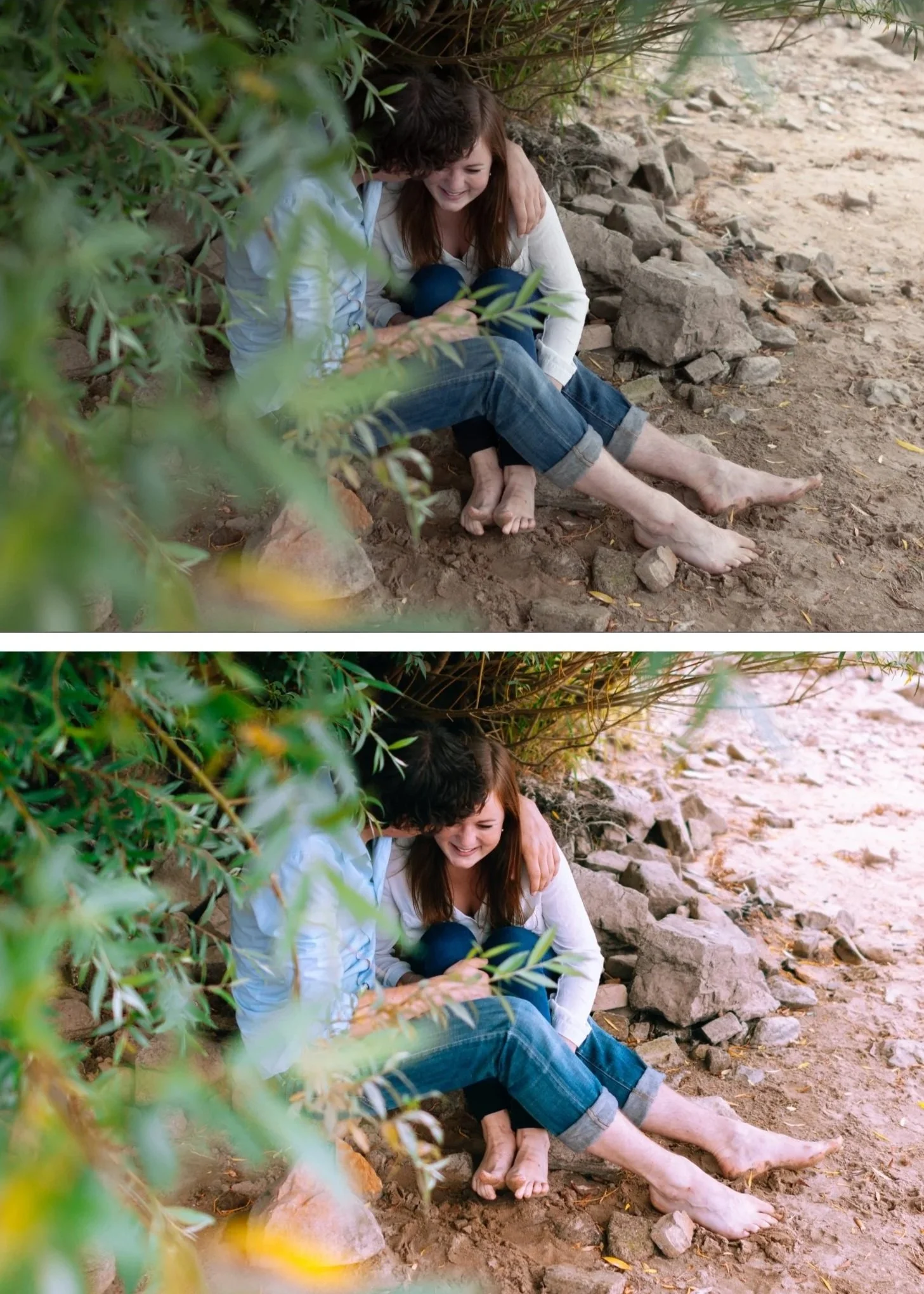
Why highlights clip
Digital cameras clip highlights abruptly when the sensor reaches maximum exposure. Unlike film which rolls off gradually, digital creates a hard wall — everything at or above maximum brightness becomes pure white with no recoverable detail.
RAW files have 2-4 stops more recoverable highlight data than the JPEG preview suggests. What looks blown on screen in Lightroom is often recoverable with the right adjustment.
JPEG files have less latitude — highlights clipped in a JPEG are often permanently lost.
Step 1 — Check what is actually clipped
Enable the highlight clipping warning in Lightroom. In Lightroom Classic, click the triangle in the top-right corner of the histogram. Clipped highlights show as red on the photo.
In Lightroom Mobile, tap the histogram. A similar warning appears.
Check which areas are actually clipping. A large blinking red area means significant clipping. A small red dot in the direct reflection of a lamp is acceptable and expected — not every bright area needs to be recovered.
Step 2 — Pull Highlights and Whites
Highlights: -35 to -60 depending on severity. Start at -40 and evaluate.
Whites: -15 to -30. Whites controls the very brightest part of the tonal range — the area just before pure white. Pulling Whites protects the transition zone between Highlights and pure white.
Check the clipping warning after each adjustment. The red areas should shrink or disappear.
Step 3 — Use the Tone Curve for organic roll-off
The sliders recover clipped data abruptly. The Tone Curve creates the smooth, gradual recovery that looks like film.
In the Tone Curve, add an anchor point at 75-80% on the horizontal axis. Drag down 5-10 units. This creates a smooth curve in the highlight range that rolls off gradually rather than cutting abruptly.
The visual difference: slider recovery looks like the highlight was pulled back. Tone Curve recovery looks like the highlight was captured on film.
Fix by subject type
Blown sky
Sky clipping is the most common outdoor highlight problem.
Highlights: -45 to -55
Whites: -20 to -25
Create a Gradient Mask over the sky only
Within the sky mask: reduce Exposure -0.3 to -0.5 additionally
Check Blue Saturation — recovered skies sometimes look grey. Add Blue Saturation +5 to +10 to restore sky color after recovery.
Clipped white clothing or wedding dress
Highlights: -50 to -65
Whites: -25 to -35
Check at 100% zoom — the texture in white fabric should be visible
If still clipping: add a masking selection on the clothing and reduce Exposure -0.3 within the selection
Skin in direct sun
Highlights: -35 to -45
Whites: -15 to -20
Orange Luminance: +10 to +15 — this brightens skin without pushing it toward the clipping threshold
Reduce Clarity: -8 to -12 — soften the harshness of the direct sun quality
Prevention: exposure in camera
The most effective highlight fix is in camera, not Lightroom.
Expose to the right, not the left. For RAW files, slightly underexposing (exposing to the left) protects highlights while shadow recovery is easier than highlight recovery.
Shoot RAW. RAW files have 2-3 stops more highlight latitude than JPEG. Most highlights that look permanently blown in JPEG are fully recoverable from the RAW file.
Use exposure compensation. In bright outdoor conditions, set exposure compensation to -0.3 to -0.7 to protect highlights before the shot.
FAQ
Can you recover completely blown highlights in Lightroom?
From RAW files: often yes, with 1-3 stops of recovery possible depending on the camera and how far over-exposed the shot is. From JPEG: usually no — JPEG clips permanently. If Highlights at -100 shows no detail return, the data is genuinely lost.
Why do my highlights look grey after recovery?
Pulling Highlights far desaturates the recovered area. After recovery, add slight saturation back to the affected area using a Radial or Gradient mask and boosting Saturation +8 to +12 within the mask.
What is the difference between Highlights and Whites in Lightroom?
Highlights affects the mid-bright tonal range. Whites affects the very brightest areas just before pure white clipping. For maximum highlight recovery, pull both — Highlights first for the broad recovery, Whites to protect the transition zone.
