How to Make Your Lightroom Edits Look Less Digital (2026)
How to Make Your Lightroom Edits Look Less Digital (2026)
Digital editing has a specific look that most photographers recognize but struggle to describe. It is sharp but sterile. Colorful but artificial. Clean but lifeless. Everything is technically correct and somehow nothing feels real.
The digital look comes from five specific characteristics of digital camera processing. Each one has a direct Lightroom fix. Understanding what creates the digital quality tells you exactly which adjustments remove it.
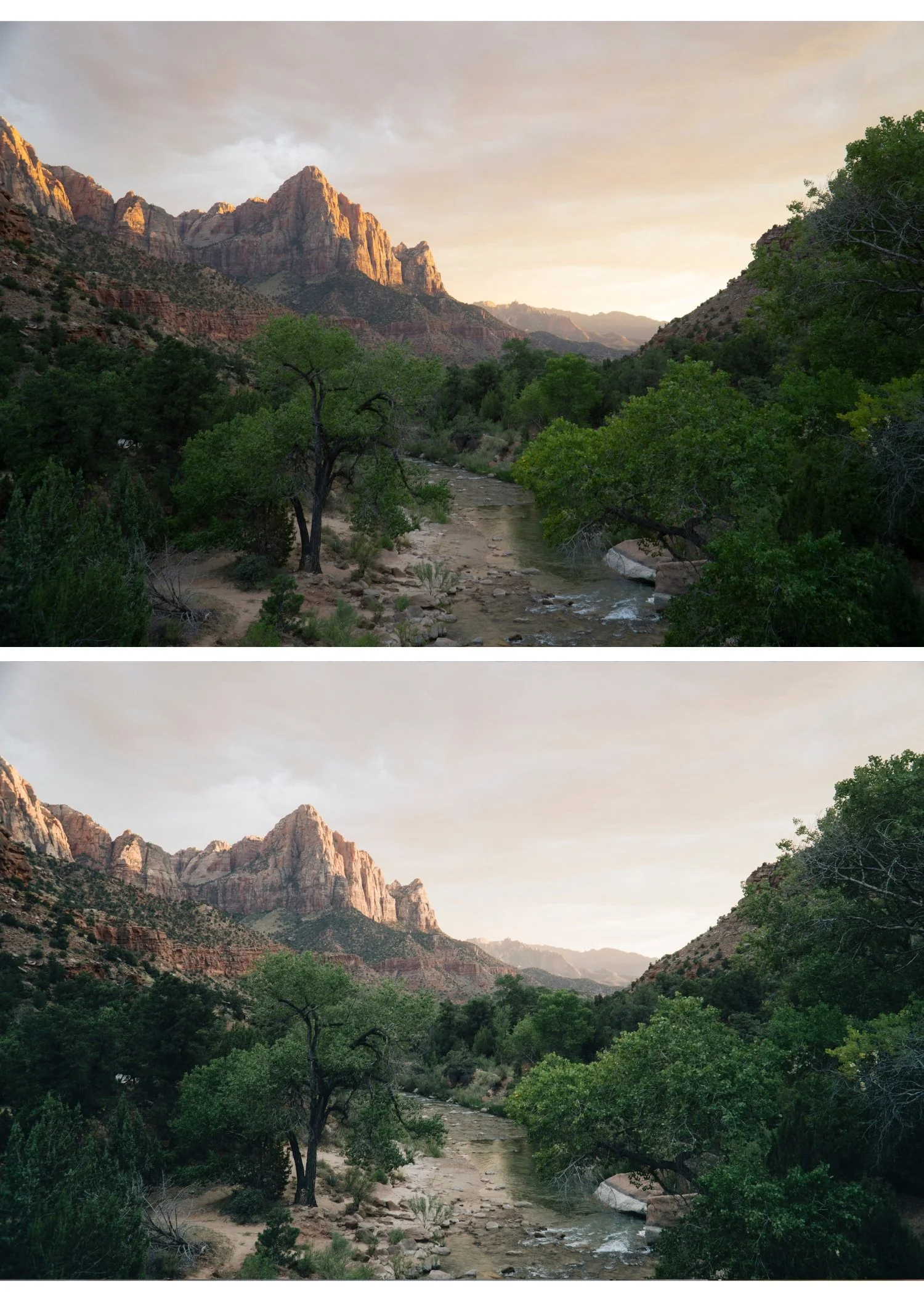
What creates the digital look
Pure black shadows. Digital cameras render the darkest shadows as pure black with zero detail. Film never does this. Film shadows always have a slightly lifted, warm quality with visible texture even at maximum darkness.
Harsh highlight clipping. Digital highlights clip abruptly to pure white. Film highlights roll off gradually, softening as they approach maximum brightness. The abrupt digital clip is one of the most immediately recognizable signs of digital processing.
Vivid, oversaturated color. Digital cameras and phone cameras boost saturation automatically. Film has organic, slightly muted color that varies by film stock never the even, vivid saturation of digital.
High micro-contrast. Digital sensors render fine edge detail with high sharpness. The result is crisp but artificial every texture is rendered with the same precision. Film has softer, more organic edge quality.
Linear tonal response. Digital sensors respond linearly to light equal amounts of light produce equal changes in brightness across the tonal range. Film has a characteristic S-curve response that compresses highlights and shadows and expands midtones. This S-curve is what gives film its specific tonal quality.
Fix 1 — Lift the blacks
Basic panel: Blacks +20 to +35
This is the single most impactful adjustment for removing the digital look. Lifting Blacks prevents the pure dark shadows of digital processing and creates the warm, slightly lifted shadow quality of film.
At the same time: Shadows +15 to +25 to open the mid-shadow range above the lifted floor.
The combination produces lifted, warm shadow quality that is the defining characteristic of film photography versus digital.

Fix 2 — Create film highlight roll-off
Basic panel: Highlights -25 to -40, Whites -15 to -25
Tone Curve: Add an anchor point at 75-80% on the horizontal axis. Drag down slightly (5-8 units). This creates a smooth curve in the highlight range that mimics the organic highlight compression of film.
The result is soft, detailed highlights that feel luminous rather than clipped. This is the adjustment that most directly creates the film highlight quality.
Fix 3 — Reduce micro-contrast with negative Clarity
Clarity: -5 to -15
Negative Clarity reduces the micro-contrast that makes digital images look sharp and processed. This is the adjustment that gives portraits a softer, more film-like skin quality and removes the digital harshness from any photo.
For general photography: -5 to -8. Subtle but immediately effective. For portrait photography: -10 to -15 for skin specifically. For landscape and architecture: 0 to +5. Negative Clarity on hard-edged subjects creates unwanted softness.
Fix 4 — Mute the color
Vibrance: -10 to -20 Saturation: -5 to -10
Digital color is too vivid. Reducing Vibrance targets the most oversaturated channels first usually greens and blues which is exactly right for film emulation.
In Color Mix:
Green Hue: +10 to +15 — shifts digital cyan-green toward organic yellow-green
Green Saturation: -15 to -20 — removes the neon quality from foliage
Blue Saturation: -10 to -15 — creates the softer, more organic sky and water quality of film
Fix 5 — Add film color grading to shadows
Color Grading, Shadows: hue 35-45, saturation 12-18
Warm shadow toning is the color science of most classic film stocks. Digital processing produces neutral or slightly cool shadows. Adding warm amber to the shadow Color Grading is the quickest single adjustment that transforms digital color to film color.
Keep saturation below 20 subtle is correct. Obvious Color Grading looks like a filter, not film.
Fix 6 — Build the film tone curve
The tone curve is the most powerful single tool for creating film quality in Lightroom. Digital sensors have a linear tonal response. Film has an S-curve response. Recreating that S-curve creates the tonal quality of film.
Point curve adjustments:
Bottom-left anchor: drag up 15-18 units (creates lifted shadow floor)
Add anchor at 30% horizontal: drag up 3-4 units (slight midtone expansion)
Add anchor at 70% horizontal: drag down 3-4 units (slight highlight compression)
Top-right anchor: drag down 5-8 units (soft highlight ceiling)
The result is a compressed, film-like tonal range with smooth, organic transitions throughout.
For the full tone curve guide: How to Use the Tone Curve in Lightroom
Fix 7 — Add organic grain
Digital sensors render smooth, uniform texture at low ISO. Film has characteristic grain that adds organic texture and is part of what makes film photography look the way it does.
Effects panel:
Amount: 15-25
Size: 22-28
Roughness: 40-50
Add grain after all other adjustments. Grain interacts with sharpening so applying it last gives the most control.
For the full grain guide: Film Grain Lightroom Preset Guide
Fix 8 — Reduce default sharpening (especially on mobile)
Lightroom's default Sharpening Amount is 40. For film-style editing, 20-25 is more appropriate it preserves necessary detail without the digital crispness that fights against the organic film quality.
On iPhone and Android photos specifically, reduce to 15-20. Phone cameras already apply aggressive sharpening before Lightroom sees the file the combined sharpening creates harshness that is the opposite of film quality.
The complete settings summary
| Adjustment | Film Look Value |
|---|---|
| Blacks | +20 to +35 |
| Shadows | +15 to +25 |
| Highlights | -25 to -40 |
| Whites | -15 to -25 |
| Clarity | -5 to -15 |
| Vibrance | -10 to -20 |
| Saturation | -5 to -10 |
| Green Hue | +10 to +15 |
| Green Saturation | -15 to -20 |
| Shadow Color Grading | Hue 40, Sat 15 |
| Grain Amount | 15-25 |
| Sharpening | 20-25 |
Save as a preset
Once you have built your film look, save it as a preset. These adjustments take 5-10 minutes to apply manually. A preset applies them all in one tap. In Lightroom Mobile: three dots, Create Preset. Exclude White Balance and Exposure so the preset applies correctly to photos with different exposures and lighting.
For the full preset creation guide: How to Create Your Own Lightroom Preset
The fastest route: a calibrated preset
The manual technique above recreates the film look from scratch. A well-calibrated preset applies all of these adjustments in one click then you fine-tune from there. The free A6 preset applies the complete film look workflow above calibrated for natural lighting conditions.
FAQ
Why do my Lightroom edits look digital even with a film preset?
Usually caused by the photo starting point rather than the preset. iPhone and Android processing already adds digital sharpness and saturation before Lightroom sees the file. Reduce Sharpening to 20-25 and set Clarity to -10 before applying the preset.
What is the most important single adjustment for the less-digital look?
Lifting Blacks (+20 to +35) is the single most impactful adjustment. Pure black shadows are the most immediately recognizable characteristic of digital processing. Lifting them is the fastest way to shift from digital to film quality.
Does the film tone curve work in Lightroom Mobile?
Yes the Tone Curve panel is available in Lightroom Mobile. The Point Curve mode gives the same control as Lightroom Classic.
How is this different from just applying a film preset?
A film preset applies these adjustments in one click. Understanding the manual technique means you can adjust any preset intelligently you know which sliders to change when the preset does not look right on a specific photo.
