iPhone Portrait Mode vs Film Presets — What Works Better? (2026)
iPhone Portrait Mode and film presets solve different problems. Portrait Mode creates background blur. Film presets create color and tonal quality. Used correctly, they complement each other. Used incorrectly, Portrait Mode's computational bokeh fights against the natural quality that film presets are designed to create.
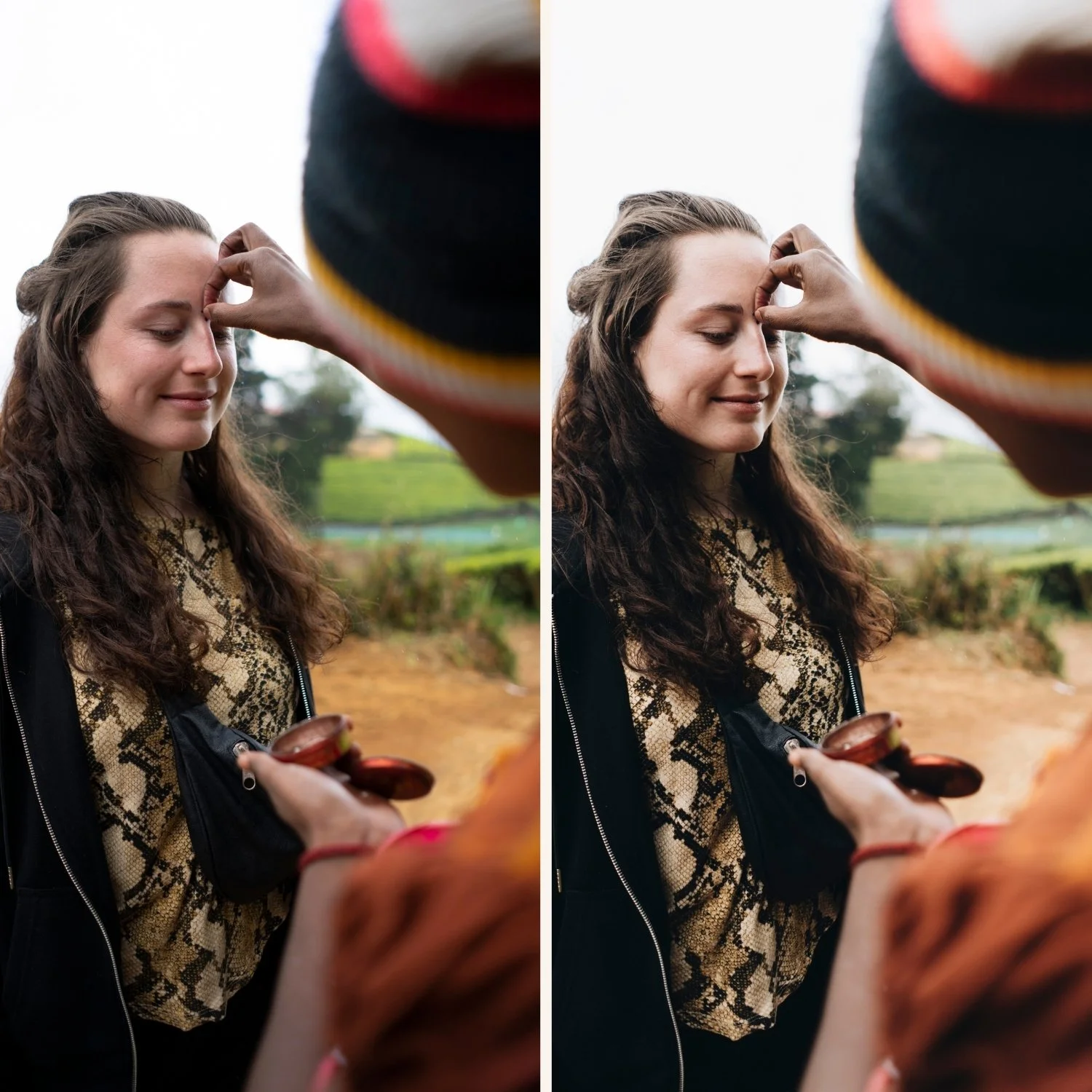
What Portrait Mode actually does
Portrait Mode uses depth mapping — the camera's dual or triple lens system reads depth information and applies computational blur to everything beyond the detected subject.
The blur itself is simulated. Unlike optical lens blur created by a wide aperture, Portrait Mode's blur is mathematically applied after the shot. The result looks good at normal viewing sizes but shows artificial edges and unnatural transitions at closer inspection.
Portrait Mode also applies Photonic Engine processing that affects color and dynamic range differently from standard Photo mode.
What film presets do
Film presets adjust tone, color, grain, and contrast — they do not affect the blur or sharpness of any area of the photo. A film preset applied to a Portrait Mode photo adds film color quality on top of the computational blur. The two systems do not directly conflict.
When Portrait Mode plus film presets works well
For social media content where photos are viewed at small sizes on phone screens, Portrait Mode plus a film preset produces good results. The computational bokeh reads as natural at Instagram viewing size and the film preset adds professional color quality.
For casual portrait sessions, environmental portraits, and lifestyle photography where some background separation is wanted, this combination is practical and fast.
When Portrait Mode fights against film quality
At large print sizes, detailed digital viewing, or photography where the computational blur edge artifacts are visible, Portrait Mode's synthetic quality becomes obvious. A film preset adds organic color quality that then sits on top of obviously artificial blur — the contrast between organic color and synthetic focus draw attention to the processing.
For photographers who want the most authentic film portrait quality: shoot in standard Photo mode, get closer to the subject, and rely on natural background blur from proximity and the camera's lens characteristics rather than computational bokeh.
Portrait Lighting vs film presets
Portrait Mode's Lighting effects (Natural, Studio, Contour, Stage, Stage Mono) apply additional processing on top of the depth effect. These compete with film presets.
Natural Light is the safest Portrait Mode lighting for film preset editing — it adds the depth effect without additional lighting processing.
Studio, Contour, Stage all apply significant tone adjustments that conflict with what the preset is doing. Avoid these if applying film presets afterward.
Stage Mono converts to black and white in camera — apply this only if you want B&W and are not applying a color film preset.
The practical recommendation
For portrait photography where film quality is the priority: shoot in Photo mode, not Portrait Mode. Use the 2x or 3x lens for the most natural compression and background separation from optics. Apply your film preset. The result is more authentically film-like than Portrait Mode plus preset.
For casual social media content where speed matters: Portrait Mode in Natural Light setting, apply film preset afterward at 75-80% strength.
FAQ
Can you adjust Portrait Mode blur after the shot?
Yes — in the Photos app, tap Edit on a Portrait photo and adjust the depth slider. In Lightroom Mobile, imported Portrait photos retain the depth data and you can adjust blur in some cases. You cannot fully remove or add Portrait Mode blur in Lightroom.
Do film presets work on Portrait Mode photos?
Yes — film presets apply to Portrait Mode photos identically to standard photos. The color and tonal adjustments work on the entire image including the blurred background.
Does Portrait Mode affect skin tones?
The Photonic Engine processing in Portrait Mode can affect skin tone rendering slightly compared to standard Photo mode. If skin tones look different with Portrait Mode on versus off, the difference is from the additional computational processing, not from the depth effect itself.