Why iPhone Photos Look Too Processed — And How to Fix It (2026)
Why iPhone Photos Look Too Processed — And How to Fix It (2026)
iPhone photos look processed because they are processed — aggressively, automatically, before you ever open Lightroom. Apple's computational photography applies sharpening, HDR compression, noise reduction, and color adjustments at the hardware level. For casual photos this looks fine. For film-style editing it creates a synthetic quality that fights against the natural film look you are trying to achieve.
Here is exactly what is happening and how to fix it.
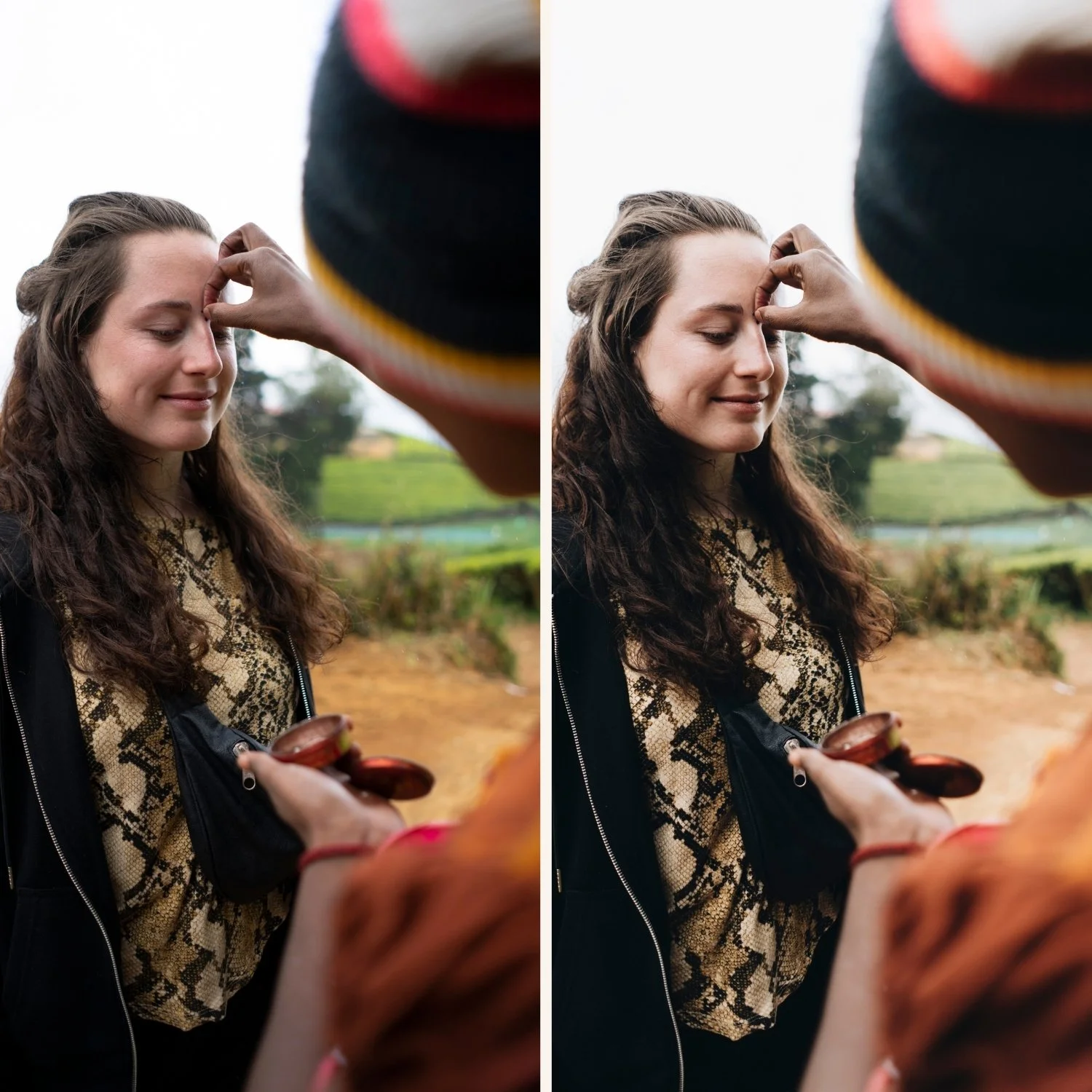
Cause 1 — Aggressive sharpening
iPhone applies edge sharpening automatically. At 100% zoom on an iPhone photo, you can often see a bright halo along edges — the signature of over-sharpening. This creates a hyper-real, almost illustrated quality that is the opposite of organic film.
The fix: Reduce Sharpening in Lightroom's Detail panel from 40 to 15-20 before applying any preset. This does not remove iPhone's processing — it cannot, on a JPEG — but it counterbalances the digital crispness.
For maximum control: shoot ProRAW. ProRAW bypasses iPhone's sharpening entirely.
Cause 2 — Smart HDR tonal compression
Smart HDR lifts shadows and pulls highlights automatically, creating an evenly exposed image that looks clean on a phone screen but flat and synthetic in editing. Film photography has natural shadow depth and highlight roll-off that Smart HDR compresses away.
The fix: Shoot ProRAW which bypasses Smart HDR. On existing JPEG photos: restore tonal depth by adding slight negative Contrast (-15 to -20) and reducing Shadows back down (+10 rather than the HDR-compressed starting point). This partially restores the natural tonal separation that HDR removed.
Cause 3 — Boosted saturation and vivid color
iPhone cameras boost saturation in processing — particularly greens and blues — to make photos look vibrant on screens. This creates an artificial vividness that is the opposite of film's organic, slightly muted color palette.
The fix: Before applying any film preset, reduce Vibrance -10 to -15. Then in Color Mix: Green Saturation -15, Blue Saturation -10. This removes the digital vividness and gives the preset a more film-appropriate color starting point.
Cause 4 — Portrait mode computational bokeh
Portrait mode uses depth mapping to blur the background artificially. The edges of the blur are computer-generated and look synthetic compared to optical lens bokeh. Applied film presets cannot fix the bokeh itself but can make the overall image quality more natural.
The fix: For portrait sessions where film quality matters, shoot in Photo mode with a wide aperture lens (1x on iPhone). The shallower depth of field from proximity and lens choice creates more natural blur than Portrait mode's computational version.
The complete fix workflow
Before applying any film preset on an iPhone JPEG:
Sharpening: reduce to 15-20
Clarity: set to -10
Vibrance: -10 to -15
Apply preset at 75-80% strength
Green Saturation: -10 additional
Blue Saturation: -8 additional
This workflow neutralizes iPhone's computational processing and gives film presets a natural foundation to work on.
FAQ
Can you fully remove iPhone processing from a JPEG?
No. JPEG processing is baked in permanently. You can counterbalance it in Lightroom but not remove it. ProRAW is the only way to get unprocessed iPhone sensor data.
Does this affect all iPhone models?
Yes but more aggressively on newer models with more advanced computational photography. iPhone 15 Pro processes more heavily than iPhone 11. ProRAW is therefore more valuable on newer models.
