Best Mobile Presets for Portrait Photography (2026)
Best Mobile Presets for Portrait Photography (2026)
Portrait photography on mobile has one requirement: skin must look natural. The right mobile preset makes skin warm, healthy, and luminous. The wrong one makes it orange, grey, or textured. This guide covers the best presets for portrait photography on iPhone and Android.
Mobile-specific portrait preparation
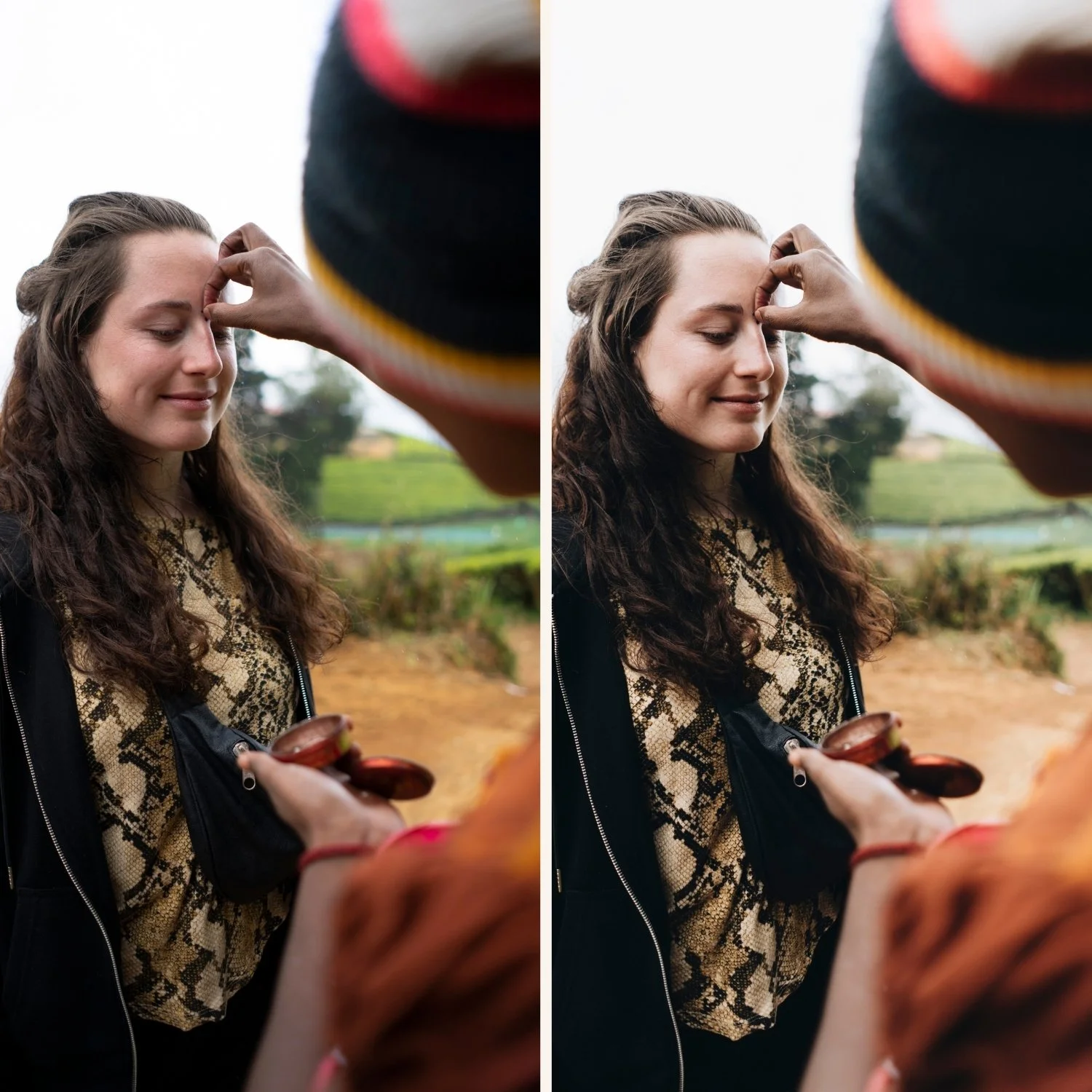
Before applying any portrait preset on a phone photo, two adjustments are essential.
Reduce Sharpening to 15-20. iPhone and Android cameras apply aggressive sharpening that makes skin texture appear harsh. Reducing it gives the preset a softer starting point.
Set Clarity to -10 to -15. Negative Clarity removes the micro-contrast that makes skin look digitally processed. This is the most important single adjustment for natural skin on mobile.
Both take 20 seconds before applying the preset.
Best mobile portrait presets
For natural everyday portraits: A6 Clean Portrait. The most versatile portrait preset — works across skin tones and lighting conditions without obvious character.
For warm outdoor portrait sessions: G2 Warm Glow or E7 Golden Warm. Warm, glowing quality that enhances warm natural light.
For dark skin tones: G3 Vibrant Glow. Enhanced color presence that works with the natural richness of dark skin rather than against it.
For fine art and soft portraits: F1 Ethereal Base or F2 Warm Ethereal. Maximum softness and refined ethereal quality.
For wedding and heritage portrait work: E2 Rich Warm or E6 Soft Heritage. Warm heritage quality specifically calibrated for consistent skin rendering across a gallery.
Skin tone adjustments after applying
After applying any portrait preset on mobile, these three quick adjustments improve skin rendering.
Orange Luminance: +12 to +18. Lifts skin brightness naturally without adding color.
Orange Saturation: 0 to +5. If skin looks orange after the preset, reduce to -5 or -10.
Clarity: confirm it is at -10 or lower. Some presets override the Clarity you set before applying. Check and re-apply if needed.
The Glow Portrait Archive for mobile
Three presets specifically calibrated for natural skin rendering — works on Lightroom Mobile identically to desktop.
EXPLORE THE GLOW PORTRAIT ARCHIVE — $19.99
FAQ
Why does my portrait preset make skin look orange on iPhone?
iPhone photos have warm color processing baked in before Lightroom sees them. A warm preset on top of an already warm iPhone JPEG creates orange skin. Cool white balance before applying and reduce Orange Saturation -10 after.
Do portrait presets work for group photos with diverse skin tones?
Yes. A6 and G1 are the most consistent across diverse skin tones. Check that Orange Luminance is lifted appropriately for the darkest skin tones in the frame.