Lightroom Mobile Editing Workflow for Travel (2026)
Lightroom Mobile Editing Workflow for Travel (2026)
Travel photography editing on mobile has one challenge that desktop editing does not: you are editing while still traveling. Time is limited, storage is limited, and you need a workflow that produces consistent results without sitting in front of a computer.
This guide covers the complete Lightroom Mobile workflow for travel photography — from import to a consistent, deliverable gallery.
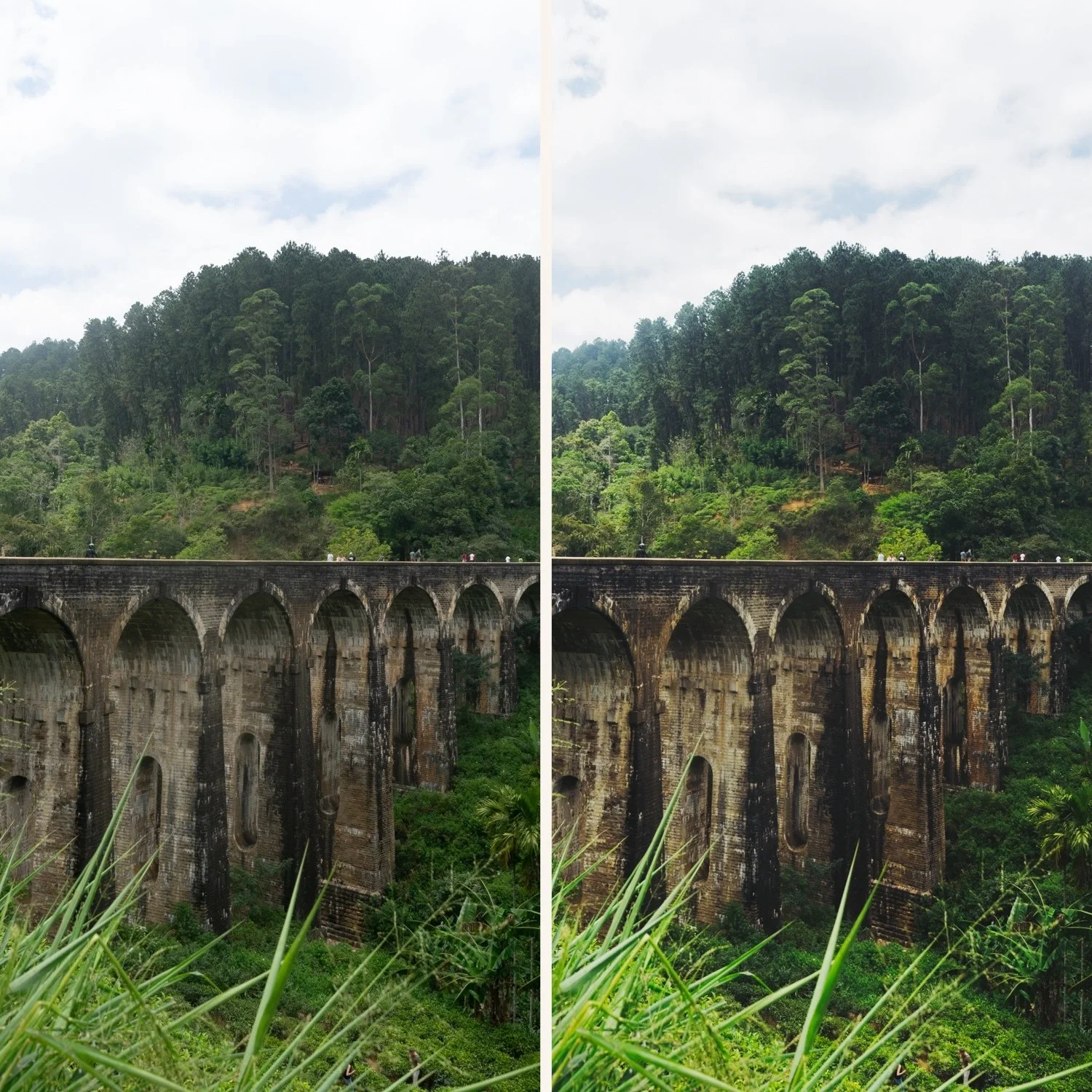
The travel editing workflow on mobile
Step 1 — Edit at the end of each day, not all at once. Editing 50 photos per day takes 20-30 minutes with a batch workflow. Editing 500 photos at the end of a two-week trip is overwhelming. Daily editing keeps the volume manageable and the light conditions fresh in your memory.
Step 2 — Sort by lighting condition. Before editing, quickly sort today's photos into groups: outdoor bright, overcast, golden hour, indoor. Takes 5 minutes and makes everything that follows faster.
Step 3 — Edit one reference photo per group. Choose the strongest photo from each group. Fix exposure and white balance. Apply your travel preset. Fine-tune highlights and shadows.
Step 4 — Batch paste to the group. Three dots, Copy Settings, all settings. Select the rest of the group. Paste. Each photo in the group gets the same preset and white balance foundation.
Step 5 — Quick individual adjustments. Open each photo in the group and adjust only Exposure if needed. Takes 10-15 seconds per photo.
Step 6 — Move to next group. Repeat with the correct preset variant for the next lighting condition.
Total time for 50 photos: 25-35 minutes.
Preset system for travel editing
One preset does not cover travel. A system does.
Bright outdoor: A6 or C1
Warm golden hour: V5 or C7
Overcast: A6 with Temperature +150
Indoor: M4 or E4
All from collections on the same color philosophy — switch between them and the gallery looks visually consistent.
Mobile storage management while traveling
Raw storage on your phone fills quickly on long trips. Two options:
Lightroom CC cloud sync.
Photos sync to Adobe cloud automatically. Requires a Creative Cloud subscription and good wifi. Frees up phone storage progressively.
Export edited photos and delete originals.
Edit each day's photos, export the final versions to your camera roll, and delete the originals from Lightroom. Keeps storage manageable but loses the RAW originals.
Free travel preset
FAQ
How long does it take to edit a full day of travel photos on mobile?
With a batch workflow, 50 photos takes 25-35 minutes. 100 photos takes 45-60 minutes. Without a batch workflow, the same volume takes 3-4x longer.
Should I edit travel photos on mobile or wait for desktop?
Both work. Editing on mobile daily keeps the workflow manageable during the trip. Syncing to desktop for final review and delivery gives you the best of both.