Best Lightroom Presets for Fujifilm X-T Series (2026)
Best Lightroom Presets for Fujifilm X-T Series (2026)
Fujifilm X-T cameras — X-T5, X-T4, X-T3, X-T30 — have the best natural film starting point of any camera system. The film simulation profiles in Lightroom give you a genuine analog color foundation before any preset is applied. The question is not whether you can get the film look from Fujifilm — it is which presets work with the film simulation profiles you already use.
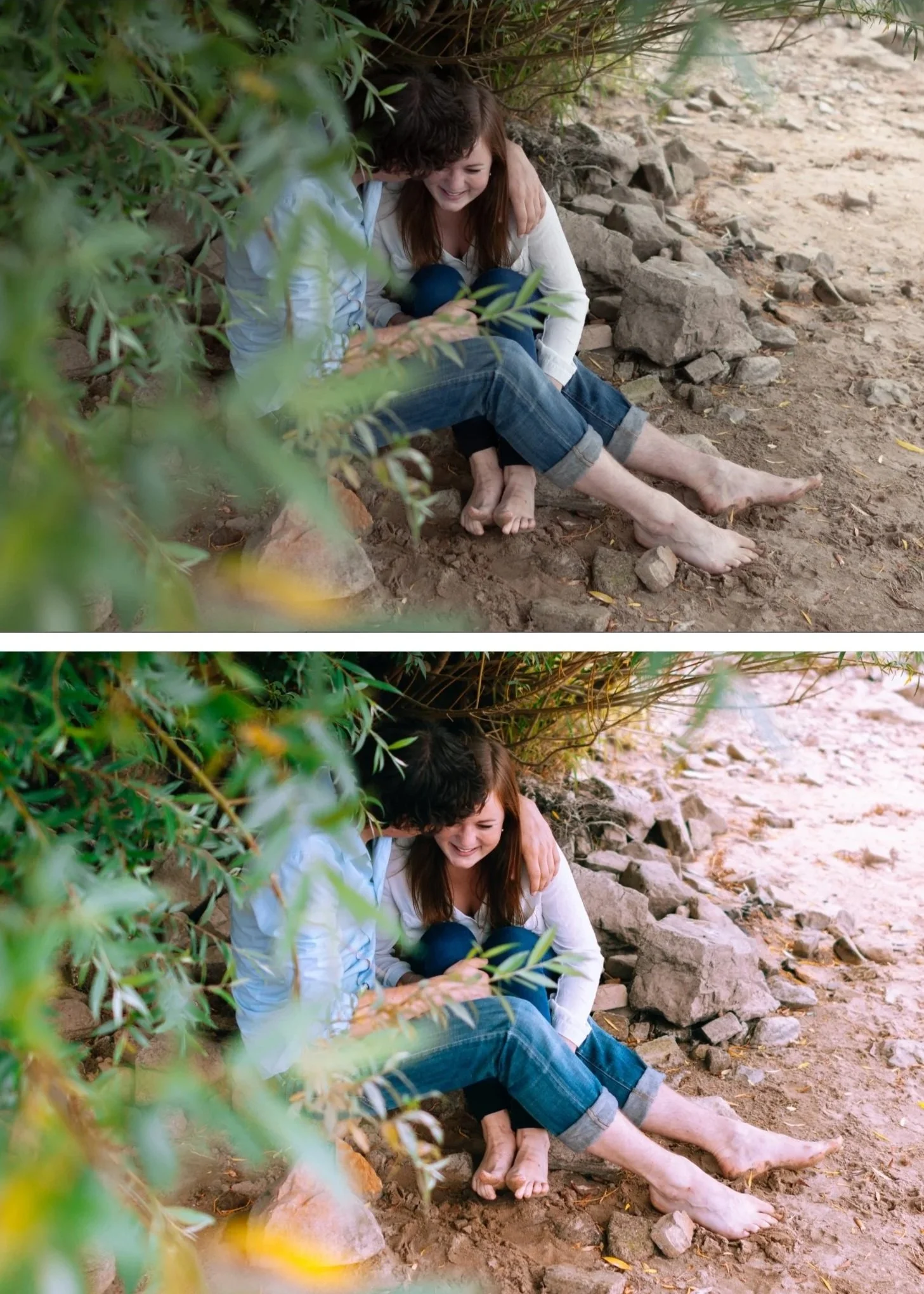
The Fujifilm advantage in Lightroom
Fujifilm cameras use film simulation profiles that Lightroom reads directly as Camera Calibration profiles. When you open a Fujifilm RAW file in Lightroom, the Camera Calibration panel shows the simulation used in camera — Classic Chrome, Provia, Eterna, Astia, Velvia.
Apply that profile in Camera Calibration and Lightroom restores the film simulation's color science to the RAW file. This is a starting point no other camera system can provide.
Matching film simulations to presets
Each Fujifilm simulation has a different starting character — the preset should complement it rather than fight against it.
Classic Chrome (the most popular for film look): Classic Chrome is already muted, slightly teal-shifted in shadows, with desaturated color. It references Kodachrome in a modern interpretation. Best presets on Classic Chrome: A7 Soft Matte, A6 Clean Portrait, M4 Moody Classic. Apply at 70-75% — Classic Chrome does significant work before the preset.
Provia / Standard: Neutral, balanced, slight warmth. The most versatile simulation. Best presets: A6, A4, V1. Apply at 80-85%.
Astia / Soft: Soft, portrait-optimized, warm. Designed for skin tones. Best presets: A6 Clean Portrait, G1 Clean Glow. Apply at 75-80%.
Eterna Cinema: Desaturated, cinematic, slight fade. References cinema color grading. Best presets: M4, M5, A7. Apply at 70-75%.
Velvia: Vivid, high saturation, strong contrast. Landscape-optimized. Best presets: C1 Warm Outdoor (for warm Velvia landscapes), A5 Deep Contrast. Apply at 65-70% — Velvia is already very characterful.
The Fujifilm preparation workflow
After applying the camera simulation profile in Camera Calibration:
Reduce Green Saturation -5 to -10 — even with the simulation, outdoor foliage in Fujifilm files can read slightly vivid.
No Vibrance reduction needed — the film simulations are already color-calibrated. Reducing Vibrance on top fights against the simulation.
White Balance: check after applying simulation — Classic Chrome and Eterna shift color temperature in ways that may affect the preset. Re-evaluate white balance after the simulation is applied.
Preset strength for Fujifilm
Fujifilm with film simulation applied needs less preset strength than other cameras. The simulation is doing 20-30% of the work that the preset would otherwise do. Apply presets at 70-75% on Fujifilm as your starting strength, then adjust per photo.
X-T series specific notes
X-T5 (40MP): the highest resolution Fujifilm body. Grain at standard sizes looks slightly more prominent due to the high resolution — reduce Grain Size by 2-3 units.
X-T4 / X-T3: the most common X-T bodies. Standard preparation and preset strength apply.
X-T30 II: 26MP APS-C, excellent for film look at a more accessible price. Same workflow as X-T4.
FAQ
Should I shoot with film simulation on or off when using Lightroom presets?
It does not affect the RAW file — film simulations are metadata tags on Fujifilm RAW files that Lightroom reads as Camera Calibration profiles. Shoot with any simulation; Lightroom applies it (or ignores it) depending on your Camera Calibration setting.
Why does Classic Chrome look different in Lightroom than on the camera screen?
The camera screen shows the JPEG simulation rendering. Lightroom's Classic Chrome profile is a close approximation, not an exact match. Small differences are normal.
