Best Lightroom Presets for Dark Skin Tones 2026
Best Lightroom Presets for Dark Skin Tones 2026
Most Lightroom preset reviews don't address how presets perform on dark skin tones. The result is that photographers with dark-skinned subjects buy presets calibrated for lighter skin — and end up with muddy shadows, orange casts, or flat, lifeless results.
This guide covers exactly which adjustments make film presets work beautifully on dark skin tones, which presets perform best, and how to get consistently natural, flattering results across different lighting conditions.
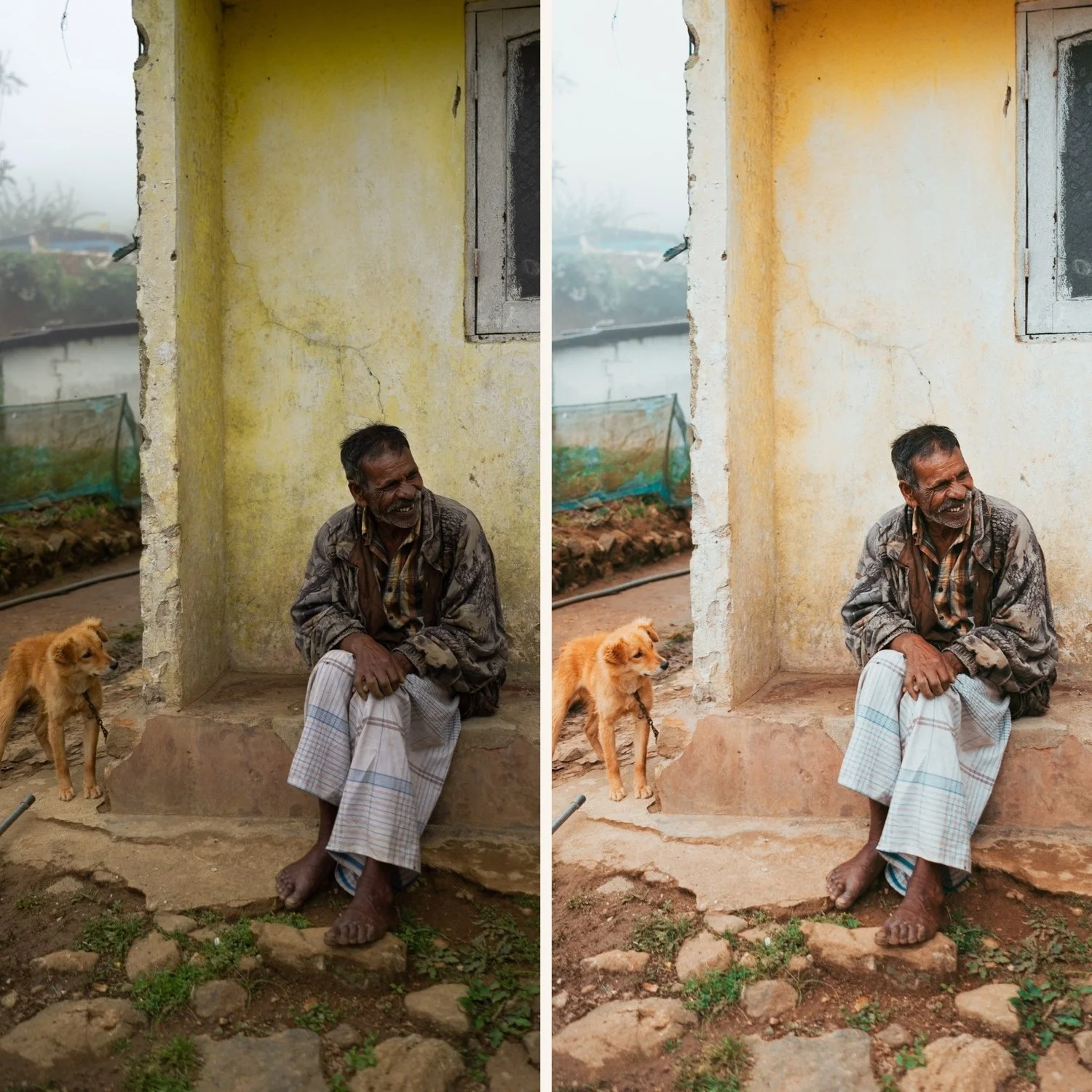
Why most presets don't work well on dark skin tones
The majority of Lightroom presets are calibrated using photos of light to medium skin tones. The adjustments that make those photos look natural — Orange Luminance, White Balance temperature, Shadow depth — behave very differently on dark skin.
The most common problems:
Muddy or flat skin — presets that reduce overall saturation or lift shadows aggressively can make dark skin look grey and flat rather than rich and luminous.
Shadow detail loss — presets designed to create depth by deepening shadows often lose the shadow detail that gives dark skin its dimensionality.
Orange skin casts — warm presets add warmth across the board, including in skin areas where it reads as orange on darker skin tones.
Harsh texture — digital cameras already render skin texture aggressively. Presets with positive clarity or high sharpening amplify this and make skin look rough rather than smooth.
The key adjustments for dark skin tones in Lightroom
These adjustments apply regardless of which preset you use — apply them after the preset to optimize for dark skin.
Orange Luminance — the most important adjustment
In the HSL panel under Luminance, the Orange slider controls the brightness of warm skin tones. For dark skin, lift this significantly higher than you would for lighter skin:
Light skin: Orange Luminance +10 to +15
Dark skin: Orange Luminance +20 to +30
This brightens skin independently of the rest of the image, making it look luminous rather than flat.
Orange Saturation — keep controlled
The Orange Saturation slider controls how vivid orange tones are. For dark skin, keep this neutral or slightly reduced:
Orange Saturation: -5 to 0
This prevents warm presets from making dark skin look artificially orange.
Shadow detail — lift more than usual
Presets that deepen shadows look dramatic on light skin but lose detail on dark skin. After applying any preset, check shadow areas on skin:
Blacks: +10 to +20 (lift more than the preset default)
Shadows: +15 to +25
This preserves the dimensionality and richness of dark skin in shadow areas.
Clarity — always negative for portraits
Clarity amplifies micro-contrast and makes skin texture harsh. For dark skin portraits, this is particularly important:
Clarity: -10 to -20
This removes the digital harshness that reads as rough texture on skin.
White balance — the foundation
Dark skin tones read very differently under different white balance temperatures. Too warm pushes toward orange-brown. Too cool pushes toward grey.
For dark skin, set white balance slightly cooler than you would for lighter skin — the warmth that looks natural on light skin can look unnatural on dark skin. A temperature of Daylight (5500K) or slightly cooler is often the best starting point.
Best presets for dark skin tones
G3 Vibrant Glow — best overall
The G3 from the Glow Portrait Archive is specifically calibrated for rich, vibrant skin rendering. The enhanced colour quality works with the natural richness of dark skin rather than against it.
After applying G3, adjust Orange Luminance to +25 and Clarity to -15. The result is skin that looks healthy, luminous, and naturally beautiful.
A6 Clean Portrait — most versatile
The A6 is calibrated for neutral skin rendering across a wide range of skin tones. It's the least likely to create unwanted casts on dark skin because it doesn't aggressively warm the overall palette.
After applying, lift Orange Luminance to +25, reduce Clarity to -15, and check that Blacks aren't too low.
A1 Analog Original — for studio and controlled light
A1 is the cleanest, most neutral preset in the Analog Film Archive. In controlled studio or even natural light, it provides a consistent base for dark skin tones with minimal colour cast.
E4 Balanced Classic — for mixed lighting
E4 is the most neutral preset in the Essence Archive — calibrated for mixed lighting where you can't control the colour temperature. Good for event photography with diverse skin tones in the same shot.
Lighting conditions and dark skin tones
Bright outdoor daylight
Bright overhead sunlight is the most challenging condition for dark skin — it creates harsh shadows and can look flat without directional light. Use a reflector or position subjects in open shade rather than direct overhead sun.
Preset recommendation: A6 or G1. Both handle bright outdoor conditions well with controlled highlights.
After applying: Pull Highlights to -30 to -40 (bright outdoor light clips dark skin's highlights more than you might expect), lift Orange Luminance to +25.
Golden hour
Golden hour is the most flattering natural light for dark skin — the warm directional light creates natural dimensionality and warmth.
Preset recommendation: G2 Warm Glow or A4 Golden Warmth. The warmth of golden hour works naturally with dark skin rather than creating orange casts.
After applying: Reduce Orange Saturation slightly (-5) to prevent the combined warmth of preset + golden hour from oversaturating.
Indoor artificial light
Tungsten and mixed artificial lighting often creates warm colour casts that read differently on dark skin. Always set white balance manually before applying any preset.
Preset recommendation: E4 Balanced Classic or A1 Analog Original — the most neutral options that give you a clean foundation.
Studio flash
Studio flash gives you the most control — neutral, even light with no unwanted colour casts. Almost any preset works well, but the Glow Portrait Archive presets are specifically calibrated for portrait quality results.
The Glow Portrait Archive
Three presets specifically calibrated for natural, flattering skin rendering across different skin tones. G3 Vibrant Glow is particularly effective for dark to deep skin tones — the vibrant quality enhances the natural richness rather than flattening it.
$6.66 per preset.
EXPLORE THE GLOW PORTRAIT ARCHIVE — $19.99
Free preset for dark skin tones
The free A6 preset is the most versatile starting point for dark skin tones — neutral, clean, and calibrated to preserve natural skin quality rather than add warmth.
After downloading, apply to a portrait and immediately adjust: Orange Luminance +25, Clarity -15, Blacks +15. These three adjustments take 30 seconds and make an immediate difference.
A complete workflow for dark skin tone portraits
Correct white balance — manually set before applying any preset
Check exposure — expose for skin, not the background
Apply preset — A6, G3, or E4 depending on lighting
Adjust Orange Luminance — lift to +20-30
Adjust Orange Saturation — keep at -5 to 0
Lift Blacks — +10 to +20 to preserve shadow detail
Reduce Clarity — -10 to -20 for skin softness
Check shadows — zoom to 100% and verify shadow areas retain detail and richness
FAQ
Why do my presets make dark skin look muddy?
Usually caused by lifted shadows that create a flat grey quality, or cool colour grading that removes warmth from skin. Lift Orange Luminance significantly (+20-30), lift Blacks (+10-20), and check that the preset's colour grading isn't adding cool tones to shadows.
What's the best Lightroom setting for dark skin tones?
Orange Luminance in the HSL panel is the single most important adjustment — lift to +20-30. Combined with negative Clarity (-10 to -20) and slightly lifted Blacks (+10-20), these three adjustments transform how presets render dark skin.
Do film presets work on dark skin tones?
Yes — film photography has a long history of flattering dark skin when exposed correctly. The key is choosing presets calibrated for natural skin rendering and adjusting the Orange Luminance and Clarity after applying.
How do I prevent orange skin casts from warm presets?
Keep Orange Saturation at 0 to -5, correct white balance before applying, and choose neutral-to-warm presets rather than heavily warm ones. The A6 and E4 are the most reliable for avoiding orange casts on dark skin.
