Portrait Film Lightroom Preset — Complete Guide (2026)
Portrait Film Lightroom Preset — Complete Guide (2026)
Portrait photography editing has one requirement above all others: skin must look natural. The right preset makes skin warm, healthy, and luminous. The wrong one pushes it orange, grey, or harshly textured.
Most preset reviews focus on aesthetics — which look is prettiest. This guide focuses on what actually matters for portrait photography: skin tone rendering, highlight protection on skin, and consistent results across different skin tones and lighting conditions.
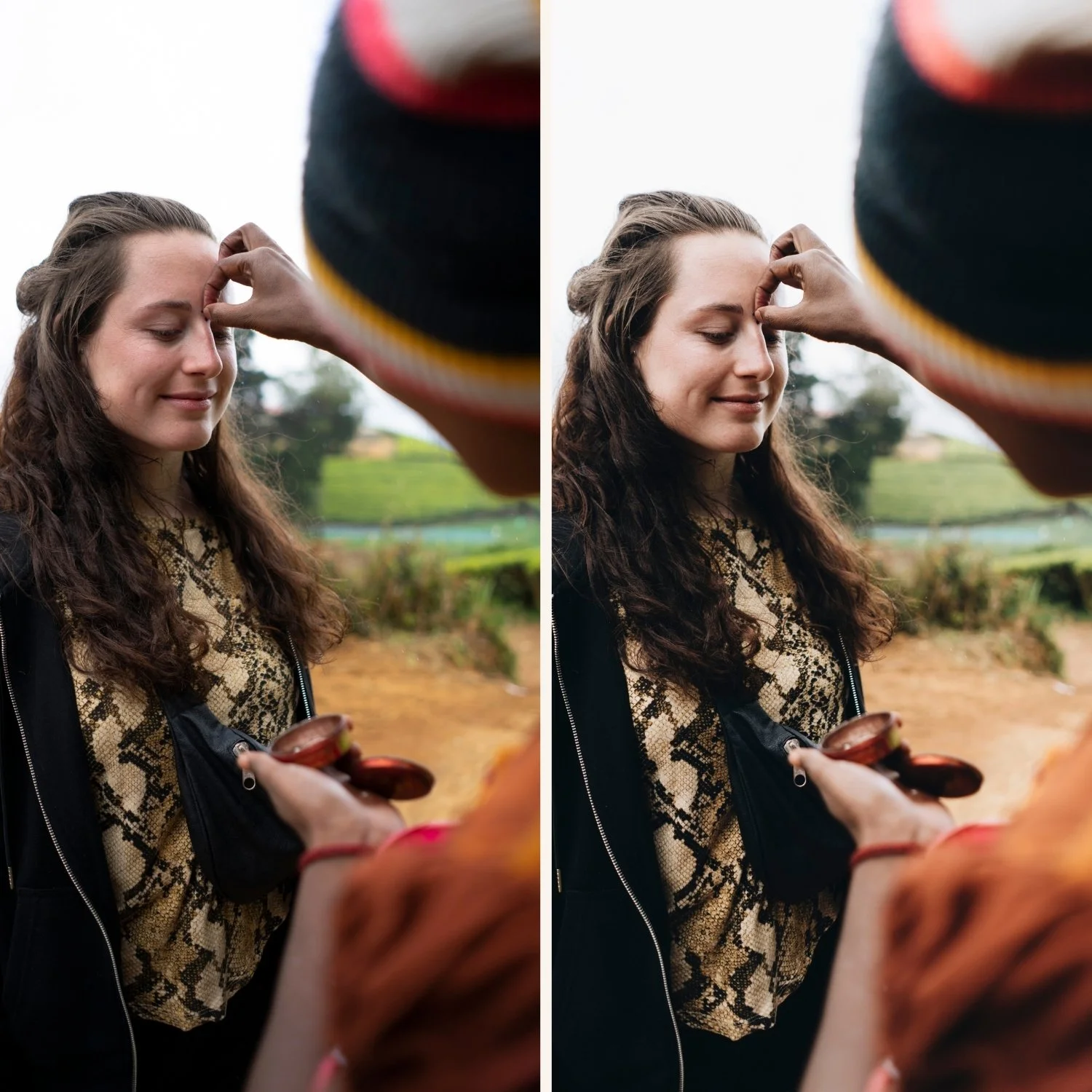
What makes a portrait film preset work?
Orange channel calibration. Skin is primarily orange in Lightroom's color model. Good portrait presets lift Orange Luminance (+10-15) to brighten skin independently of other colors. They keep Orange Saturation controlled (0 to +5) rather than boosting it. This is the single most important technical characteristic.
Negative clarity. Clarity increases micro-contrast, which makes skin texture appear harsh and digital. Good portrait presets use slight negative clarity (-5 to -15) to remove the digital rendering that makes skin look rough.
Soft highlight roll-off. Skin in direct light clips easily. Good portrait presets pull highlights back slightly and create a gradual roll-off — highlights on skin should glow, not clip.
Warm but controlled color temperature. Overly warm presets push skin toward orange. Overly cool presets push toward grey. Good portrait presets sit in a warm-but-neutral zone that flatters skin without obvious color bias.
Exact settings for portrait film editing
Basic panel:
Exposure: +0.2 to +0.4
Contrast: -10 to -20
Highlights: -20 to -35
Shadows: +15 to +25
Whites: -10 to -20
Blacks: +10 to +20
Presence:
Texture: -5 to -10
Clarity: -10 to -20 (critical for portrait softness)
Vibrance: -5 to +5
Saturation: -5 to 0
HSL — Saturation:
Orange: 0 to +5 (warm but not vivid)
Red: -5 to 0
HSL — Luminance:
Orange: +10 to +15 (brighten skin — the most important adjustment)
Red: +5 to +10
Yellow: +5
Color Grading:
Highlights: very slight warm
Shadows: neutral to slight warm
Keep everything subtle — portrait editing should enhance, not define
Effects:
Grain Amount: 10-20 (subtle — heavy grain competes with skin texture)
Portrait film presets by skin tone
Fair to medium skin tones. Most presets are calibrated for this range. The risk is over-warming (orange casts) or over-brightening (washed out skin). G1 Clean Glow and A6 Clean Portrait are the most reliable. After applying, check that Orange Saturation has not gone above +10.
Medium to olive skin tones. Warm presets work naturally with olive skin. The risk is oversaturation making skin look processed. G2 Warm Glow adds warmth that enhances olive skin without pushing it orange. Reduce Orange Saturation by -5 if the result looks too vivid.
Dark skin tones. Presets designed for lighter skin often make dark skin look muddy or flat. Key adjustments regardless of preset: Orange Luminance +20-25 (more than for lighter skin), Blacks +15-20 (lift shadows to preserve detail), Clarity -15 (remove digital harshness that reads differently on dark skin). G3 Vibrant Glow is the most flattering for dark skin tones. Full guide: Best Lightroom Presets for Dark Skin Tones
Portrait film editing by lighting condition
Natural window light. The most forgiving portrait lighting. G1 Clean Glow and A6 both work well. The soft directional quality of window light responds naturally to film portrait presets.
Outdoor overcast light. Flat and slightly cool. A preset that adds warmth and lifts overall brightness compensates for the lack of natural warmth. G2 Warm Glow adds enough warmth to make overcast portraits feel alive.
Golden hour. Already warm — the preset needs to enhance rather than add warmth. A4 Golden Warmth or G2 are calibrated for warm late-day light. Reduce Orange Saturation by -5 after applying to prevent combined warmth from going orange.
Indoor artificial light. The most challenging for portrait editing. Tungsten and LED lighting create color casts that affect skin in specific ways. Always correct white balance manually before applying any preset.
Studio flash. Even, neutral light. G1 and A1 work well as clean starting points. The evenness of studio flash allows the preset to do its full work without fighting against ambient light color.
The Glow Portrait Archive
The Glow Portrait Archive (G-Series) is built specifically for natural skin rendering — three presets calibrated for different portrait scenarios.
G1 — Clean Glow: Clean, lightly warm film tones with glowing highlights. The most versatile portrait preset. Works across all skin tones and lighting conditions.
G2 — Warm Glow: Warmer with more pronounced glow quality. Best for warm natural light and golden hour portrait sessions.
G3 — Vibrant Glow: More color presence. Best for dark and olive skin tones and lifestyle content where the editing has visible presence.
$6.66 per preset.
EXPLORE THE GLOW PORTRAIT ARCHIVE — $19.99
Free portrait preset
The free A6 preset is specifically calibrated for skin tone rendering — lifted Orange Luminance, controlled Orange Saturation, and negative Clarity.
Common portrait film editing mistakes
Over-warming skin.
Warm presets plus warm indoor light equals orange skin. Always check the Orange channel after applying and reduce Saturation if needed.
Too much clarity.
Clarity makes skin texture harsh and digital. Keep Clarity at 0 or negative for all portrait work.
Ignoring white balance.
The biggest source of inconsistent skin tones. Set white balance correctly before applying any preset.
Same preset on every photo.
A session shot across different lighting needs different preset variations. Use a system that covers your lighting range.
FAQ
What is the best Lightroom preset for skin tones?
Presets that lift Orange Luminance rather than boost Orange Saturation give the most natural skin results. G1 Clean Glow and A6 Clean Portrait are specifically calibrated for this.
How do I stop my portraits looking orange in Lightroom?
Reduce Orange Saturation by -5 to -15, check that white balance is not too warm, and ensure the preset does not boost warm tones aggressively. The G-series presets are calibrated to avoid orange casts specifically.
Can portrait film presets work for wedding photography?
Yes — portrait presets work well for the portrait component of wedding photography. For full gallery coverage including ceremony and reception, the Essence Archive gives you more lighting-specific variations. Full guide: Best Lightroom Presets for Wedding Photography 2026
What is the difference between portrait presets and general film presets?
Portrait presets specifically prioritize skin tone rendering — Orange Luminance, Clarity reduction, and highlight protection tuned for skin. General film presets are calibrated for overall color science across all subjects.
