Best Preset Bundles for Android Photographers (2026)
Best Preset Bundles for Android Photographers (2026)
All Lightroom Mobile presets work on Android — DNG preset files install in Lightroom Mobile on Samsung, Pixel, OnePlus, and every other Android phone the same way they do on iPhone. The process takes two minutes and no subscription is needed.
This guide covers the best preset bundles for Android photographers and the one Android-specific adjustment that makes every preset look more natural on Android photos.
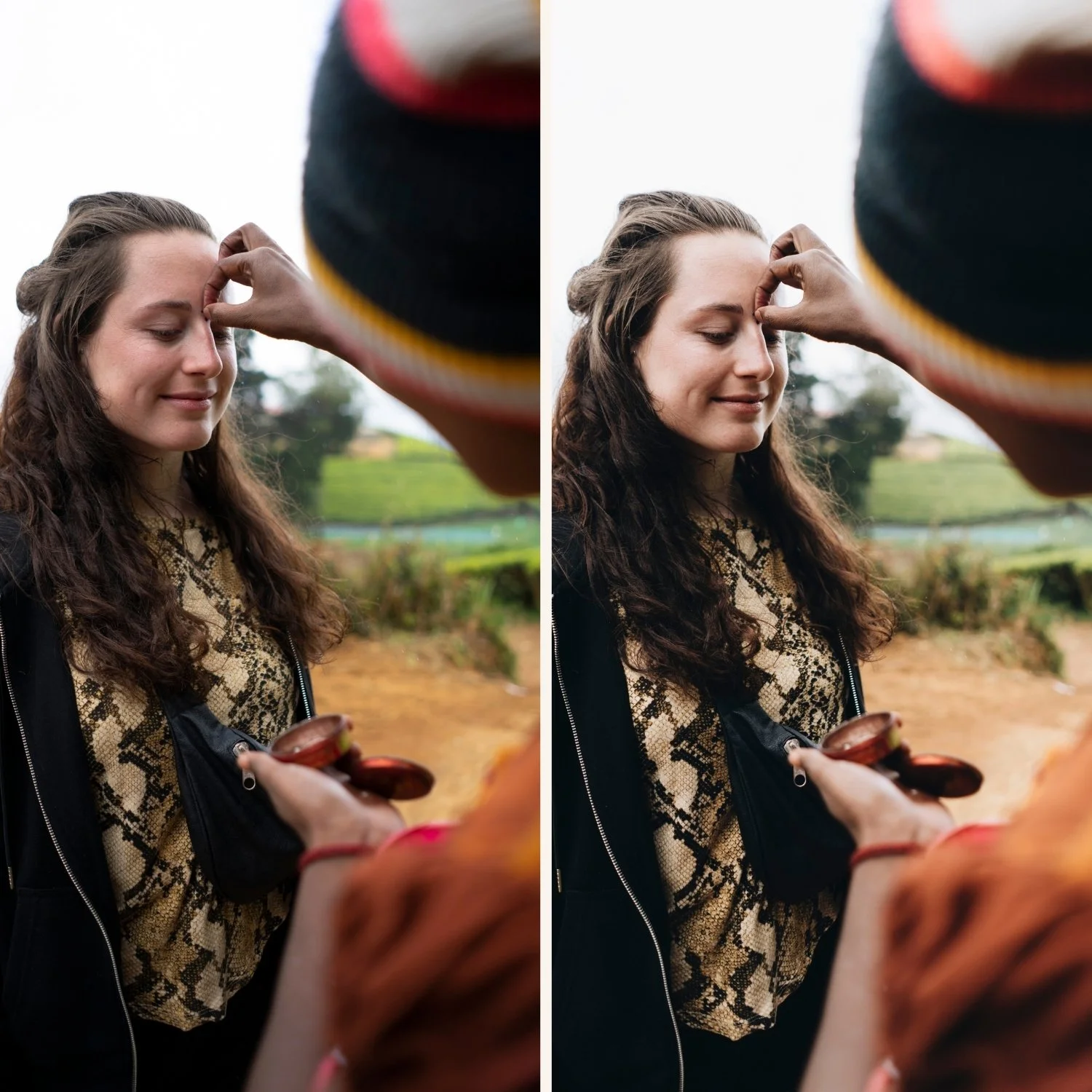
Android-specific preset adjustment
Before applying any preset on an Android photo, one adjustment makes a significant difference: change the Camera Calibration profile.
In Lightroom Mobile, scroll to the bottom of the editing panel. Find Camera Calibration. Change the Profile from Adobe Color to Camera Standard.
This applies your phone's native color science as the starting point. Samsung phones in particular render significantly better with Camera Standard than with Adobe Color. The preset then works on a more natural foundation.
Best preset bundles for Android
For versatile all-round film editing: Analog Film Archive — ten clean analog film presets covering every lighting condition. The most consistently natural-looking collection on Android phones.
For warm travel and outdoor photography: Vesper Archive or California Archive. Warm, vibrant, calibrated for outdoor conditions where Android cameras perform best.
For moody and atmospheric: Moody Film Archive. Deep cinematic quality that suits Samsung and Pixel's high-contrast rendering.
For beginners: Starter Pack. Four presets covering the core directions at an accessible price point.
For everything: Studio Archive. 130+ presets for $0.68 each.
How to install presets on Android
Download the DNG preset file to your Android phone
Open Lightroom Mobile
Tap the + button and import the DNG file
Open the DNG, tap three dots, Copy Settings
Tap three dots again, Create Preset, name and save
Full guide: How to Install Lightroom Presets on Android
Android vs iPhone preset results
Android and iPhone process photos differently. Samsung applies more HDR processing. Pixel has more neutral processing closer to camera RAW. Both affect how presets render.
For best results on any Android phone: change Camera Calibration to Camera Standard, reduce preset amount to 70-75%, and reduce Sharpening to 20 before applying.
Free Android preset
FAQ
Do Lightroom presets work on Samsung phones?
Yes. DNG presets install in Lightroom Mobile on any Android phone including all Samsung models. Change Camera Calibration to Camera Standard for the most natural results on Samsung RAW and JPEG files.
Do I need a Lightroom subscription for presets on Android?
No. Preset installation and application is free in Lightroom Mobile on Android. No Creative Cloud subscription needed.