How to Install Lightroom Presets on Android (2026 Step-by-Step)
How to Install Lightroom Presets on Android (2026 Step-by-Step)
Installing Lightroom presets on Android is straightforward once you know which method to use. The steps differ slightly from iPhone but the end result is the same — your presets appear in Lightroom Mobile ready to apply with one tap.
This guide covers both DNG and XMP formats, with a full troubleshooting section for the most common problems Android users run into.

What you need before starting
Lightroom Mobile installed on your Android device (free from the Google Play Store)
Your preset files — either .DNG or .XMP format
The files saved to your device storage or accessible via Google Drive / Downloads folder
Method 1 — Installing DNG presets on Android (recommended)
DNG is the easiest method for Android users. No desktop connection needed — everything happens on your phone.
Step 1 — Download and save the DNG files
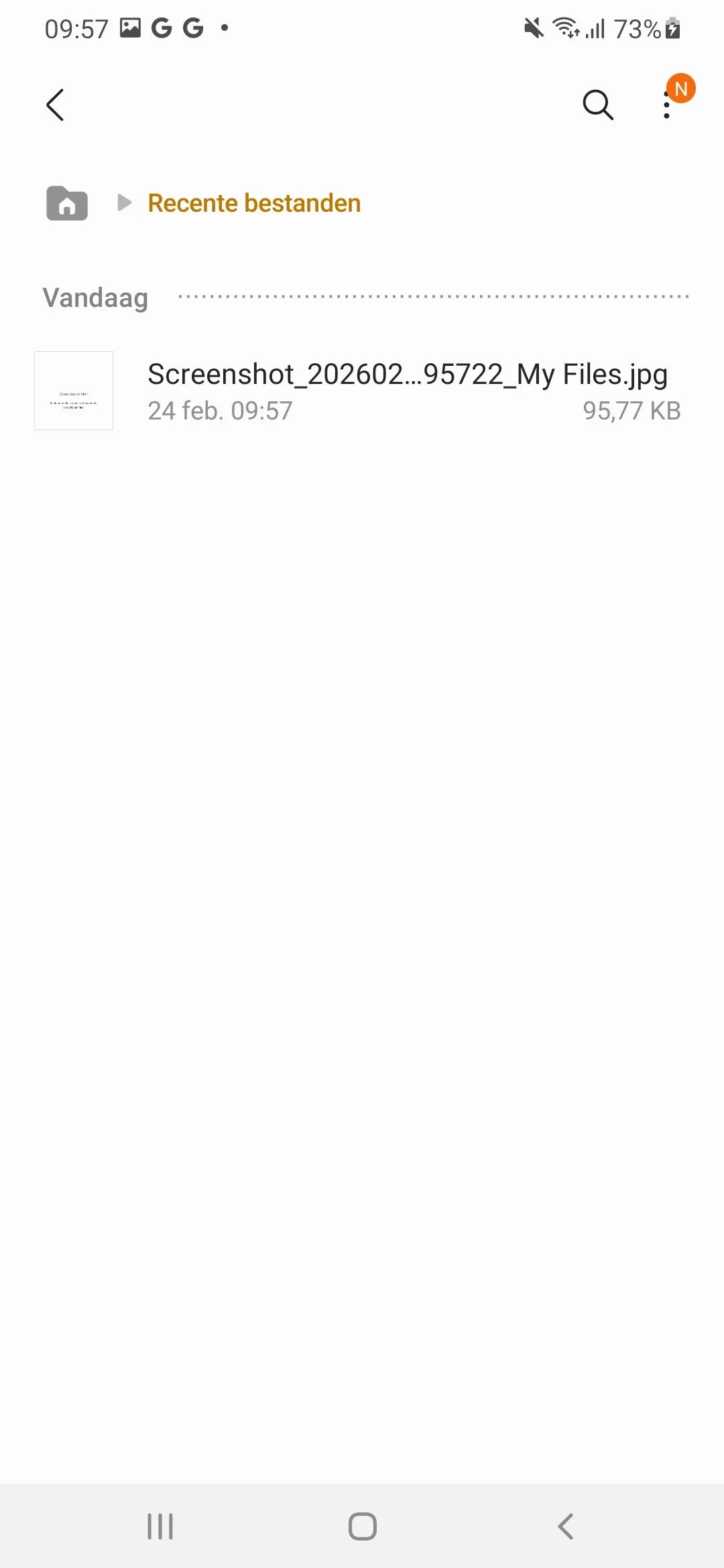
Download your preset pack to your Android device. The DNG files should be saved to your Downloads folder or Gallery. If you received them via email, tap the attachment and choose Save to Device or Download.
Step 2 — Open Lightroom Mobile
Open the Lightroom app on your Android device. You'll see your photo library on the main screen.
Step 3 — Import the DNG files into Lightroom
Tap the + icon (Add Photos) and select From Device. Navigate to your Downloads folder (or wherever you saved the DNG files). Select all DNG preset files and tap Add.
The DNG files now appear in your Lightroom library as grey or solid-colour images — this is correct.
Step 4 — Open a DNG preset file
Tap one of the imported DNG files to open it in the edit view.
Step 5 — Copy the settings
Tap the three dots (⋮) in the top right corner. Select Copy Settings. Tap Select All to make sure every adjustment is included, then tap Copy.
Step 6 — Create the preset
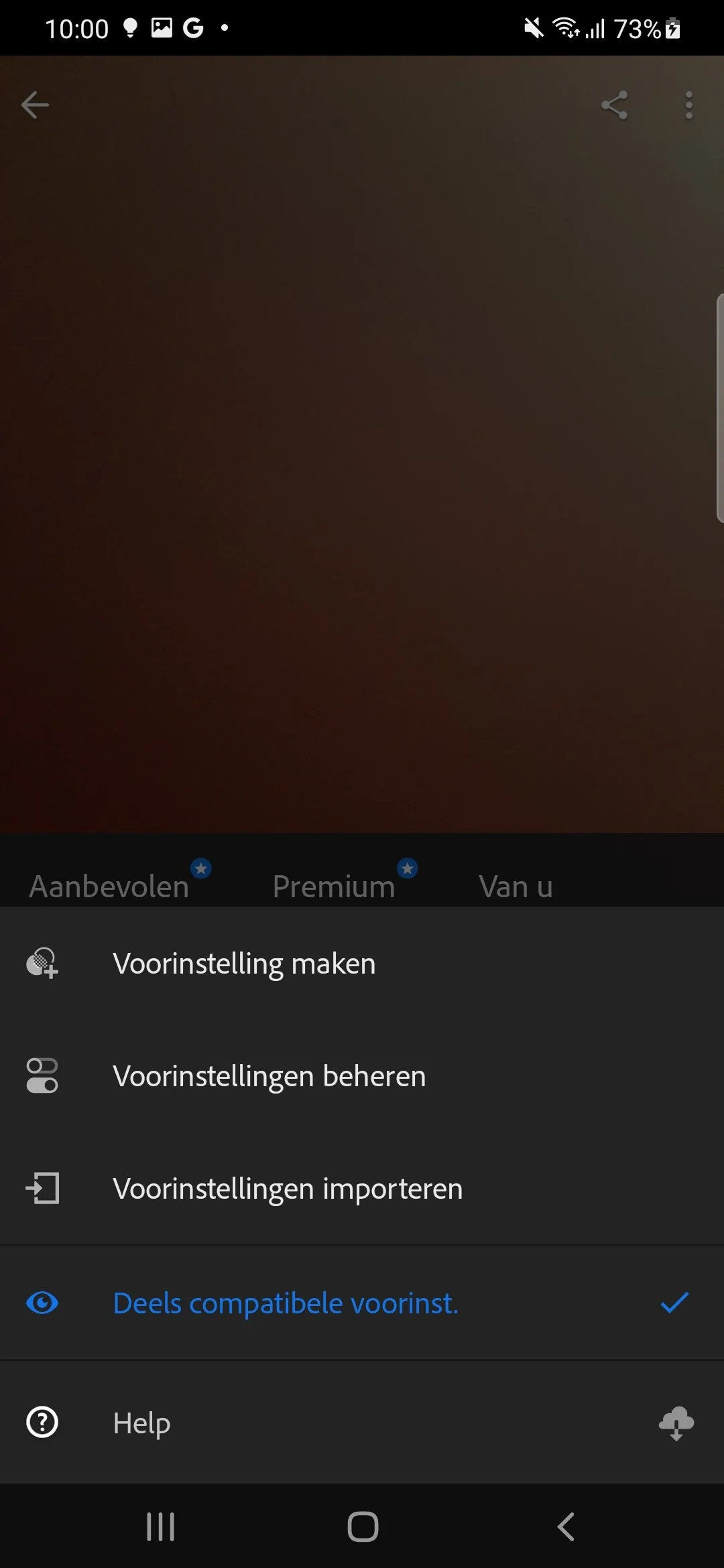
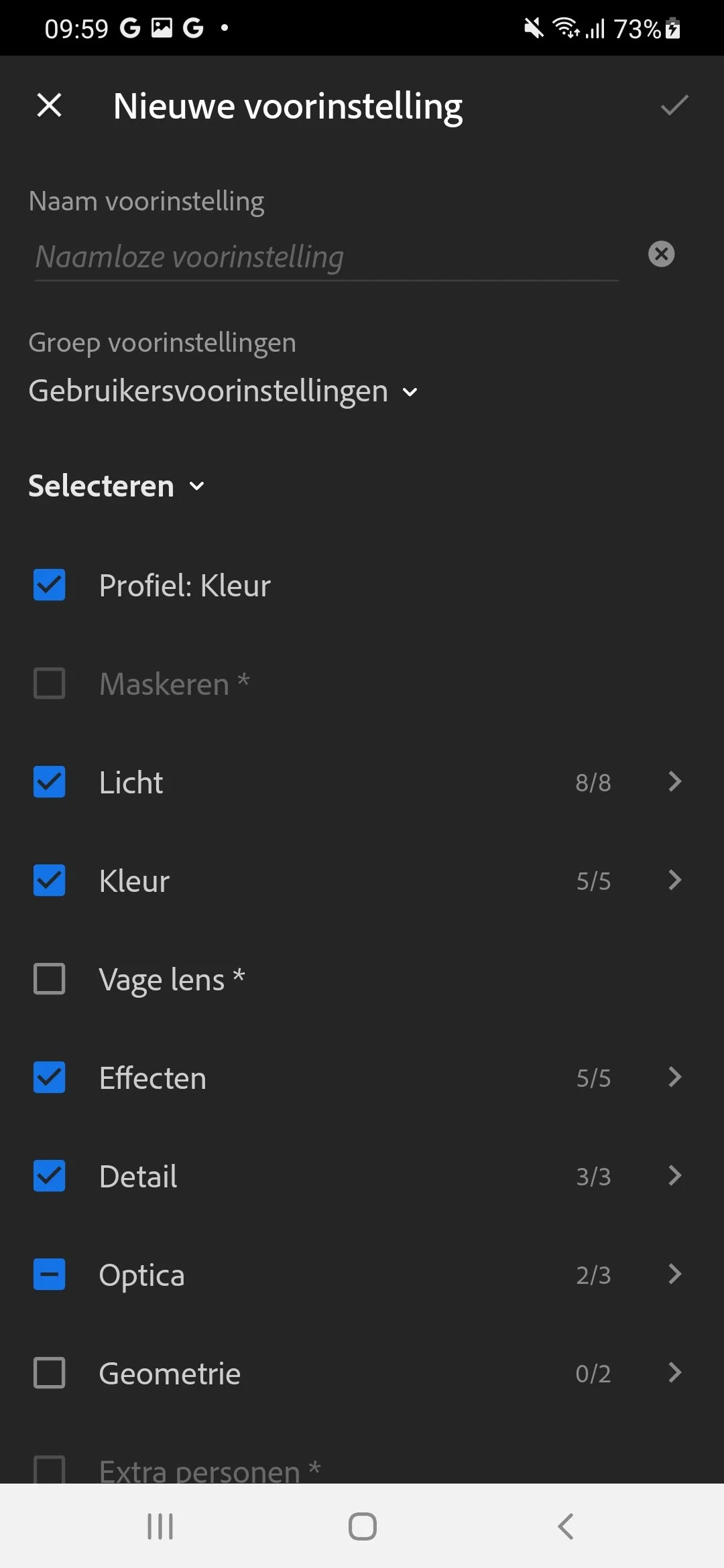
Tap the three dots (⋮) again and select Create Preset.
Enter a preset name (e.g. "M5 — Warm Moody")
Assign it to a group or create a new one (e.g. "The Editing Studio")
Tap the checkmark to save
Repeat steps 4–6 for every DNG file in your pack. Once done, all presets appear in the Presets panel when editing any photo.
Step 7 — Apply your presets
Open any photo in Lightroom Mobile, scroll to the bottom toolbar and tap Presets. Find your preset group, tap a preset to preview it, and tap the checkmark to apply.
Method 2 — Installing XMP presets on Android
XMP presets can be installed on Android directly without a desktop, as long as your Lightroom Mobile app is up to date.
Option A — Direct XMP import (Lightroom Mobile 7.0+)
Save your XMP files to your Android device (Downloads folder or Files app)
Open Lightroom Mobile
Tap + to add photos and navigate to Files
Locate the XMP file and tap it
Lightroom will prompt you to import the preset — choose your group and tap Import
If you don't see an import prompt, your app may be outdated. Update Lightroom via Google Play and try again.
Option B — Sync from Lightroom Desktop
Install the XMP presets in Lightroom Desktop on your Mac or PC
Make sure Sync presets with Lightroom mobile is enabled in Lightroom Desktop preferences
Open Lightroom Mobile on your Android — presets sync automatically within a few minutes via your Adobe account
How to apply presets in Lightroom Mobile
Open a photo in Lightroom Mobile
Tap Presets in the bottom edit toolbar
Swipe through preset groups to find yours
Tap a preset to preview — it applies temporarily so you can compare
Tap the checkmark to confirm, or tap X to cancel
Adjust white balance, exposure, or any other setting after applying
Troubleshooting — Android-specific problems
Presets not showing after installation Make sure you completed Step 6 (Create Preset). Importing a DNG file alone does not create a preset — you must copy the settings and save them manually.
"Unable to import" error Update Lightroom Mobile to the latest version via Google Play. XMP direct import requires version 7.0 or above.
DNG files appear grey or blank This is correct. DNG preset files are intentionally empty — they carry only the edit settings. The blank appearance is expected.
Presets look wrong on my photos Presets are calibrated for specific lighting. Try adjusting white balance and exposure after applying. A preset that looks perfect in bright daylight may need tweaking under artificial light.
I can't find my presets after saving Tap Presets in the edit view and scroll through your groups. If you didn't assign a group during saving, check User Presets — that's the default.
Android vs iPhone — are there any differences? The DNG installation method is identical on both platforms. The XMP direct import option arrived on Android slightly later than iOS. If you're on an older Android version, use the DNG method to avoid compatibility issues.
How to organise your presets
One group per pack — always assign presets to a named group when saving (e.g. "The Editing Studio — Moody"). Keeps things easy to find.
Delete test imports — after installing presets via DNG, delete the original grey DNG files from your Lightroom library. They're no longer needed once the presets are saved.
Use short names — shorter preset names are easier to read in the small preset thumbnails (e.g. "A6 Film" instead of "A6 Clean Minimalist Film Look")
FAQ
Do I need to pay for Lightroom to use presets?
No. Lightroom Mobile is free on Android and all preset functionality is included in the free version. You don't need an Adobe subscription to install or apply presets.
Can I use the same presets on Android and iPhone?
Yes — if you use the same Adobe account and have sync enabled, presets appear on all your devices. You can also install them separately on each device using the DNG method.
What's the difference between DNG and XMP?
DNG is a photo file that carries preset settings embedded inside it. XMP is a settings file that contains only the adjustments. Both result in identical presets once installed — the format only affects how you install them.
My phone says "not enough storage" during install
DNG files are small (usually under 1MB each) so storage is rarely the issue. If you see this error, it may be a temporary Lightroom cache problem. Restart the app and try again.
Can presets be used on JPEG photos?
Yes. Presets work on both JPEG and RAW files in Lightroom Mobile. They perform best on RAW files but work fine on JPEGs shot on your phone.
How do I delete a preset I no longer want?
In the Presets panel, long-press the preset you want to remove. An option to delete it will appear.
