How to Add Film Grain in Lightroom — Complete Guide (2026)
How to Add Film Grain in Lightroom — Complete Guide (2026)
Film grain in Lightroom is one of the most misused adjustments in photography editing. Too much creates digital noise. Too little makes the addition pointless. The wrong size creates a plastic, artificial texture. Calibrated correctly, grain adds the organic texture of analog photography and is one of the most effective adjustments for removing the digital look from photos.
This guide covers exact grain settings for every film look from subtle everyday analog to bold cinematic grain.
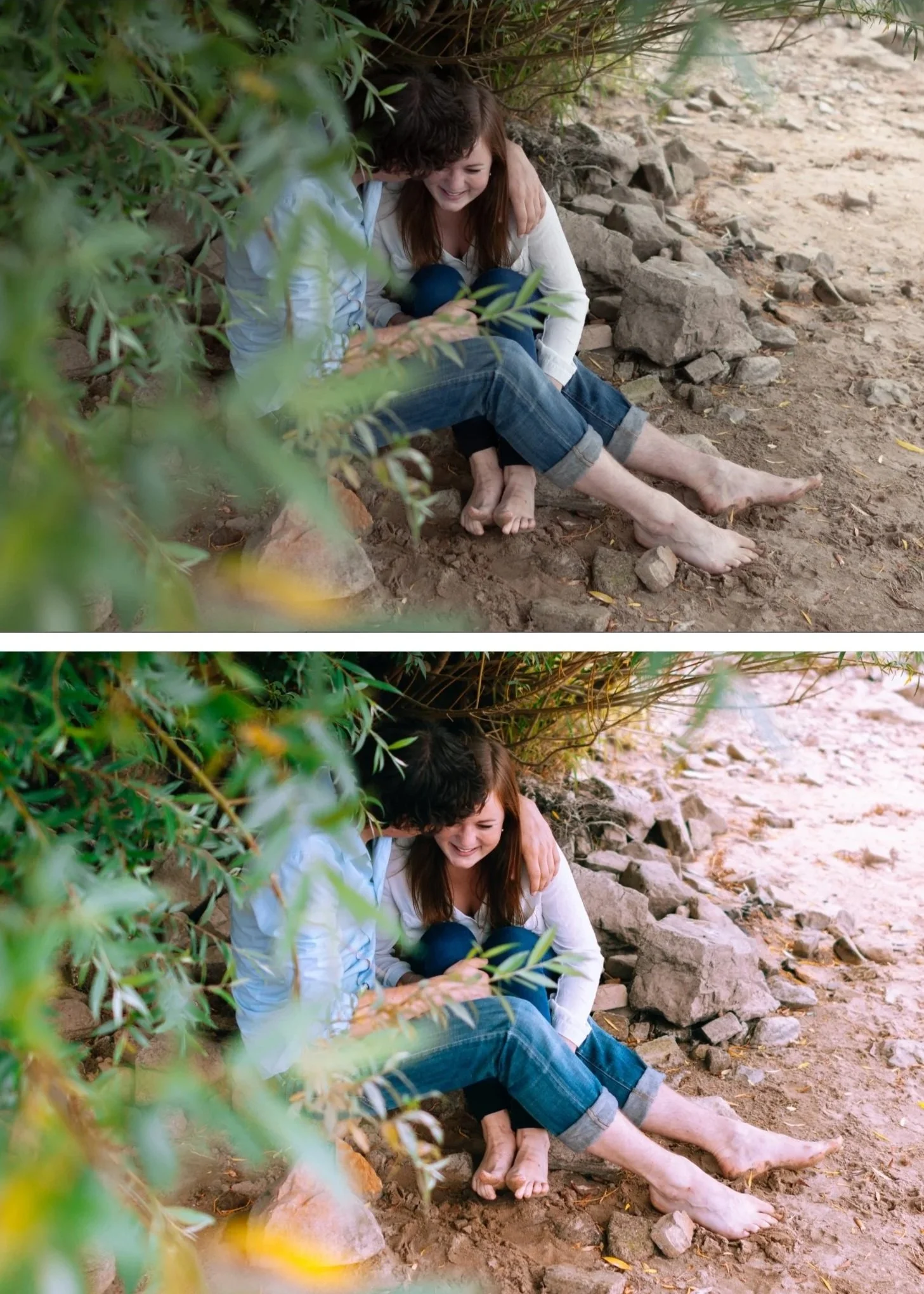
Where to find grain in Lightroom
Lightroom Classic: Develop module, Effects panel, Grain section.
Lightroom Mobile: Edit panel, scroll to Effects. Grain is in the Grain section.
Three sliders control grain: Amount, Size, and Roughness.
What each slider does
Amount: How much grain is visible. At 0, no grain. At 100, very heavy grain. For film photography references, most natural film grain sits between 15-40.
Size: The physical size of grain particles. Low values (under 20) create fine, almost invisible grain. High values (above 50) create visible, coarse grain. Most film stocks reference 22-35 for natural grain size.
Roughness: How irregular and organic the grain pattern is. Low roughness creates uniform, regular grain that looks digital. High roughness creates the irregular, random quality of real film grain. Always keep Roughness above 40 — below 40 grain looks artificial.
Exact grain settings by film look
Subtle everyday film (Fuji 400H, Kodak Portra 400 reference)
Amount: 15-20
Size: 22-26
Roughness: 40-50
The finest, most subtle grain. Visible at 100% zoom but not obvious at normal viewing size. Adds organic texture without drawing attention to itself.
Standard film (Kodak Ektar, Fuji Velvia reference)
Amount: 20-28
Size: 25-30
Roughness: 45-55
The most versatile film grain range. Works for portrait, travel, and lifestyle photography. Natural and organic at standard viewing sizes.
Pushed film (ISO 1600 pushed to 3200 reference)
Amount: 30-40
Size: 30-38
Roughness: 50-60
Visible grain that is part of the aesthetic. Suits street photography, documentary work, and moody photography where grain adds character rather than just texture.
Bold cinematic grain (35mm film scan reference)
Amount: 40-55
Size: 35-45
Roughness: 55-65
Strong, expressive grain. For photographers who want grain as a deliberate visual statement. Most effective on B&W photography and dark moody color work.
Apply grain after all other adjustments
Grain interacts with every other adjustment in Lightroom. Sharpening enhances grain. Negative Clarity softens it. Color adjustments affect how grain reads in different tonal areas.
Apply grain last — after white balance, exposure, tone curve, color grading, and HSL adjustments are complete. Changing other adjustments after setting grain requires checking and resetting the grain again.
Grain on phone photos
iPhone and Android cameras have their own digital noise at higher ISO values. Lightroom grain added on top of existing noise creates a different quality than film grain on a clean RAW file.
For phone photos: reduce Sharpening to 20-25 and set Luminance Noise Reduction to 25-30 before adding grain. This creates a clean foundation for the grain to work on rather than stacking grain on top of noise.
Grain and black and white photography
Grain is more visible and more impactful in black and white editing than in color. The same Amount setting looks significantly more prominent without color to distribute attention.
For B&W photography: start at Amount 15-20 and evaluate at 100% zoom before adding more. Bold B&W grain (Amount 35-50) is a legitimate creative choice but is stronger than it appears at normal viewing size.
Save grain as part of your preset
Once you have grain settings that work for your photography style, save them as part of your preset. Grain should be part of the consistent film character across your gallery — not applied differently to each photo.
In Lightroom Mobile: three dots, Create Preset, ensure Effects (where grain lives) is checked.
For the full preset creation guide: How to Create Your Own Lightroom Preset
FAQ
What is the best Amount setting for film grain in Lightroom?
15-28 for subtle natural film quality. 28-40 for visible pushed film character. The exact amount depends on your film stock reference and photography style — there is no single correct value.
Why does my grain look like noise instead of film grain?
Usually caused by Roughness being too low (below 40) or Size being too small (below 20). Increase Roughness to 50-55 and Size to 25-30 for more organic, film-like grain quality.
Should I add grain before or after applying a film preset?
After. Check what grain amount is in the preset first — many film presets already include grain. If the preset has grain at 20, adding another 25 on top creates very heavy grain.
Does grain affect print quality?
Yes — grain visible at screen sizes becomes more prominent in large prints. Reduce grain to Amount 10-15 for photography intended for print above A4 size.
