How to Edit Fujifilm RAW Files in Lightroom — Complete Guide (2026)
How to Edit Fujifilm RAW Files in Lightroom — Complete Guide (2026)
Fujifilm RAW files in Lightroom have one specific behavior that no other camera system has: the film simulation profile you shot with is stored in the RAW file as metadata that Lightroom can read and apply. This means your Classic Chrome, Provia, or Eterna simulation is available as a Camera Calibration profile in Lightroom — giving you the best of both worlds.
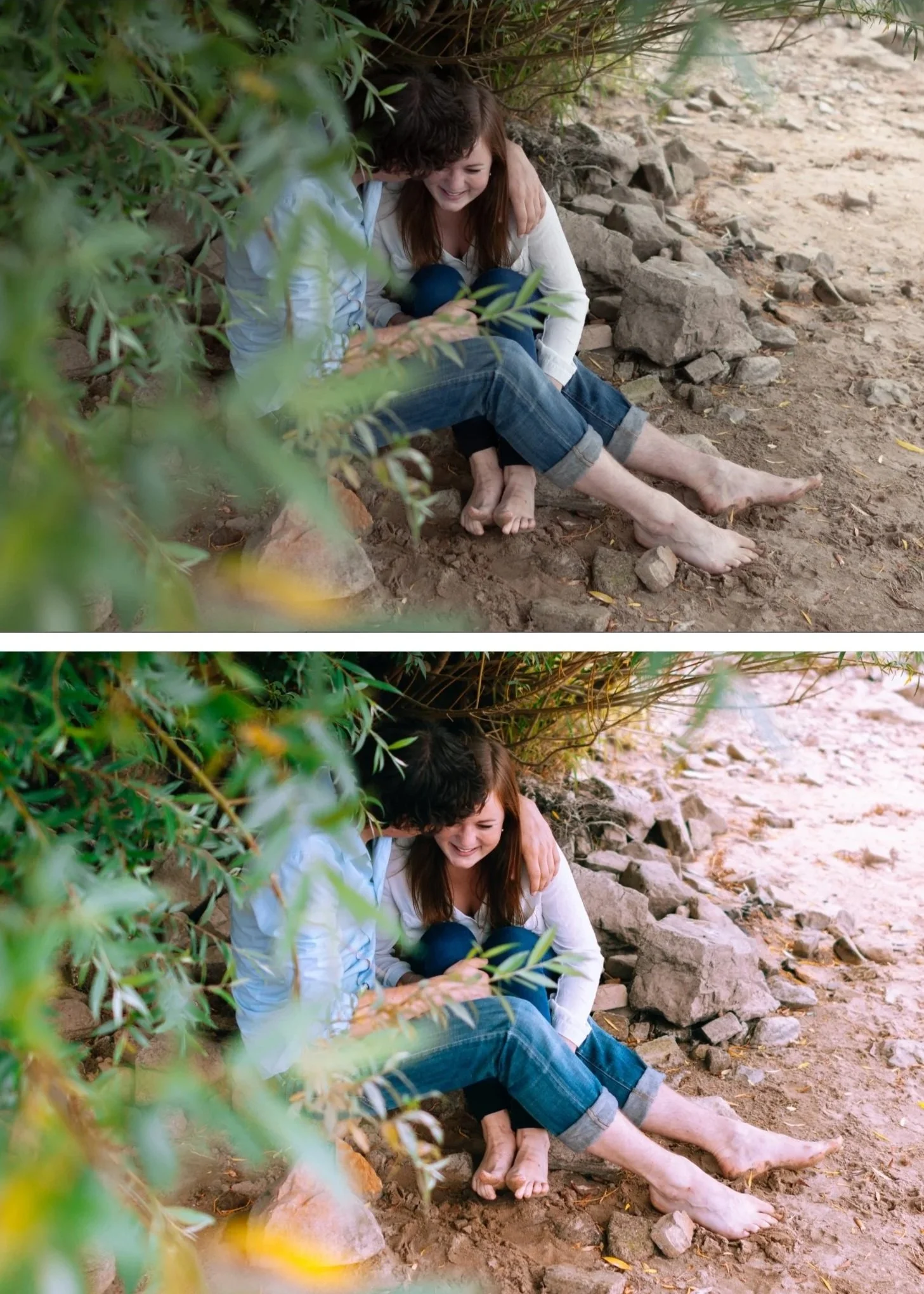
Step 1 — Apply the film simulation profile
In Lightroom Classic: Develop module, scroll to Camera Calibration panel at the bottom. The Profile dropdown shows the simulation used in camera — Camera Classic Chrome, Camera Provia, etc.
In Lightroom Mobile: scroll to the bottom of the editing panel and tap Camera Calibration.
Apply the profile that matches the simulation you used in camera. This restores the film simulation's color science to the flat RAW file.
If you want to explore a different simulation than the one you shot with: try each profile in the Camera Calibration panel. Classic Chrome, Provia, Astia, and Eterna are the most versatile for the film look.
Important: if the simulation profile is not available in the dropdown, your version of Lightroom does not yet support that camera model's profiles. Update Lightroom (Help, Updates) to get the latest camera support.
Step 2 — Assess the RAW file with simulation applied
With the simulation profile applied, the file looks significantly different from the flat default Adobe Color rendering. Evaluate:
Is the overall exposure correct? If not, adjust before anything else. Does the white balance look natural? Film simulations can shift white balance slightly — re-evaluate after applying. Are highlights clipping? Fujifilm's highlight latitude is good but direct sun can clip.
Step 3 — White balance
Fujifilm's Auto white balance is generally accurate. After applying the simulation profile, check whether white areas look neutral.
For outdoor daylight: 5,200-5,500K, Tint +3 to +5. For Classic Chrome specifically: the profile adds slight teal-green in shadows — a Tint of +5 to +8 corrects this naturally.
Step 4 — Tonal adjustments
Highlights: -30 to -45. Even with Fujifilm's good highlight latitude, pulling Highlights creates the film roll-off quality.
Blacks: +15 to +20. Film shadow lift.
Contrast: -10. Remove the slight contrast that even Camera Neutral profiles add.
Step 5 — Color adjustments
Fujifilm files after simulation profile need minimal color correction — the simulation does most of the work.
Green Saturation: -5 to -8. A slight reduction for outdoor foliage. More aggressive reduction is not needed — the simulation already handles green rendering.
That is all that is typically required. Fujifilm's color science is the cleanest starting point for the film look.
Step 6 — Apply preset
Film presets at 70-75% strength on Fujifilm with simulation applied. The simulation does 20-30% of the preset's work — full-strength presets on Fujifilm can overshoot.
The Classic Chrome + A7 Soft Matte combination
The most popular Fujifilm film look combination: Classic Chrome profile in Camera Calibration plus A7 Soft Matte preset at 72-75%. Classic Chrome's muted, desaturated starting point and A7's editorial matte quality create a refined, organic result that references the best analog photography with minimal additional adjustment.
FAQ
Why does my Fujifilm RAW look different from the JPEG preview on the camera?
The camera JPEG preview shows the full simulation rendering including in-camera sharpening, noise reduction, and color enhancement. The RAW file in Lightroom shows the raw sensor data — even with the simulation profile applied, it is not identical to the camera JPEG. This is normal and expected.
Should I shoot RAF (Fujifilm RAW) or JPEG for film look editing?
RAF gives significantly more latitude for highlight and shadow recovery. JPEG is useful for a reference of the in-camera simulation. Shoot RAF+JPEG for the best of both: use the JPEG as a reference and edit the RAF in Lightroom.
Why doesn't my film simulation profile appear in Lightroom?
Update Lightroom to the latest version. Fujifilm adds new camera support with each update. If the profile still does not appear after updating, it may not yet be supported for your specific camera model.
