Why Instagram Ruins My Colors — And How to Fix It Permanently (2026)
Why Instagram Ruins My Colors — And How to Fix It Permanently (2026)
You spend time editing a photo in Lightroom. The colors look exactly right — warm but not orange, bright but not blown out, the film quality you were going for. You export and upload to Instagram. And the photo looks different. Slightly harsher. The highlights feel clipped. The skin tones shifted warmer. The subtle film quality is gone.
You did not edit it wrong. Instagram changed it.
This happens to every photographer who has not specifically optimized their export workflow for Instagram. The good news is that once you understand why it happens and fix your export settings, the problem disappears permanently.
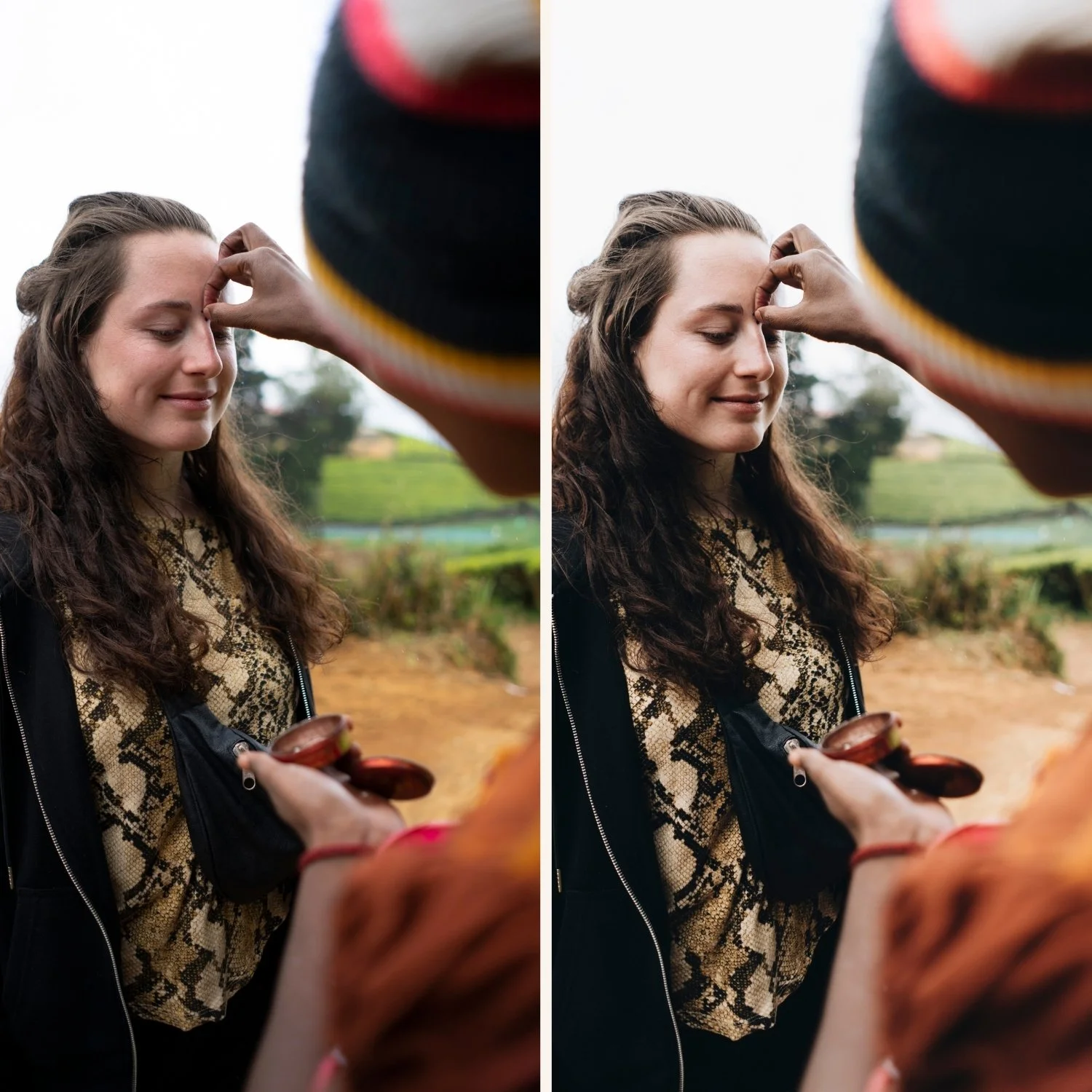
The four reasons Instagram changes your colors
1. Wrong color space — the biggest cause
Lightroom supports three color spaces: sRGB, Adobe RGB, and ProPhoto RGB. Instagram only correctly displays sRGB. If you export in Adobe RGB or ProPhoto RGB, Instagram converts it to sRGB automatically — and that conversion shifts colors, especially reds, oranges, and skin tones.
The fix: Always export in sRGB. In Lightroom Classic: File, Export, Color Space, sRGB. In Lightroom Mobile: tap Share, Export As, Color Space, sRGB.
This single fix solves the orange skin problem for most photographers.
2. Wrong resolution — forces Instagram to rescale
Instagram displays images at a maximum of 1080px on the longest edge. If you upload a 4,000px file, Instagram downsizes it to 1080px. This forced rescaling changes perceived saturation, edge contrast, and tonal smoothness — particularly affecting the subtle transitions that film presets create.
The fix: Export at exactly the correct dimensions before uploading:
Vertical (portrait format): 1080 x 1350px
Square: 1080 x 1080px
Horizontal: 1080px on the longest edge
Exporting at these exact dimensions means Instagram does not resize the image. What you upload is what displays.
3. Compression destroys subtle tonal transitions
Instagram compresses every uploaded image to reduce file size. This compression is lossy — it removes color information, particularly in subtle tonal gradients. Film preset editing is specifically vulnerable to this because the softness of film tones depends on those subtle transitions. Harsh digital edits survive compression better than soft film edits.
The fix: Export at quality 80-90% JPEG. This is the sweet spot where file size is small enough that Instagram does not need to compress further. Higher quality (95-100%) creates large files that Instagram compresses more aggressively — ironically giving worse results than 80-90%.
4. Stacked sharpening
Instagram automatically applies sharpening to every uploaded image. If your export already has output sharpening applied in Lightroom, the sharpening stacks — creating an oversharpened, digital-looking result that works against the film aesthetic.
The fix: In Lightroom Classic, turn off Output Sharpening in the export settings. In Lightroom Mobile, there is no output sharpening — just ensure Sharpening in the Detail panel is set to 20-25 rather than the default 40.
The permanent fix — complete export workflow
Apply these settings every time you export for Instagram:
Lightroom Classic:
Format: JPEG
Quality: 85%
Color Space: sRGB
Resize to Fit: Long Edge, 1350px (portrait) or 1080px (horizontal)
Resolution: 72 PPI
Output Sharpening: None
Lightroom Mobile:
Tap Share, Export As
Format: JPEG
Dimensions: Custom — 1080 x 1350px for portrait
Quality: 80%
Color Space: sRGB
For the full export guide: Best Lightroom Export Settings for Instagram
Why film presets are more vulnerable to Instagram compression
Standard high-contrast edits have strong color differences between tonal ranges. Compression can remove subtle color information without visibly affecting the overall look. Film presets work the opposite way — the quality comes from subtle tonal transitions, soft highlight roll-off, and gentle color shifts that are exactly the kind of information compression removes most aggressively.
This is why a film preset that looks perfect in Lightroom can look noticeably worse on Instagram while a heavily filtered preset with strong contrast looks almost identical.
Two things reduce this vulnerability:
Correct export settings. The workflow above minimizes what Instagram changes.
Calibrated presets. Film presets that are specifically designed with compression in mind — with slightly stronger tonal foundations that survive JPEG compression — hold their quality better after Instagram processing.
Phone screen settings also affect what you see
Even after fixing your export settings, your phone screen may be showing you inaccurate colors. iPhone's True Tone adjusts display warmth based on ambient light. Night Shift adds a warm color overlay. Auto-brightness changes contrast.
Before concluding that Instagram changed your photo, check it on multiple devices or temporarily disable True Tone and Night Shift to see your photo at standard color calibration.
Free preset for Instagram-optimized film editing
The free A6 preset is calibrated for natural film tones that hold their quality after Instagram compression. Clean highlights, natural skin tones, subtle color that survives export.
FAQ
Why does Instagram make my photos look orange?
Almost always caused by exporting in Adobe RGB instead of sRGB. Instagram's conversion from Adobe RGB to sRGB shifts warm tones toward orange. Switch your export to sRGB and the problem disappears.
Why do my photos look more contrasty on Instagram?
Instagram applies automatic sharpening and compression increases perceived contrast. Export at 80-85% quality and disable Output Sharpening in Lightroom. Also check that your Highlights are not close to clipping before export — compression pushes near-clipped highlights over the edge.
Does Instagram compress all photos the same way?
Instagram compresses based on file size and resolution. Photos uploaded at correct dimensions (1080px) and quality 80-85% are compressed less than oversized files at 100% quality. The common mistake of uploading maximum quality actually creates more compression because the file is larger.
Why do my colors look different on my phone vs my computer?
Different screen calibration, True Tone, Night Shift, and brightness settings all affect how colors appear. Your Lightroom edit viewed on a calibrated desktop monitor may look different than the same photo viewed on a phone. This is a display issue, not an export issue.
Do the same settings work for Instagram Stories?
Stories use a 9:16 aspect ratio — 1080 x 1920px. The same color space (sRGB), quality (80-85%), and no output sharpening settings apply. Just change the dimensions.
