Best Film Presets for Lightroom Mobile
Best Film Presets for Lightroom Mobile
Lightroom Mobile is the primary editing platform for the majority of photographers who buy film presets. It runs on both iOS and Android, handles phone photographs and imported camera RAW files, and provides most of the editing controls that Lightroom Classic offers on desktop. Choosing presets that perform well specifically on mobile, and understanding how to apply them correctly, produces significantly better results than treating mobile as a limited version of the desktop workflow.
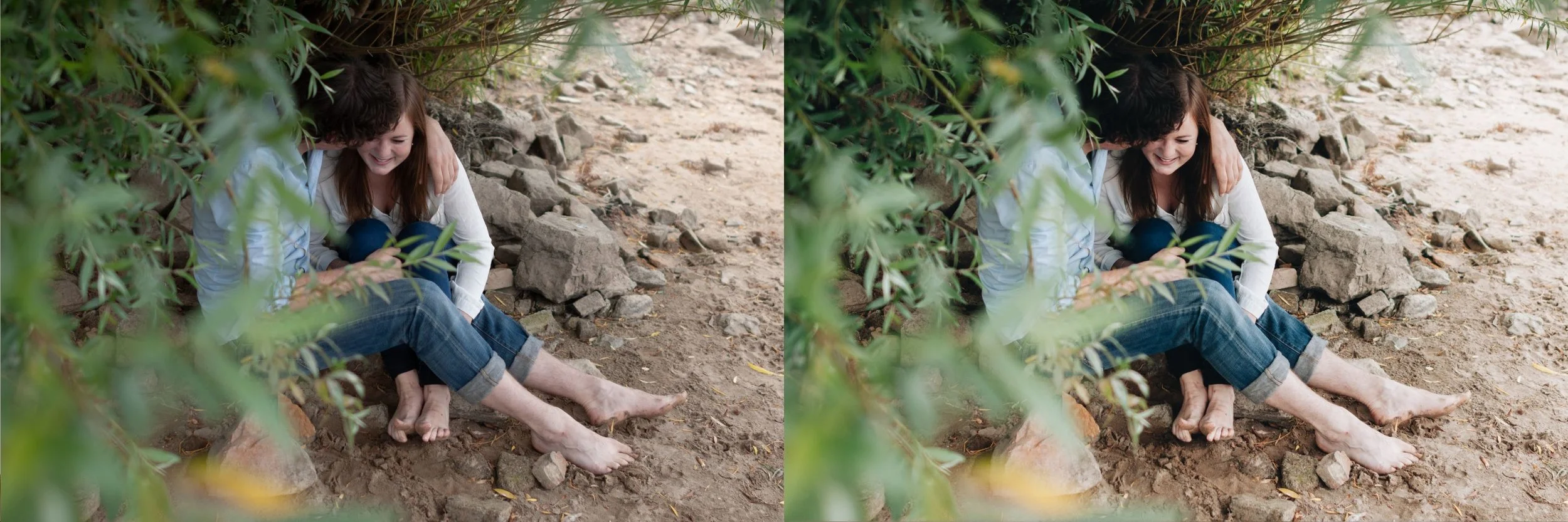
What Makes a Preset Work Well on Mobile
The most important quality in a mobile film preset is calibration that survives strength reduction. Almost all mobile editing benefits from applying presets at 80 to 88 percent rather than full strength, because phone files have in camera processing already applied before the file reaches Lightroom. A preset built around a single dominant adjustment, such as heavy global warmth or an extreme fade, loses its character entirely when reduced to 80 percent. A preset built on many coordinated small adjustments across the Tone Curve, HSL, and Color Grading panels retains its visual identity at reduced strength because no single element is carrying the whole look.
The second quality is DNG format availability. Lightroom Mobile installs presets from DNG files. Collections that only ship XMP files are desktop only and cannot be installed on mobile without a desktop sync step. Every preset from The Editing Studio includes both DNG and XMP formats so the same purchase works across mobile and desktop without additional steps.
The third quality is versatility across lighting conditions. Mobile photographers typically shoot across a wider range of everyday conditions than studio photographers do. A preset that only performs in golden hour is significantly less useful on mobile than one that handles outdoor, indoor, and mixed lighting acceptably with only Exposure and White Balance adjustment.
Installing Presets in Lightroom Mobile
The installation process is identical on iOS and Android. Download the DNG preset file to your device. In Lightroom Mobile, tap the plus icon and add the DNG as a photo. Open the imported DNG, tap the three dot menu in the top right, and select Create Preset. Name it and save.
Presets can be organized into named groups during creation, which matters once you have installed a full collection of ten or more. Grouping by lighting condition rather than by collection name makes the editing workflow faster, since you select based on the photograph in front of you rather than remembering which collection contains which preset.
Android photographers can find a device specific walkthrough in Free Lightroom Presets for Android, which covers the per manufacturer calibration differences between Pixel and Samsung devices. iPhone photographers can find the equivalent iOS specific guidance in Film Presets for iPhone in Lightroom.
The Mobile Editing Workflow
Correct white balance first. This applies on every platform but matters more on mobile because phone auto white balance varies more between shots than a camera set to a fixed white balance setting. Set Temperature and Tint to a target range for the lighting condition before applying the preset. Color Temperature vs Tint Deep Dive explains why both axes need setting rather than Temperature alone, which is a particularly common gap in mobile editing.
Apply the preset at reduced strength. In Lightroom Mobile, applying a preset displays an Amount slider that controls the strength of the application. Set this to 80 to 85 percent for phone JPEG and HEIC files, and 85 to 92 percent for ProRAW and Android RAW files.
Adjust Exposure per photograph. Check Highlights on outdoor photographs, since phone HDR processing often leaves bright areas closer to clipping than the preview suggests. Reduce Clarity to zero or negative if the preset does not already do so, since phone cameras apply sharpening in camera.
For batch editing multiple photographs, use Copy Settings on an edited photograph and Paste Settings to the others. The selective paste option allows applying the preset adjustments while leaving Exposure and White Balance as per photograph variables, which is the mobile equivalent of the desktop sync workflow described in How to Edit a Full Shoot Consistently.
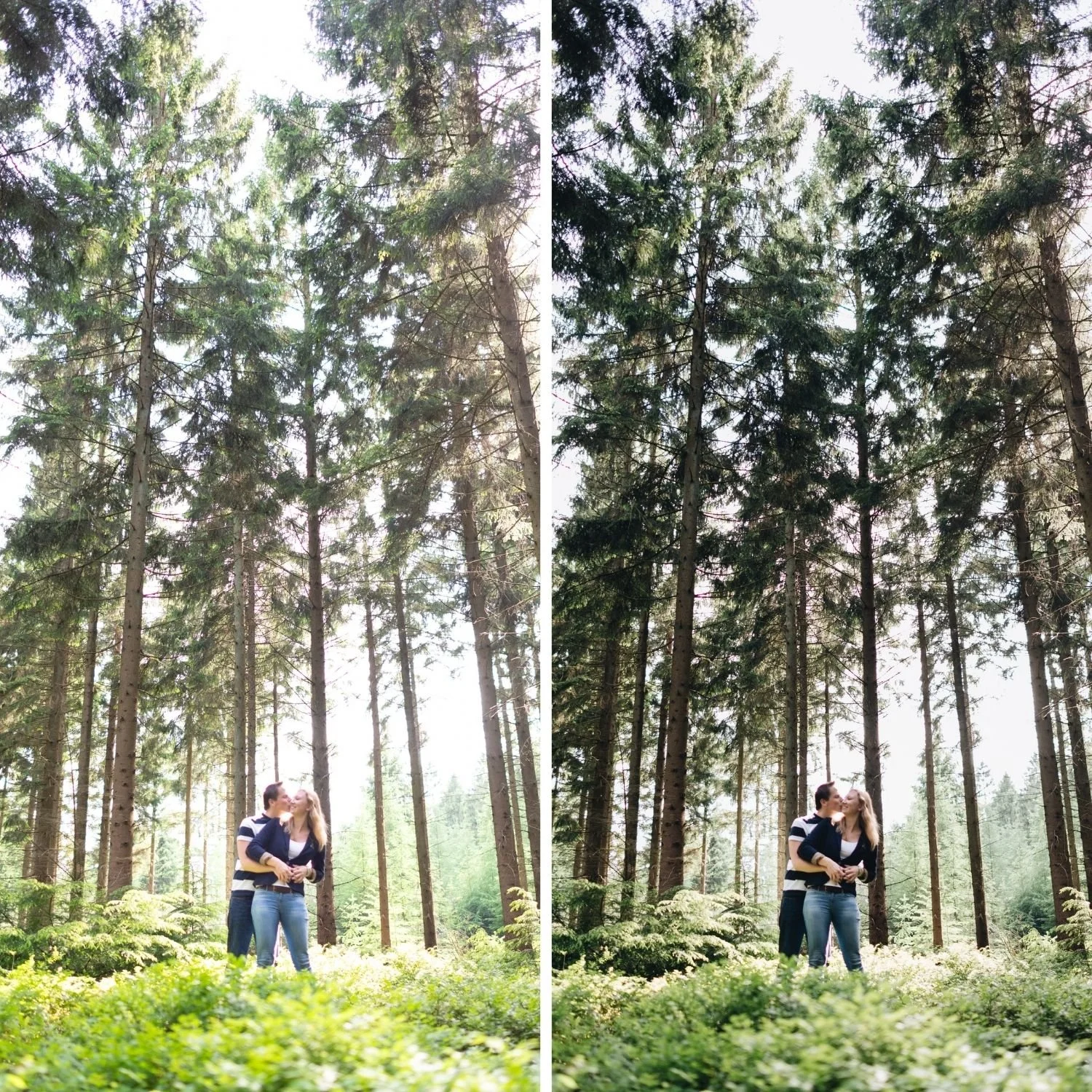
Which Collections Perform Best on Mobile
The Analog Film Archive is the most versatile mobile collection. Ten presets covering the analog film range, all calibrated on coordinated multi panel adjustments that survive strength reduction cleanly. A1 Analog Original is the single most useful mobile preset for photographers who want one reliable starting point across varied subjects.
The California Archive suits mobile travel and outdoor photography. Nine presets calibrated for warm outdoor conditions with the highlight protection that phone photographs in bright light specifically need.
The Bright and Clean Archive suits mobile lifestyle and social content. The clean, bright calibration works naturally with the bright output of phone cameras and produces the polished quality that social media content benefits from.
Mobile Specific Limitations to Know
The free version of Lightroom Mobile does not include the full Tone Curve panel or selective local adjustments. Presets install and apply fully on the free version, but modifying a preset's Tone Curve after applying requires a Creative Cloud subscription.
Screen calibration on phones varies significantly between devices. Editing on an OLED phone screen with vivid color settings produces different results than editing on a calibrated desktop monitor. For content that will be viewed primarily on phones, this is acceptable and arguably correct, since you are calibrating for the viewing environment your audience uses. For print output or professional client delivery, check results on a calibrated screen before finalizing.
FAQ
Do desktop presets work in Lightroom Mobile?
DNG format presets work on both platforms. XMP format presets are desktop only. Collections that include both formats work across all devices without conversion.
Should I edit on mobile or desktop for the best quality?
The editing adjustments are identical on both platforms. Desktop offers a larger screen, more precise slider control, and faster batch operations. Mobile offers convenience and the ability to edit anywhere. Neither produces higher quality output for the same adjustments.
How many presets should I install on mobile?
Start with three to five covering your primary lighting conditions. Installing an entire large collection at once creates decision paralysis without improving results. Add more as specific situations arise that your initial selection does not handle well.
Try a mobile calibrated film preset:
Download the free Analog Film presetand install it in Lightroom Mobile using the steps above. Apply it at 82 percent strength across photographs from varied lighting conditions.
For a complete mobile compatible collection, the Analog Film Archive provides ten calibrated film looks in DNG format. The Studio Archive at $89 includes every collection.
