Free Lightroom Presets 2026 — Best Free Downloads for Film Editing
Free Lightroom Presets 2026 — Best Free Downloads for Film Editing
Free Lightroom presets are everywhere in 2026. The problem isn't finding them — it's knowing which ones are actually worth using and which are poorly made filters that damage your photos more than they help.
This guide covers the best free Lightroom presets available in 2026, what to look for in a quality free preset, and the honest difference between free and paid options.
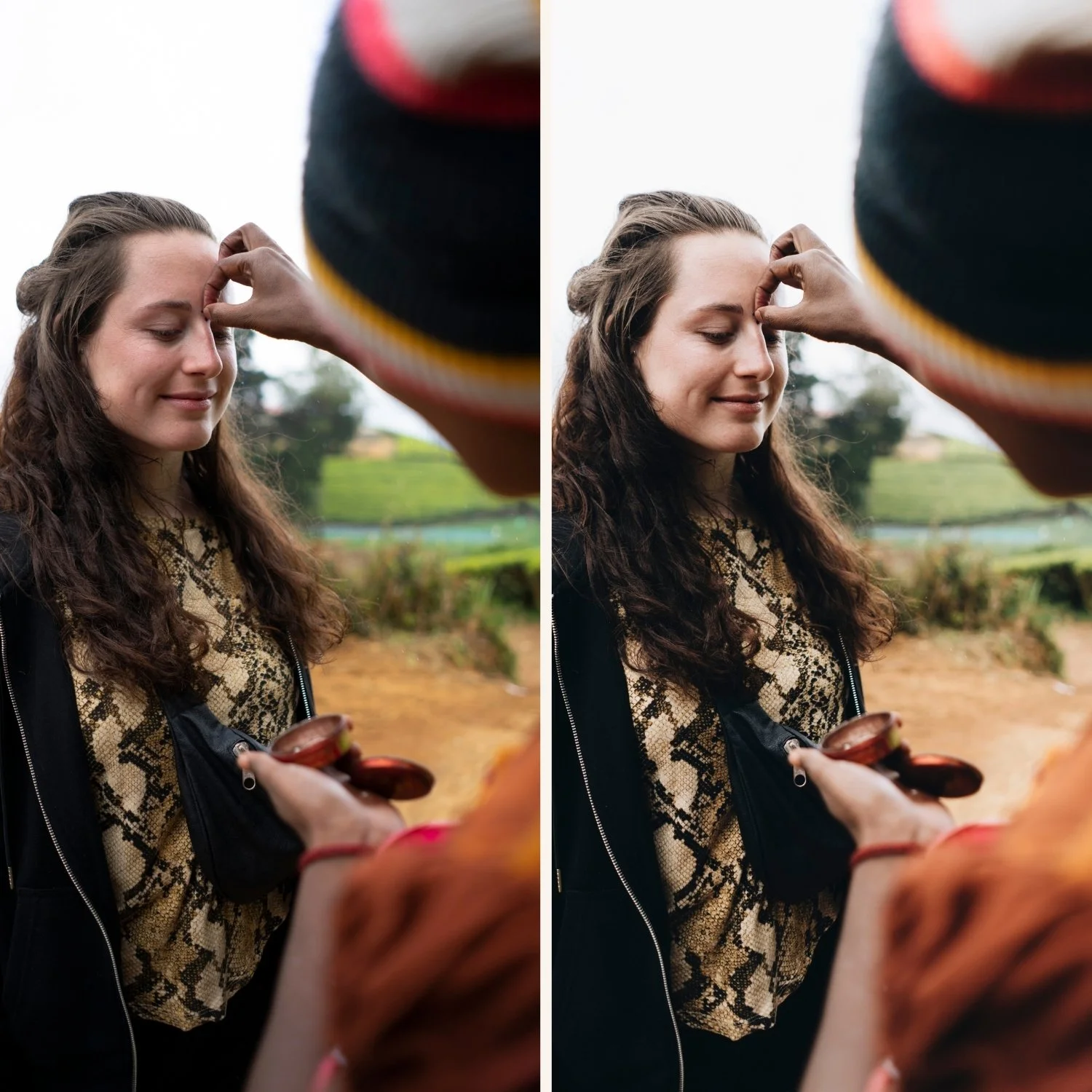
What makes a good free Lightroom preset?
Before downloading anything, it's worth understanding what separates a quality free preset from a low-quality one.
A good free preset:
Preserves natural skin tones — doesn't push orange or grey
Protects highlight detail — doesn't blow out bright areas
Works on RAW and JPEG — not just one format
Has consistent results across different photos — not just good on one specific image
Comes with installation instructions
A bad free preset:
Crushes blacks completely with no shadow detail
Adds heavy colour casts that are hard to remove
Only works on the exact type of photo it was made for
Has no documentation or support
Most free presets from random websites fall into the second category. The ones worth downloading come from preset shops that offer a free sample of their paid collections — because those are calibrated to the same standard as the presets they sell.
The best free Lightroom presets in 2026
1. The Editing Studio — Free Analog Film Preset (A6)
The A6 is our free preset — a clean, minimal analog film look with lifted blacks, natural skin tones, and soft highlight roll-off. It's the same quality as every preset in our paid collections because it's literally one of them.
Best for: Everyday photography, portraits, travel, lifestyle content. The most versatile free preset on this list.
Works in: Lightroom Classic, Lightroom CC, and Lightroom Mobile (iPhone and Android)
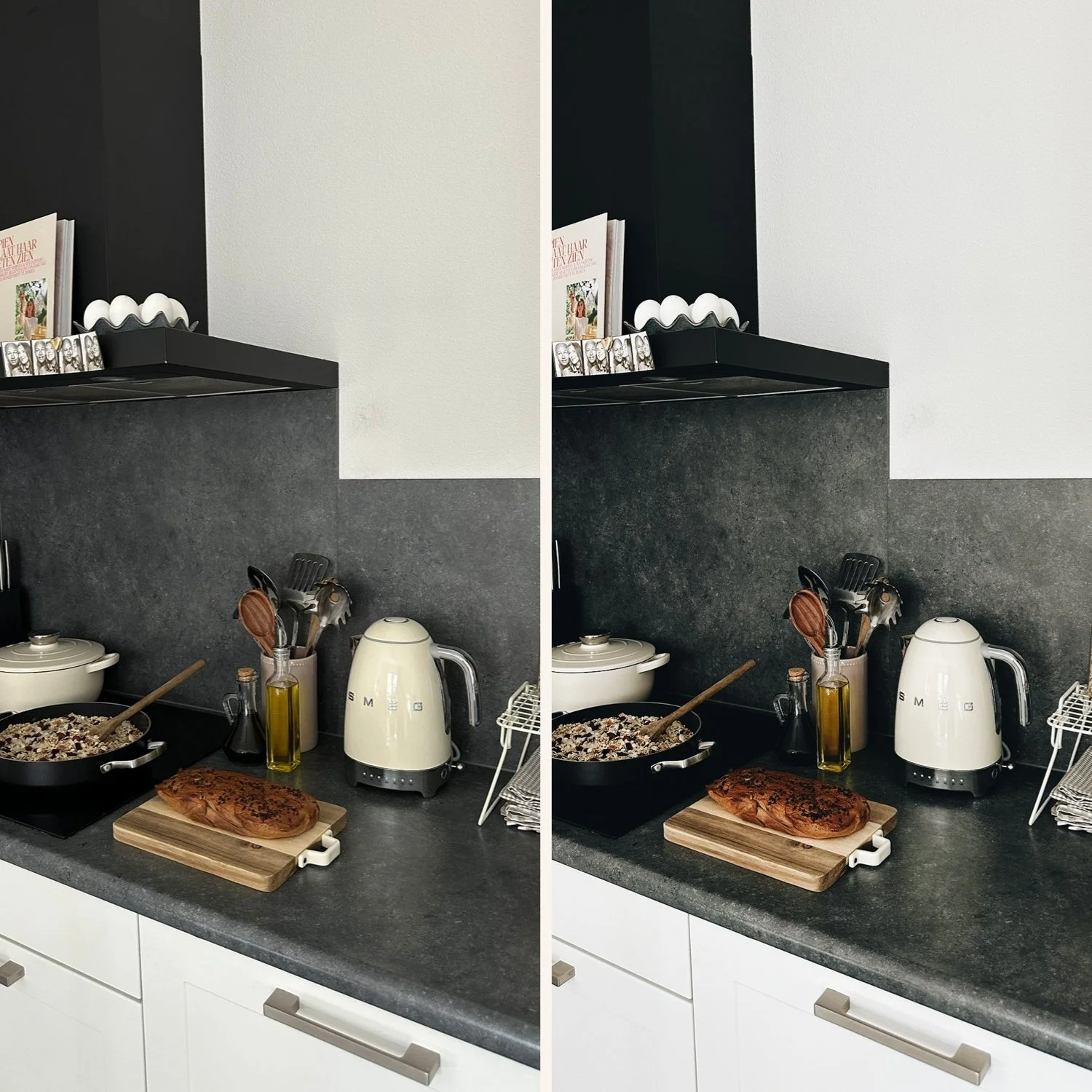
2. The Editing Studio — Free Moody Film Preset (M5)
The M5 is our free moody preset — warm, dark, and atmospheric. The look that defined the moody film aesthetic. Less clean than the A6, more character.
Best for: Portrait photography in warm light, moody lifestyle content, travel photography with depth.
Works in: Lightroom Classic, Lightroom CC, and Lightroom Mobile
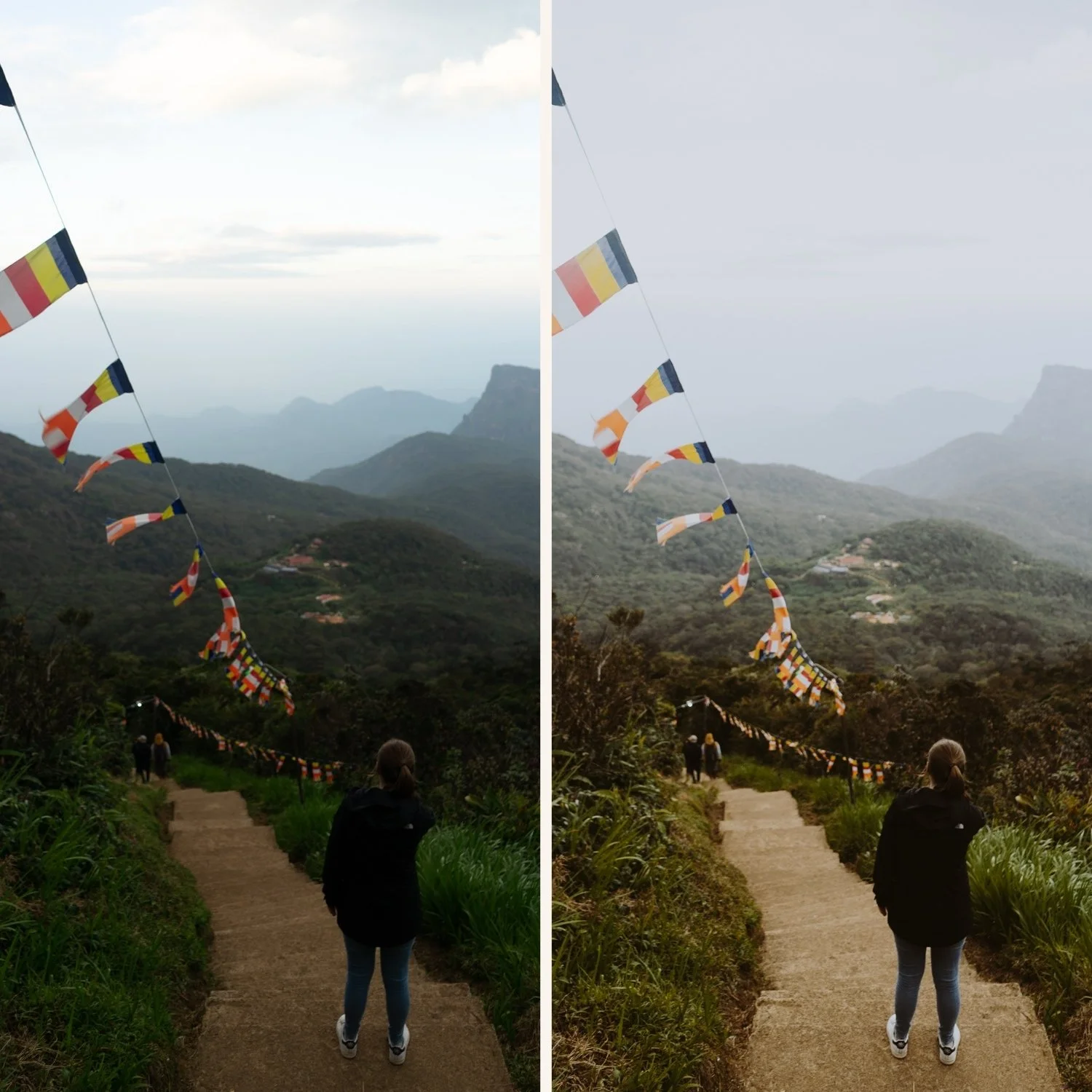
3. Adobe's built-in presets
Lightroom Classic and CC both include free presets built into the application — in the Presets panel under "Adobe Presets" and "Lightroom Presets". These are basic but useful for beginners learning how presets work.
Best for: Understanding how presets function before downloading third-party options.
Limitation: Generic quality — not calibrated for specific film looks or photography styles.
4. VSCO free filters
VSCO's free tier includes a limited selection of their filter library. Not Lightroom presets — VSCO filters only work inside the VSCO app. But worth mentioning for photographers who edit on mobile and don't use Lightroom.
Limitation: Subscription required for the full VSCO library. The free tier is very limited.
Free presets vs paid presets — the honest difference
This is where most "free presets" articles aren't honest. Here's the real difference:
What free presets give you: A starting point. A taste of what the full collection looks like. Usually one or two looks that cover one specific style or lighting condition.
What paid preset collections give you: A calibrated system. Multiple variations of the same color philosophy for different lighting conditions. Consistent results whether you're shooting in bright daylight, overcast light, or golden hour. The result of hundreds of hours of color science work rather than a quick preset made for a blog post.
The A6 free preset is a genuine preset — not a dumbed-down version of something better. But it's one look for one style. The full Analog Film Archive gives you ten calibrated variations that work together across every lighting condition.
For photographers who edit casually for social media, the free preset is often enough. For photographers who want consistent results across a full gallery or shoot — a complete system works significantly better.
How to install free Lightroom presets
On iPhone (Lightroom Mobile)
Download the DNG file to your phone
Open Lightroom Mobile and import the DNG as a photo
Open the DNG → tap the three dots → Copy Settings
Create a new preset from those settings
Apply to any photo in one tap
Full guide: How to Install Lightroom Presets on iPhone
On Android (Lightroom Mobile)
Same process as iPhone.
Full guide: How to Install Lightroom Presets on Android
On Desktop (Lightroom Classic)
Download the XMP file
In Lightroom Classic, go to the Presets panel
Right-click → Import Presets
Select the XMP file
Apply to any photo in one click
Full guide: How to Install Lightroom Presets on Mac
What to do after downloading a free preset
Most photographers make the same mistake with free presets — they apply them without fixing the foundation first. The result looks wrong and they blame the preset.
The correct order:
1. Fix exposure first — get the brightness right before applying any preset. A preset applied to an underexposed photo looks different from the same preset applied to a correctly exposed photo.
2. Set white balance — warm indoor light plus a warm preset equals orange skin. Set white balance to neutral before applying.
3. Apply the preset — it should look close to the intended result immediately.
4. Fine-tune — adjust exposure ±0.2 to ±0.3 and white balance slightly to match your specific photo.
For the complete workflow guide: Lightroom Mobile Film Editing — Complete Guide
The best free preset for your photography style
You shoot portraits → Download the A6. It's specifically calibrated for natural skin tones.
You shoot moody street or travel → Download the M5. Warm, dark, atmospheric.
You want bright and airy → Download the A6 and lift exposure slightly after applying.
You want vintage film → Download the A6 as a starting point, then lift Blacks to +25 and add warm Color Grading to shadows.
Ready for more than one preset?
The free presets give you one look each. If you want a complete system — multiple calibrated variations that work together across different lighting conditions — The Studio Archive gives you 130+ professional film presets for $0.68 each.
Every bundle we make, in one download. Analog, moody, vintage, black and white, golden hour, portrait, bright and airy, and more.
FAQ
Are free Lightroom presets safe to use?
Yes — presets are just saved editing settings. They can't harm your photos or device. Always download from reputable sources rather than random websites to avoid low-quality presets.
Do free presets work on RAW files?
Good free presets work on both RAW and JPEG. Our free A6 and M5 presets work on both formats. Some presets from random websites are only calibrated for JPEG.
Can I use free presets commercially?
Our free presets can be used for any personal or commercial photography. Check the terms of other preset providers individually.
Why do free presets look different on my photos than in the examples?
Almost always because of different exposure or white balance starting points. Fix exposure and white balance before applying any preset. Full explanation: Why Do Presets Look Different on Every Photo?
How many free presets should I download?
Start with one or two. More presets doesn't mean better editing — it means more choices and less consistency. Download the A6 and M5, test both on your photos, and use whichever direction feels right before downloading anything else.
