Free Lightroom Presets for Android (Download + Install Guide)
Free Lightroom Presets for Android
Android photographers using Lightroom Mobile can access exactly the same preset quality and film aesthetic results as iPhone and desktop photographers. Lightroom Mobile on Android supports DNG preset files identically to the iOS version. Every film preset in The Editing Studio collections installs and applies correctly on any Android device running Lightroom Mobile, from mid-range phones to flagship devices.
This guide covers how to install presets on Android, how to adapt the workflow for the computational photography characteristics of Android devices, and how to download a free film preset to start right now.
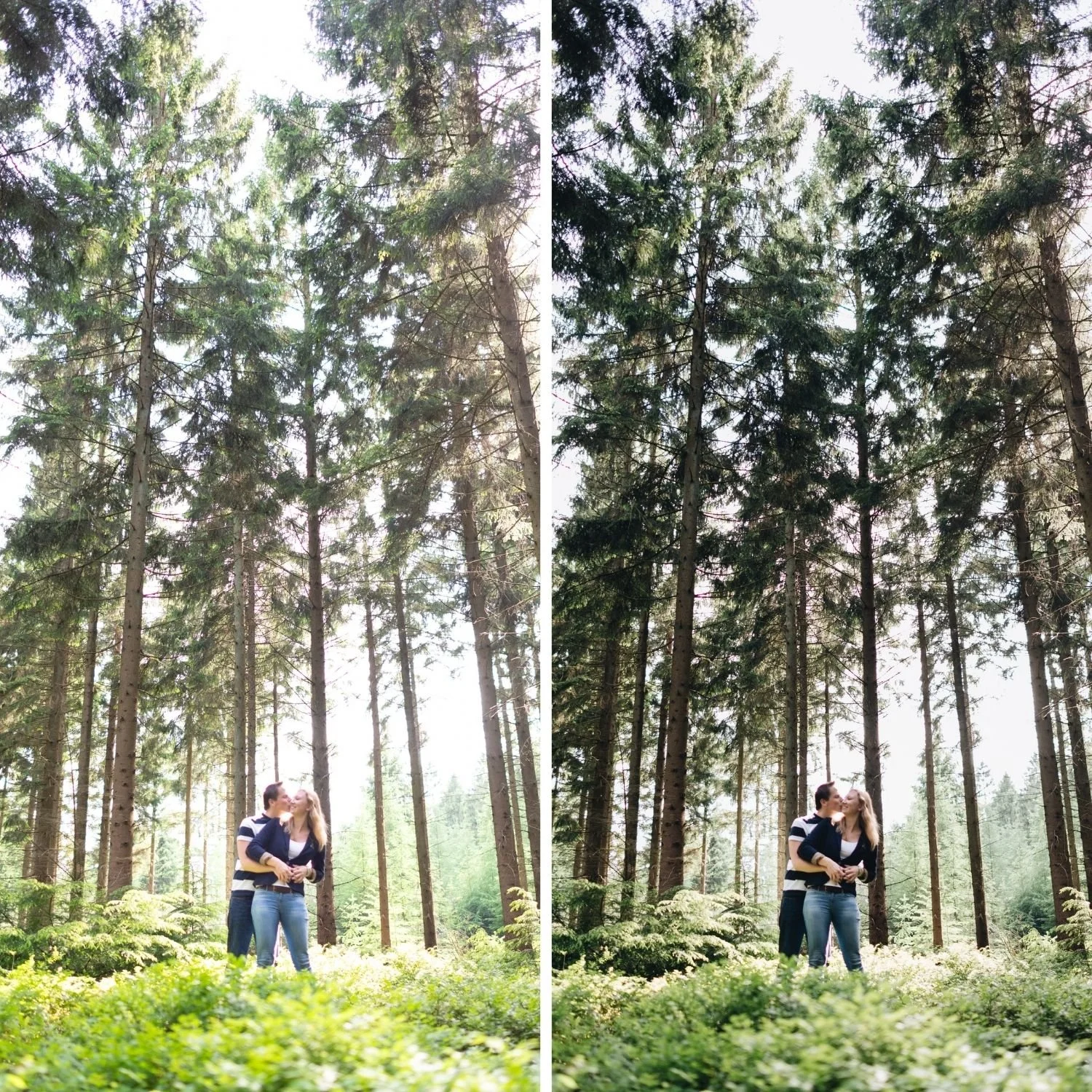
Why Presets Are Particularly Valuable on Android
Presets solve the same core problems for Android photographers as for any other platform: calibration time, consistency across a shoot, and the specific tonal and color adjustments that move digital photography toward the warm organic film aesthetic. The specific benefit on Android is that computational photography processing creates a starting file that is in some ways harder to work with than a clean camera RAW.
Google Pixel devices apply strong HDR Plus processing that compresses highlights and lifts shadows before you open the file. Samsung Galaxy devices apply Vivid color science that increases saturation across multiple channels. All of these create files where a preset needs to work with or against processing that was already applied in camera.
A well-calibrated film preset addresses these characteristics systematically. Rather than discovering mid-edit that your greens are still too vivid, the preset handles the correction from the start. Understanding what those corrections actually are makes the results more predictable, and How to Create a Natural Film Look in Lightroom explains the five adjustments that define any calibrated film base.
Installing Presets in Lightroom Mobile on Android
Lightroom Mobile for Android uses DNG files as the installation format, the same as the iOS version. The process takes five minutes or less.
Download the DNG preset file to your Android device. In Lightroom Mobile, tap the grid icon to reach the main library view. Tap the plus icon in the top right and select Add Photos. Navigate to the location where you saved the DNG file and import it. The DNG file appears as a photograph in your library. Open it, tap the three-dot menu in the top right, and select Create Preset. Name it something recognizable and save. The preset is now available in your Presets panel when editing any photograph.
For collections with multiple preset files, repeat this process for each DNG. Creating a dedicated album for preset DNG files keeps them organized when you want to add more later.
Device-Specific Adjustments
The main Android devices have distinct color rendering characteristics that affect how presets perform.
Pixel devices from Pixel 6 onward use Tensor-accelerated computational photography. HDR Plus lifts shadows and manages highlights before saving. Apply presets at 82 to 85 percent strength on Pixel JPEG files. After applying, increase Tint by positive 5 to positive 8 to address the slightly green-cast outdoor rendering that Pixel sky processing creates.
Samsung Galaxy devices running One UI produce elevated saturation across Green, Blue, and Yellow channels compared to neutral camera RAW. Apply presets at 80 to 83 percent strength. After applying, reduce Green Saturation by an additional negative 5 to negative 10. Set White Balance to 5,400 to 5,600K for outdoor daylight before applying, because Samsung default rendering tends to be slightly cool-shifted.
The Tint correction on Pixel and the White Balance target on Samsung both matter more than most Android photographers expect.Color Temperature vs Tint Deep Diveexplains why the green-magenta axis needs setting independently rather than being folded into a single warmth adjustment.
Shooting RAW on Android for Better Results
The quality difference between RAW and JPEG on Android for film preset editing is significant, particularly in bright outdoor conditions and close-up portrait work. Android flagship devices support RAW capture in DNG format through native camera apps in Pro or Manual mode.
RAW files give film presets the full tonal latitude to create genuine highlight roll-off and shadow depth. The preset adjustments work on unprocessed sensor data rather than on a file where the camera has already made tonal decisions. The results are noticeably more natural in highlight areas and more precise in skin rendering.
For a complete technical treatment of Android RAW behavior and the per-device calibration differences, Android RAW Film Look Workflow goes deeper into the format specifics than this installation guide does.
Keeping Results Consistent Across Android Shoots
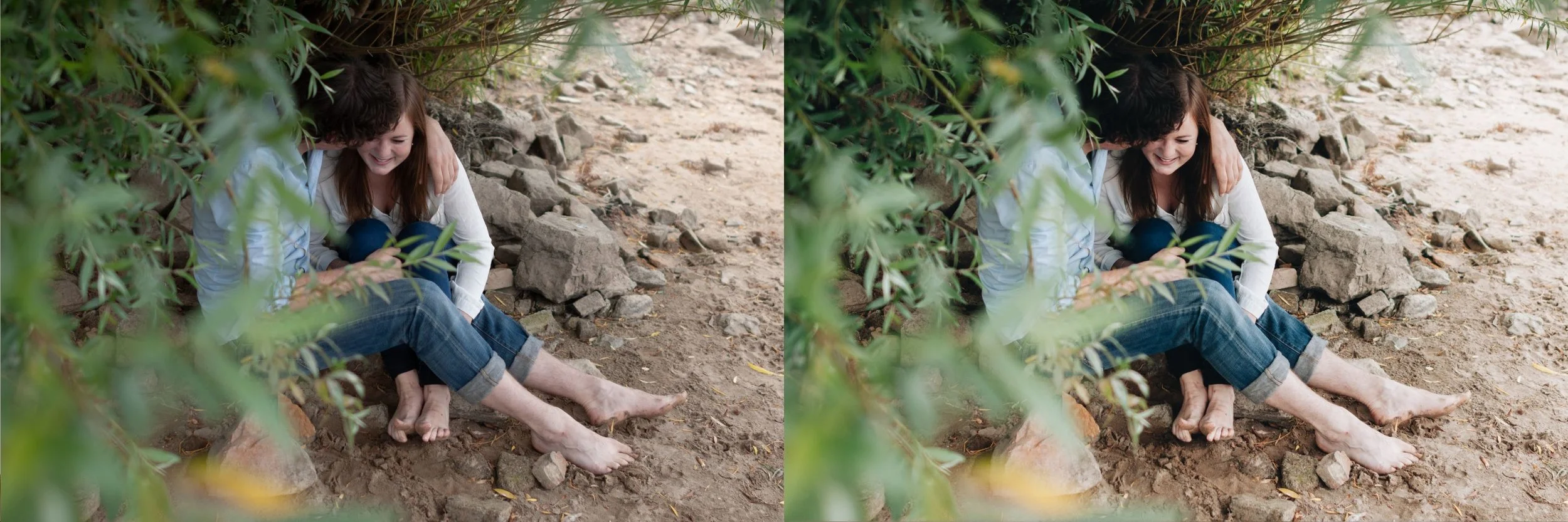
The same consistency principles that apply to camera and iPhone photography apply here. Correct white balance before applying the preset, not after. Apply the preset at the recommended strength for your device. Make Exposure adjustments per photograph. Keep Green Saturation reduction consistent across outdoor photographs.
The most common consistency problem in Android film editing is white balance variation across photographs from the same shoot, because automatic white balance changes Temperature between shots. Setting a fixed white balance in Pro mode for each shooting condition, or correcting all photographs to a target range in Lightroom before applying the preset, produces significantly more consistent galleries. How to Edit a Full Shoot Consistently covers the batch workflow that makes this practical across hundreds of photographs.
FAQ
Do I need to pay for Lightroom to use presets on Android?
The free version of Lightroom Mobile supports preset installation and application without a subscription. Advanced editing features including the full Tone Curve panel require Creative Cloud. The core film editing workflow works on the free version.
Are presets made for desktop the same as presets for mobile?
DNG preset files work on both Lightroom Mobile and Lightroom Classic desktop. XMP format presets are for desktop only. The Editing Studio presets include DNG files compatible with both.
How many presets can I install in Lightroom Mobile?
There is no practical limit. Presets appear in your Presets panel organized by the collection names you assign during installation.
Download the free Analog Film preset for Android:
Download the free Analog Film preset and install it using the steps above. Apply it to photographs from varied lighting conditions using the device-specific adjustments in this guide.
For a complete film preset collection compatible with Android, the Analog Film Archive provides ten calibrated film looks. The Studio Archive at $89 includes every collection including travel, portrait, moody, vintage, and black and white.
