Why Android Photos Look Too Sharp — Fix It in Lightroom (2026)
Android phones — particularly Samsung — apply aggressive edge sharpening automatically. In Lightroom editing, this creates photos that look harsh and digital rather than soft and organic. Two adjustments fix it before you apply a single preset.
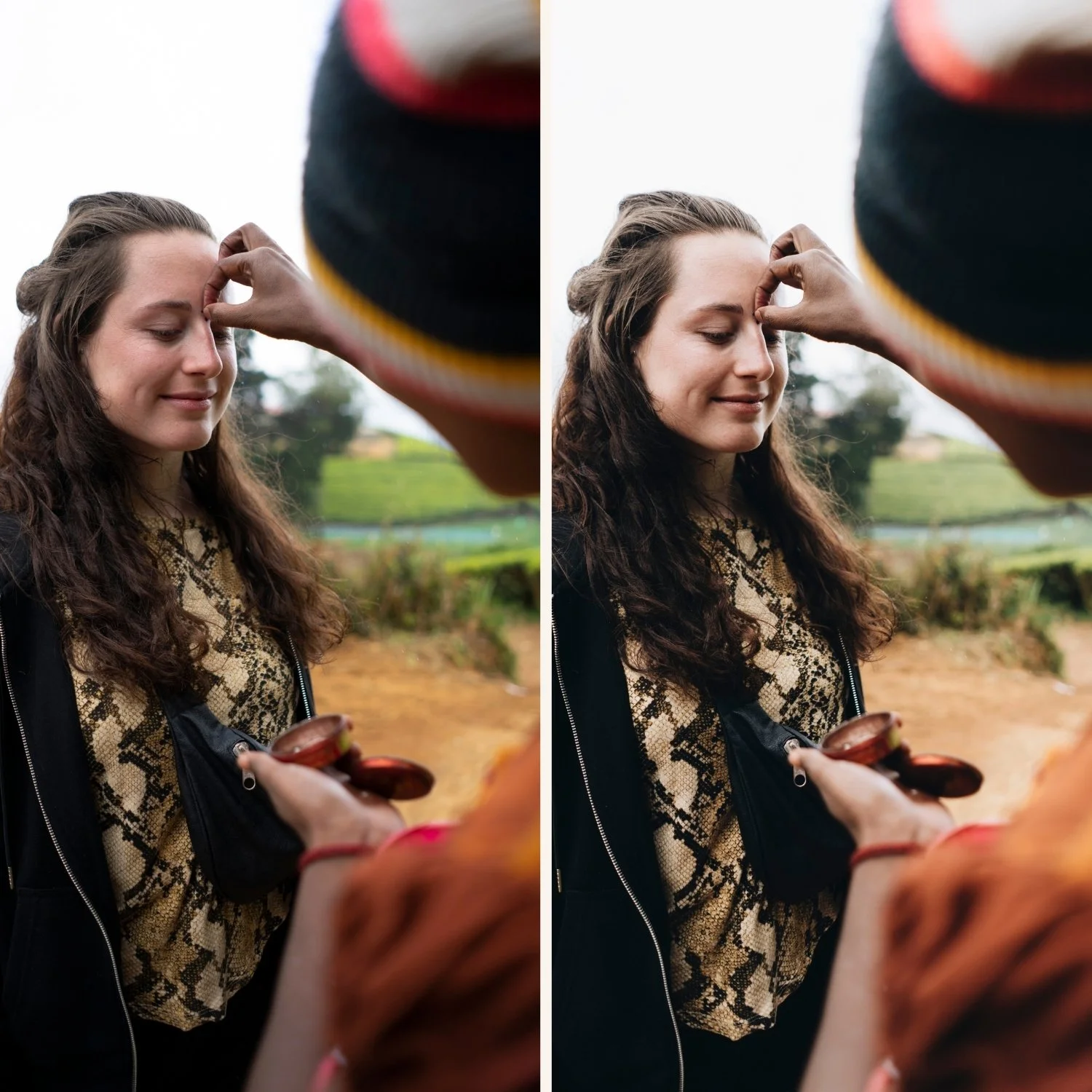
Why Android photos look too sharp
Android processing applies sharpening at the ISP (Image Signal Processor) level — before any photo editing application sees the file. Samsung's processing is particularly aggressive, applying both edge enhancement and artificial texture sharpening.
The result at 100% zoom: fine edges have a bright halo, skin texture looks artificially textured, and the overall image has a hyper-real crispness that is the opposite of organic film quality.
Film presets add Texture and Clarity as part of their film character. Applied on top of already-sharpened Android photos, the combined sharpening creates a harsh, processed result.
Fix 1 — Reduce Sharpening to 20-25
In the Detail panel, Sharpening Amount: reduce from 40 to 20-25.
This counterbalances the Android processing sharpening. The image retains normal detail quality but loses the harsh edge enhancement.
On Samsung photos specifically: reduce to 18-22. Samsung applies more aggressive sharpening than other Android brands.
Fix 2 — Set Clarity to -8 to -12
Clarity controls micro-contrast — the fine edge detail that creates the overall sharpness impression of an image. Negative Clarity reduces this and creates the softer, more organic quality of film photography.
Set Clarity to -10 before applying any preset. If the preset includes its own Clarity adjustment, check after applying that the combined value is not below -20 (which becomes overly soft).
Apply these before the preset
The order matters. Reduce Sharpening and Clarity before applying the preset. Some presets include Clarity adjustments — applying the preset first and then reducing Clarity may override the preset's Clarity value.
Correct order:
Sharpening → 20-25
Clarity → -10
Apply preset
FAQ
Does this work on all Android brands?
Yes. Samsung needs the most reduction (Sharpening 18-22). Pixel needs less (20-25). OnePlus, Xiaomi somewhere between. Start with 20 and adjust.
Will reducing Sharpening make my photos look soft?
At 20-25 the image looks naturally detailed rather than artificially sharp. The difference is visible primarily in fine texture areas like skin, fabric, and foliage — exactly where film organic quality matters most.