Why My Presets Look Too Strong on iPhone — How to Fix It (2026)
Why My Presets Look Too Strong on iPhone — How to Fix It (2026)
You apply a film preset on your iPhone and instead of the subtle, natural film look you expected, it looks heavy — overly dark, overly warm, or obviously edited. The preset is not broken. The problem is that film presets are calibrated for RAW files from dedicated cameras. iPhone processes its photos differently, and that difference makes presets read stronger than intended.
This guide explains exactly why it happens and how to fix it in under two minutes.
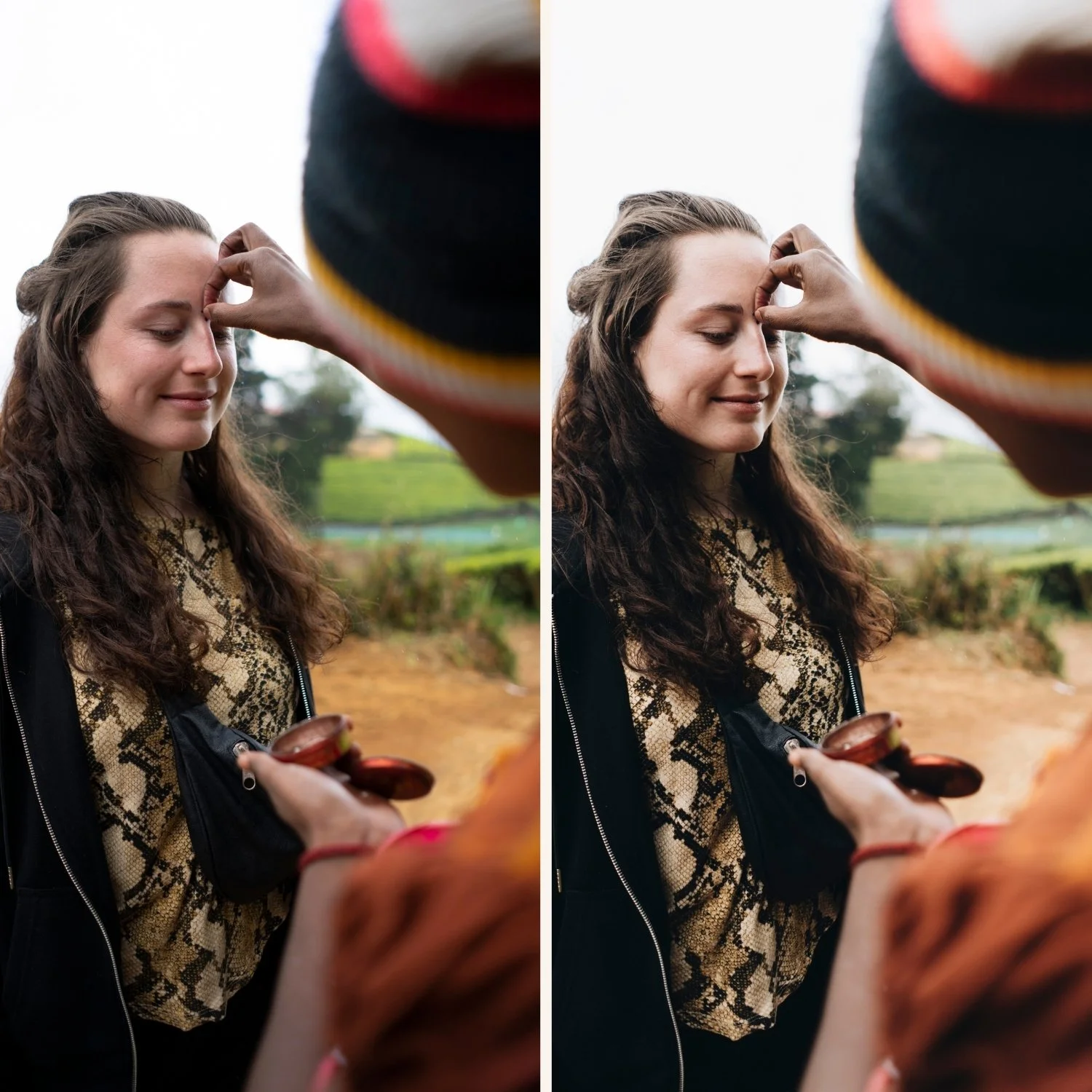
Why iPhone makes presets look stronger
iPhone cameras apply significant processing before Lightroom sees the file:
Aggressive sharpening. iPhone adds high sharpening to every photo. When a preset also adds texture or clarity, the sharpening stacks and creates a harsh, digital look.
HDR processing. Smart HDR on iPhone compresses the tonal range — shadows are lifted and highlights are pulled back automatically. A preset that lifts shadows and pulls highlights assumes a wider tonal range to work with. On a phone photo that already has compressed tones, the preset pushes further in the same direction and the result looks overdone.
Higher base contrast. iPhones process JPEGs with more contrast than most camera RAW files. A preset that reduces contrast by -15 to normalize RAW contrast may not reduce it enough on an iPhone photo.
Fix 1 — Reduce preset amount to 70-75%
The fastest fix. After applying any preset on an iPhone photo, the slider that appears at the bottom of the screen controls preset strength. Reduce from 100% to 70-75%.
This proportionally reduces every adjustment in the preset. The film quality remains but at a strength calibrated for the phone's starting point rather than a camera RAW file.
Most photographers find 70-80% is the sweet spot for iPhone photos. Test your specific presets at different amounts and save the amount that works for your phone and editing style.
Full guide: Lightroom Preset Amount Slider
Fix 2 — Reduce Sharpening and Clarity before applying
Before applying any preset, go to the Detail panel and reduce Sharpening Amount from 40 to 15-20. Then set Clarity to -8 to -12 in the Light or Effects panel.
These two adjustments remove the digital harshness of iPhone processing before the preset is applied. The preset then works on a softer foundation that is closer to what a camera RAW file provides.
This is the most important preparation step for iPhone preset editing. It takes 20 seconds and makes every preset look more natural on iPhone photos.
Fix 3 — Shoot ProRAW instead of JPEG
iPhone 12 Pro and later support Apple ProRAW. ProRAW bypasses Apple's computational photography processing — no HDR compression, no automatic sharpening, no aggressive contrast. The result is a file that responds to film presets much more like a camera RAW file.
Enable ProRAW: Settings, Camera, Formats, Apple ProRAW.
When editing ProRAW files, presets at full 100% strength often look exactly as intended. The preset amount and preparation steps above are primarily needed for standard iPhone JPEG.
The iPhone preset workflow
Reduce Sharpening to 15-20
Set Clarity to -10
Fix exposure and white balance
Apply preset
Reduce amount to 70-75% if needed
Fine-tune
This workflow takes 60-90 seconds and produces consistent natural results on every iPhone photo.
Free iPhone-friendly preset
The free A6 preset is calibrated with negative Clarity built in which reduces the iPhone harshness issue automatically. It is one of the most consistently natural-looking presets on iPhone photos.
FAQ
Why do presets look natural on camera photos but too strong on iPhone?
Camera RAW files have a wider tonal range and less processing applied. iPhone JPEGs have compressed tones and added sharpening before Lightroom sees the file. The same preset reads stronger on the more processed iPhone starting point.
Does the preset amount fix work for all presets?
Yes. Reducing to 70-75% proportionally scales every adjustment in the preset — not just one slider. The film quality stays intact at reduced strength.
Should I always shoot ProRAW on iPhone?
For edited photography where you want the best preset results, yes. ProRAW gives significantly more latitude and makes presets behave more predictably. For casual quick photos, standard iPhone processing is fine.
Why does my preset look different on some iPhone photos than others?
Because different photos have different Smart HDR processing applied. Portrait mode, night mode, and standard mode all apply different levels of computational processing. ProRAW bypasses all of them for consistent results.
