Lightroom Mobile Editing Workflow for Client Work (2026)
Lightroom Mobile Editing Workflow for Client Work (2026)
Editing client work on Lightroom Mobile is possible and practical — but it requires a more disciplined workflow than casual personal editing. Clients expect consistent color across a gallery, correct exposure on every photo, and professional delivery. This guide covers the complete mobile workflow for professional client editing.
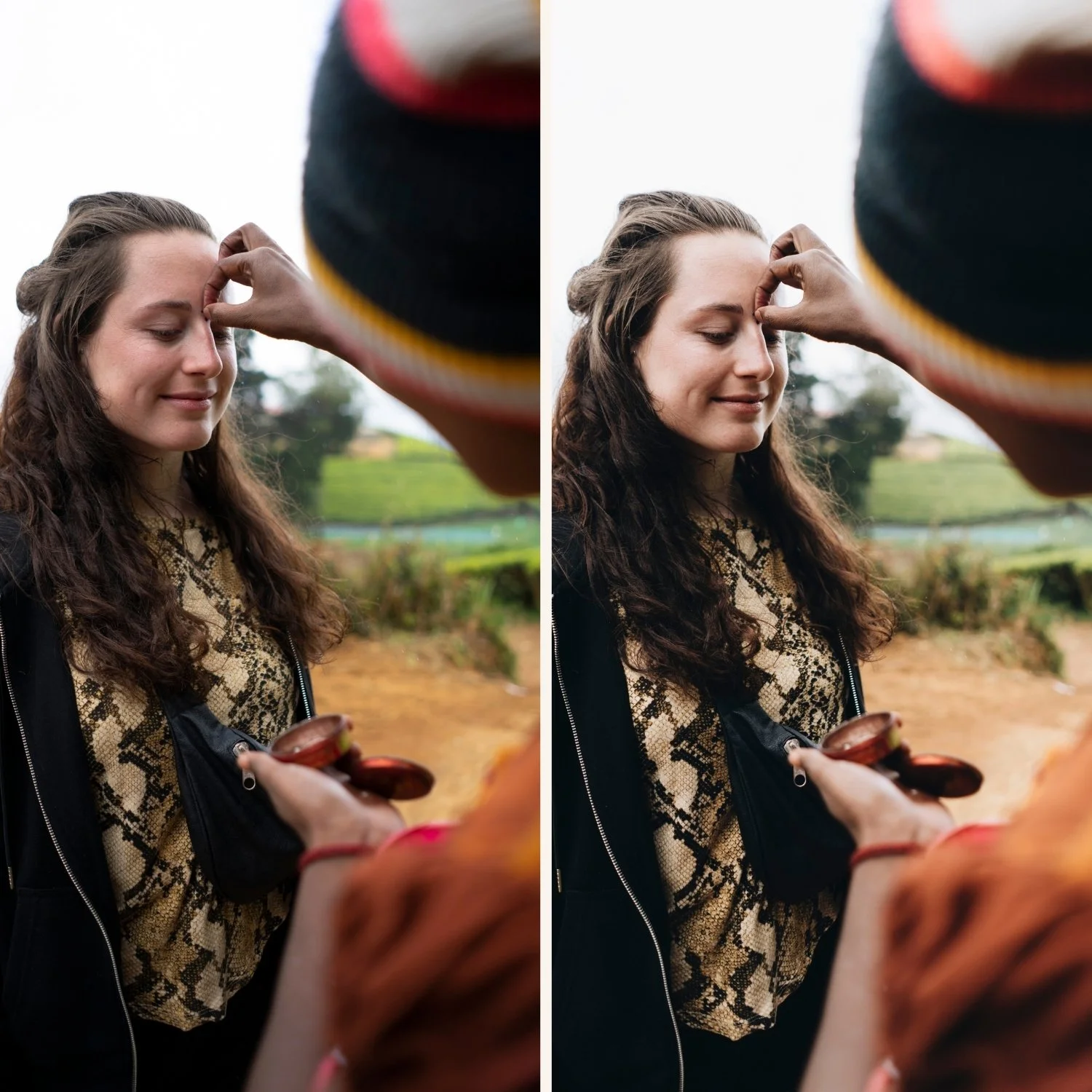
Is Lightroom Mobile suitable for professional client work?
For most photography delivered digitally — portraits, lifestyle, travel, events — yes. The editing quality is identical to desktop when the workflow is correct.
Where desktop has an advantage: large volume culling (400+ photos), precise catalog management, and final export with output sharpening. For a workflow where you edit on mobile and deliver from desktop, syncing through Lightroom CC covers both.
The client editing workflow on mobile
Step 1 — Cull first. Before editing a single photo, remove duplicates, missed focus shots, and photos where the moment was not captured. In Lightroom Mobile, use star ratings or flags. A portrait session of 300 photos should be culled to 80-120 selects before any editing begins.
Step 2 — Sort by lighting condition. Group photos by lighting — outdoor daylight, indoor, golden hour, overcast. Each group gets its own preset variant. This is the most important step for gallery consistency.
Step 3 — Edit one reference photo per group. Choose the strongest, most representative photo from each group. Edit it: correct exposure and white balance, apply preset, fine-tune skin tones and highlights.
Step 4 — Batch paste to the group. Tap three dots, Copy Settings, select all. Select all photos in the same group. Paste settings.
Step 5 — Individual fine-tuning. Open each photo and adjust only exposure and white balance. The color, tone, and preset carry over consistently.
Step 6 — Consistency review. View all edited photos in grid view and scan for obvious outliers — photos that are noticeably brighter, darker, warmer, or cooler than their neighbors.
Step 7 — Export for delivery. JPEG, maximum resolution, quality 90-95%, sRGB. Send via your delivery service.
Preset system for client work
Client work requires a complete preset system rather than one preset. The Essence Archive (E-Series) covers wedding and portrait client work across all lighting conditions. The Analog Film Archive covers lifestyle and general client work.
For photographers who deliver across multiple client types, the Studio Archive gives you every collection in one purchase.
EXPLORE THE STUDIO ARCHIVE — $89
Syncing client edits between mobile and desktop
If you edit on mobile and do final review on desktop:
Enable Lightroom CC sync on both devices. Edits sync automatically. Review on desktop, make any final adjustments, and export from Lightroom Classic for maximum export control.
Full guide: How to Sync Lightroom Presets Between Desktop and Mobile
FAQ
Is Lightroom Mobile good enough for professional portrait delivery?
Yes for digitally delivered portraits. The editing quality matches desktop. For maximum control over large volumes and final export, combine mobile editing with desktop review and export.
How do I deliver client photos from Lightroom Mobile?
Export as JPEG at maximum resolution, quality 90-95%, sRGB. Share via your delivery service (Pixieset, Google Drive, WeTransfer) directly from the export.
How long does it take to edit a portrait session on mobile?
With a batch workflow, a 100-photo portrait session takes 45-90 minutes on mobile. Without a batch workflow, 3-4 hours. The difference is entirely in applying the systematic approach above.