Lightroom vs Snapseed
Lightroom vs Snapseed
Lightroom and Snapseed are the two most widely used photo editing applications on mobile devices. Both are available free. Both open RAW files. Both have loyal users who consider the other unnecessary. The reality is that they were built for fundamentally different purposes, and the right choice depends entirely on what kind of photographer you are and what you need editing to accomplish.
This comparison covers what each application does well, where each falls short, and which situations clearly favour one over the other.
What Each Application Is Built For
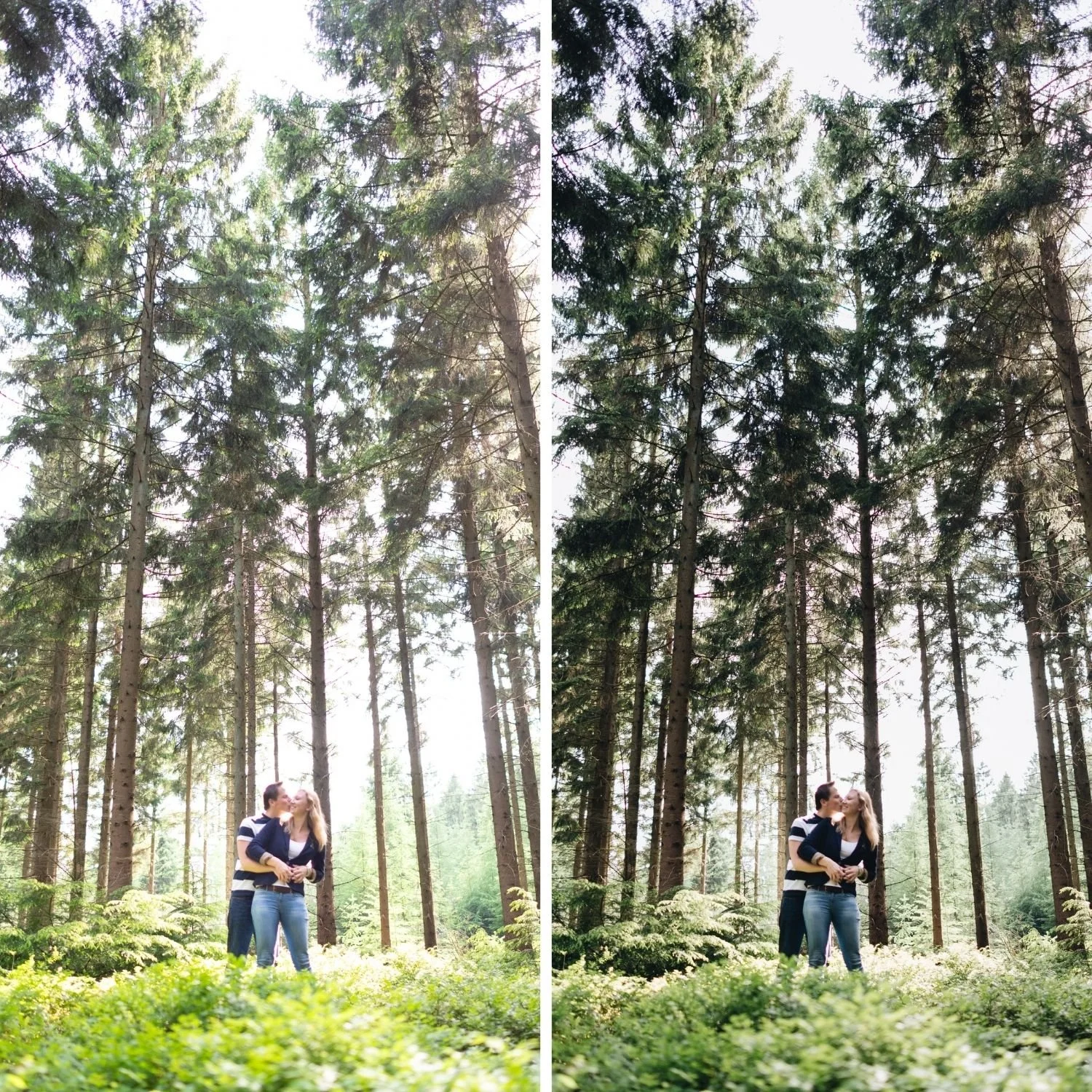
Lightroom is built around cataloguing and consistent editing across large sets of photographs. Its core strengths are non destructive editing, a full preset system, batch operations across hundreds of files, cloud sync between devices, and precise global adjustments through panels that mirror the desktop version. It assumes you have many photographs and want them to look coherent as a body of work.
Snapseed is built around per photograph creative editing. Its core strengths are selective local adjustments, creative filters, healing and repair tools, and a gesture based interface that makes precise local work genuinely fast on a touchscreen. It assumes you have one photograph in front of you and want to make it as good as it can be.
That difference in underlying assumption explains almost every other difference between the two applications.
Editing Capability Compared
For global adjustments, Lightroom is more precise and more comprehensive. The HSL panel with eight independent colour channels, the Tone Curve with individual RGB channel control, and the Colour Grading panel with separate shadow, midtone, and highlight wheels give a level of control that Snapseed does not attempt to match.
For local adjustments, Snapseed is faster and more intuitive on a touchscreen. The Selective tool allows placing control points on specific areas and adjusting brightness, contrast, saturation, and structure for that area alone with a simple pinch gesture. Lightroom has equivalent capability through radial and linear gradients and brush masking, but the interaction is slower and less precise with a finger on a phone screen.
For repair work, Snapseed's Healing tool outperforms Lightroom Mobile's equivalent significantly. Removing a distracting element from a frame is genuinely easier and produces cleaner results in Snapseed.
For colour precision, Lightroom is substantially ahead. The film aesthetic depends on specific channel level control, particularly in the Green and Orange channels, which Snapseed cannot address with the same precision. How to Create a Natural Film Look in Lightroom covers the specific adjustments that require this level of control and why they are not achievable through general saturation and warmth sliders.
Presets and Consistency
This is where the two applications diverge most sharply and where the choice becomes clear for many photographers.
Lightroom has a full preset system. Presets install permanently, apply with one tap, sync across devices with a subscription, and can be applied to hundreds of photographs in a single batch operation. This is the foundation of consistent editing across a body of work.
Snapseed has Looks, which function similarly at a surface level but with important limitations. Looks can be saved and reapplied within the app, but they cannot be shared as files between users or devices in the way Lightroom presets can. Purchased preset collections are not available for Snapseed in any format. Batch application across many photographs is not supported at all.
For a photographer editing a single photograph, this difference is irrelevant. For a photographer editing 200 photographs from a shoot and needing them to look cohesive as a gallery, it is decisive. The workflow that makes cohesive batch editing possible is covered in How to Edit a Full Shoot Consistently.

RAW Handling
Both applications open RAW files including DNG. Both apply edits non destructively without altering the original file.
Lightroom handles RAW more completely. Highlight and shadow recovery is more effective across a wider range, lens correction profiles are applied automatically based on the detected lens, and the tonal latitude available in the adjustments is meaningfully wider. For photographs shot in difficult lighting where recovery matters, Lightroom produces better results from the same source file.
Snapseed opens RAW competently but its recovery capability is more limited, which becomes apparent in high contrast scenes where highlights need substantial pulling or shadows need significant lifting.
Cost and Access
Snapseed is entirely free with no subscription, no in app purchases, and no feature restrictions whatsoever. Everything the application does is available to everyone who downloads it.
Lightroom Mobile is free for the core feature set including preset installation and application, most global adjustments, and basic local adjustments. The full Tone Curve panel, cloud sync between devices, and some advanced features require a Creative Cloud Photography subscription.
For photographers who want preset based editing without paying anything, the free version of Lightroom Mobile is sufficient. Preset installation and application both work fully without a subscription, which surprises many photographers who assume presets are a paid feature.
Which to Use WheN
Use Lightroom when you are editing multiple photographs that need to look consistent, when you have purchased or want to use film presets, when you shoot RAW and need meaningful highlight or shadow recovery, or when you work across both mobile and desktop.
Use Snapseed when you are editing a single photograph creatively, when you need to remove or repair something in the frame, when you want fast selective adjustments on a touchscreen, or when you want a completely free tool with no subscription consideration at all.
Many photographers use both in sequence. Lightroom for the base edit including preset application and global colour work, then Snapseed for a specific local adjustment or repair that Lightroom Mobile handles less elegantly. Exporting from Lightroom and finishing in Snapseed works well provided you export at full resolution to avoid quality loss in the handoff.
For photographers focused specifically on mobile film editing rather than a general purpose comparison,Lightroom Mobile vs Snapseed for Film Editing covers the narrower question of which application handles film aesthetics better on a phone.
If your primary concern is getting film presets working well on mobile regardless of which app you settle on, Best Film Presets for Lightroom Mobile covers the installation and calibration workflow.
FAQ
Can Snapseed use Lightroom presets?
No. Preset files in DNG or XMP format are Lightroom specific. Snapseed Looks are a separate system and the two are not interchangeable in either direction.
Is Snapseed better than Lightroom for beginners?
Snapseed has a gentler learning curve for single photograph editing. Lightroom has a gentler path to consistent results across many photographs, because presets do the calibration work for you. Which is easier depends entirely on what you are trying to achieve.
Does Snapseed reduce image quality on export?
Snapseed exports at full resolution by default in current versions. Older versions capped export resolution, which is where this long standing concern originated.
Try film preset editing in Lightroom:
Download the free Analog Film presetand install it in the free version of Lightroom Mobile to see how preset based editing compares to the manual approach Snapseed requires.
For a complete mobile compatible collection, the Analog Film Archive provides ten calibrated film looks. The Studio Archive at $89 includes every collection.