Best Moody Lightroom Presets 2026
Best Moody Lightroom Presets 2026
Moody is one of the most searched editing aesthetics and one of the most consistently overdone. The failure mode is always the same: crushed blacks, grey skin, and colour drained out until nothing is left. That is darkness, not mood.
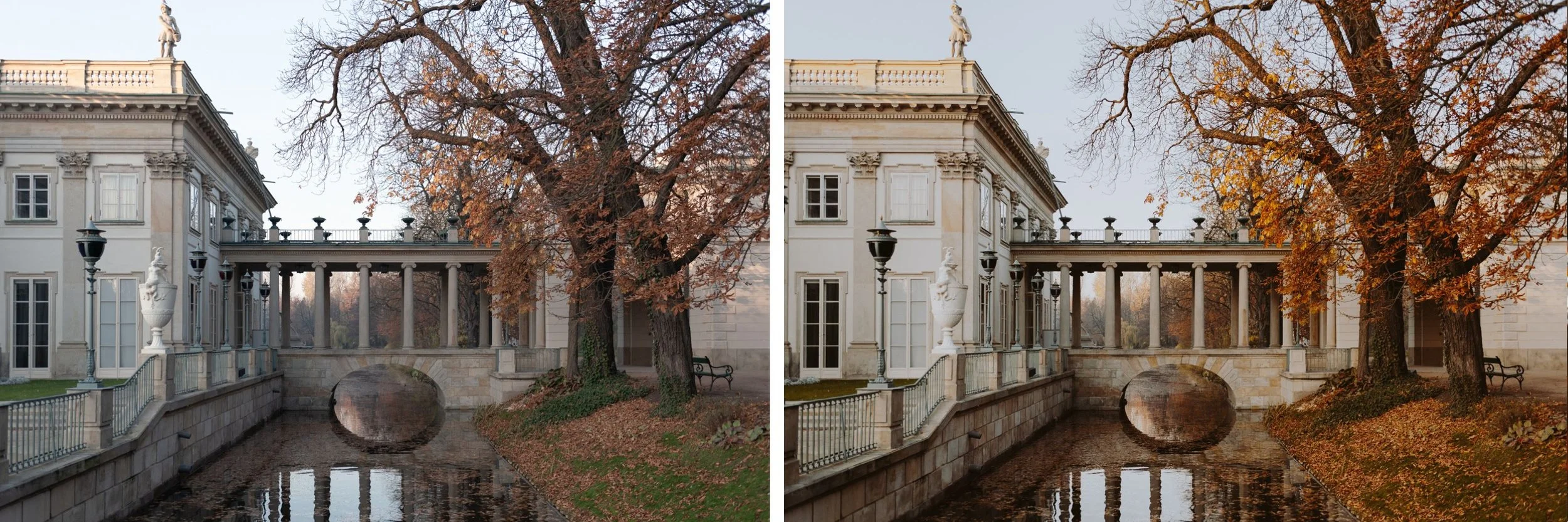
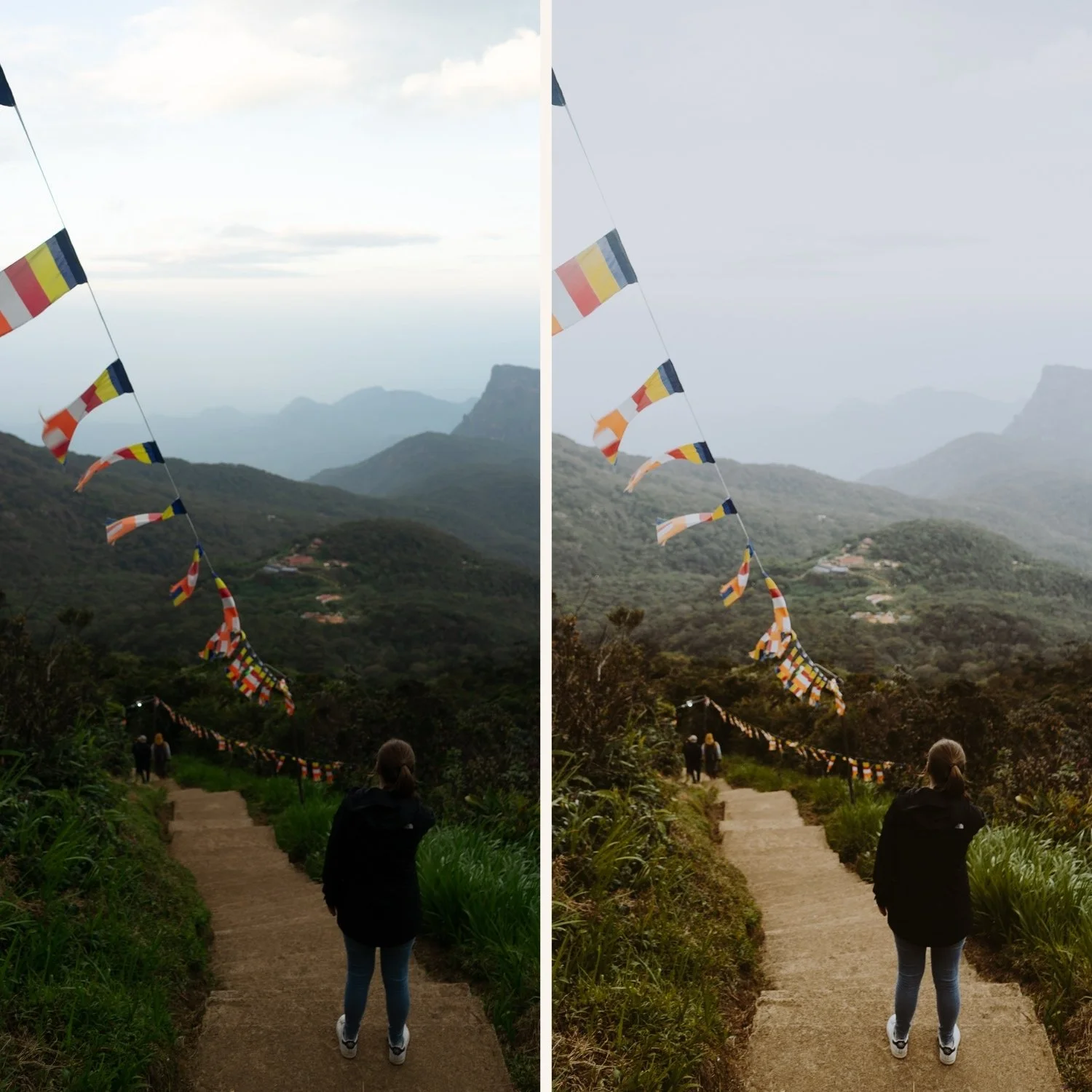
Moody editing done properly is soft depth. Shadows that carry detail and warmth rather than collapsing to black. Colour that is muted rather than absent. Atmosphere that comes from tonal structure rather than from simply pulling exposure down.
This guide covers what actually creates the moody look, the exact technique, and which of the six M-series presets fits which kind of photography.
What Moody Actually Means Technically
Four properties define a genuine moody edit, and getting any of them wrong produces the muddy result that gives the aesthetic its bad reputation.
Shadows that retain detail. Deep, yes, but not crushed. There is a visible difference between a shadow that is dark and a shadow that has become an empty black area with nothing in it, and the second reads as a mistake rather than a mood.
Warm shadow colour. This is the element most people miss entirely. Moody shadows carry warmth through Colour Grading, typically Hue 30 to 45 with Saturation 10 to 16. Neutral shadows in a dark edit read as grey and lifeless.
Muted rather than absent colour. Reduced saturation, not zero saturation. Moody photographs still have colour, it is simply quieter than in a standard edit.
Controlled highlights. Moody does not mean the whole frame is dark. Highlights stay present and controlled, providing the contrast that makes the shadows read as intentional depth rather than underexposure.
The Exact Technique
Lower Exposure slightly if the frame needs it, but never blindly. A photograph that was already flat before editing does not become moody by being darkened, it becomes flat and dark.
Highlights: negative 25 to negative 40, keeping bright areas controlled rather than clipping.
Blacks: lifted slightly, positive 5 to positive 15. This is counterintuitive in a dark edit and it is exactly what separates depth from crushing.
Blue Saturation: negative 20 to negative 30. Muted blues. Dark moody colour should feel heavy rather than vivid.
Orange Luminance: positive 10 to positive 15, keeping skin present and warm rather than letting it go grey as the rest of the frame darkens.
Shadow Colour Grading: Hue 30 to 45, Saturation 10 to 16. The warmth that makes the shadows feel intentional.
Tone Curve is what creates the cinematic depth. Without a shaped curve, a moody edit feels flat regardless of how dark it is. Understanding Color Curves for Film Editing covers the specific curve construction that produces tonal depth rather than uniform darkness.
The Five Mistakes That Ruin Moody Edits
Crushing blacks completely, which removes the shadow detail the aesthetic depends on. Making skin grey, usually by reducing saturation globally rather than protecting Orange Luminance. Over adding Clarity, which produces harshness rather than atmosphere. Killing all colour, which is desaturation rather than muting. And ignoring white balance, which lets a colour cast sit under a dark edit where it becomes harder to spot and more damaging.
Adding too much grain on top of deep shadows is a sixth worth naming separately, since grain and shadow noise compound into a texture that reads as a technical problem rather than film character. The Role of Grain in Film Emulation covers the calibration that avoids this.
The Six M-Series Presets
M1 Warm Subtle. The softest preset in the collection. A gentle warm tonal shift that adds mood without drama. The best starting point for photographers new to moody editing, or for scenes where you want atmosphere without heaviness.
M2 Warm Deep. Warmer and darker than M1. Richer earthy tones, more shadow depth, a stronger warm film quality. The classic moody warm film look the M-series built its reputation on.
M3 Heritage Matte. Vintage matte quality with warm character. Lifted blacks, muted colour, soft contrast. Best for travel and lifestyle photography where you want the aged, organic quality of analog film without going fully dark.
M4 Cool Matte. The only cool leaning preset in the collection. Cinematic and urban, less warm than M1 through M3, more controlled and architectural. Best for street photography, urban environments, and scenes where warmth would feel out of place.
M5 Warm Dark. Warm, dark, and atmospheric. The most characteristic preset of the series. Rich warm shadows, deeply muted colour, an underexposed quality that feels intentional rather than accidental. Best for portrait, lifestyle, and travel in warm or low light.
M6 Dark Dramatic. The darkest and most dramatic preset. Maximum shadow depth, strong film character, bold tonal range. Best on images with strong directional light and clear subject separation, where the intensity serves the composition rather than overwhelming it.
Which Preset for Which Photography
Street photography: M4 Cool Matte. Urban texture and directional artificial light suit controlled cinematic contrast, and warmth would work against the architectural quality.
Travel photography: M3 Heritage Matte for the aged organic quality that suits European architecture and textured environments, or M2 Warm Deep where you want more depth.
Portrait photography: M1 Warm Subtle for atmosphere without heaviness, or M5 Warm Dark for the full moody portrait look with skin safe warm shadows.
Autumn and seasonal work: M2 Warm Deep or M5 Warm Dark, where the warm earthy tones complement golden brown seasonal colour naturally.
Low light and indoor: M5 Warm Dark, calibrated for scenes with a strong shadow to highlight ratio.
Maximum drama: M6 Dark Dramatic, but only on photographs with directional light and clear subject separation.
Batching a Moody Edit Across a Session
After editing your strongest photograph from a session, batch the rest rather than editing each from scratch. In Lightroom Mobile: three dots, Copy Settings, select all, then Paste Settings. Open each photograph individually afterward and adjust only Exposure and white balance.
The colour and moody quality carry across consistently because the preset is doing that work. What varies per photograph is brightness and colour temperature, which is exactly what should vary. How to Edit a Full Shoot Consistently covers the full batch structure.
Try It Before Buying
The free M5 preset gives you the controlled cinematic moody look with muted colour, atmospheric depth, and skin safe calibration. It works in Lightroom Classic, CC, and Mobile.
FAQ
Why do my moody edits look muddy rather than atmospheric?
Usually completely crushed shadows, no colour grading in the shadows, or a photograph that was flat before editing began. Lift Blacks slightly and add warm Shadow Colour Grading.
Why does skin go grey in my moody edits?
Global saturation reduction rather than channel specific work. Protect Orange Luminance at positive 10 to positive 15 while muting other channels.
Is moody the same as dark?
No. Moody is soft depth with retained shadow detail and warm shadow colour. Simply darkening a photograph produces underexposure, not atmosphere.
Try the moody look on your own photographs:
Download the free M5 preset and apply the shadow grading and Orange Luminance values described above.
For the complete collection, the Moody Film Archive includes all six presets covering the full range from subtle warmth to maximum drama. The Studio Archive at $89 includes it alongside every other collection.
